
If you manage virtual machines on Windows Server using Hyper-V, you've likely run into the frustrating "General access denied" error when trying to restart or start a VPS. The operation simply fails, no VM starts, no clear reason given. This guide walks you through exactly what causes this error and how to fix it, step by step.
What Does the Error Look Like?
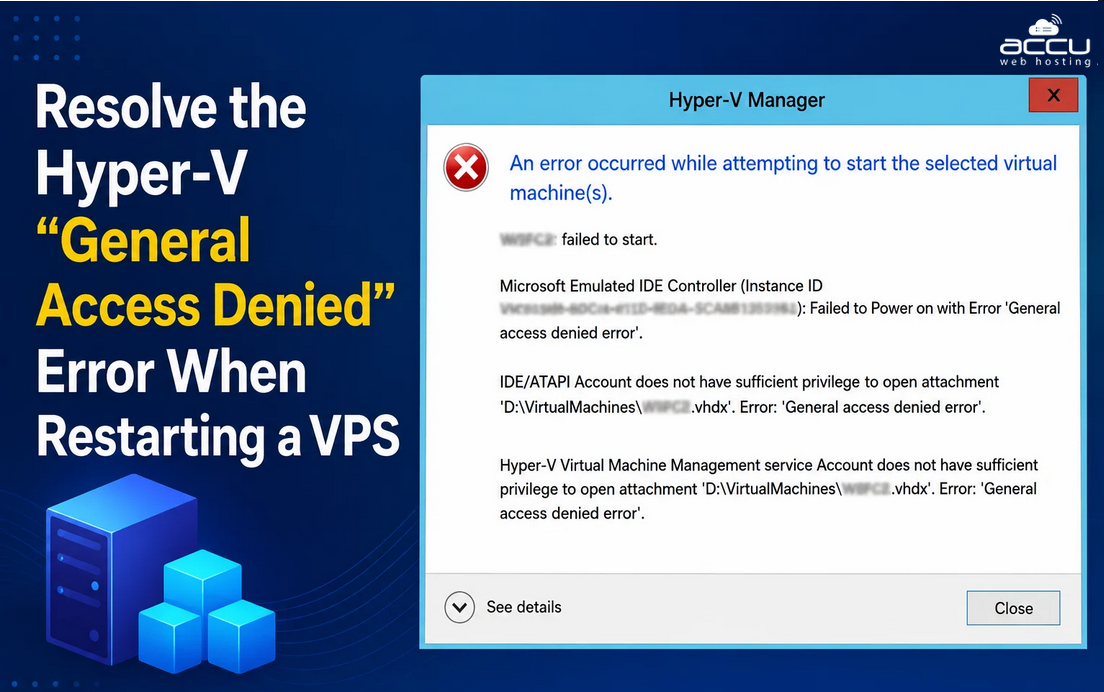
When you attempt to start or restart a virtual machine in Hyper-V Manager, you may see something like:
"An error occurred while attempting to start the selected virtual machine(s). Failed to start the virtual machine 'VM_Name' because one of the Hyper-V components is not running. General access denied error."
Or in PowerShell:
"'VM_Name' failed to start. (Virtual machine ID …) — General access denied."
Common Causes
Before jumping to fixes, it helps to understand why this happens:
-
Hyper-V services are stopped or crashed — The core Hyper-V Virtual Machine Management (VMMS) service isn't running.
-
Corrupted or missing VM configuration files — The .vmcx or .vmrs files have incorrect permissions or are damaged.
-
Insufficient permissions on VM folders — The Hyper-V service account doesn't have access to the VM's storage location.
-
Antivirus or security software blocking access — Third-party software is locking VM files.
-
VM was moved or copied without proper permission inheritance — File ACLs didn't carry over correctly.
-
Windows Update or system change disrupted Hyper-V — A recent update reset service configurations.
Fix 1: Restart the Hyper-V Virtual Machine Management Service
This is the first and most common fix.
Via Services (GUI):
-
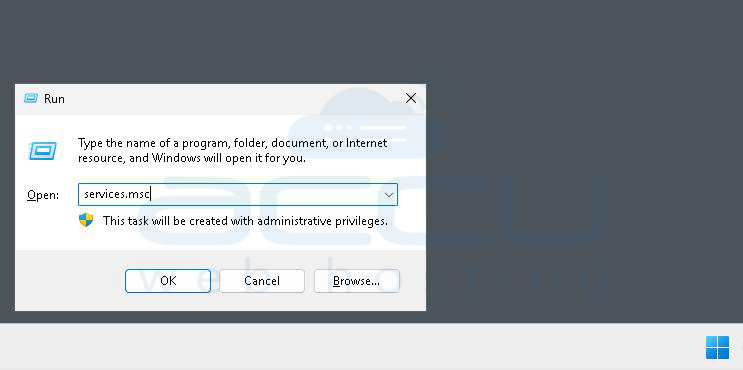
Press Win + R, type services.msc, and hit Enter.
-
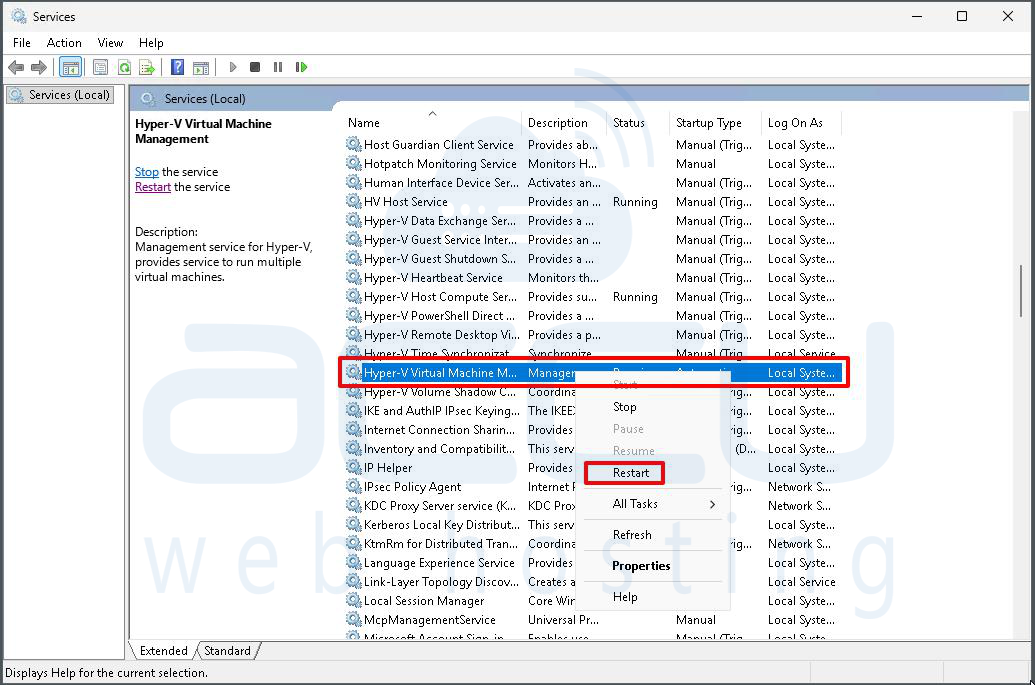
Scroll down to Hyper-V Virtual Machine Management.
-
Right-click it and select Restart.
-
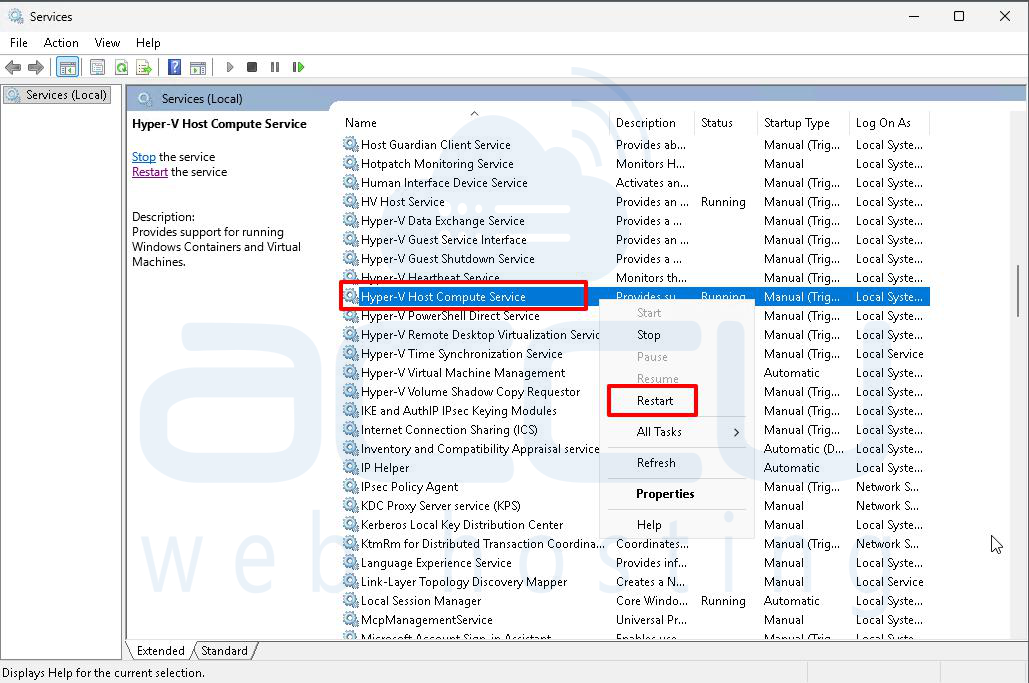
Also restart Hyper-V Host Compute Service if present.
Via PowerShell (Run as Administrator):
Stop-Service vmms -Force
Start-Service vmms
Then try starting your VM again.
Fix 2: Fix Permissions on the VM Folder
If the VMMS service account lost access to the VM's storage directory, you need to restore it.
Step 1: Open PowerShell as Administrator and run:
$vmPath = "C:\ProgramData\Microsoft\Windows\Hyper-V"
$acl = Get-Acl $vmPath
$rule = New-Object System.Security.AccessControl.FileSystemAccessRule("NT VIRTUAL MACHINE\Virtual Machines", "FullControl", "ContainerInherit,ObjectInherit", "None", "Allow")
$acl.SetAccessRule($rule)
Set-Acl $vmPath $acl
Step 2: Do the same for the folder where your VHD/VHDX files are stored (replace the path with your actual VM storage path):
$vhdPath = "D:\Hyper-V\VMs\YourVMName"
$acl = Get-Acl $vhdPath
$acl.SetAccessRule($rule)
Set-Acl $vhdPath $acl
Step 3: Restart the VMMS service and try again.
Fix 3: Use icacls to Reset Permissions (Simpler Method)
If the PowerShell ACL method feels complex, use icacls from an elevated Command Prompt:
icacls "C:\ProgramData\Microsoft\Windows\Hyper-V" /grant "NT VIRTUAL MACHINE\Virtual Machines":(OI)(CI)F /T
icacls "D:\Hyper-V\VMs\YourVMName" /grant "NT VIRTUAL MACHINE\Virtual Machines":(OI)(CI)F /T
The /T flag applies changes recursively to all subfolders and files.
Fix 4: Re-register or Recreate the VM
If the VM's configuration file (.vmcx) is corrupted or the permissions are too far gone, re-importing the VM often resolves it.
-
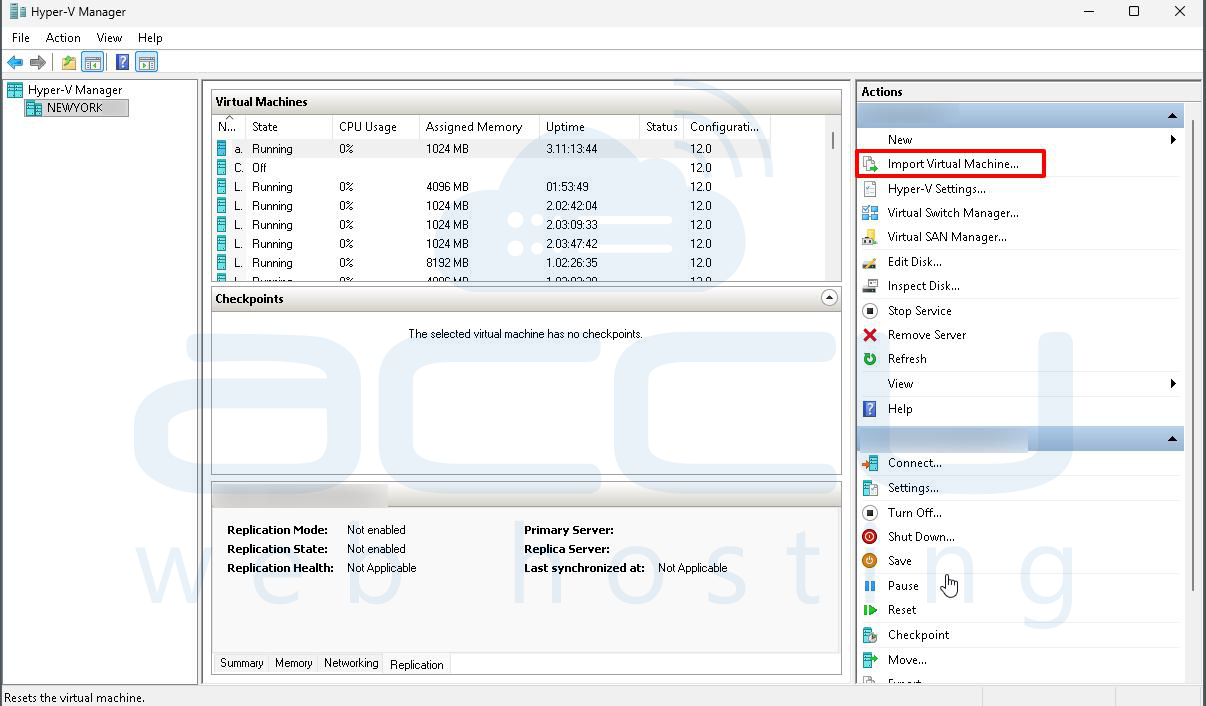
Open Hyper-V Manager.
-
In the right-hand panel, click Import Virtual Machine.
-
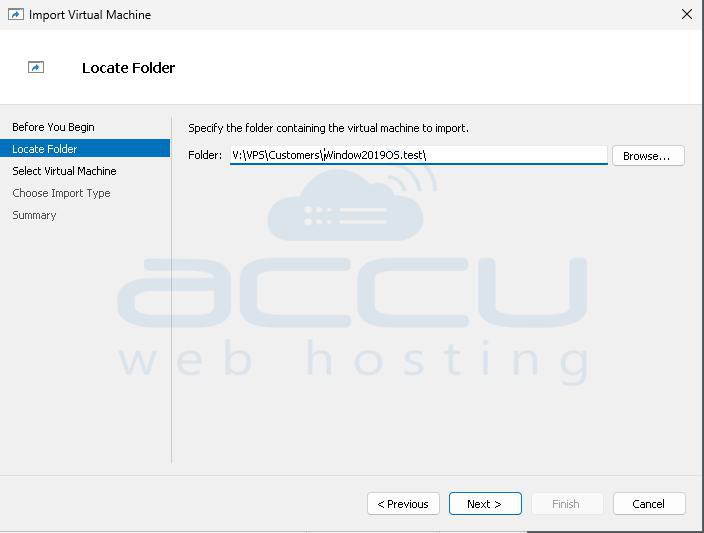
Browse to the folder containing your VM files.
-
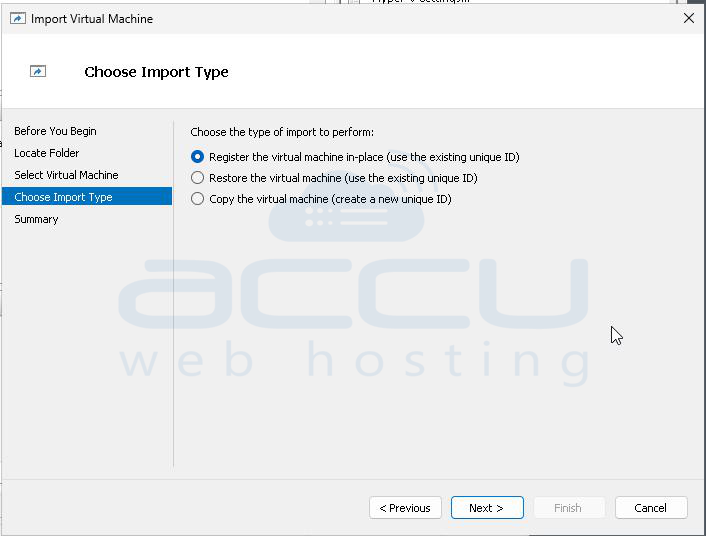
Choose Register the virtual machine in-place (if files are already in the right location) or Copy the virtual machine to restore it fresh.
-
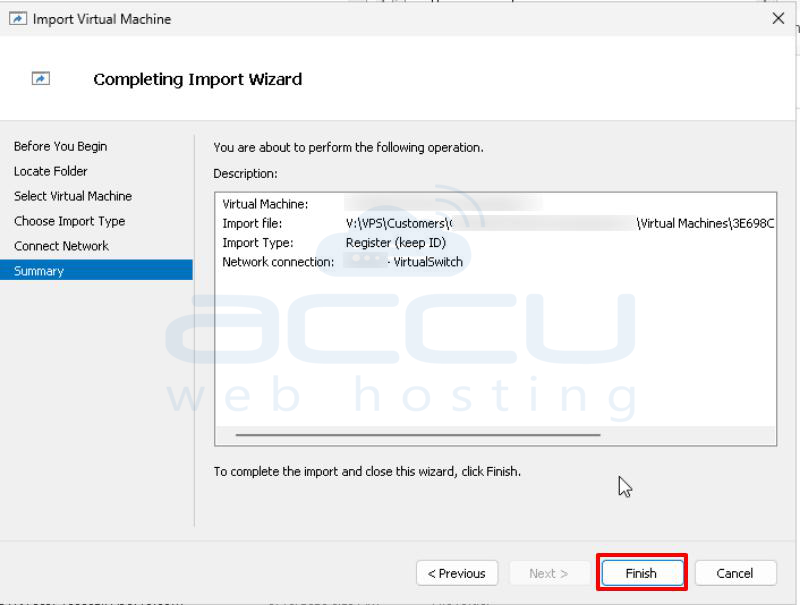
Complete the wizard and try starting the VM.
Fix 5: Check and Re-enable Hyper-V Role
Sometimes a Windows Update or system change disables the Hyper-V role components silently.
Check if Hyper-V is fully enabled:
Get-WindowsOptionalFeature -Online -FeatureName Microsoft-Hyper-V
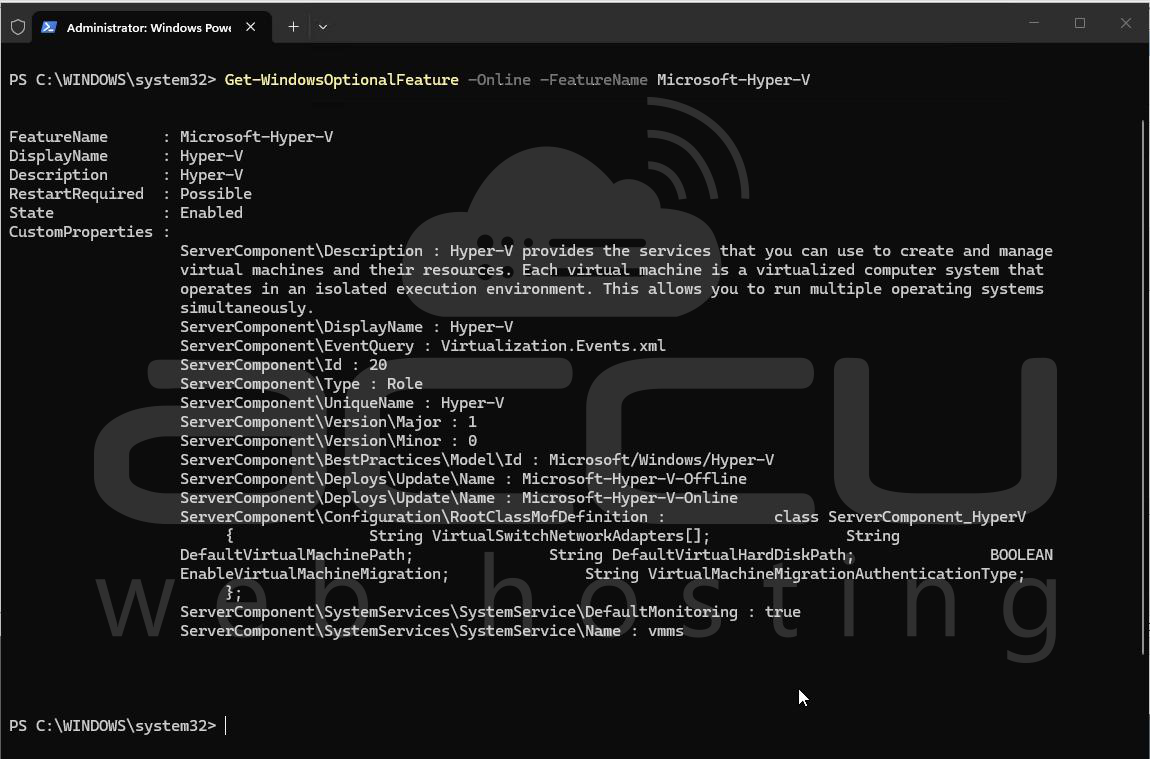
If the state shows Disabled, re-enable it:
Enable-WindowsOptionalFeature -Online -FeatureName Microsoft-Hyper-V -All
A restart will be required. After rebooting, try starting the VM again.
Fix 6: Temporarily Disable Antivirus / Security Software
If you have a third-party antivirus (like McAfee, Symantec, Kaspersky, etc.) running on the Hyper-V host, it may be locking the .vhdx or .vmcx files.
-
Temporarily disable real-time protection.
-
Try starting the VM.
-
If it works, add the VM storage folders and Hyper-V directories to your antivirus exclusion list permanently.
Common paths to exclude:
-
C:\ProgramData\Microsoft\Windows\Hyper-V\
-
Your VHD/VHDX storage folder (e.g., D:\Hyper-V\)
Fix 7: Check Windows Event Viewer for Root Cause
If none of the above work, dig into the actual error details:
-
Open Event Viewer (eventvwr.msc).
-
Navigate to: Windows Logs → System or Application.
-
Also check: Applications and Services Logs → Microsoft → Windows → Hyper-V-VMMS.
-
Look for errors around the time the VM failed to start.
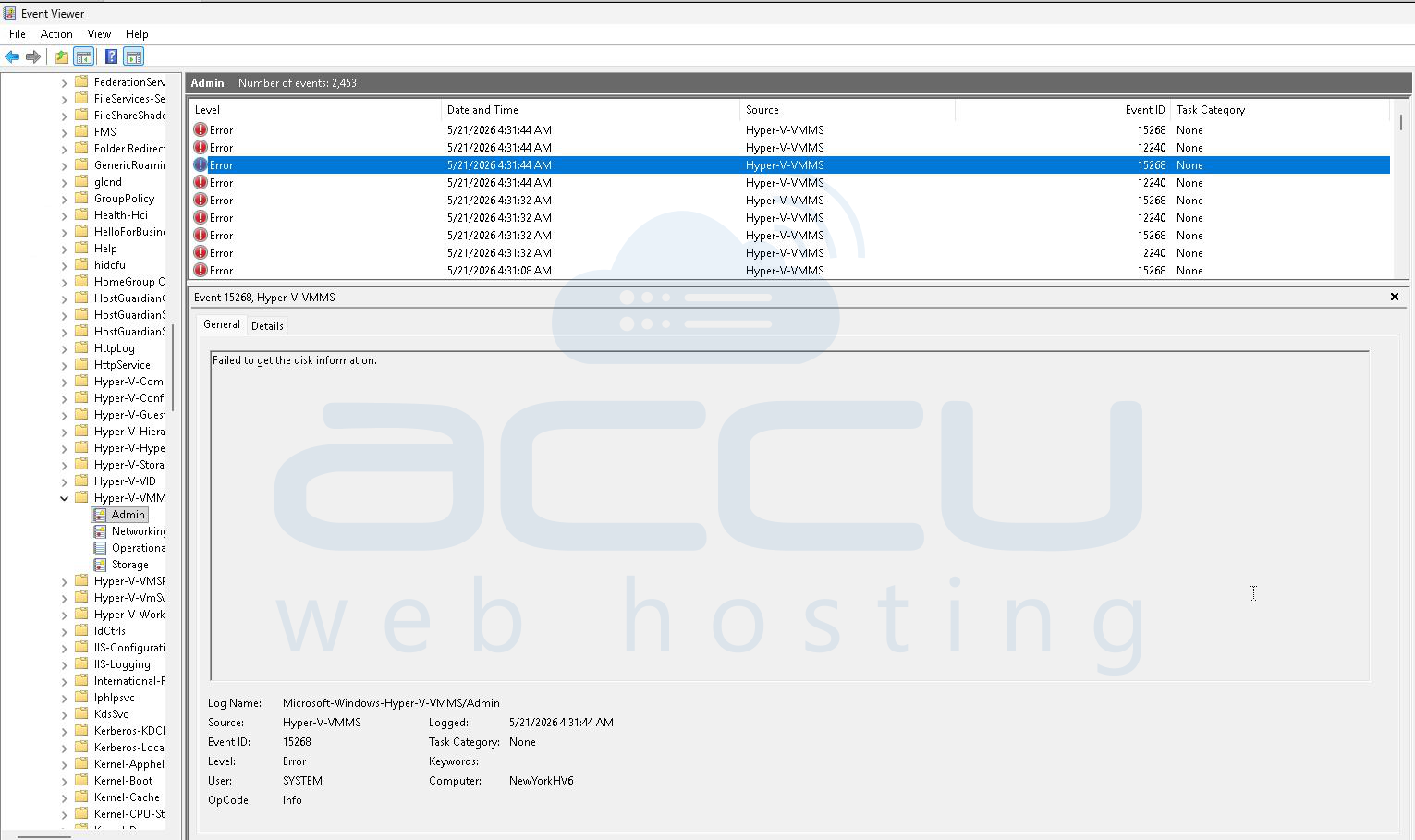
The specific event code will point you to the exact cause, whether it's a file lock, missing VHD, or service failure.
Prevention Tips
Once you've resolved the error, keep these practices in mind to avoid a recurrence:
- Always use Hyper-V Manager or PowerShell to move/copy VMs, never move VM folders manually via File Explorer without resetting permissions afterward.
- Keep Hyper-V services set to Automatic startup so they recover after reboots.
- Whitelist Hyper-V folders in antivirus software from day one.
- Take regular VM checkpoints so you can roll back quickly if something breaks.
- Monitor event logs periodically, VMMS errors often appear before a full failure.
Conclusion
The Hyper-V "General access denied" error sounds vague, but in nearly all cases it comes down to one of three things: a stopped service, a permissions problem on VM files, or interference from security software. Work through the fixes in order, most users resolve it within the first two steps. If you're on a production server, always check Event Viewer first so you know exactly what you're dealing with before making changes.


