
Install Craft CMS 5.x on Linux
Craft CMS 5.x is a modern, flexible content management system designed for developers who need full control over content architecture, performance, and scalability. Unlike traditional CMS platforms, Craft focuses on structured content, making it ideal for custom websites, applications, and enterprise-grade solutions. In this guide, we will walk through the complete installation process using the latest stable software versions available.
Software Stack Overview
Before starting, ensure your environment meets the following requirements:
Prerequisites
- OS: Ubuntu 24.04 LTS (fresh VPS)
- RAM: 4 GB minimum, 8 GB for production
- CPU: Minimum 2 vCPUs
- Disk: At least 20 GB of disk space
- Access: Root or sudo privileges
- Network: Valid domain or static IP for web UI
Important Note:
While PHP 8.5 is supported, some third-party plugins may not yet be compatible. If issues occur, downgrade to PHP 8.4.
Steps to Install Craft CMS 5.x on Linux
Step 1: Update the System.
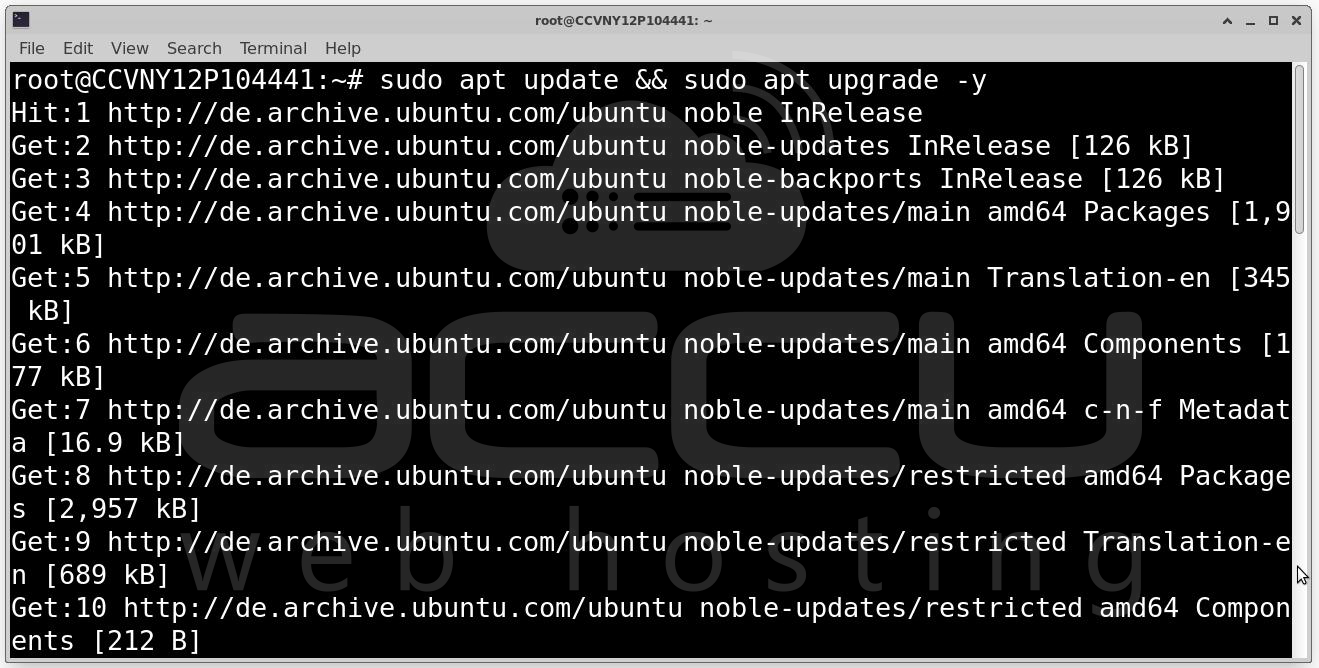
Keeping your system updated ensures compatibility, security patches, and stable package dependencies.
sudo apt update && sudo apt upgrade -y
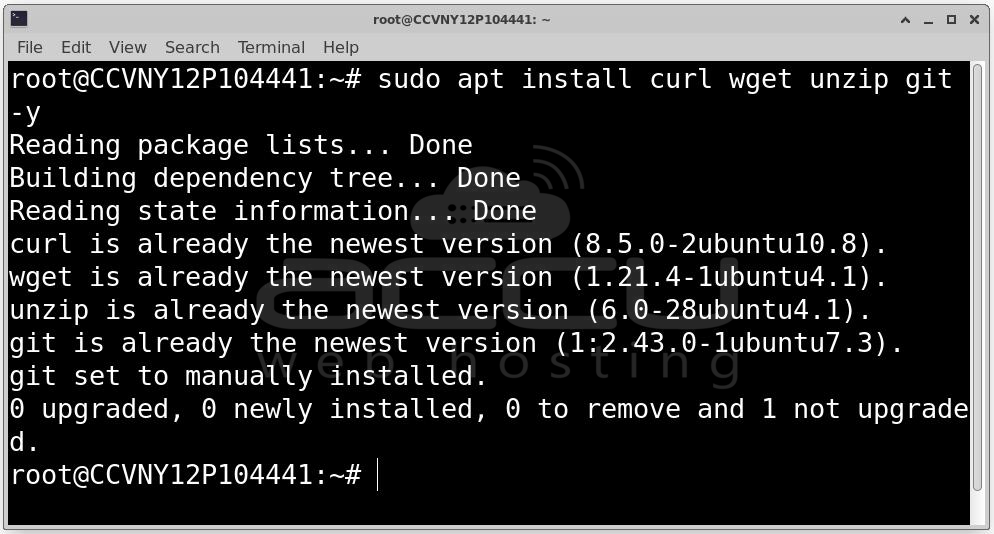
sudo apt install curl wget unzip git -y
Step 2: Install Latest Nginx (1.30.x).
Ubuntu repositories often contain outdated versions. Using the official Nginx repository ensures you get the latest stable build.
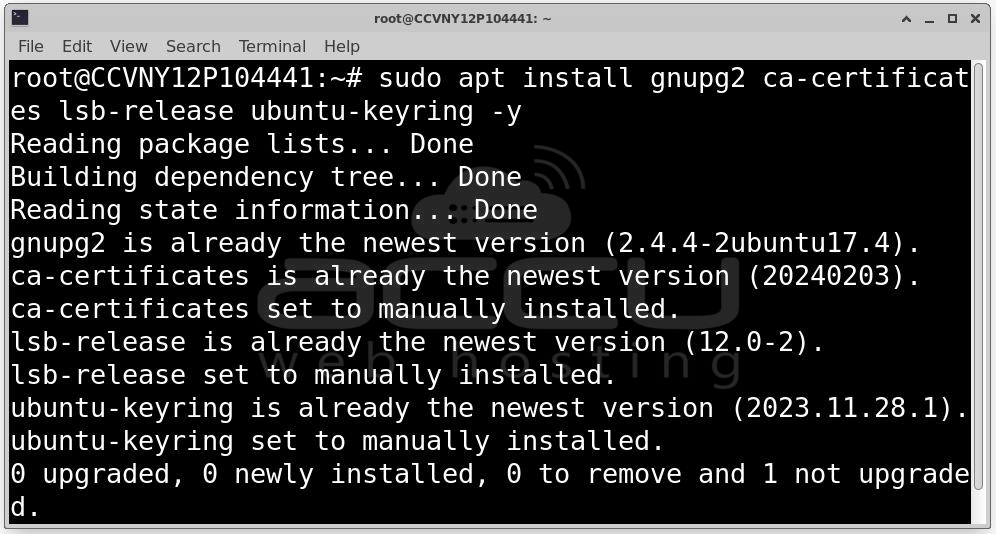
sudo apt install gnupg2 ca-certificates lsb-release ubuntu-keyring -y
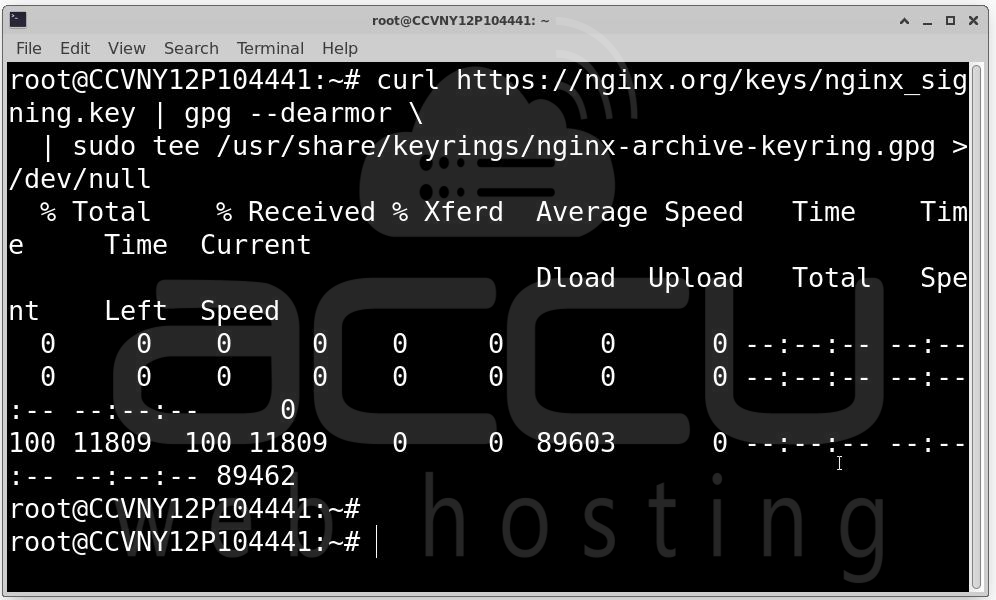
Add Nginx Signing Key:
curl https://nginx.org/keys/nginx_signing.key | gpg --dearmor \
| sudo tee /usr/share/keyrings/nginx-archive-keyring.gpg >/dev/null
Add Official Repository:
echo "deb [signed-by=/usr/share/keyrings/nginx-archive-keyring.gpg] \
http://nginx.org/packages/ubuntu $(lsb_release -cs) nginx" \
| sudo tee /etc/apt/sources.list.d/nginx.list
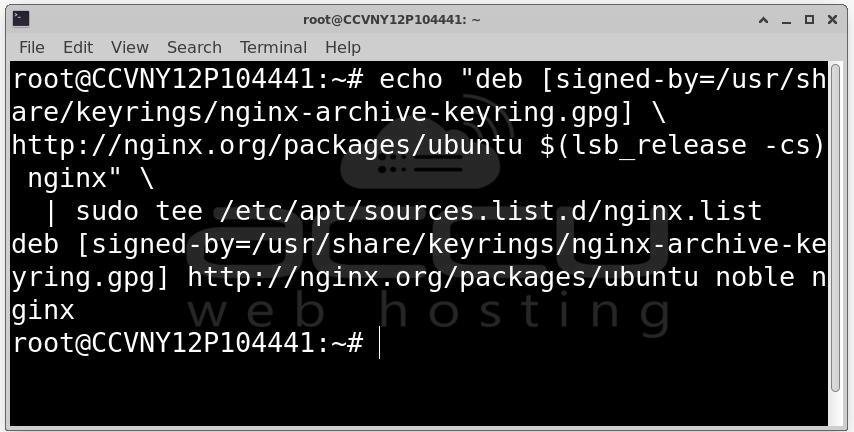
Install Nginx:
sudo apt update
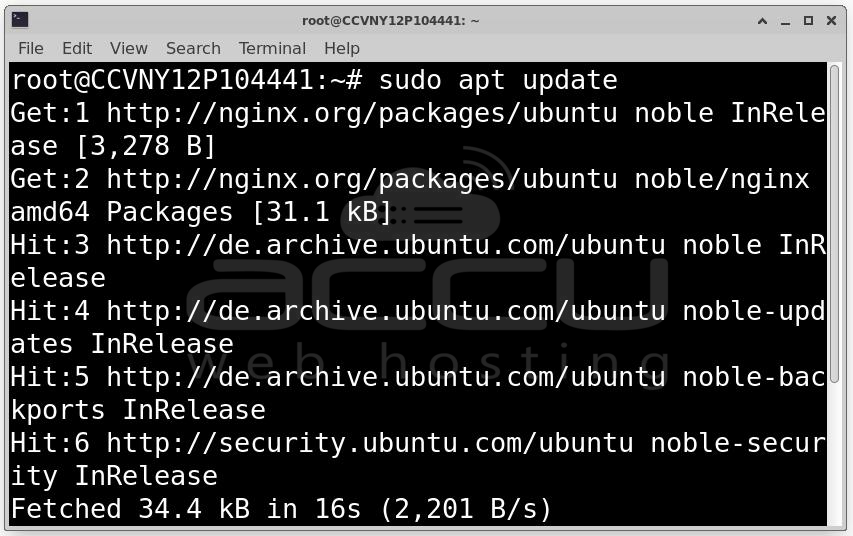
sudo apt install nginx -y
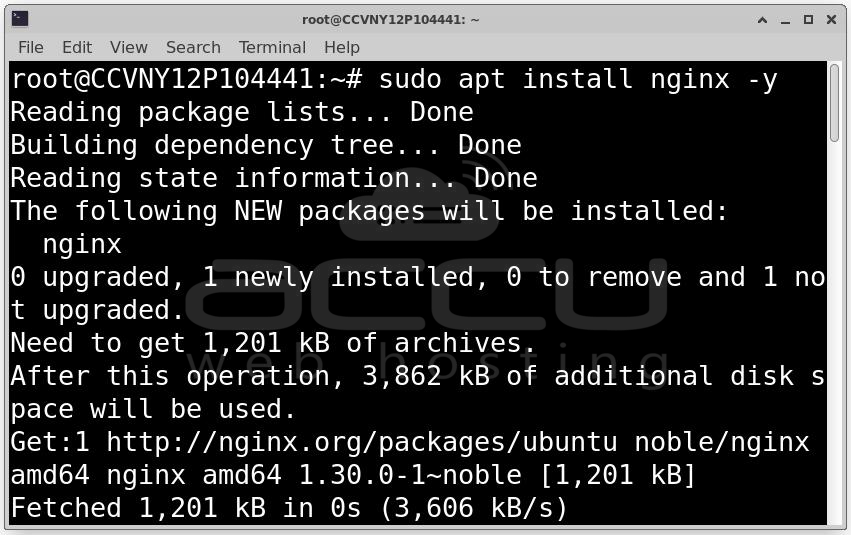
Start and Enable Service:
sudo systemctl enable nginx
sudo systemctl start nginx
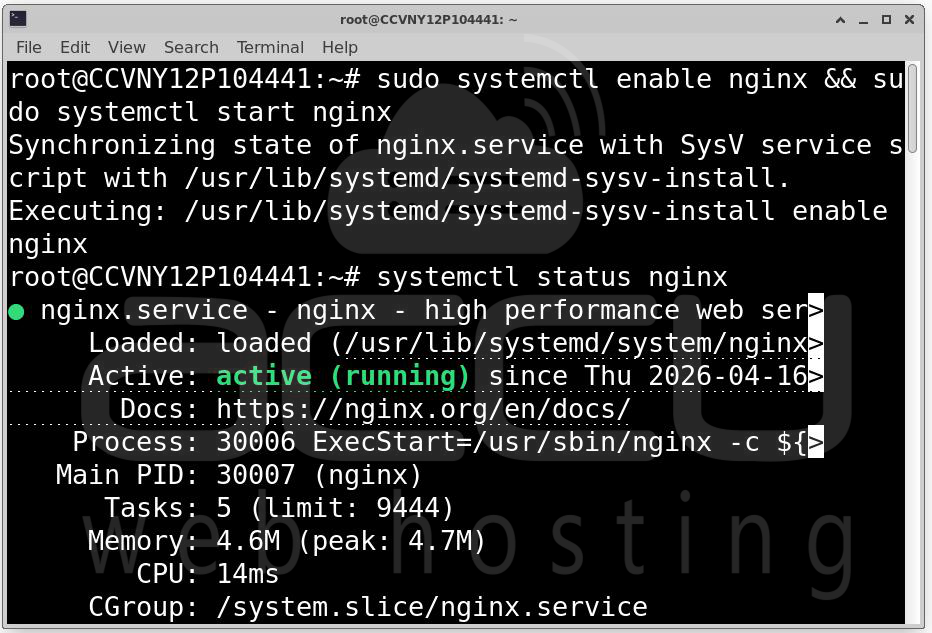
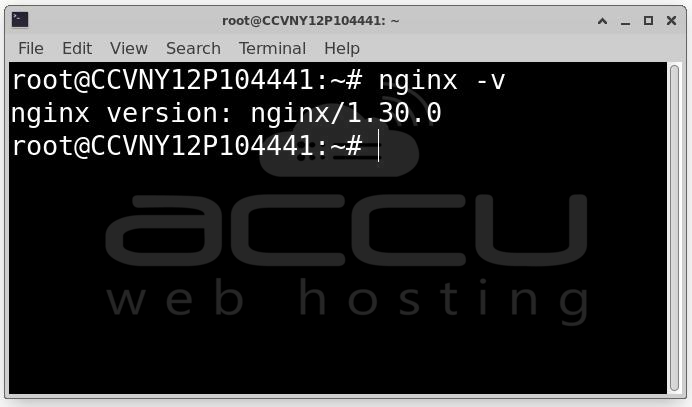
Verify Installation: nginx -v
Step 3: Install PHP 8.5.
Craft CMS relies heavily on PHP extensions, so proper installation is critical.
Add PHP Repository:
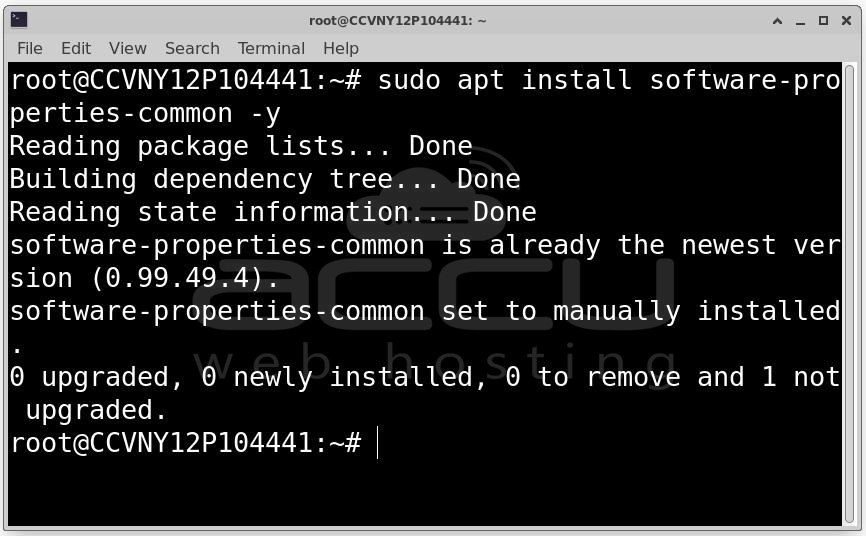
sudo apt install software-properties-common -y
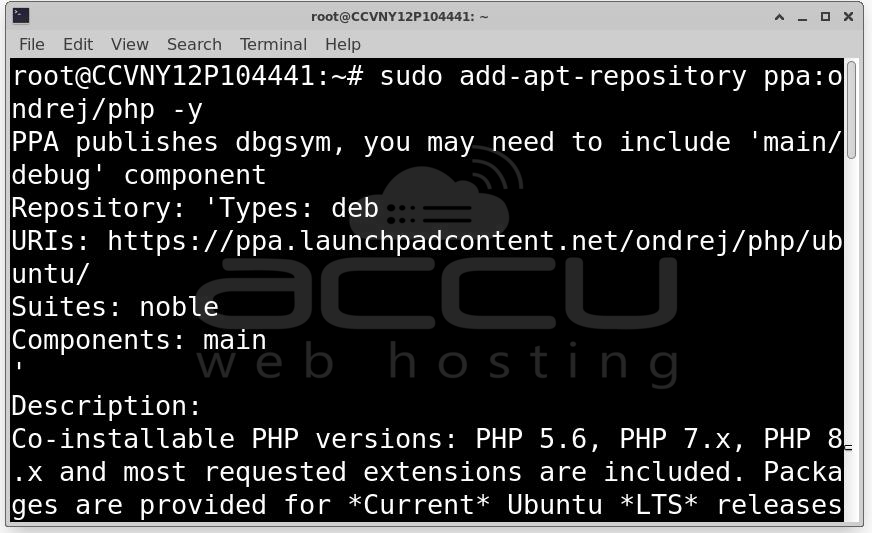
sudo add-apt-repository ppa:ondrej/php -y
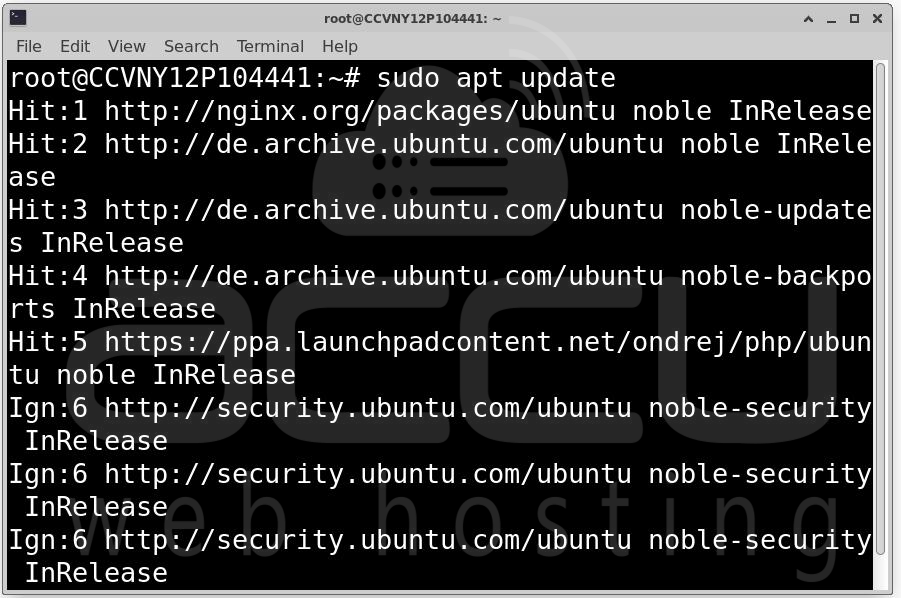
sudo apt update
Install PHP and Required Extensions:
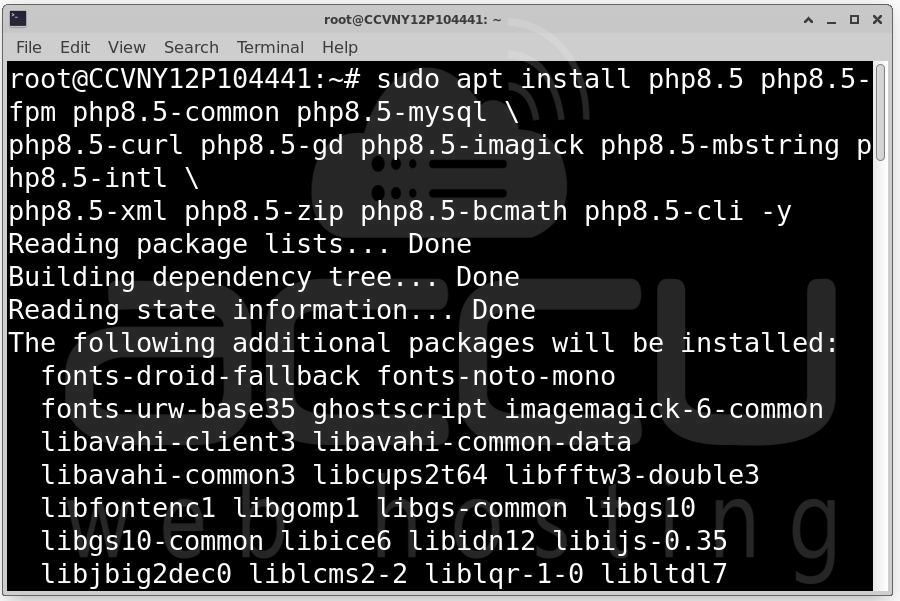
sudo apt install php8.5 php8.5-fpm php8.5-common php8.5-mysql \
php8.5-curl php8.5-gd php8.5-imagick php8.5-mbstring \
php8.5-intl php8.5-xml php8.5-zip php8.5-bcmath \
php8.5-cli php8.5-opcache -y
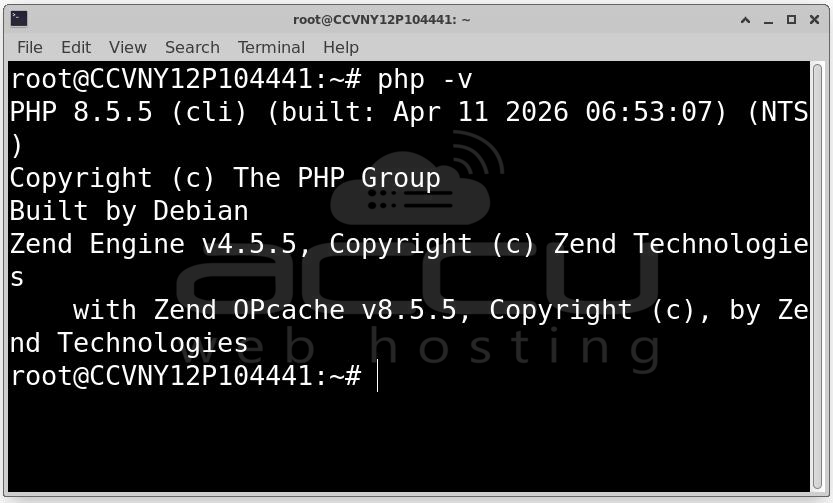
Verify: php -v
PHP Configuration Optimization
Edit PHP configuration:
sudo nano /etc/php/8.5/fpm/php.ini
Update values:
memory_limit = 512M
post_max_size = 32M
upload_max_filesize = 32M
max_execution_time = 360
Restart PHP-FPM:
sudo systemctl restart php8.5-fpm
sudo systemctl enable php8.5-fpm
PHP-FPM improves performance by handling multiple PHP processes efficiently, especially under high load.
Step 4: Install MySQL 8.0.
MySQL stores all Craft CMS data including users, content, and configuration.
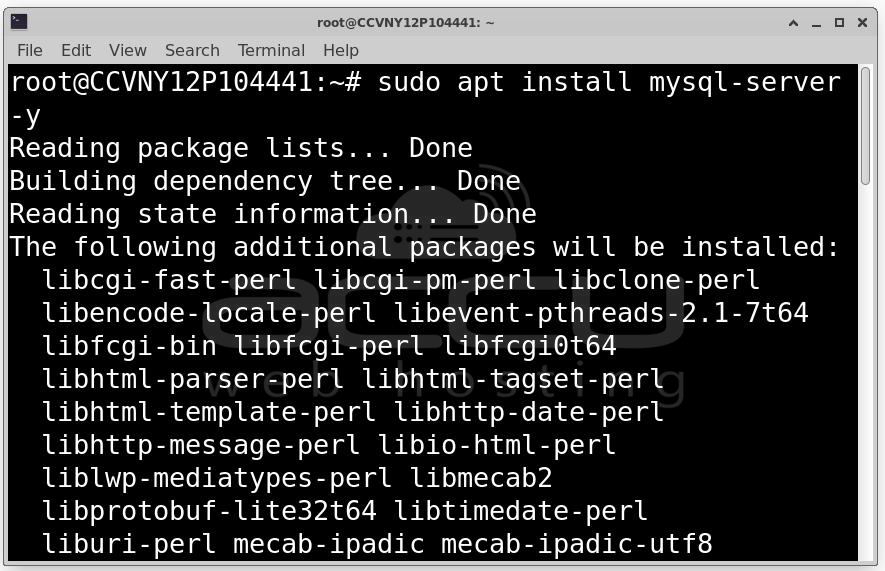
sudo apt install mysql-server -y
sudo systemctl enable mysql
sudo systemctl start mysql
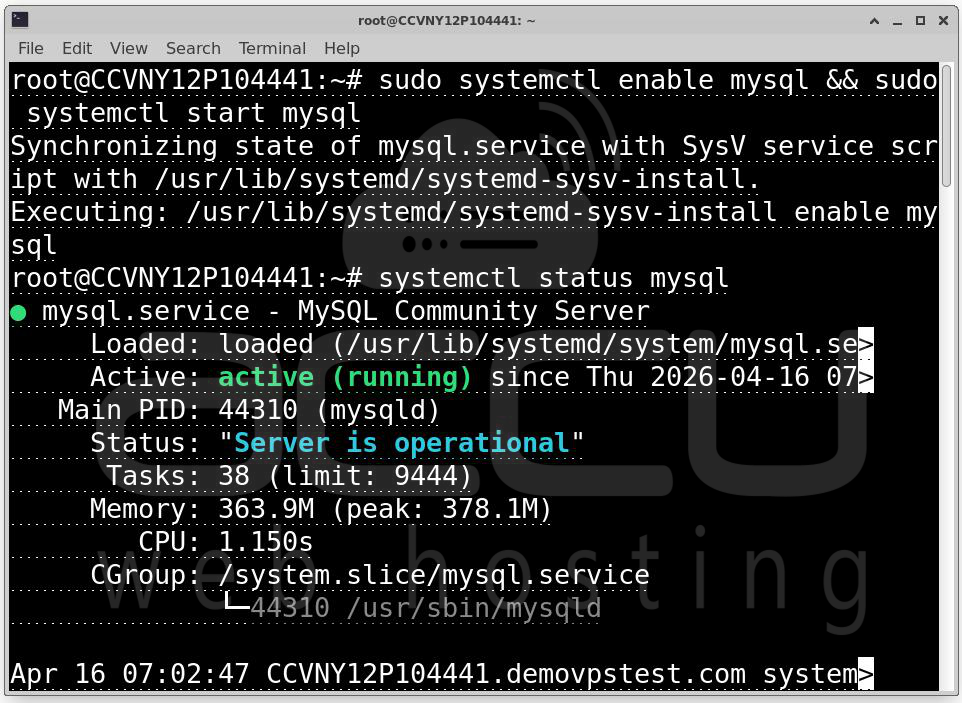
Secure MySQL: sudo mysql_secure_installation
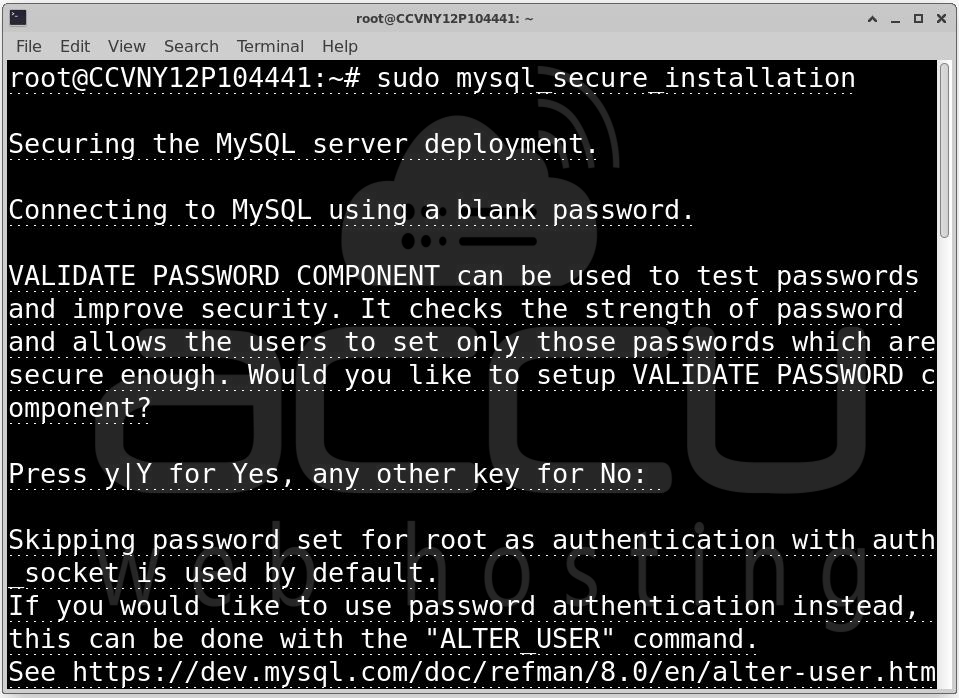
This removes insecure defaults like Anonymous users, Remote root login and Test database.
Create Database and User
Login to MySQL: sudo mysql -u root -p
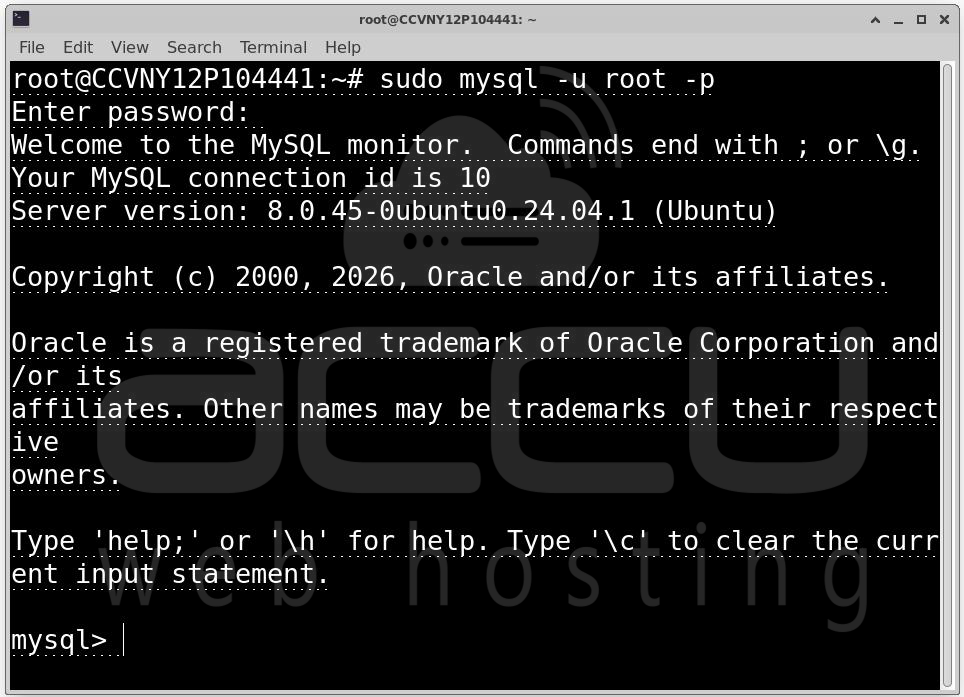
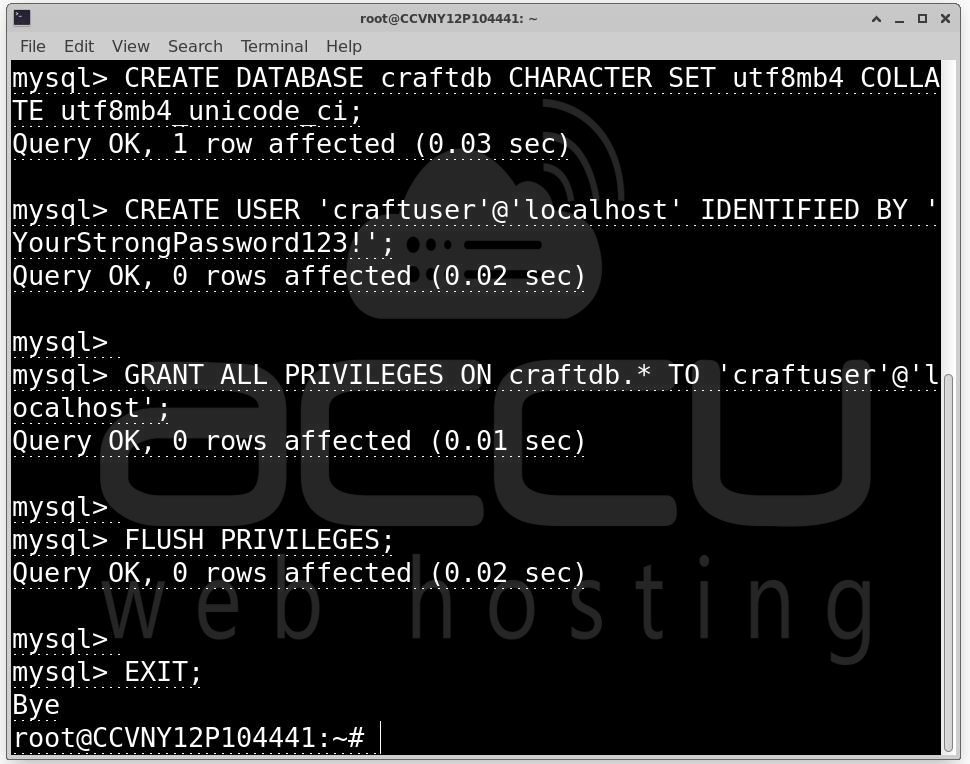
Run:
CREATE DATABASE craftdb CHARACTER SET utf8mb4 COLLATE utf8mb4_unicode_ci;
CREATE USER 'craftuser'@'localhost' IDENTIFIED BY 'YourStrongPassword123!';
GRANT ALL PRIVILEGES ON craftdb.* TO 'craftuser'@'localhost';
FLUSH PRIVILEGES;
EXIT;
Step 5: Install Composer.
Composer manages PHP dependencies and installs Craft CMS.
curl -sS https://getcomposer.org/installer -o /tmp/composer-setup.php
sudo php /tmp/composer-setup.php --install-dir=/usr/local/bin --filename=composer
Verify: composer --version
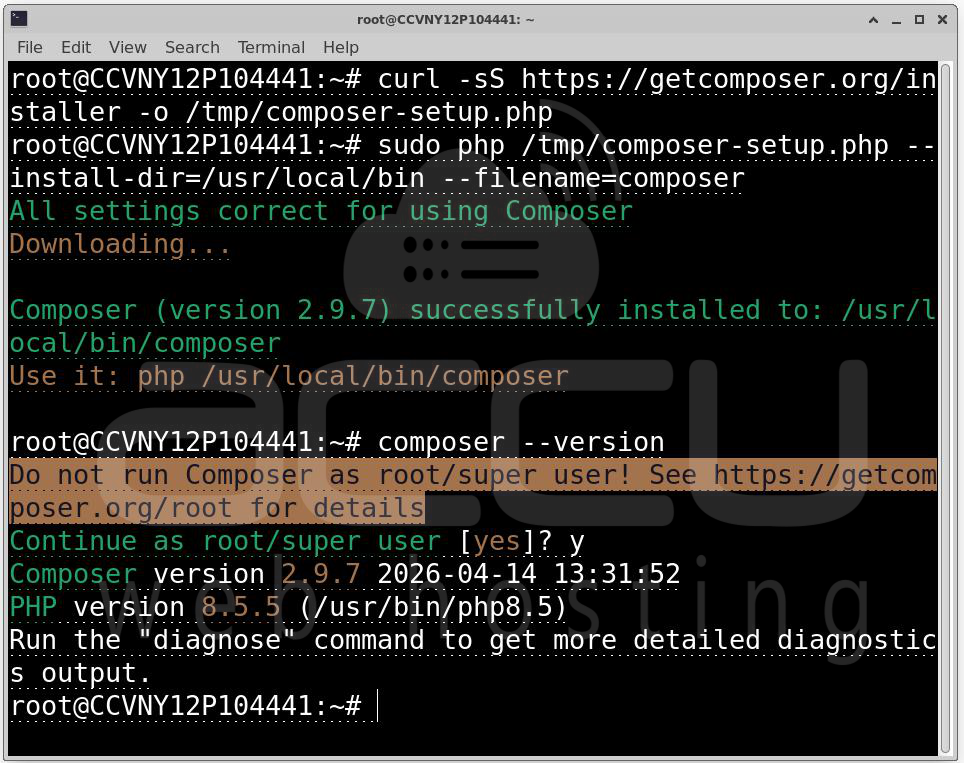
Composer automatically resolves dependencies and installs required packages for Craft CMS.
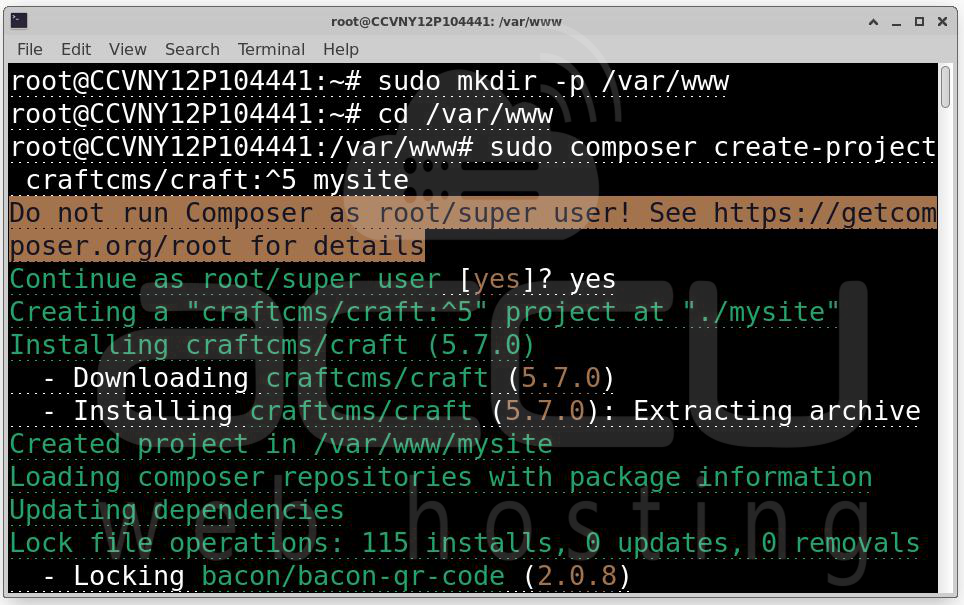
Step 6: Install Craft CMS 5.
sudo mkdir -p /var/www
cd /var/www
sudo composer create-project craftcms/craft:^5 mysite
Set Permissions:
sudo chown -R www-data:www-data /var/www/mysite
sudo chmod -R 755 /var/www/mysite
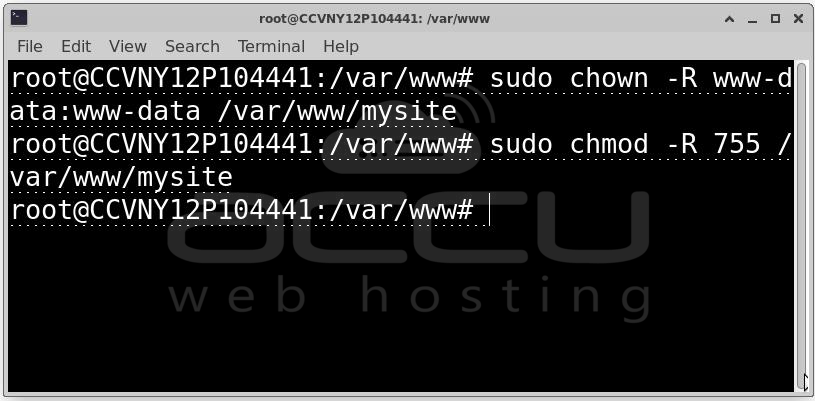
/var/www is standard web root. Permissions ensure Nginx and PHP can access files securely.
Step 7: Configure Nginx Virtual Host.
Create configuration file: sudo nano /etc/nginx/conf.d/craftcms.conf
Add configuration:
server {
listen 80;
server_name your-domain.com;
root /var/www/mysite/web;
index index.php;
charset utf-8;
client_max_body_size 32M;
location / {
try_files $uri $uri/ /index.php?$query_string;
}
location ~ \.php$ {
fastcgi_pass unix:/run/php/php8.5-fpm.sock;
fastcgi_index index.php;
include fastcgi_params;
fastcgi_param SCRIPT_FILENAME $document_root$fastcgi_script_name;
fastcgi_read_timeout 360;
}
location ~ /\. {
deny all;
}
location ~* \.(js|css|png|jpg|jpeg|gif|ico|svg|woff|woff2|ttf|eot)$ {
expires 30d;
add_header Cache-Control "public, no-transform";
}
}
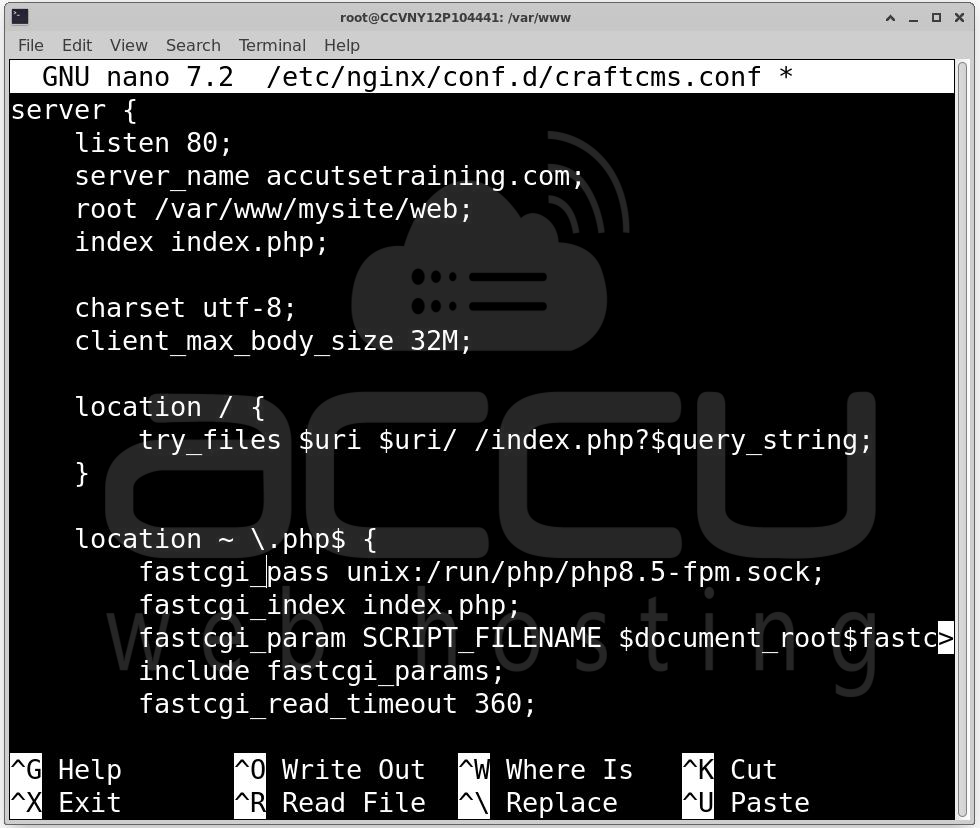
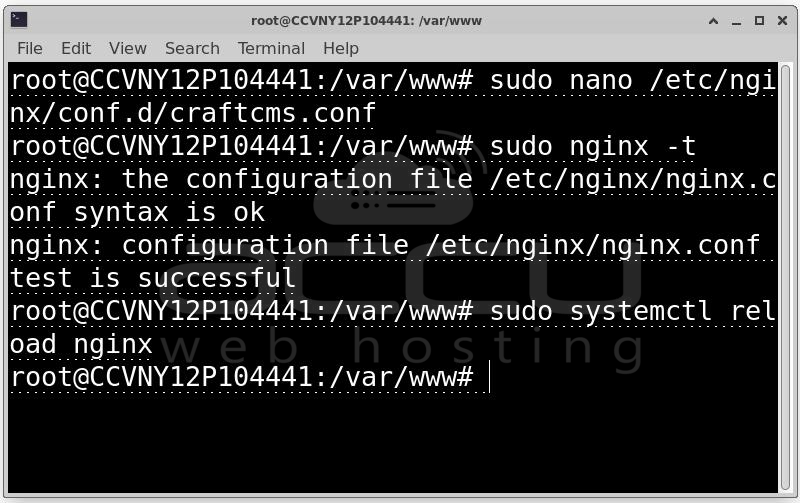
Test Configuration: sudo nginx -t
Reload Nginx: sudo systemctl reload nginx
Step 8: Run Craft CMS Setup.
cd /var/www/mysite
sudo -u www-data php craft setup
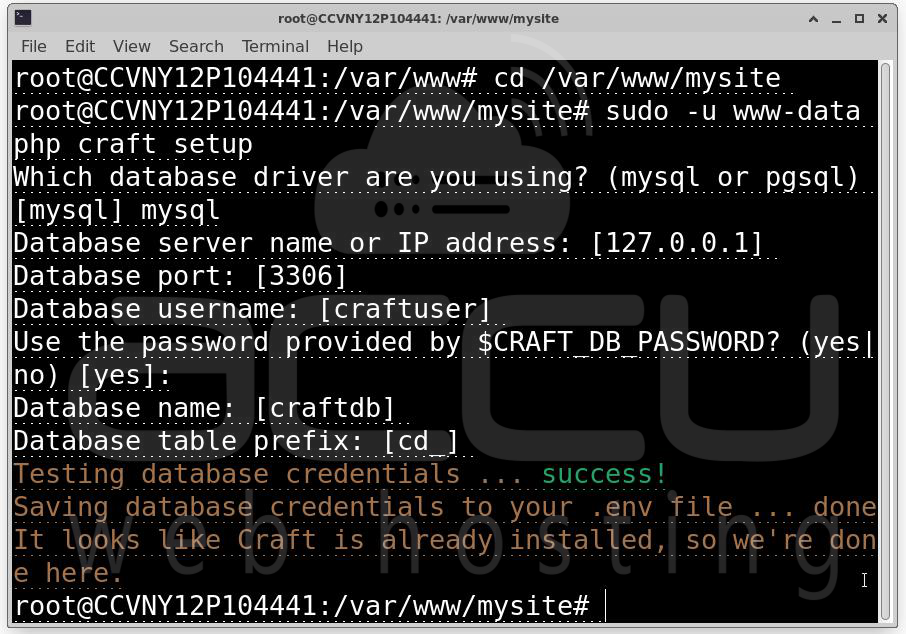
Provide Required Details:
- Database: craftdb
- Username: craftuser
- Password: YourStrongPassword123!
- Host: localhost
Also configure:
- Admin account
- Site name
- Base URL
This step initializes the database schema and config files.
Step 9: Access Admin Panel.
/admin is the default control panel route. You can change it later in the config.
Open browser: http://your-domain.com/admin
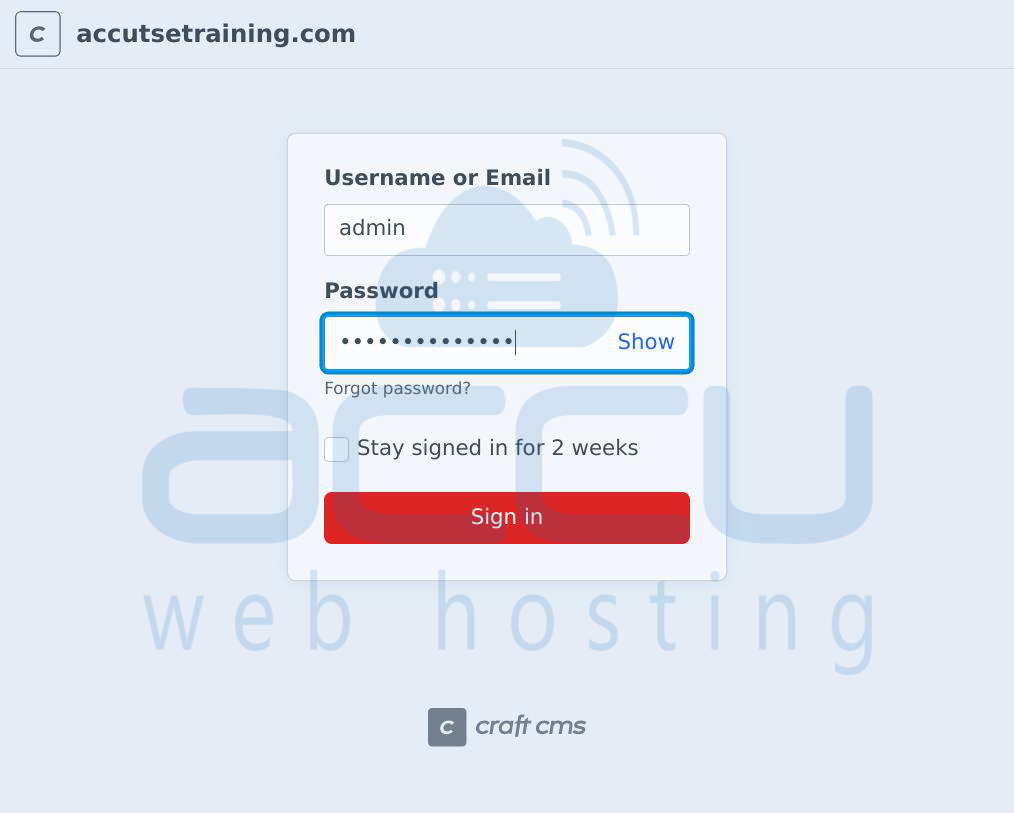
Enter username and password you have entered while setup Craft CMS. You will see the admin dashboard once you log in.
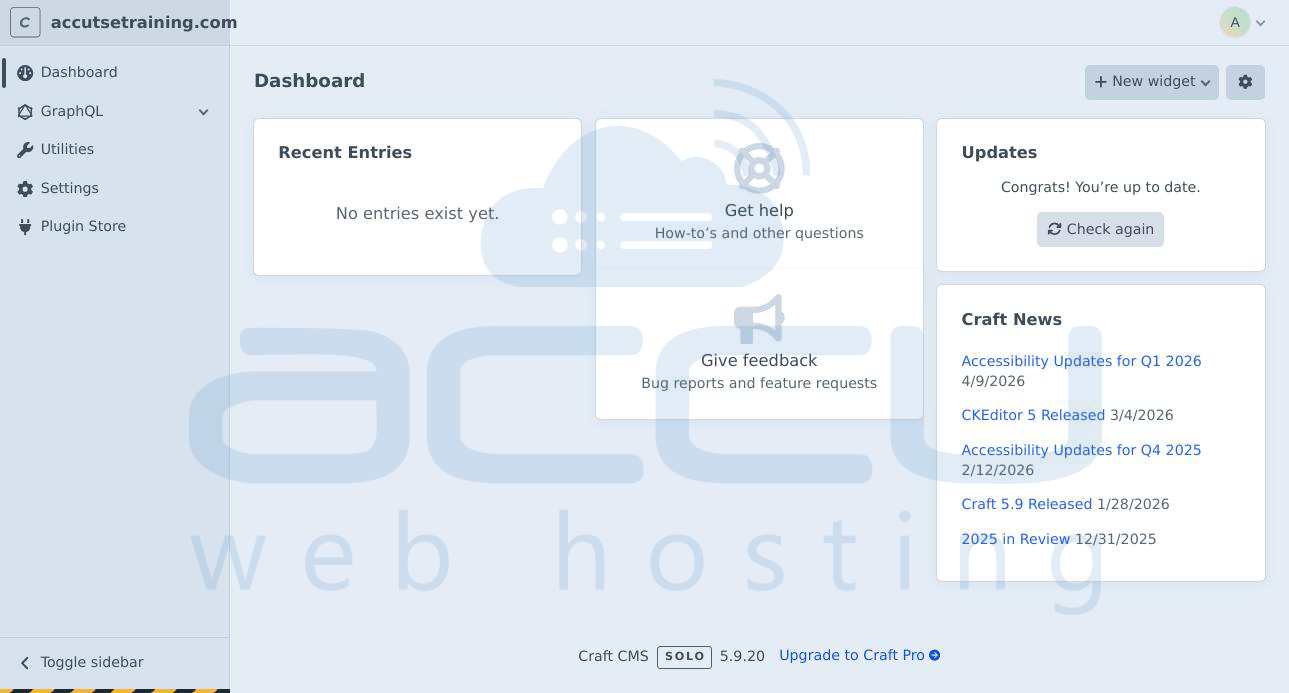
Step 10: Enable HTTPS (SSL)
Install Certbot: sudo apt install certbot python3-certbot-nginx -y
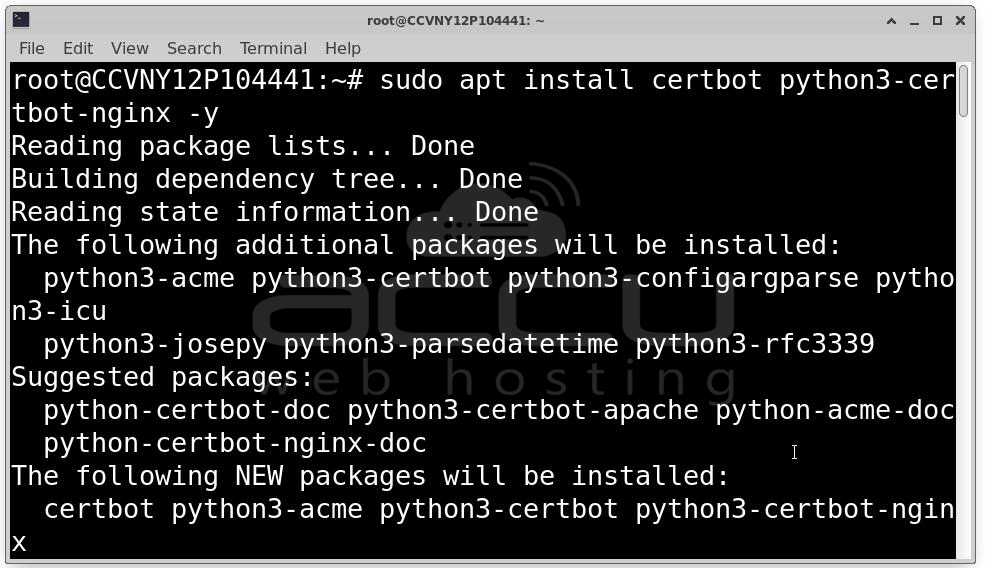
Generate SSL certificate: sudo certbot --nginx -d your-domain.com
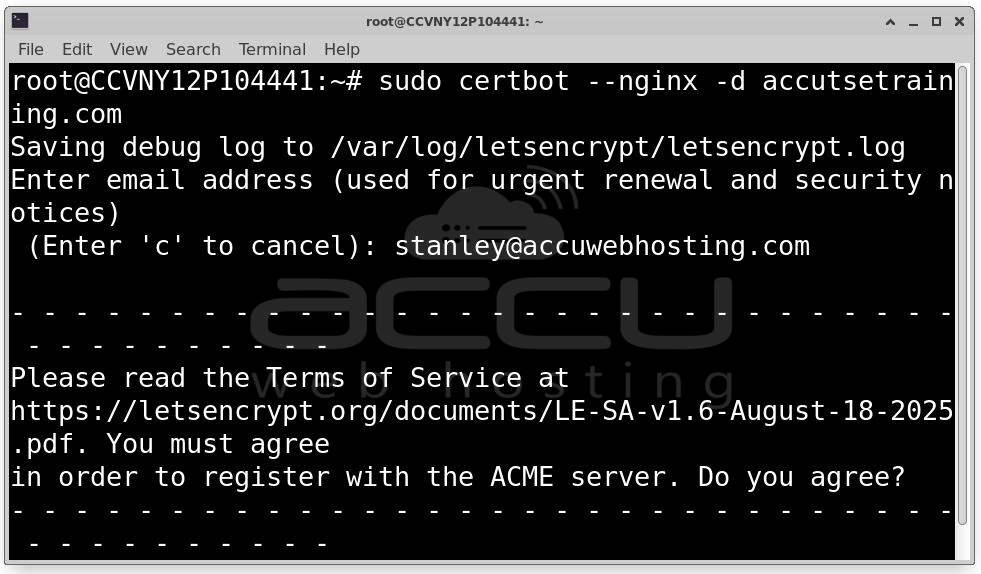
You will see a success message once the SSL is received.
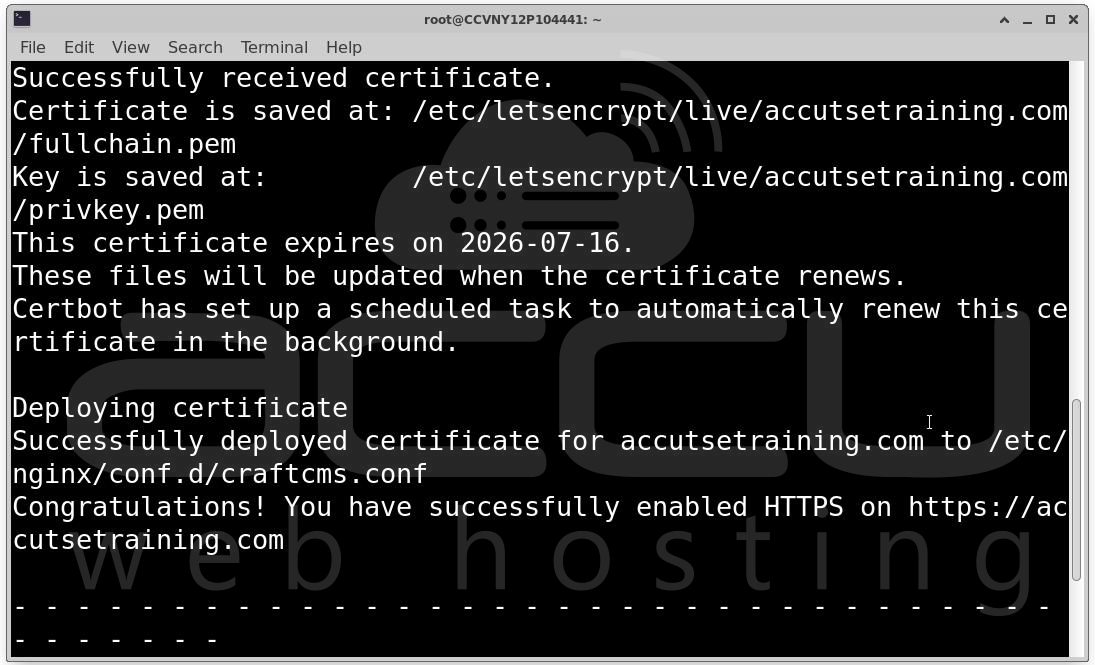
This will automatically configure HTTPS and set up auto-renewal.
Access your website with https and verify: https://your-domain.com
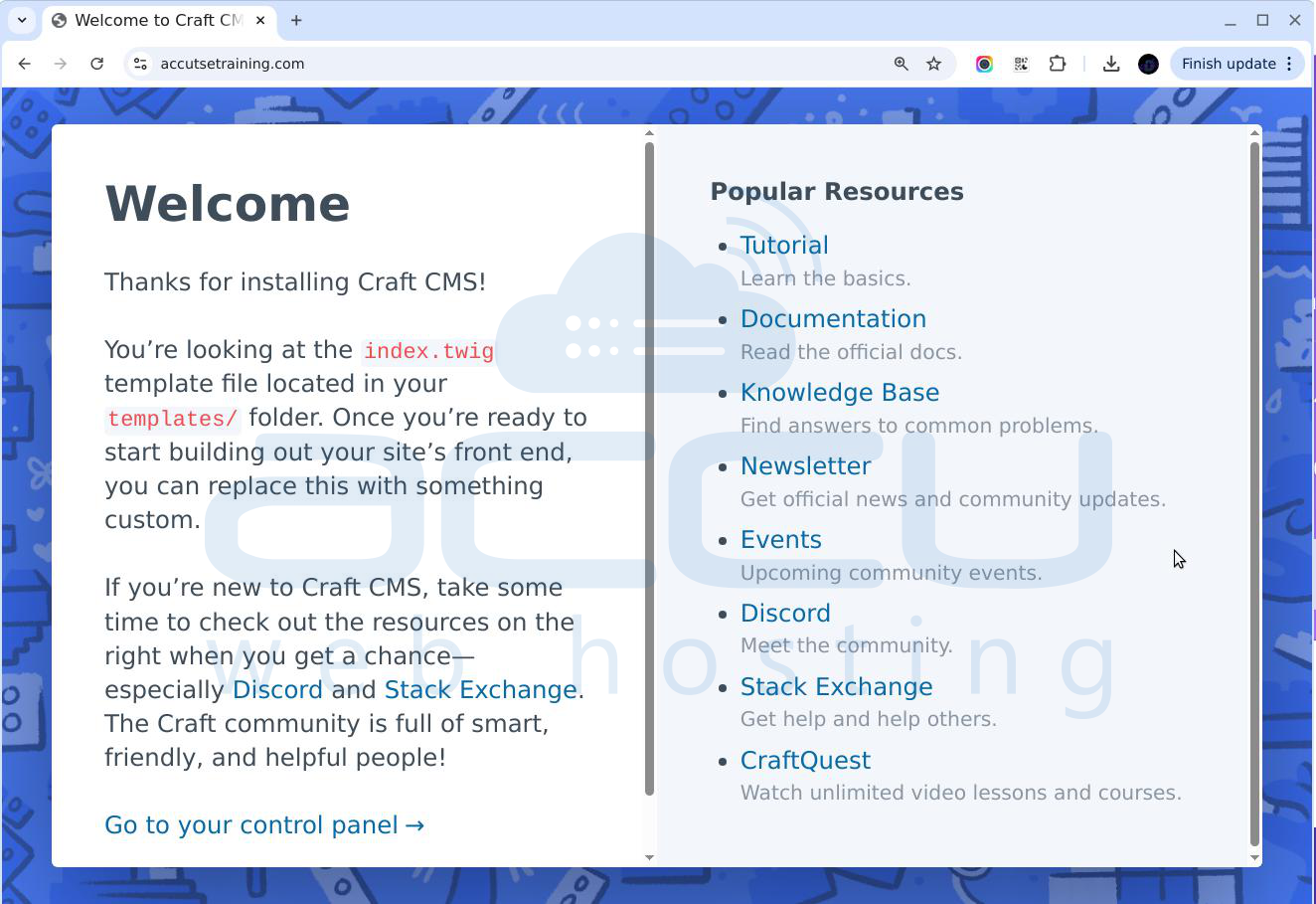
Congratulations! Your Craft CMS 5 Installation is Complete. Your server is now successfully configured with the latest modern stack, and Craft CMS 5 is up and running smoothly.
Conclusion
Installing Craft CMS 5.x on Linux requires a properly configured LEMP stack and careful alignment of dependencies. By using the latest stable versions of Nginx, PHP, MySQL, and Composer, you ensure optimal performance, security, and compatibility. Once installed, Craft CMS offers a powerful and flexible development environment suitable for modern web applications. With this setup complete, your Craft CMS environment is ready for development and deployment.


