
Introduction:
Plex is a powerful media server platform that allows you to organize and stream your personal media, such as movies, TV shows, music, and photos, to any device. If you have a collection of media files and want to enjoy them on various devices from anywhere, Plex is the perfect solution.
In this article, we will guide you through the process of installing Plex on your Ubuntu 24 VPS, helping you set up your own personal media server in no time.
Features of Plex Media Server:
Plex offers a range of amazing features that make it one of the best media servers available:
Automatic Media Organization: Plex automatically organizes your movies, TV shows, music, and photos by adding metadata, cover art, and descriptions, making it easy to browse through your collection.
Cross-Device Streaming: Once Plex is set up, you can stream your media to a wide range of devices, including smartphones, tablets, smart TVs, and computers.
User-Friendly Interface: Plex offers an easy-to-use interface that helps you navigate and enjoy your media without any hassle.
Remote Access: Plex allows you to access your media server from anywhere, so you can watch your favorite shows or listen to music while on the go.
Multi-Platform Support: Plex works on multiple platforms such as Windows, macOS, Linux, iOS, Android, and smart TVs, making it accessible to almost any device.
Sharing Media with Friends and Family: Plex allows you to share your media library with others, letting friends and family enjoy your collection on their own devices.
How to Install Plex on Ubuntu 24 VPS
Kindly follow these simple steps to set up Plex Media Server on your Ubuntu 24 VPS.
Step 1: Update Your System
Before starting, make sure your system is up to date. Run the following command to update the package list and upgrade your installed packages:
sudo apt update && sudo apt upgrade -y
Step 2: Install Required Tools
Next, install some basic utilities that will help with the installation process. Use the following command:
sudo apt install -y curl wget apt-transport-https
Step 3: Add Plex Repository
3.1 Import the Plex GPG Key
To ensure the authenticity of the Plex packages, import the Plex GPG key:
curl https://downloads.plex.tv/plex-keys/PlexSign.key | sudo gpg --dearmor -o /usr/share/keyrings/plex.gpg
3.2 Add the Plex Repository
Now, add the Plex repository to your system so you can install Plex from it:
echo "deb [signed-by=/usr/share/keyrings/plex.gpg] https://downloads.plex.tv/repo/deb public main" | sudo tee /etc/apt/sources.list.d/plexmediaserver.list
Step 4: Install Plex Media Server
4.1 Update Your Packages
After adding the Plex repository, update your package list again to include Plex:
sudo apt update
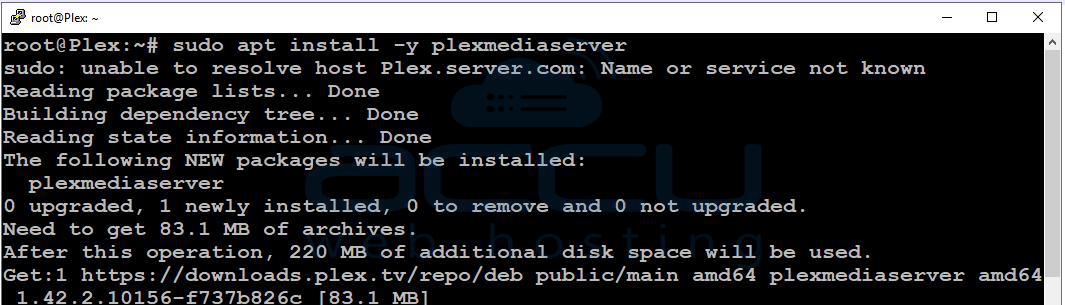
4.2 Install Plex Media Server
Now, install the Plex Media Server package:
sudo apt install -y plexmediaserver
Step 5: Start and Enable Plex
5.1 Start the Plex Service
Start the Plex Media Server service with the following command:
sudo systemctl restart plexmediaserver
5.2 Enable Plex to Start on Boot
To ensure Plex starts automatically when the server reboots, enable it to run on boot:
sudo systemctl enable plexmediaserver
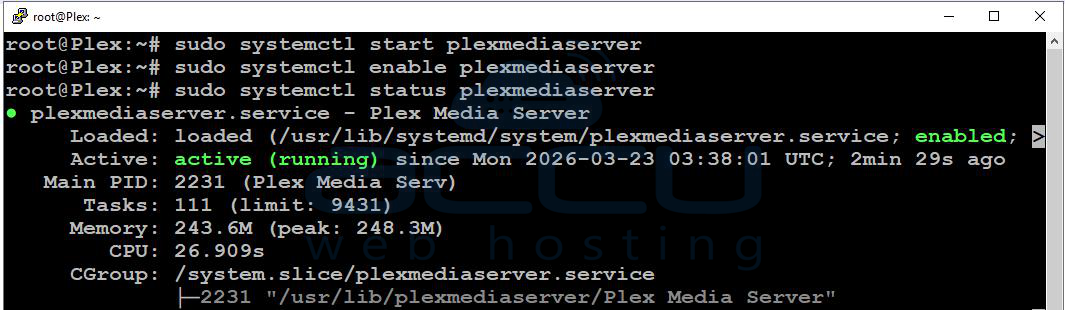
5.3 Check Plex Status
Check the status of the Plex service to make sure it is running properly:
sudo systemctl status plexmediaserver
Step 6: Allow Firewall (Important)
If you are using UFW (Uncomplicated Firewall) on your VPS, allow traffic on Plex's default port (32400):
sudo ufw allow 32400
Step 7: Access the Plex Web Interface
Once the Plex Media Server is installed and running, open your web browser and go to the following URL to access the Plex interface:
http://YOUR_SERVER_IP:32400/web
Replace YOUR_SERVER_IP with your actual VPS IP address.
Step 8: Initial Setup
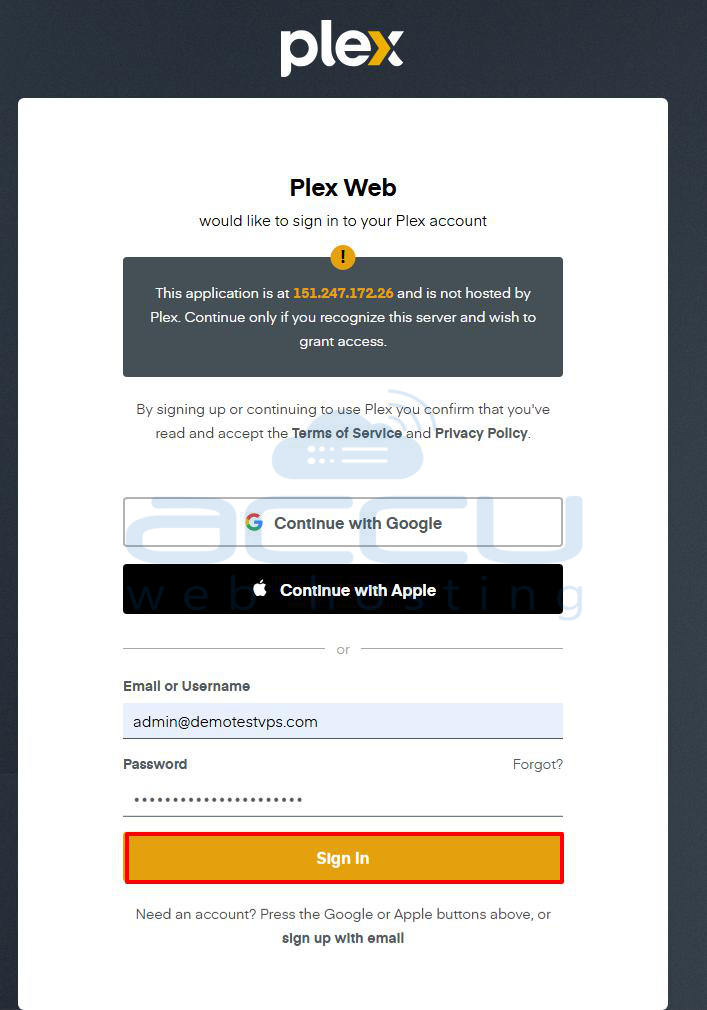
8.1 Sign In or Create a Plex Account
When you access the web interface, you will be prompted to sign in to your Plex account or create a new one.
8.2 Add Your Media Libraries
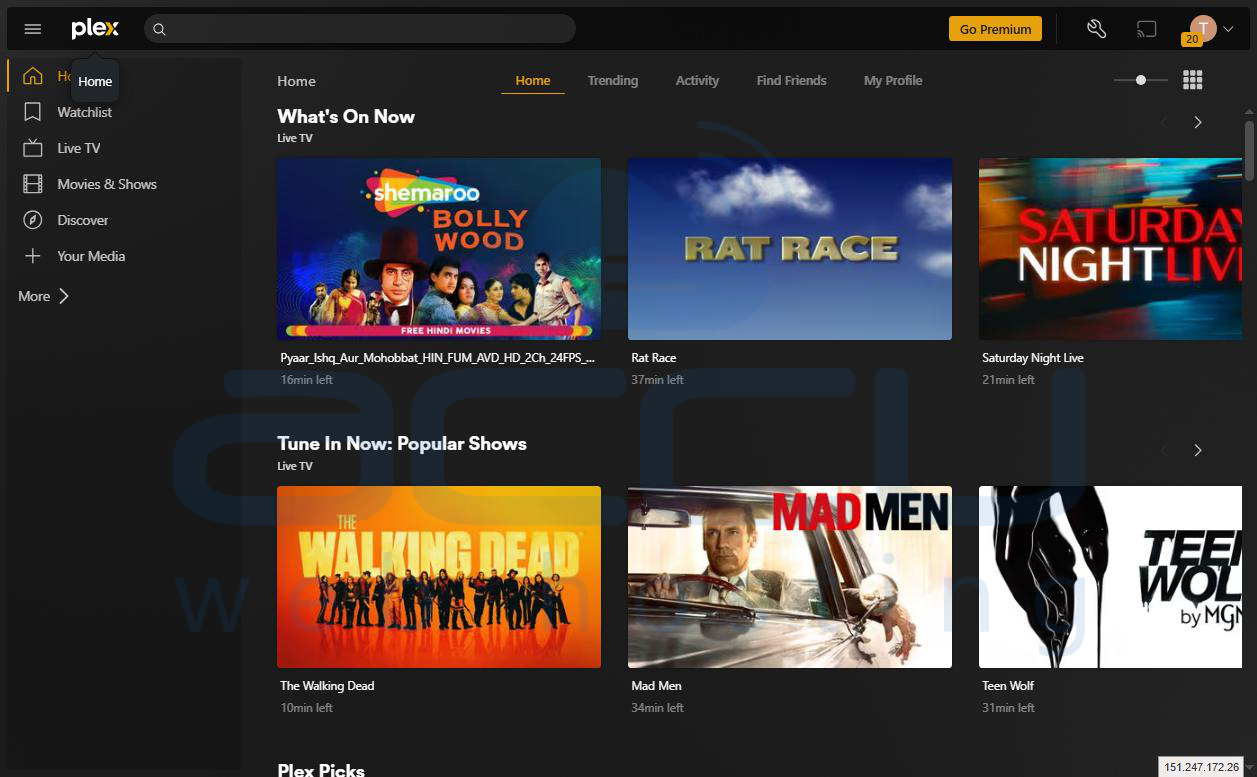
After logging in, you can begin adding your media libraries. Plex allows you to add various types of media, such as:
-
Movies
-
TV Shows
-
Music
Congratulations! You have successfully installed Plex on your Ubuntu 24 VPS. Enjoy streaming your media from anywhere!
Conclusion:
Setting up Plex on your Ubuntu 24 VPS is a great way to create your own personal media server. With its powerful features, ease of use, and ability to stream your media to any device, Plex enhances your viewing and listening experience. Whether you're at home or on the go, Plex ensures that your favorite movies, TV shows, and music are always just a click away. Enjoy the flexibility and convenience of having all your media organized and accessible with Plex!
If you encounter any issues during installation, please feel free to contact us via chat or support. Our support team will assist you with the installation process.


