
Introduction
Managing virtual private servers efficiently is a key responsibility for any system administrator or hosting provider. Tools like Virtualizor simplify this process by offering a centralized interface to monitor and control VPS instances. One of the most basic yet critical tasks is determining whether a VPS is online or offline. Knowing the status of your server helps in diagnosing issues, ensuring uptime, and maintaining service reliability. In this guide, we’ll explore how to quickly check the status of a VPS within Virtualizor and understand what the indicators mean.
Step 1: Log in to Virtualizor
Log in to Virtualizor using the VPS management panel details you received via email, along with the server login credentials.
Step 2: Select the VPS
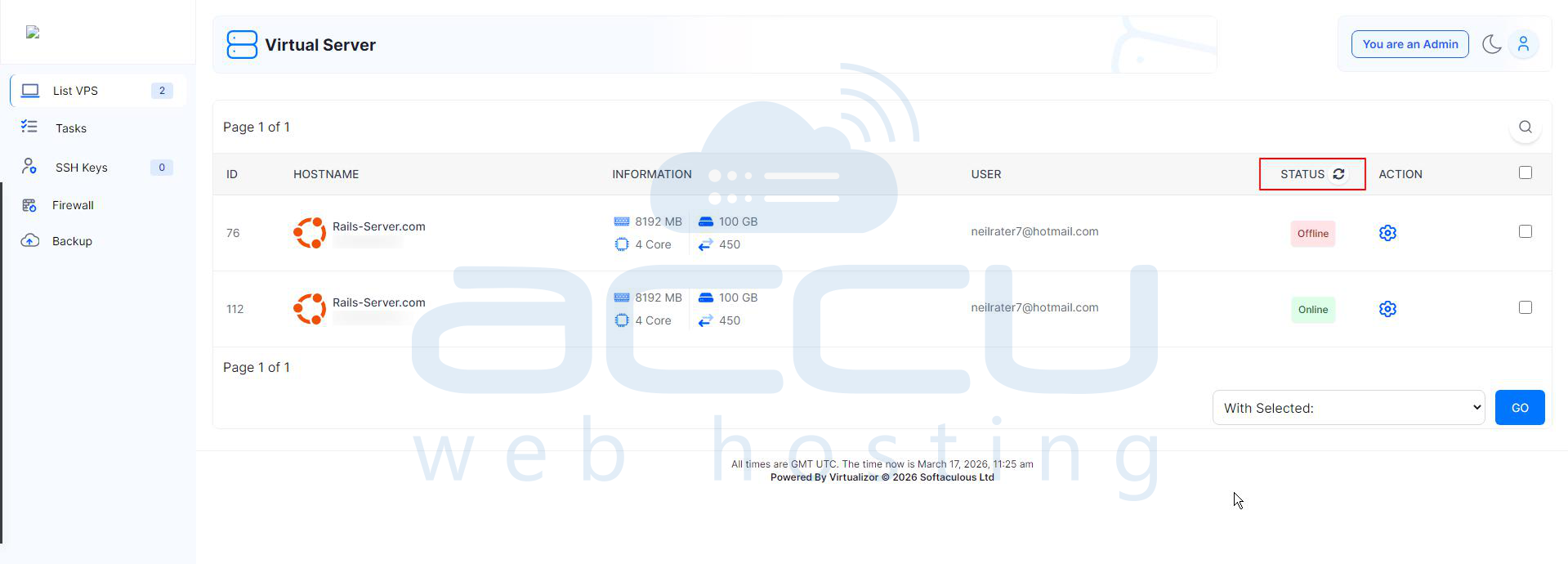
On the left-hand panel, click on the List VPS tab. This will display all your VPS instances.
Step 3: Select the VPS
Find the VPS you want to see the status of, and see the status of the VPS under the STATUS tab.
- If the VPS is stopped or powered off, it shows an offline status.
- If the VPS is running or powered on, it shows an online status.
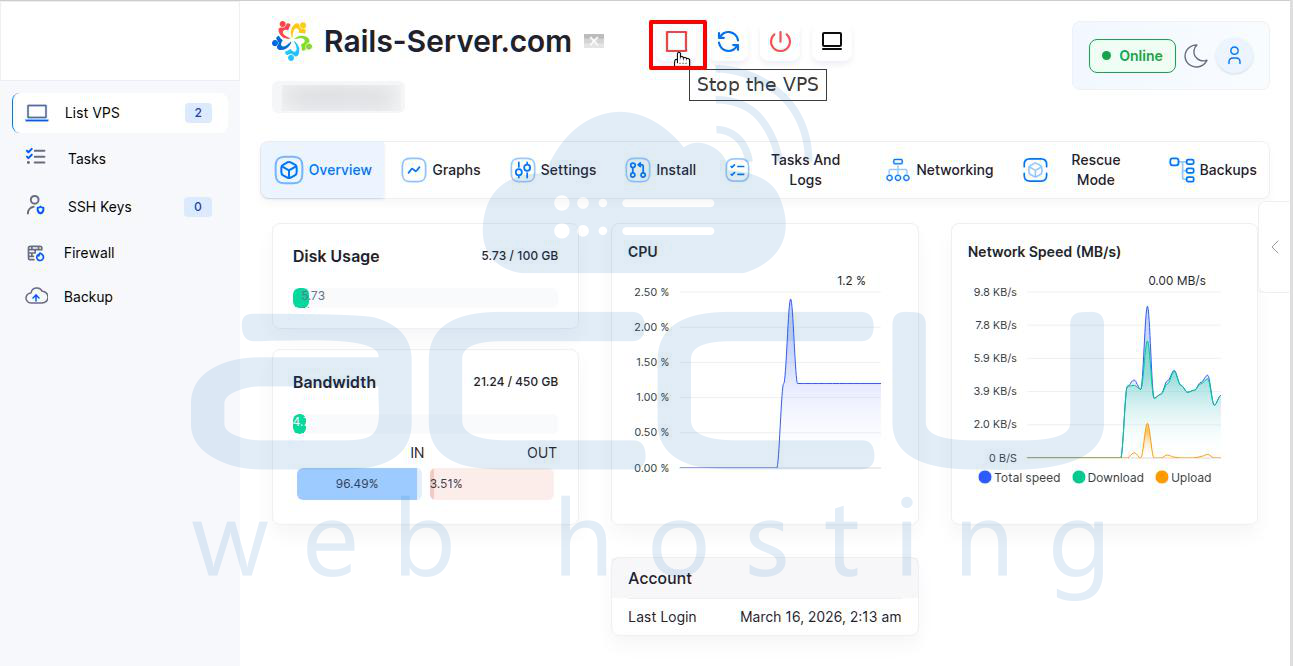
Offline Status:
Once you stop the VPS, a confirmation message will appear: “The Shutdown signal has been sent to the VPS.”
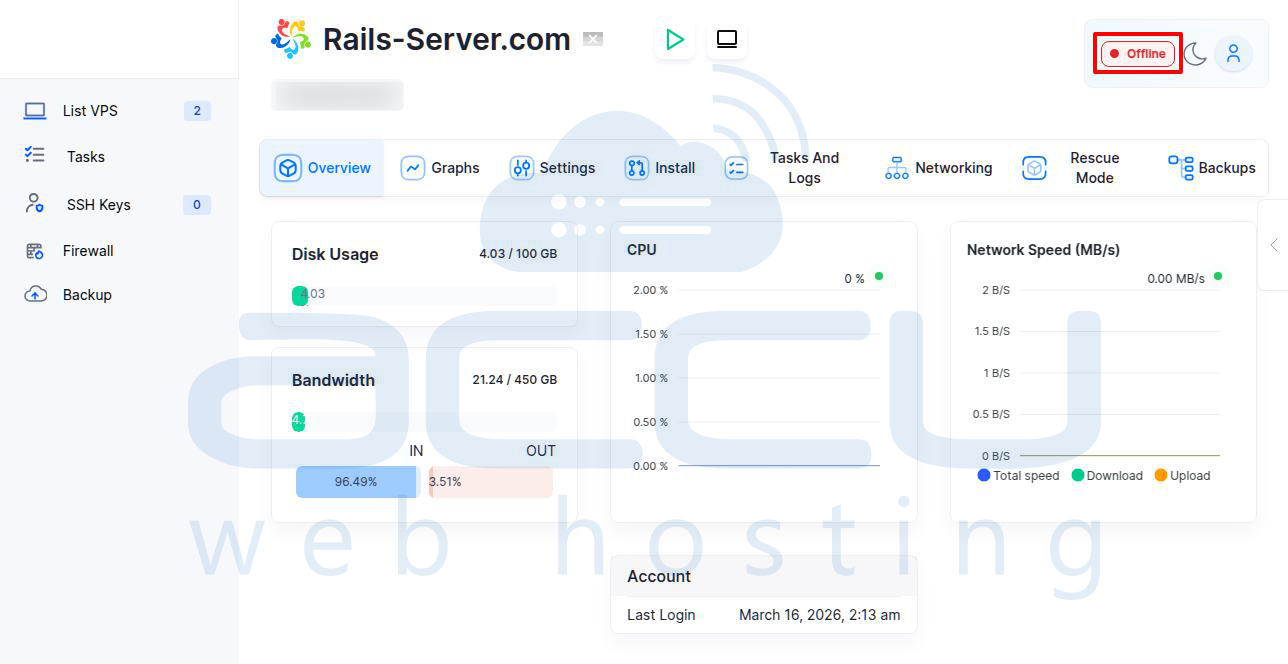
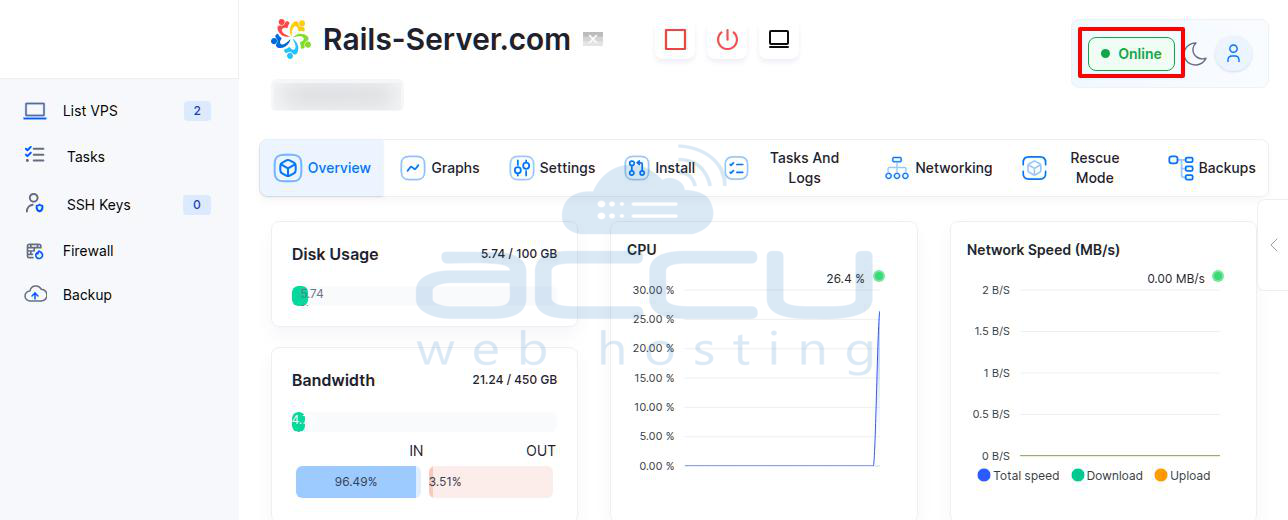
Then, the VPS status will change from Online to Offline.
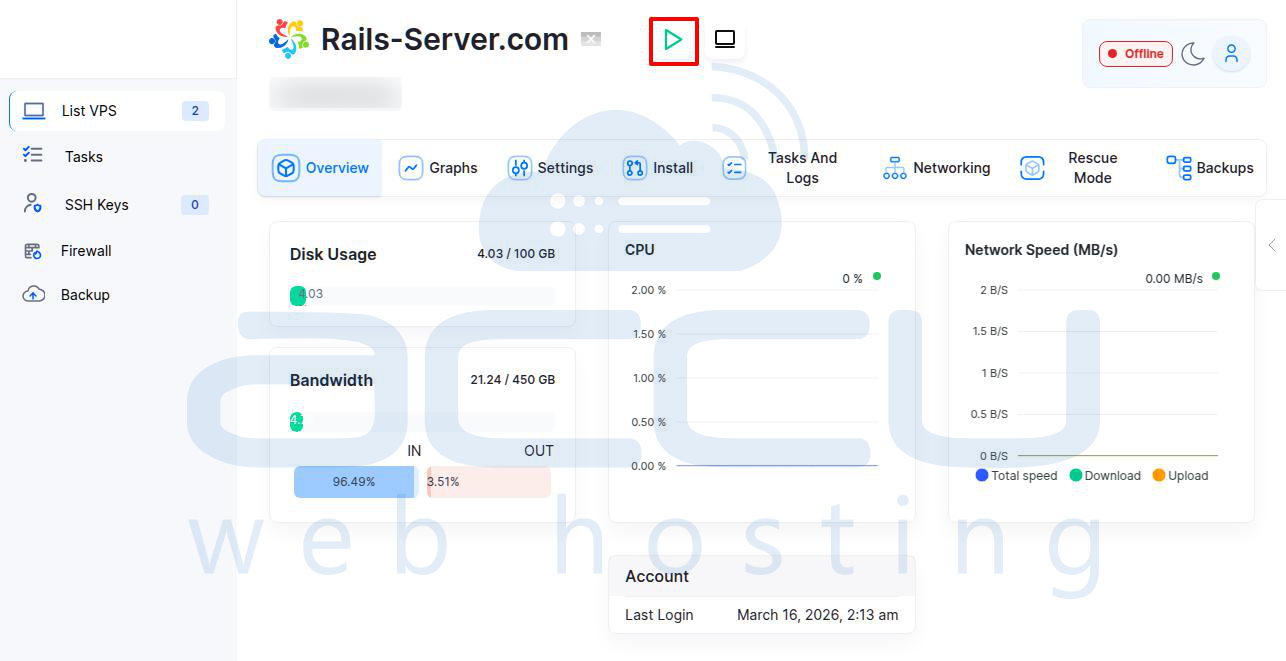
Online Status:
Once the VPS has started, a confirmation message will appear: “The VPS was started successfully.”
The VPS status will change from Offline to Online.
Conclusion
Checking whether a VPS is online or offline in Virtualizor is a straightforward process that plays a vital role in server management. By regularly monitoring VPS status, administrators can respond promptly to downtime, troubleshoot issues efficiently, and maintain optimal performance. Mastering these simple checks ensures better control over your virtual infrastructure and contributes to a more stable and reliable hosting environment.


