
Introduction:
Reinstalling the Operating System (OS) on a VPS is a useful way to start fresh with a clean setup. Whether you need to fix issues or simply want to switch to a different OS, Virtualizor provides an easy and efficient way to reinstall the OS on your VPS.
However, before proceeding with this process, it's important to make sure you have a backup of your data, as reinstalling the OS will erase all existing files on the server.
In this article, we'll walk you through the steps to reinstall the OS on your VPS using Virtualizor.
Steps to Reinstall VPS Operating System in Virtualizor:
Step 1: Log in to Virtualizor
Log in to Virtualizor using the VPS management panel details you received via email, along with the server login credentials.
Step 2: Select the VPS
On the left-hand panel, click on the List VPS tab. This will display all your VPS instances.
Step 3: Access VPS Settings
Find the VPS you want to reinstall the Operating System for.
Under the ACTION column, click the Manage icon, which is represented by a settings gear.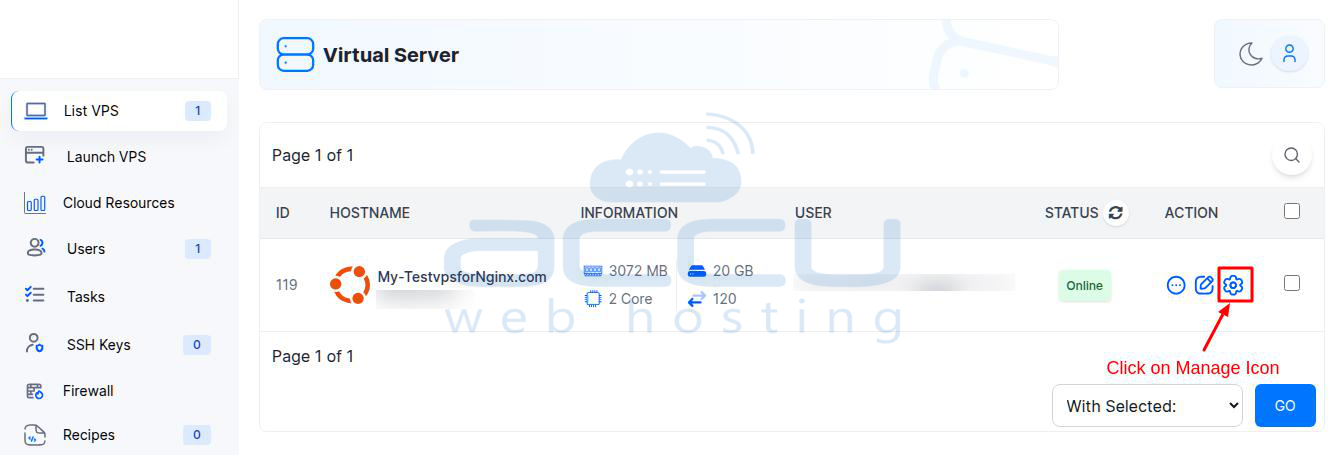
Step 4: Go to the Install Tab
After clicking the Manage icon, you will be taken to the VPS management screen.
Here, click on the Install tab located at the top of the screen.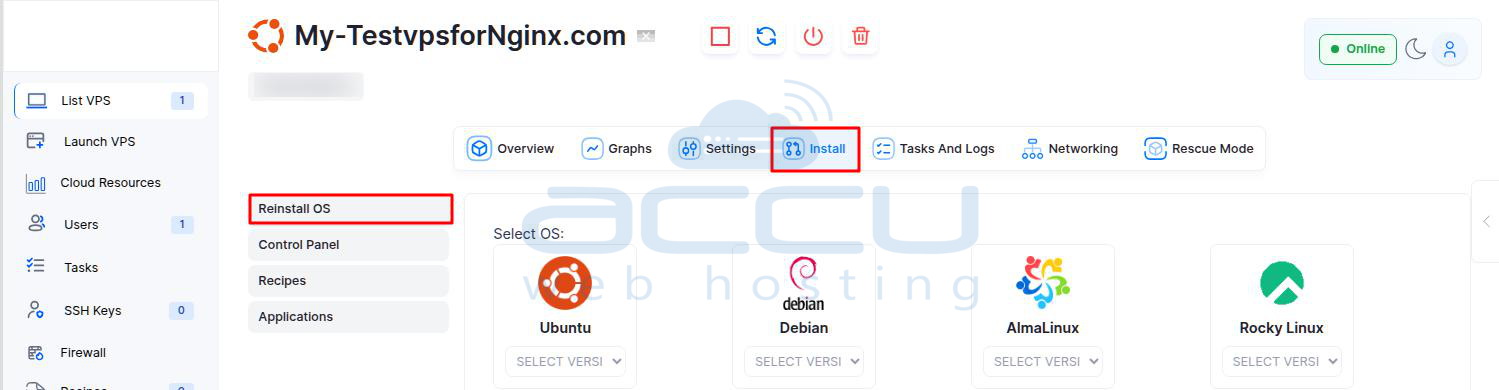
Step 5: Reinstall the Operating System
In the Install section, click on the Reinstall OS option.
-
Select OS: Choose the distribution of the operating system you wish to install, along with the desired version.
-
Set Password: Enter a new password for the Root User, which will be used to log in to the VPS after the reinstallation.
-
Reinstall: Once the settings are selected, press the Reinstall button.
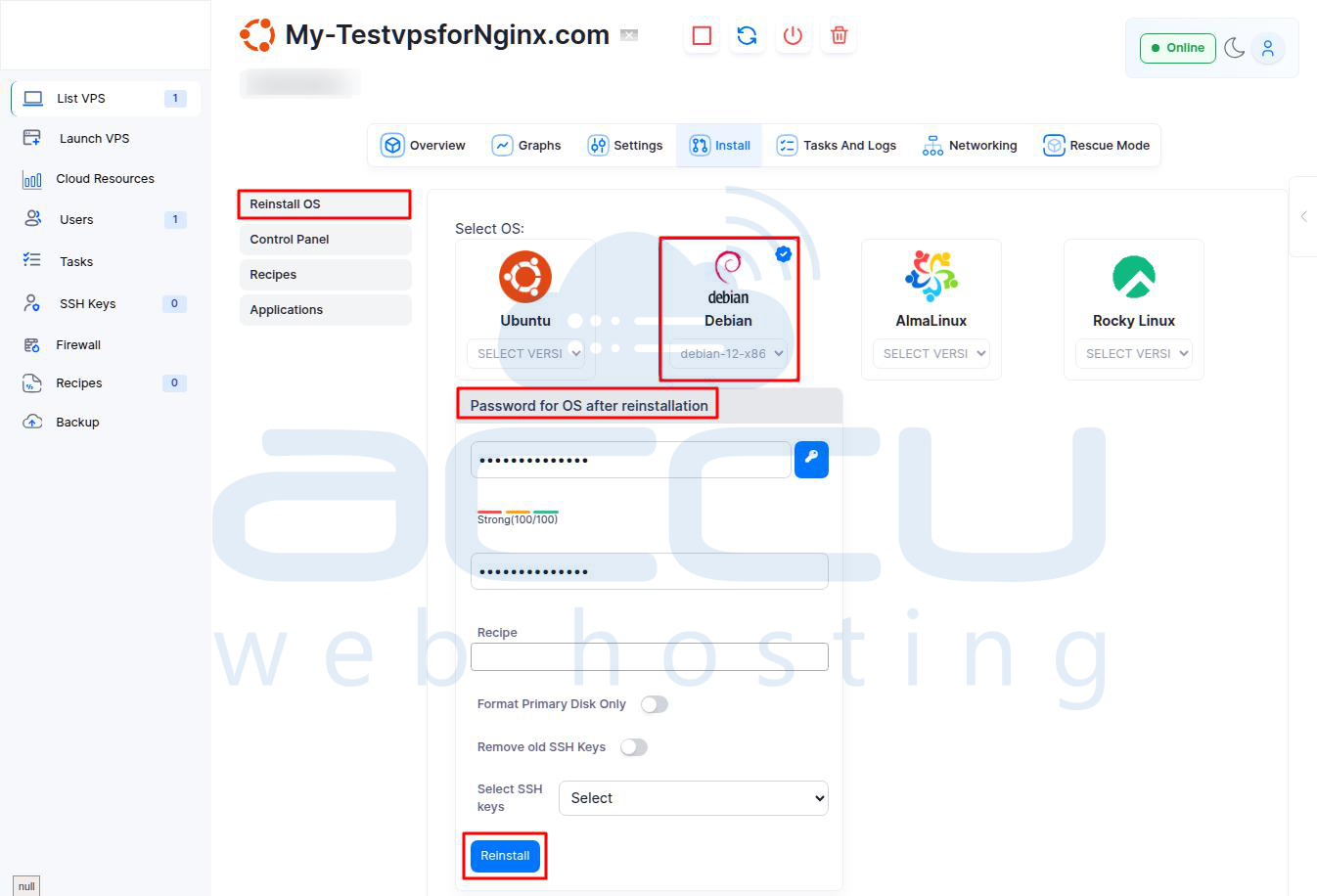
A confirmation modal will appear. Click OK to confirm that you want to rebuild the VPS. 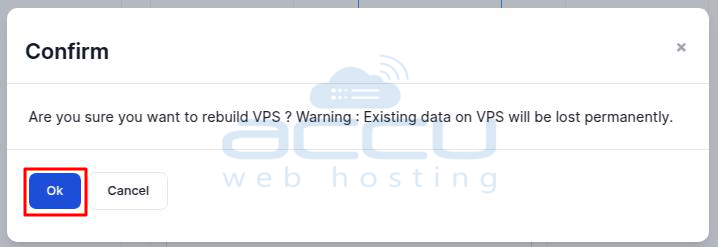
Once you confirm, a success message will appear: "The OS reinstall process has been started in the background."
Please allow some time for the process to complete.
Wait for a few minutes until the VPS status shows as Online.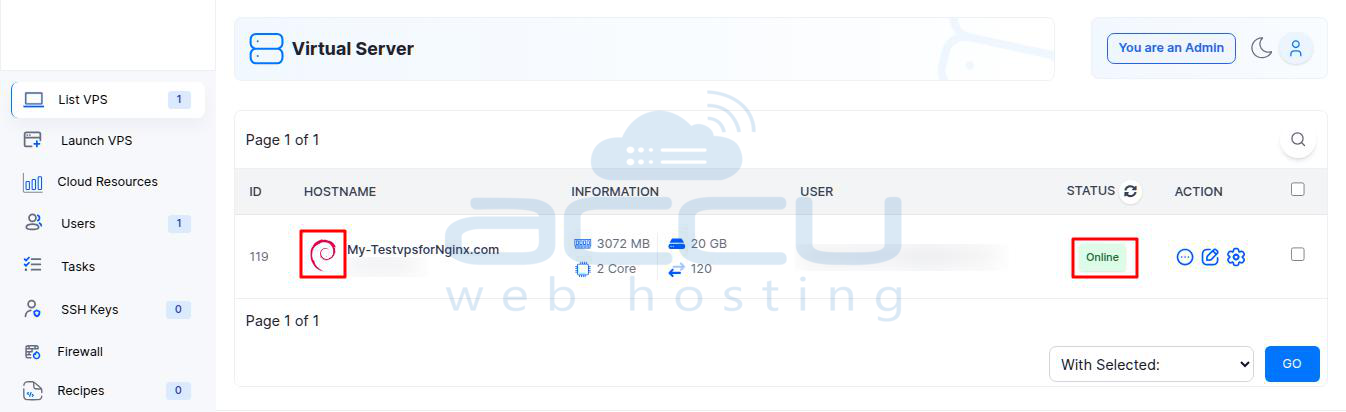
Step 6: Confirm VPS Operating System
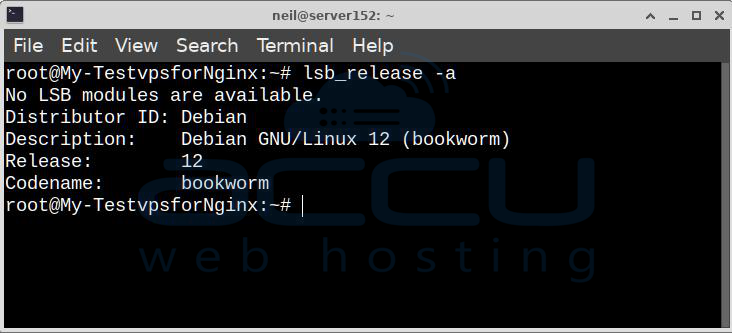
Connect to your VPS via SSH and verify the operating system using the following command.
lsb_release -a
Conclusion:
Reinstalling the OS on your VPS is a straightforward process in Virtualizor, and it can be done quickly with the right steps.
By following the article above, you'll be able to choose your preferred OS, set up the root password, and complete the installation in no time. Just remember to back up your data before starting, as reinstalling the OS will erase any existing information on the VPS.


