
Introduction
Palworld is a popular open-world survival and creature-collection game developed by Pocketpair. Running your own server allows you to create a persistent multiplayer world where you control gameplay settings, player limits, and server rules.
Using Docker is one of the easiest and most reliable ways to deploy a Palworld server. Docker containers package the required dependencies such as SteamCMD and game libraries into a single environment, which eliminates most installation errors on Linux systems.
This guide explains how to install and run a Palworld Server using Docker on a plain Ubuntu 24.04 VPS. The server will run with an admin password configured, allowing you to use server administration features and avoid REST API authentication warnings.
Step 1: Update the Server
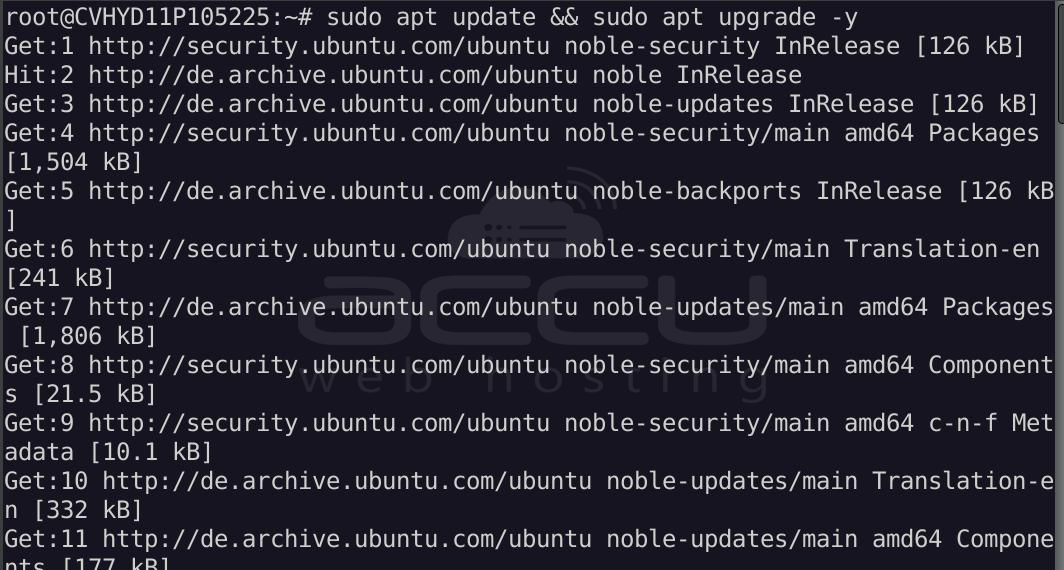
First, update your Ubuntu system.
> sudo apt update && sudo apt upgrade -y
Step 2: Install Docker
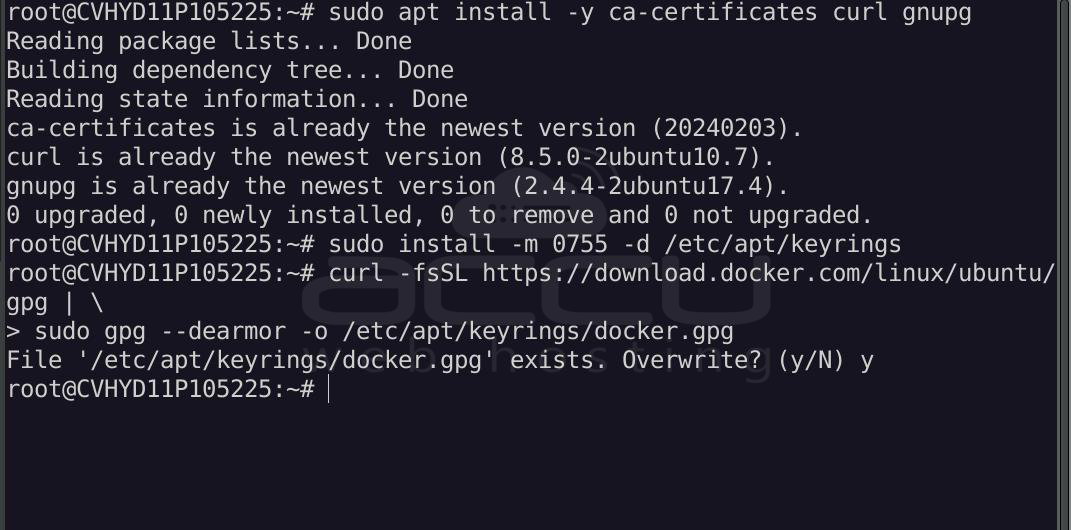
Install the required packages:
> sudo apt install -y ca-certificates curl gnupg
Create the Docker key directory:
> sudo install -m 0755 -d /etc/apt/keyrings
Download the Docker repository key:
> curl -fsSL https://download.docker.com/linux/ubuntu/gpg | \sudo gpg --dearmor -o /etc/apt/keyrings/docker.gpg
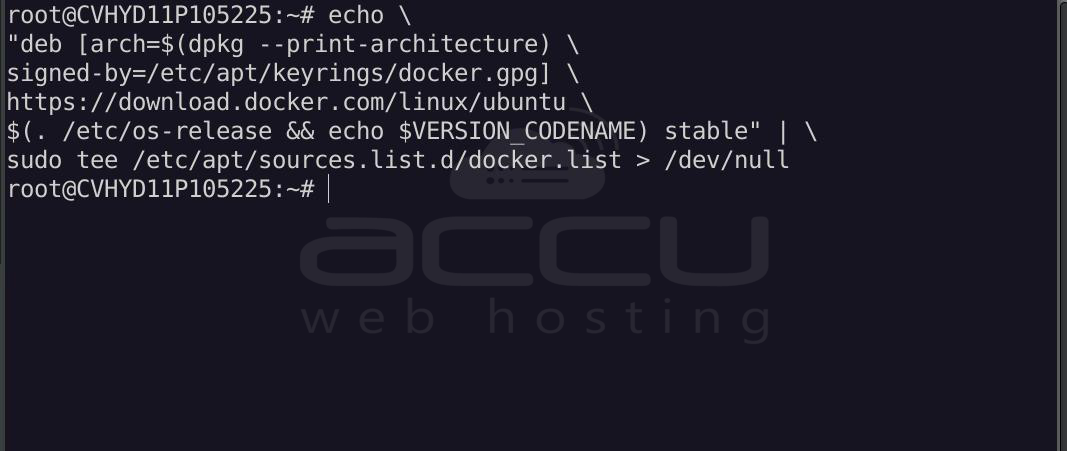
Add the Docker repository:
> echo \"deb [arch=$(dpkg --print-architecture) \
signed-by=/etc/apt/keyrings/docker.gpg] \
https://download.docker.com/linux/ubuntu \
$(. /etc/os-release && echo $VERSION_CODENAME) stable" | \
sudo tee /etc/apt/sources.list.d/docker.list > /dev/null
Update packages again.
> sudo apt update
Install Docker:
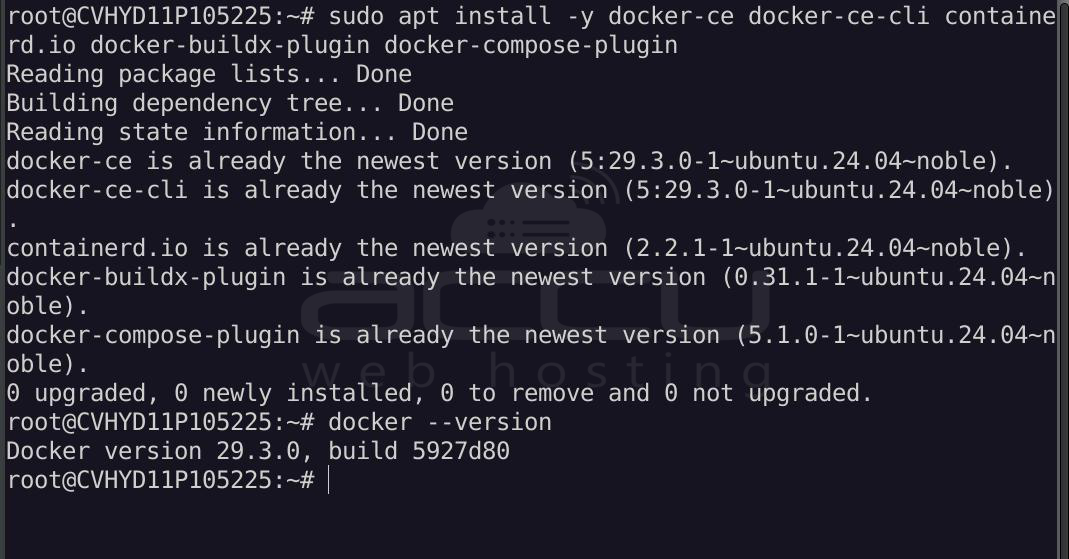
> sudo apt install -y docker-ce docker-ce-cli containerd.io docker-buildx-plugin docker-compose-plugin
Verify installation
> docker --version
Example output: Docker version 26.x.x
Step 3: Create a Directory for the Server
Create a directory that will store the server data and configuration.
> mkdir ~/palworld-docker
> cd ~/palworld-docke
This directory will hold:
- game saves
- server configuration
- logs
Step 4: Run the Palworld Docker Container
Run the Palworld server container with an admin password configured.
> docker run -d \
--name palworld-server \
-p 8211:8211/udp \
-v $(pwd)/data:/palworld \
-e PORT=8211 \
-e PLAYERS=16 \
-e SERVER_NAME="My Palworld Server" \
-e ADMIN_PASSWORD="StrongAdminPassword123" \
--restart unless-stopped \
thijsvanloef/palworld-server-docker:latest
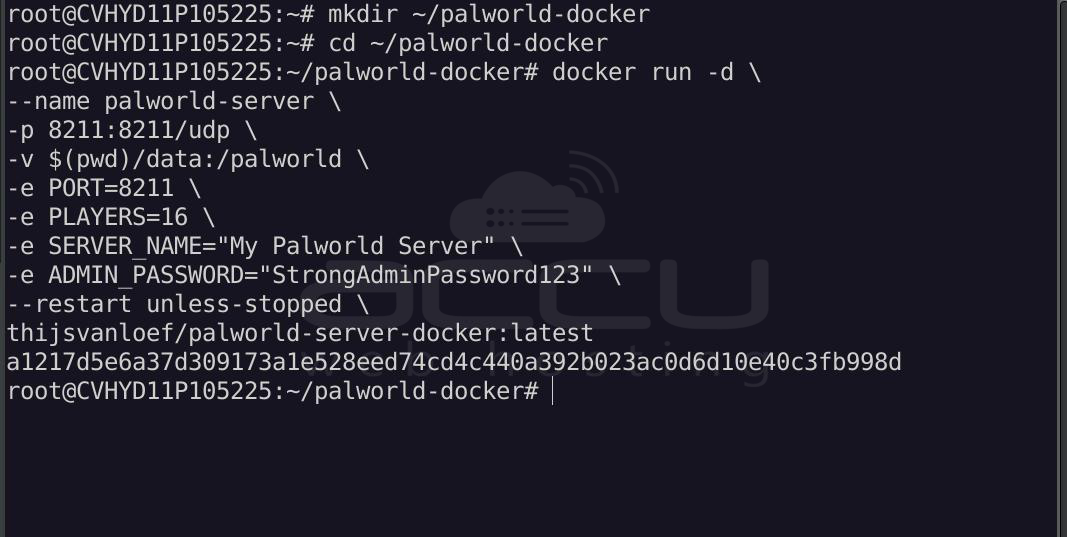
Explanation of important parameters:
- -d runs the container in the background
- -p 8211:8211/udp exposes the Palworld game port
- -v $(pwd)/data:/palworld stores world data on the VPS
- PLAYERS=16 sets the player limit
- SERVER_NAME sets the visible server name
- ADMIN_PASSWORD enables server administration commands
- --restart unless-stopped automatically restarts the server if the VPS reboots
Step 5: Verify the Server is Running
Check running containers.
> docker ps
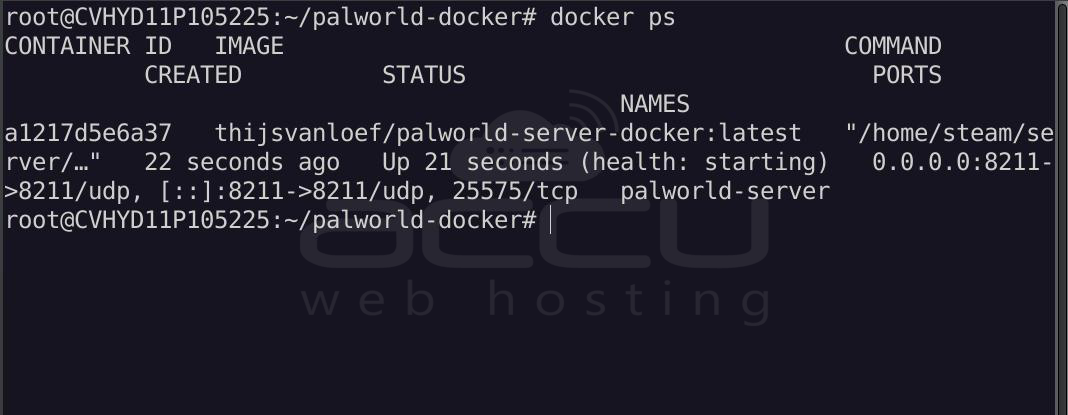
You should see the container: palworld-server
Step 6: View Server Logs
To monitor server activity, run:
> docker logs -f palworld-server
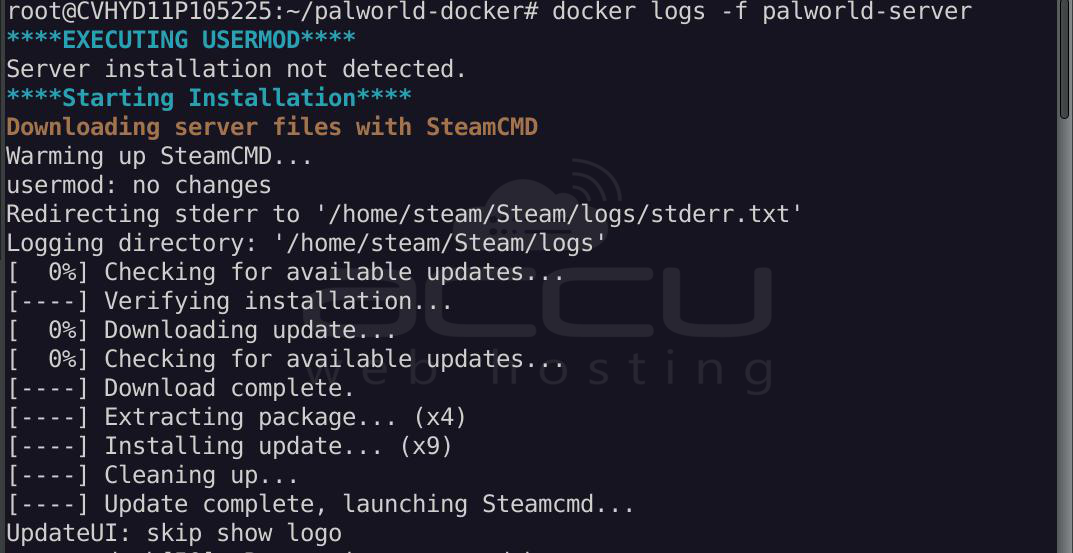
A successful startup will show messages similar to:
Game version is v0.x.x
Running Palworld dedicated server on :8211
REST API started on port 8212

Step 7: Stop, Start, or Restart the Server
Stop the server:
> docker stop palworld-server
Start the server again:
> docker start palworld-server
Restart the server:
> docker restart palworld-server
Step 8: Update the Palworld Server
Pull the latest container version:
> docker pull thijsvanloef/palworld-server-docker:latest
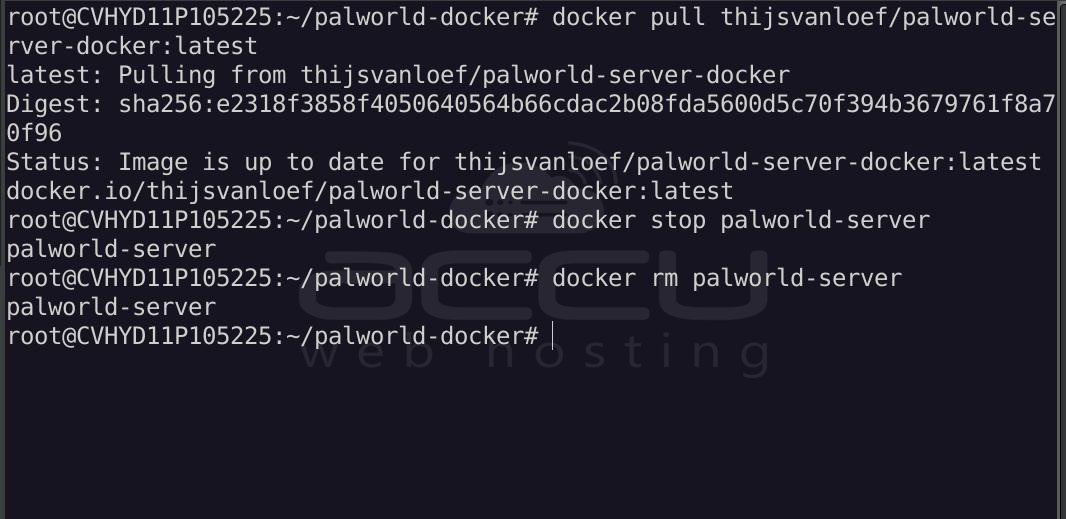
Recreate the container:
> docker stop palworld-server
> docker rm palworld-server
Then run the docker run command again (Step 4).
Your world data remains safe inside the data directory.
Step 9: Connect to the Server
Players can connect using the public server IP.
YOUR_SERVER_IP:8211
How Players Actually Connect:
Players connect inside the game client, not through a browser.
Steps:
- Open Palworld.
- Go to Join Multiplayer Game.
- Enter the server IP: Your_Server_IP:8211
- Click Connect.
Server Data Location:
All game files and saves will be stored in: ~/palworld-docker/data
This ensures your world data persists even if the container is recreated.
Summary:
In this guide, we installed and ran a Palworld using Docker on Ubuntu 24.04. The process included installing Docker, creating a server directory, launching a containerized Palworld server, and configuring an admin password for server management.
Using Docker simplifies deployment because the container automatically handles dependencies, installs the game server, and stores world data safely on the host system.
Conclusion:
Hosting your own Palworld server with Docker is a reliable and efficient solution for multiplayer environments. Docker eliminates dependency issues and allows quick deployment, updates, and server management.
With proper configuration and sufficient server resources, your Ubuntu 24.04 VPS can host a stable Palworld world that remains accessible to players around the clock while giving administrators full control over gameplay and server settings.


