
Introduction:
In modern software development, containers have become extremely popular because they allow developers to package applications along with all their dependencies. One of the most widely used container platforms is Docker.
However, managing containers through command-line tools can sometimes be complicated, especially for beginners.
This is where Portainer comes in.
Portainer provides a simple web-based graphical interface that allows users to manage Docker containers without needing to run complex commands in the terminal.
What is Portainer?
Portainer is a lightweight and user-friendly container management tool that provides a web-based graphical interface (GUI) for managing container environments.
It supports container platforms such as:
-
Docker
-
Kubernetes
-
Docker Swarm
Instead of typing multiple commands in a terminal, users can manage containers directly from an easy-to-use web dashboard. Portainer makes container management easier for developers, DevOps engineers, and system administrators.
What is Portainer Used For?
Portainer helps users deploy, monitor, and manage containerized applications easily.
Below are some common uses of Portainer.
1. Managing Containers
Portainer allows users to easily:
-
Start containers
-
Stop containers
-
Restart containers
-
Remove containers
All of these actions can be performed directly from the web interface.
2. Deploying Applications
Users can deploy applications using container images from registries such as:
-
Docker Hub
-
Private container registries
3. Managing Images
Portainer allows users to:
-
Pull new images
-
View existing images
-
Remove unused images
4. Monitoring Containers
Portainer provides useful information such as:
-
Container logs
-
Resource usage
-
Container status
-
Performance metrics
5. Managing Volumes and Networks
Portainer helps manage Docker resources, including:
-
Volumes (persistent storage)
-
Networks (container communication)
Benefits of Using Portainer:
1. Easy to Use
Portainer provides a clean and intuitive interface, making container management easy even for beginners.
2. Saves Time
Complex Docker commands can be replaced with simple click-based actions, saving time.
3. Centralized Management
Portainer allows users to manage multiple Docker environments from a single dashboard.
4. Lightweight
Portainer is lightweight and consumes very few system resources.
5. Improved Visibility
It gives a clear overview of:
-
Running containers
-
Images
-
Networks
-
Volumes
6. Access Control
Administrators can control user access and permissions, improving security.
Prerequisites:
Before installing Portainer, make sure you have the following:
-
A fresh Ubuntu 24 VPS
-
Root or sudo user privileges
-
Docker is installed on your system
If Docker is not installed yet, we will cover it in this article as well.
Step 1: Update Your System
Before installing any software, it is recommended to update your system packages.
Run the following command:
sudo apt update && sudo apt upgrade -y
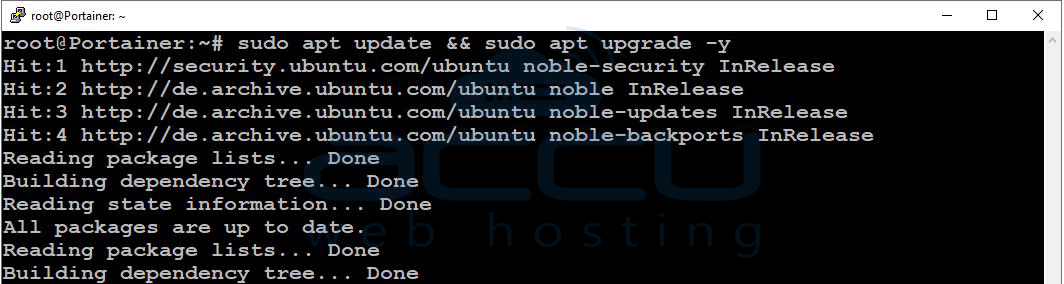
This command will update the package list and install the latest updates available for your system.
Step 2: Install Docker on Ubuntu 24
Since Portainer runs on Docker, Docker must be installed first.
Install Required Dependencies
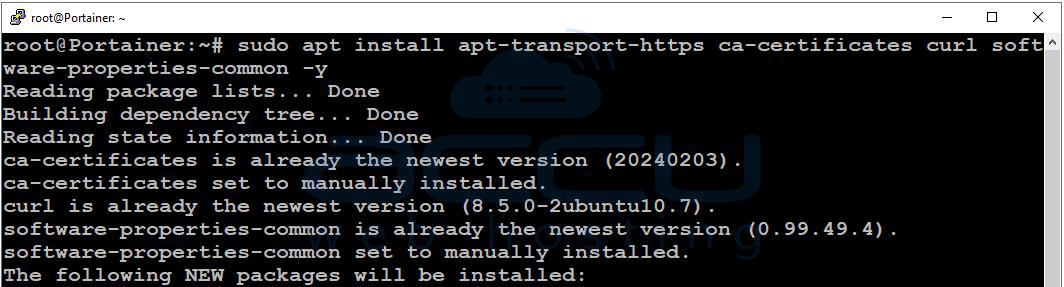
sudo apt install apt-transport-https ca-certificates curl software-properties-common -y
Add Docker’s Official GPG Key
curl -fsSL https://download.docker.com/linux/ubuntu/gpg | sudo gpg --dearmor -o /usr/share/keyrings/docker-archive-keyring.gpg
Add Docker Repository
echo "deb [arch=amd64 signed-by=/usr/share/keyrings/docker-archive-keyring.gpg] https://download.docker.com/linux/ubuntu $(lsb_release -cs) stable" | sudo tee /etc/apt/sources.list.d/docker.list > /dev/null

Update Package List
sudo apt update
Install Docker
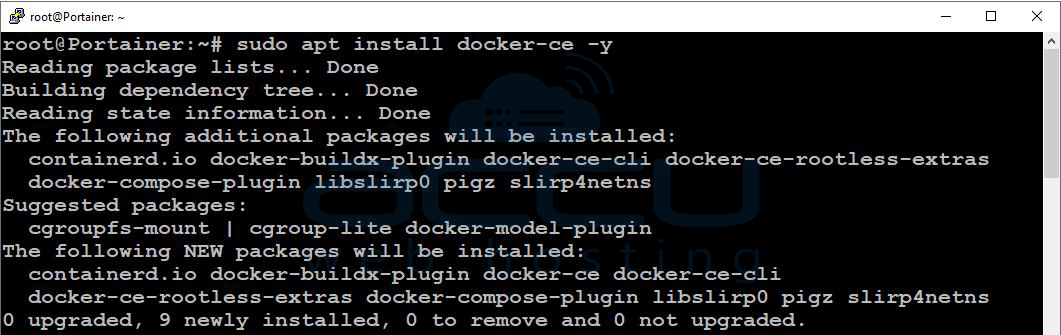
sudo apt install docker-ce -y
Verify Docker Installation
sudo systemctl status docker
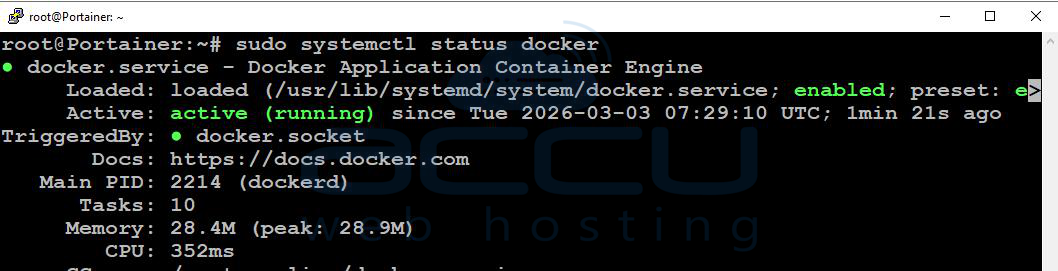
If Docker is installed correctly, the service status will show active (running).
Press Ctrl + C to exit the status screen.
Step 3: Install Portainer
Once Docker is installed, you can install Portainer using Docker.
1. Create a Docker Volume
Run the following command:
sudo docker volume create portainer_data

This command creates a volume to store Portainer data persistently.
2. Run the Portainer Container
Execute the following command to pull and run Portainer:
sudo docker run -d \
-p 8000:8000 \
-p 9000:9000 \
--name portainer \
--restart always \
-v /var/run/docker.sock:/var/run/docker.sock \
-v portainer_data:/data \
portainer/portainer-ce:latest
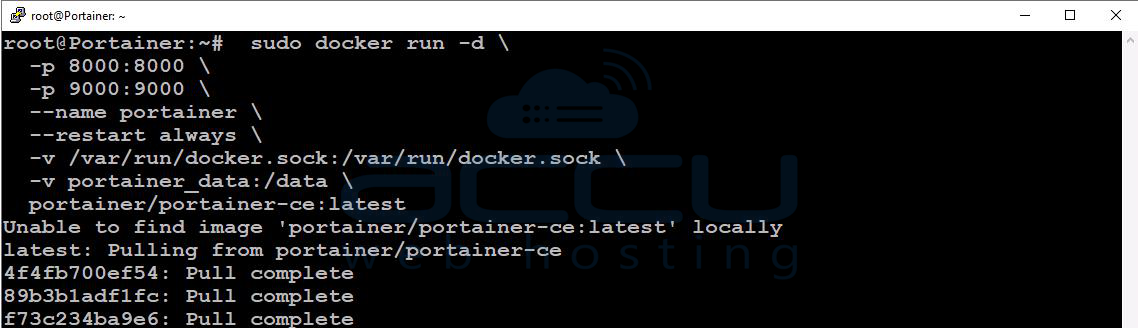
Explanation of Parameters:
| Parameter | Description |
|---|---|
-d |
Runs the container in detached mode |
-p 8000:8000 |
Port for Portainer Edge Agent (optional) |
-p 9000:9000 |
Port used for Portainer Web UI |
--name portainer |
Assigns the container name |
--restart always |
Automatically restarts container after reboot |
-v /var/run/docker.sock:/var/run/docker.sock |
Allows Portainer to communicate with Docker |
-v portainer_data:/data |
Stores Portainer data persistently |
3. Verify Portainer Container
To confirm that Portainer is running, execute:
sudo docker ps
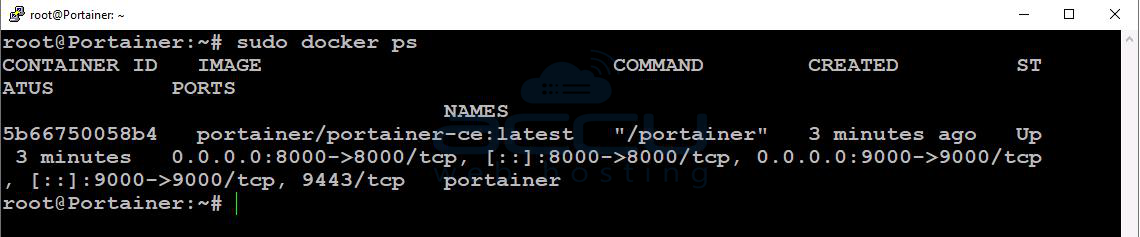
You should see the Portainer container listed in the output.
Step 4: Access the Portainer Web Interface
Once Portainer is running, you can access it through your web browser.
Open the following URL:
http://YOUR_VPS_IP:9000
Replace YOUR_VPS_IP with the actual IP address of your server.
When accessing Portainer for the first time:
1. Create an admin username
2. Set a strong password
3. Click Create User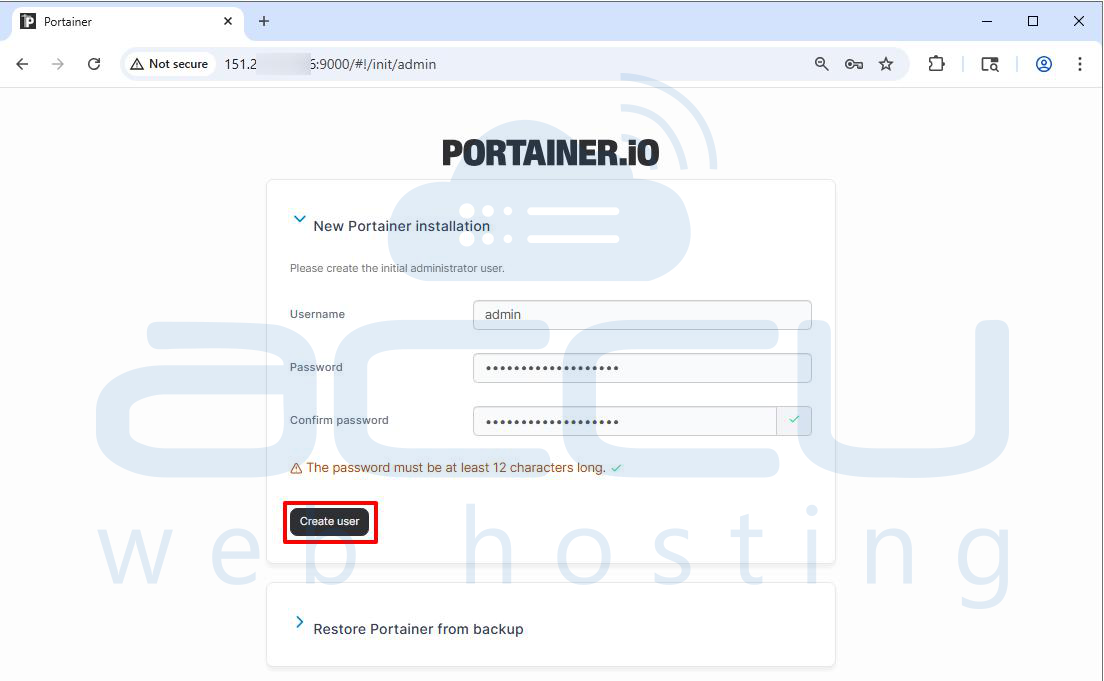
Step 5: Connect Portainer to Docker
After logging in, Portainer will ask you to select a Docker environment.
Select:
Local (default option)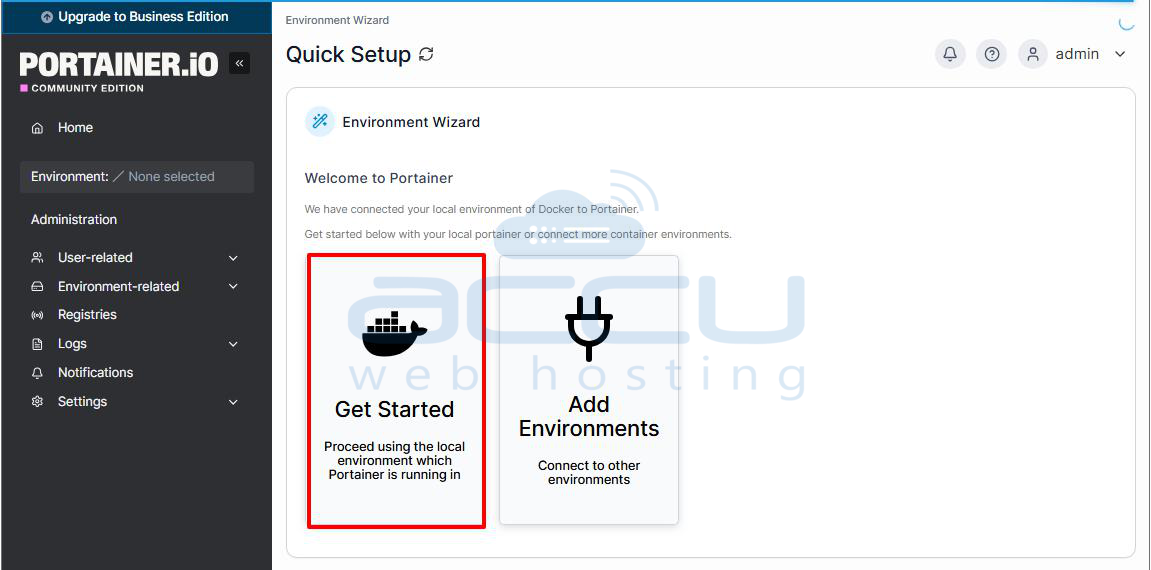
This allows Portainer to manage the Docker engine running on your VPS.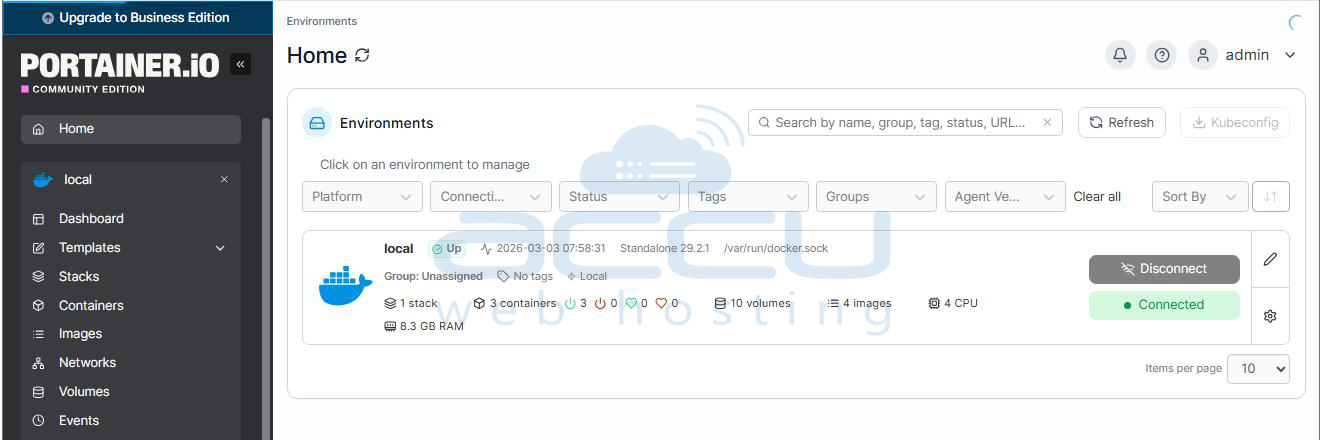
Step 6: Start Using Portainer
You can now manage your Docker environment using Portainer.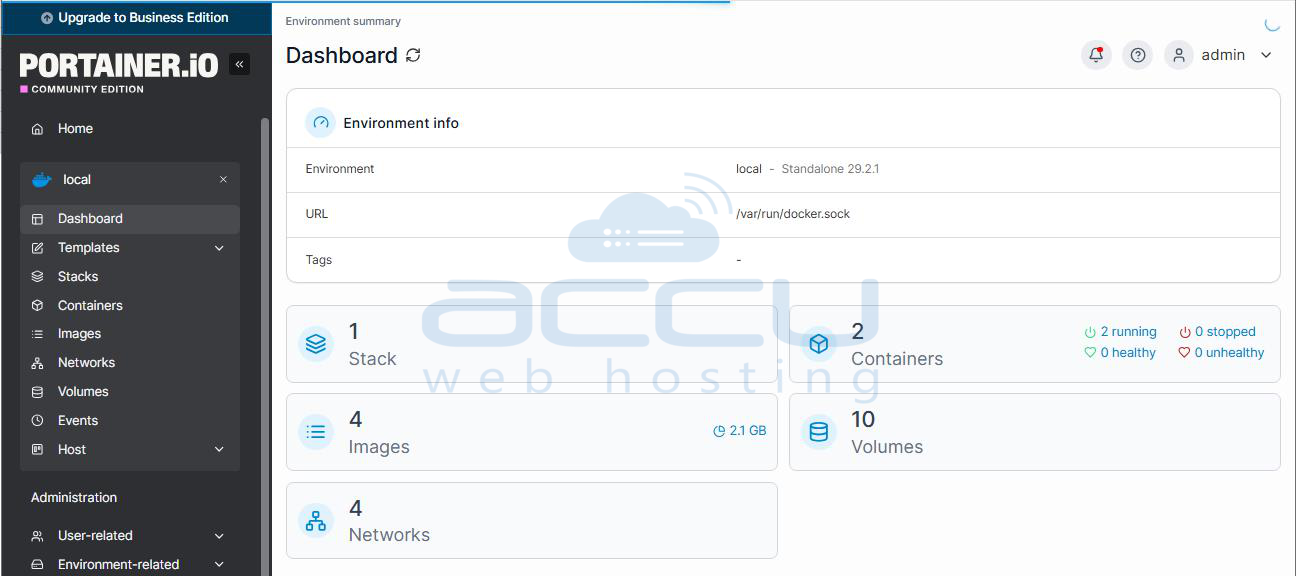
With Portainer, you can:
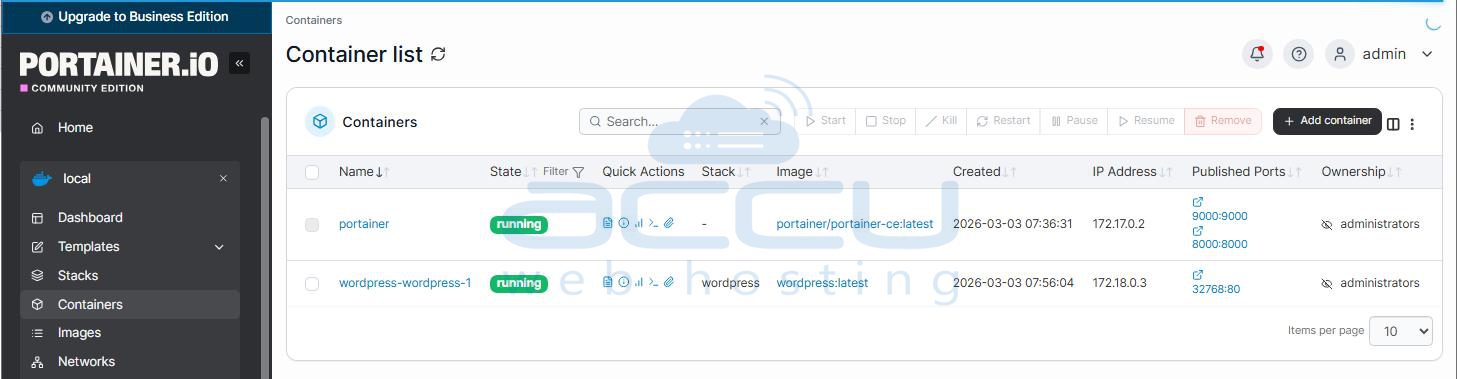
Manage Containers
-
Start containers
-
Stop containers
-
Restart containers
-
View container logs
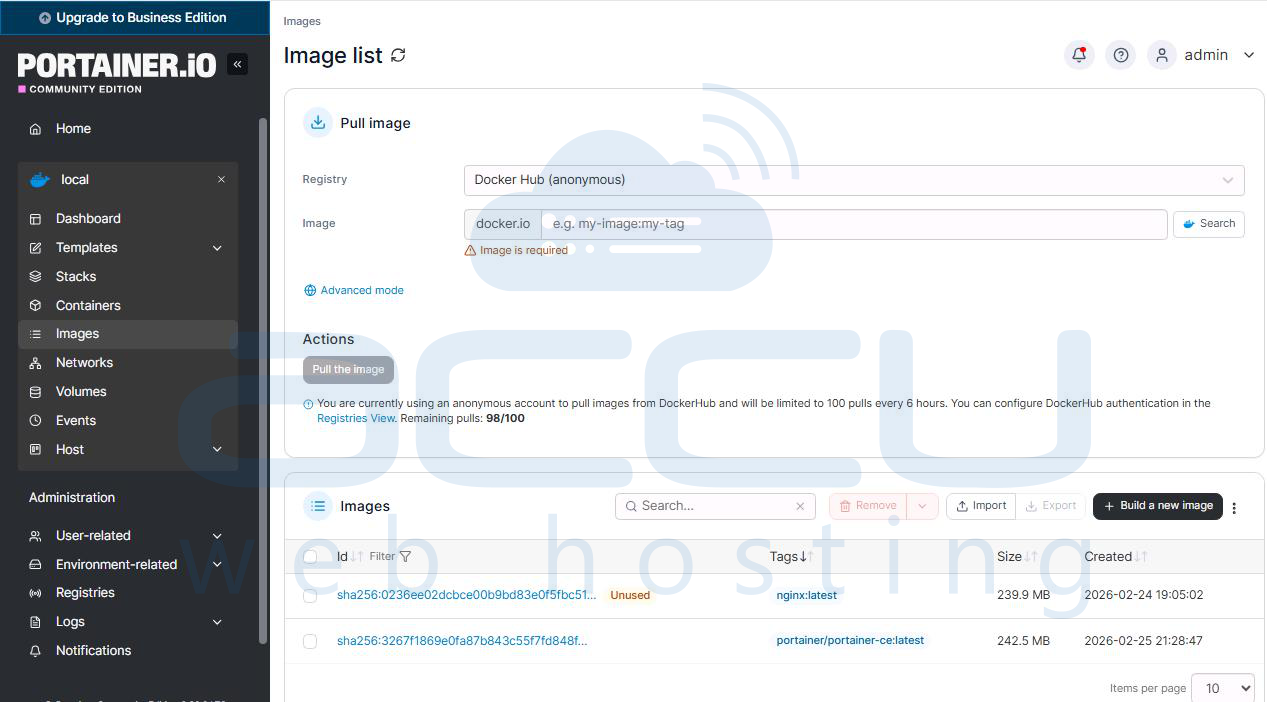
Manage Images
-
Pull images from Docker Hub
-
Deploy containers from images
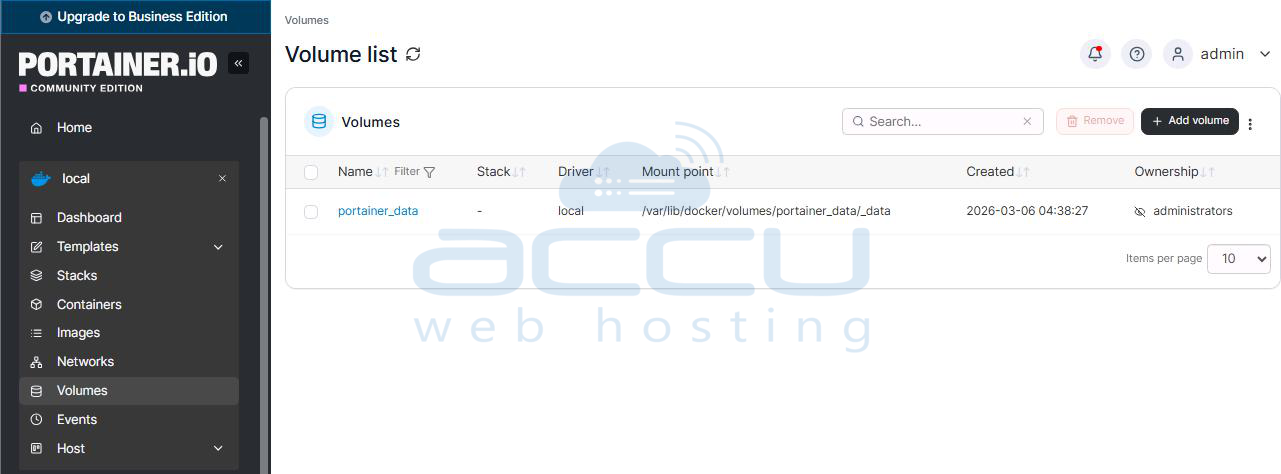
Manage Networks and Volumes
-
Create Docker networks
-
Manage storage volumes
Deploy Stacks
Deploy multi-container applications using Docker Compose.
Troubleshooting
If you encounter issues, ensure Docker is running properly.
You can also check Portainer logs:
sudo docker logs portainer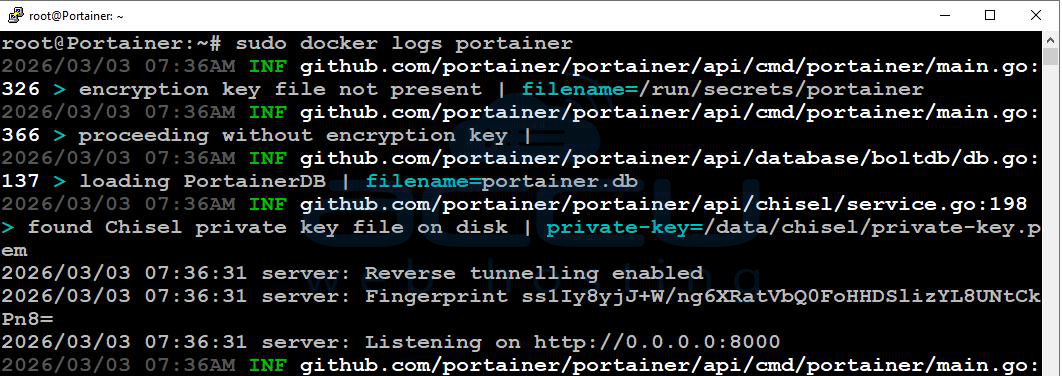
Conclusion:
Portainer provides an easy and efficient way to manage Docker containers through a web-based graphical interface. It simplifies container management, allowing you to create, start, stop, and monitor containers without relying heavily on command-line tools. With Portainer, developers and system administrators can manage containerized applications faster, easier, and more efficiently.
Installing Portainer on an Ubuntu VPS is simple and can be completed in just a few steps, as mentioned in this article. If you encounter any issues during installation, please feel free to contact us via chat or support. Our support team will assist you with the installation process.


