
Introduction:
Vertical Scaling in Virtualizor allows you to automatically adjust the CPU and RAM for your Linux VPS based on real-time usage. This feature helps improve performance when the system is under heavy load and optimizes resource usage. In this article, we’ll explain how Vertical Scaling works and how you can enable it.
What is Vertical Scaling?
Vertical Scaling automatically adjusts the resources of your VPS based on usage. Here's how it works:
- Add more RAM when memory usage is high.
- Add CPU cores when CPU usage spikes.
When the usage drops below certain thresholds, the system can optionally reduce the resources back to their original settings.
Prerequisites:
Before you enable Vertical Scaling, make sure the following requirements are met:Your VPS must be running on Linux/KVM virtualization
Your QEMU version should be 1.25 or higher
You must have a PRO license for your Virtualizor installation
Vertical Scaling is only supported on Linux KVM VPSes (not Windows)
Step-by-Step Setup:
Step 1: Log in to the Virtualizor Admin Panel.
Step 2. Enable Vertical Scaling (Global Settings)
- In the left menu, go to: Configuration → Master Settings
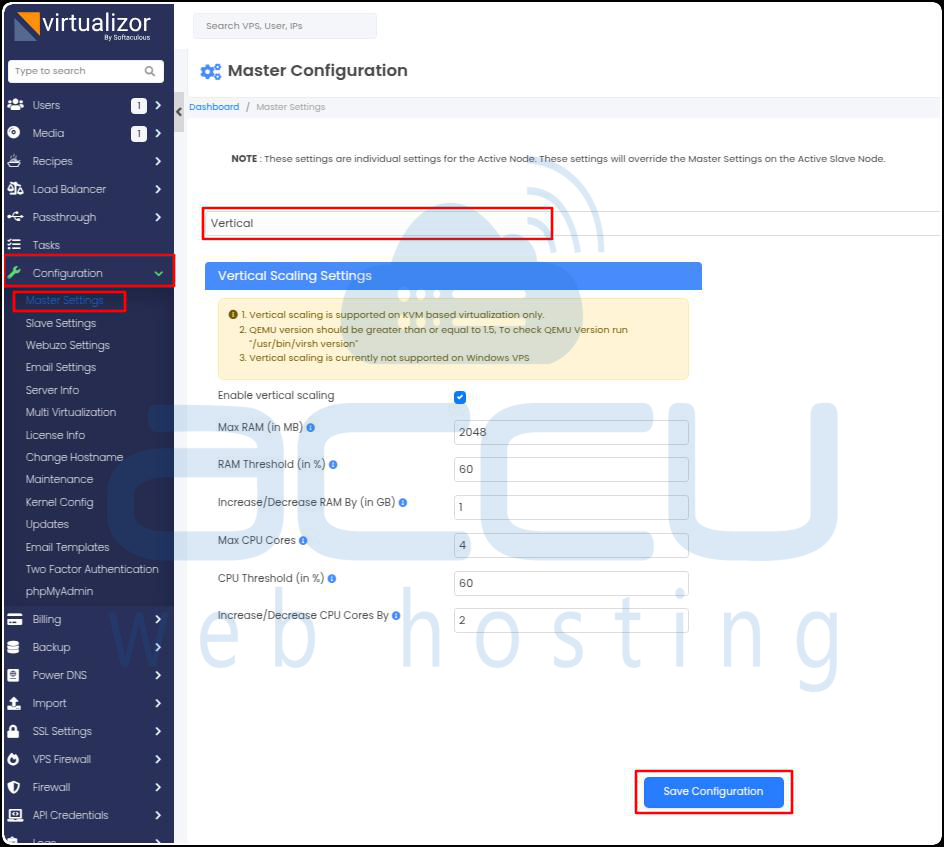
- You will find the Vertical Scaling Settings section, where you can configure the following:
| Setting | Description |
| Enable Vertical Scaling | Turn scaling on or off globally. |
| Max RAM (MB) | Set the maximum memory allowed. |
| RAM Threshold (%) | Set the percentage of memory usage to trigger scaling. |
| Increase/Decrease RAM By (GB) | Specify how much RAM to add or remove. |
| Max CPU Cores | Set the maximum number of CPU cores allowed. |
| CPU Threshold (%) | Set the percentage of CPU usage to trigger scaling. |
| Increase/Decrease CPU Cores By | Specify how many CPU cores to add or remove. |
Configure Vertical Scaling for Each VPS:
You can also set up Vertical Scaling for individual VPS instances, which will override the global settings.
During VPS Creation:
- Go to Virtual Servers → Create VPS
- In the Advanced Options, find the Vertical Scaling settings.
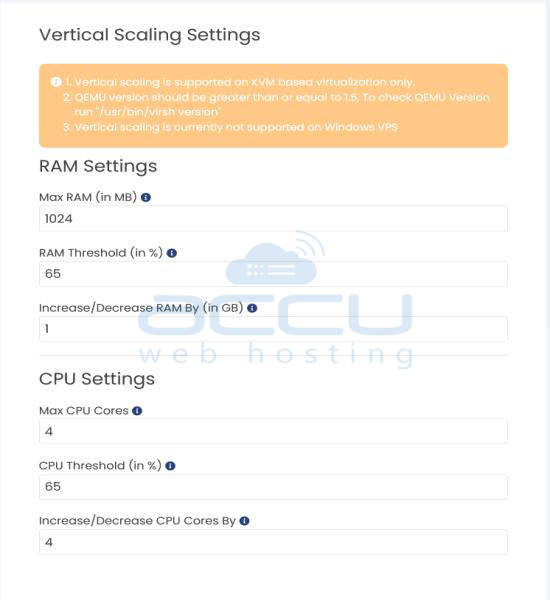
Fill in the scaling values for:
- Max RAM
- RAM Threshold
- Increase/Decrease RAM By
- Max CPU Cores
- CPU Threshold
- Increase/Decrease CPU Cores By
For an Existing VPS:
- Go to Virtual Servers → List VPS
- Click Manage next to the VPS you want to configure.
- Click on the Scaling tab under Advanced Options, adjust the settings as needed.
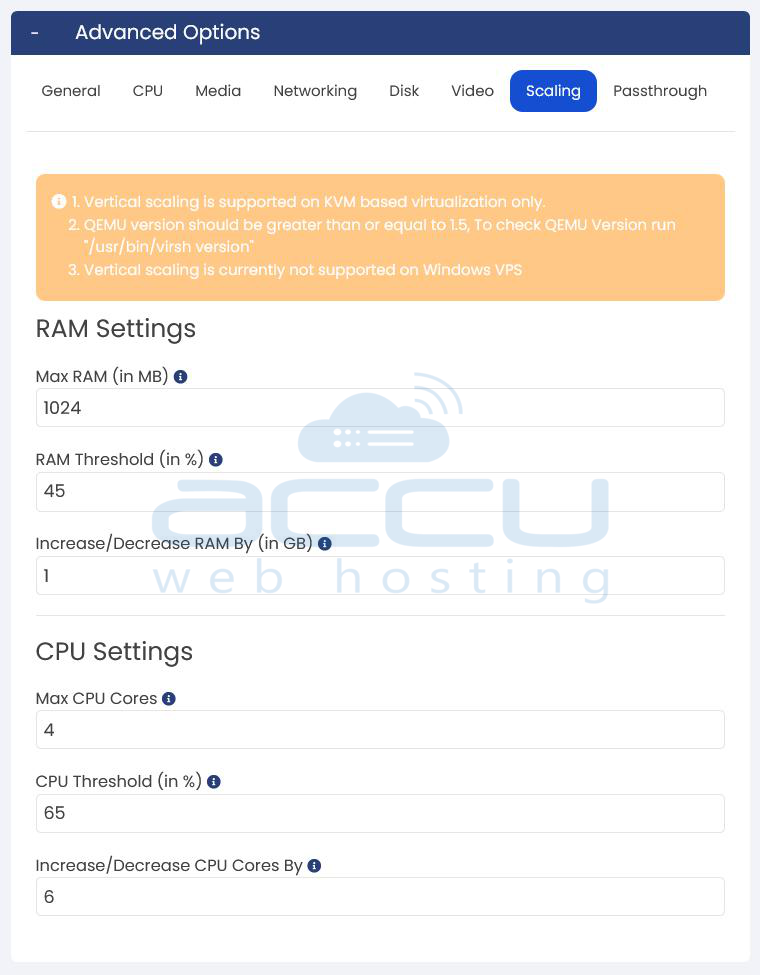
- Save or submit your changes.
With these steps, you can easily enable and configure Vertical Scaling for your VPS in Virtualizor!
Conclusion:
Vertical scaling in Virtualizor provides a flexible and efficient way to adjust your Linux VPS resources, such as CPU and RAM, based on demand, ensuring better performance during peak load times. This feature, available for KVM virtual machines with the appropriate license, allows resources to automatically increase or decrease according to predefined thresholds, helping your VPS stay responsive without manual intervention.


