
ARK Hosting
Running a Game Server Using Docker on Ubuntu 24.04
Introduction:
Running a multiplayer game server traditionally involves complex installations, dependency conflicts, and difficult upgrades. Docker simplifies this process by packaging the game server, its libraries, and runtime environment into a single, portable container. This makes deployment faster, upgrades safer, and maintenance significantly easier.
In this article, you’ll learn how to run a dedicated game server using ARK: Survival Evolved as a real-world example on a plain Ubuntu 24.04 VPS, without UFW, using Docker from start to finish.
Prerequisites:
Before starting, ensure:
- Ubuntu 24.04 VPS (root or sudo access)
- Public IPv4 address
- At least 8 GB RAM (recommended for most modern game servers)
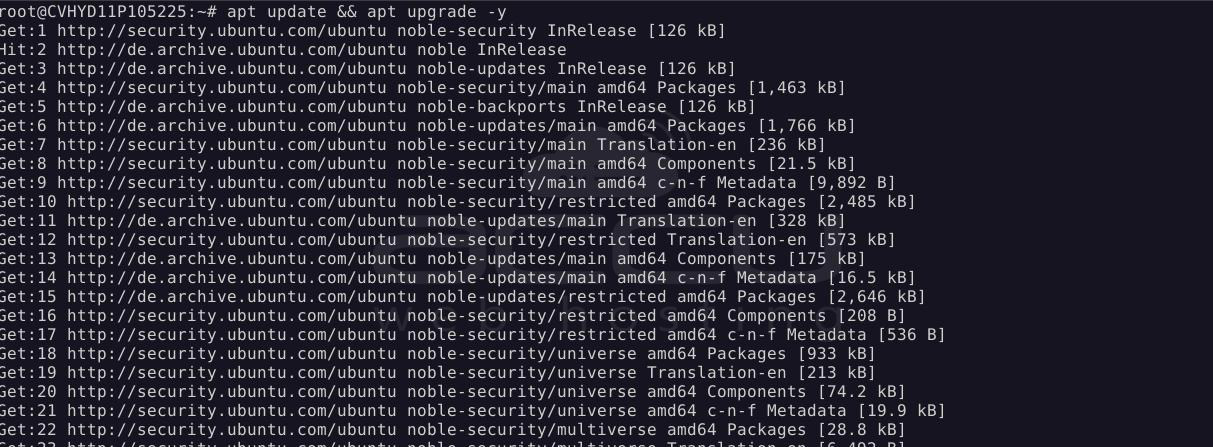
Step 1: Update the System
> apt update && apt upgrade -y
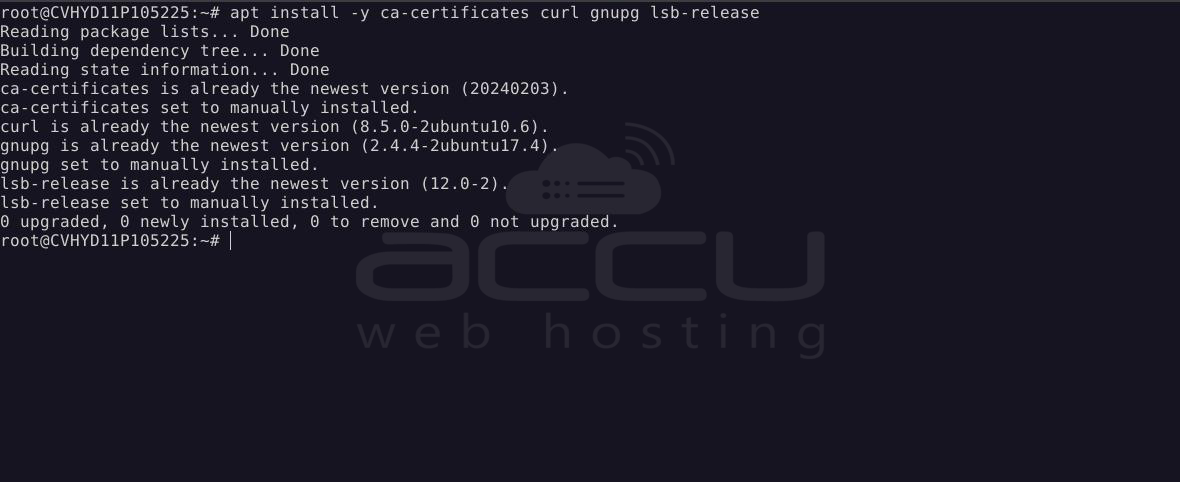
Step 2: Install Docker
> apt install -y ca-certificates curl gnupg lsb-release
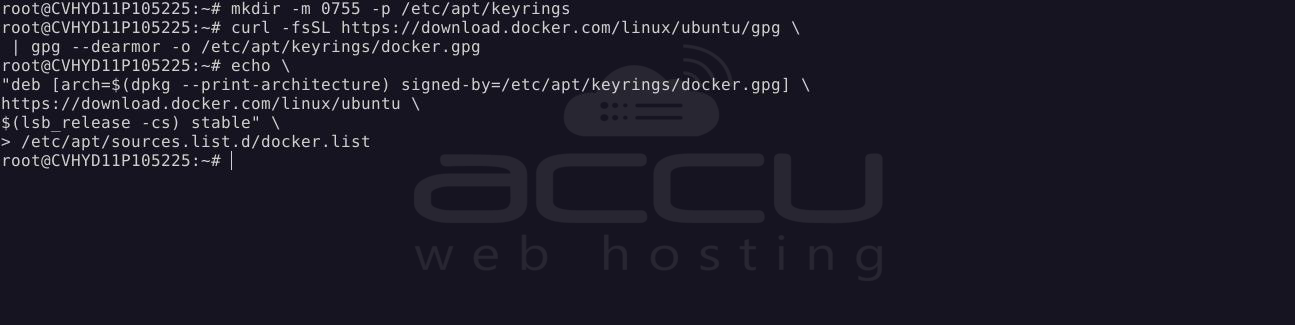
Add Docker’s GPG key:
> mkdir -m 0755 -p /etc/apt/keyrings
> curl -fsSL https://download.docker.com/linux/ubuntu/gpg \
| gpg --dearmor -o /etc/apt/keyrings/docker.gpg
Add the Docker repository:
Single command:
echo \
"deb [arch=$(dpkg --print-architecture) signed-by=/etc/apt/keyrings/docker.gpg] \
https://download.docker.com/linux/ubuntu \
$(lsb_release -cs) stable" \
> /etc/apt/sources.list.d/docker.list
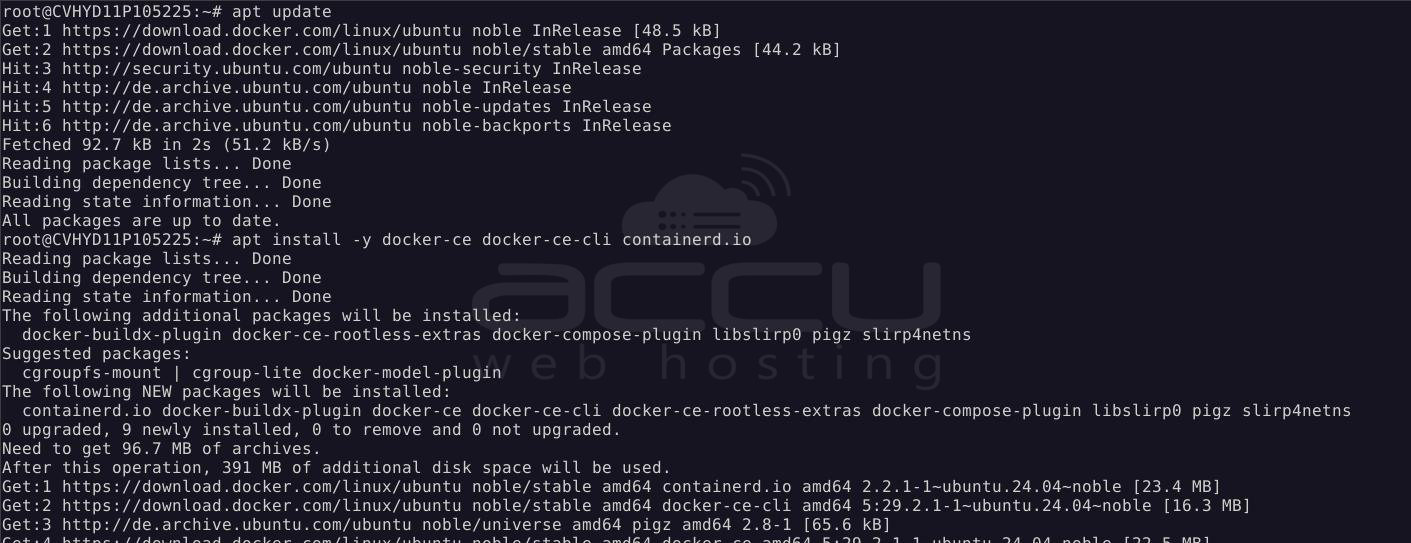
Install Docker Engine:
> apt update
> apt install -y docker-ce docker-ce-cli containerd.io
Create the Host Directories and give ownership to the host volume:
> mkdir -p /opt/gameserver/data
> chown -R 1000:1000 /opt/gameserver/data
> chmod -R 775 /opt/gameserver/data
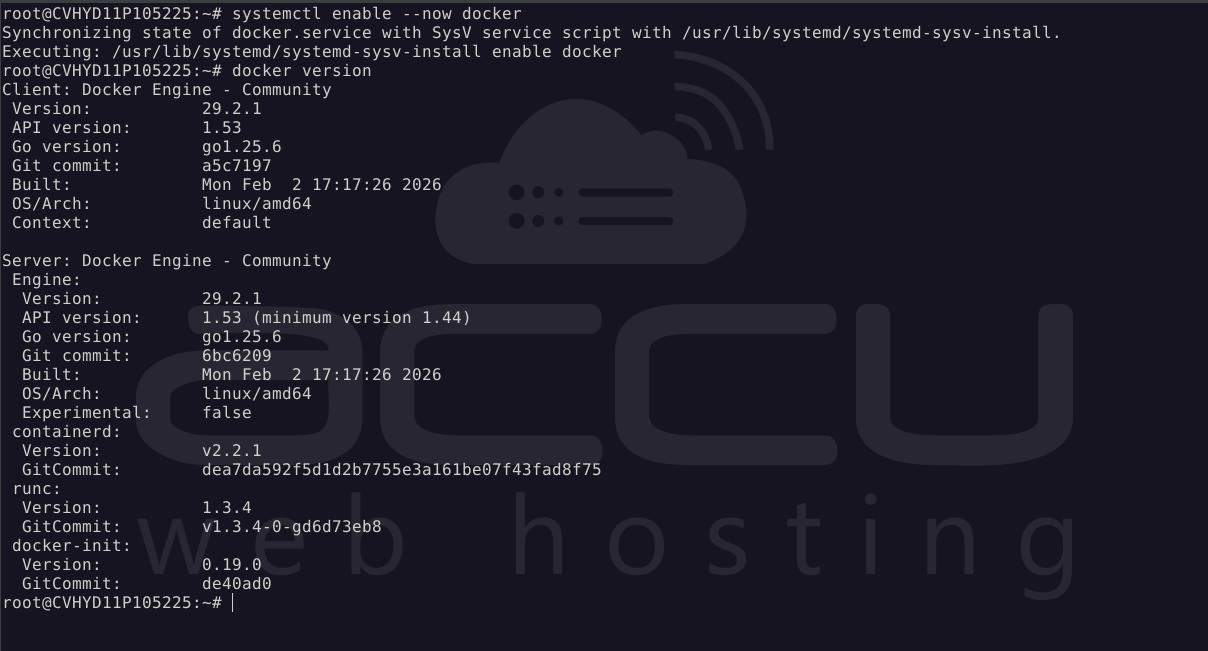
Enable Docker at boot:
> systemctl enable --now docker
Verify installation:
> docker version
Step 3: Create a Dedicated Directory
> mkdir -p /opt/gameserver
> cd /opt/gameserver
Step 4: Pull a Game Server Docker Image
Most game servers have prebuilt Docker images.
Example (ARK):
> docker pull thmhoag/arkserver
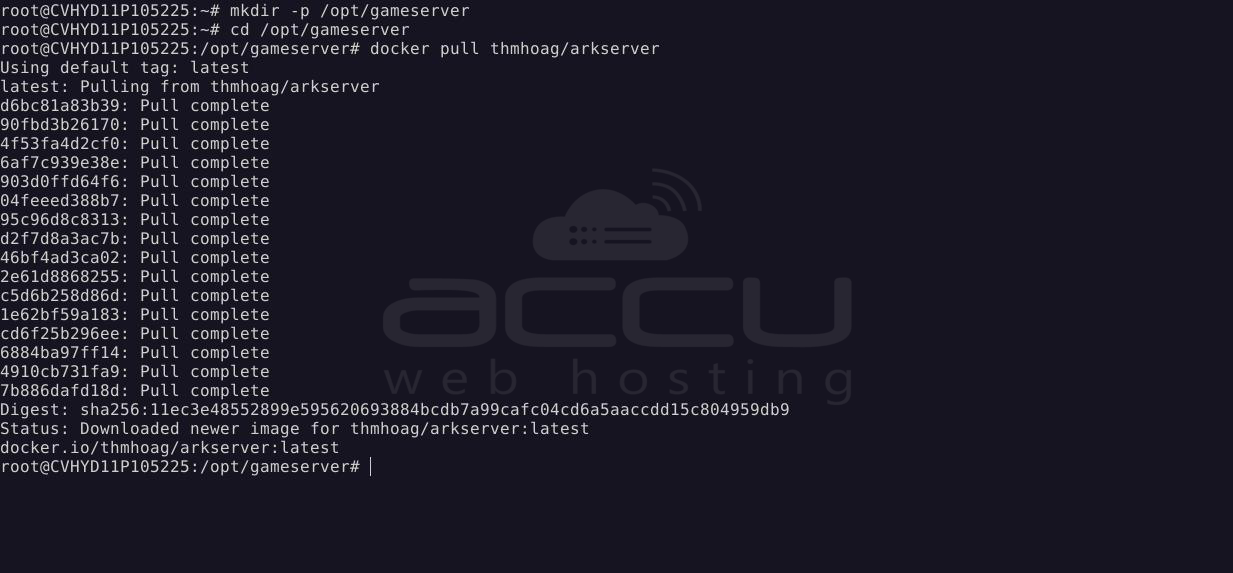
This image includes:
- SteamCMD
- Required libraries
- Automated updates
- Startup scripts
Step 5: Run the Game Server Container
Run the container with proper port mappings and persistent storage.
> docker run -d \
--name arkserver \
--restart unless-stopped \
-p 7777:7777/udp \
-p 7778:7778/udp \
-p 27015:27015/udp \
-p 32330:32330/tcp \
-v /opt/gameserver/data:/ark \
-e SESSION_NAME="Ark Server" \
-e MAP=TheIsland \
-e MAX_PLAYERS=70 \
-e SERVER_ADMIN_PASSWORD="StrongPassword" \
thmhoag/arkserver
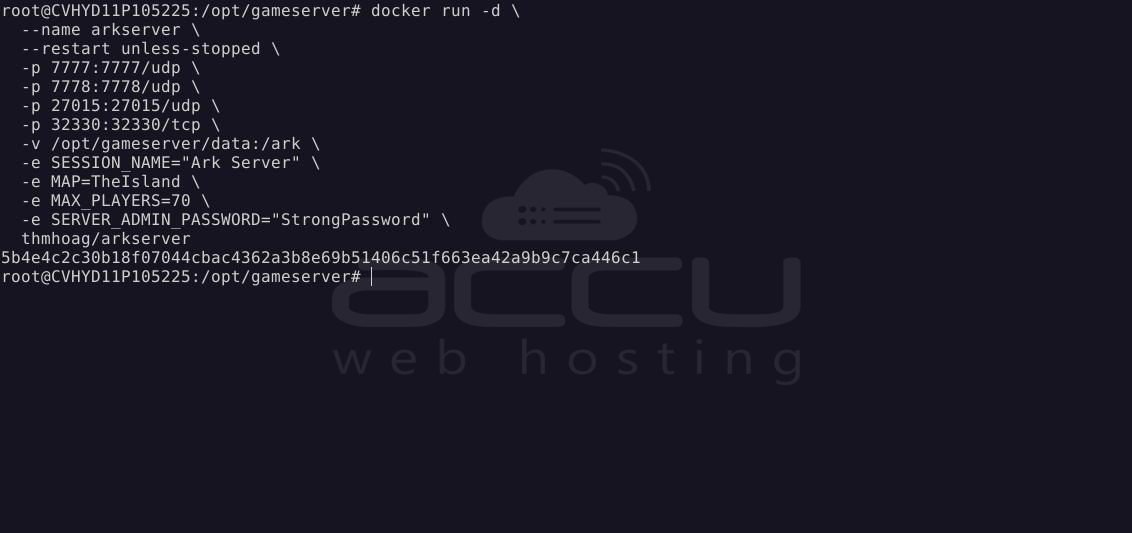
Why these flags matter:
- -p -> Exposes game ports to the internet
- -v -> Saves game data outside the container (safe upgrades)
- --restart unless-stopped -> Auto-start on reboot
- -e -> Configures server behaviour cleanly
Step 6: Verify the Server Is Running
Check container status:
> docker ps
View logs:
> docker logs arkserver --tail 50
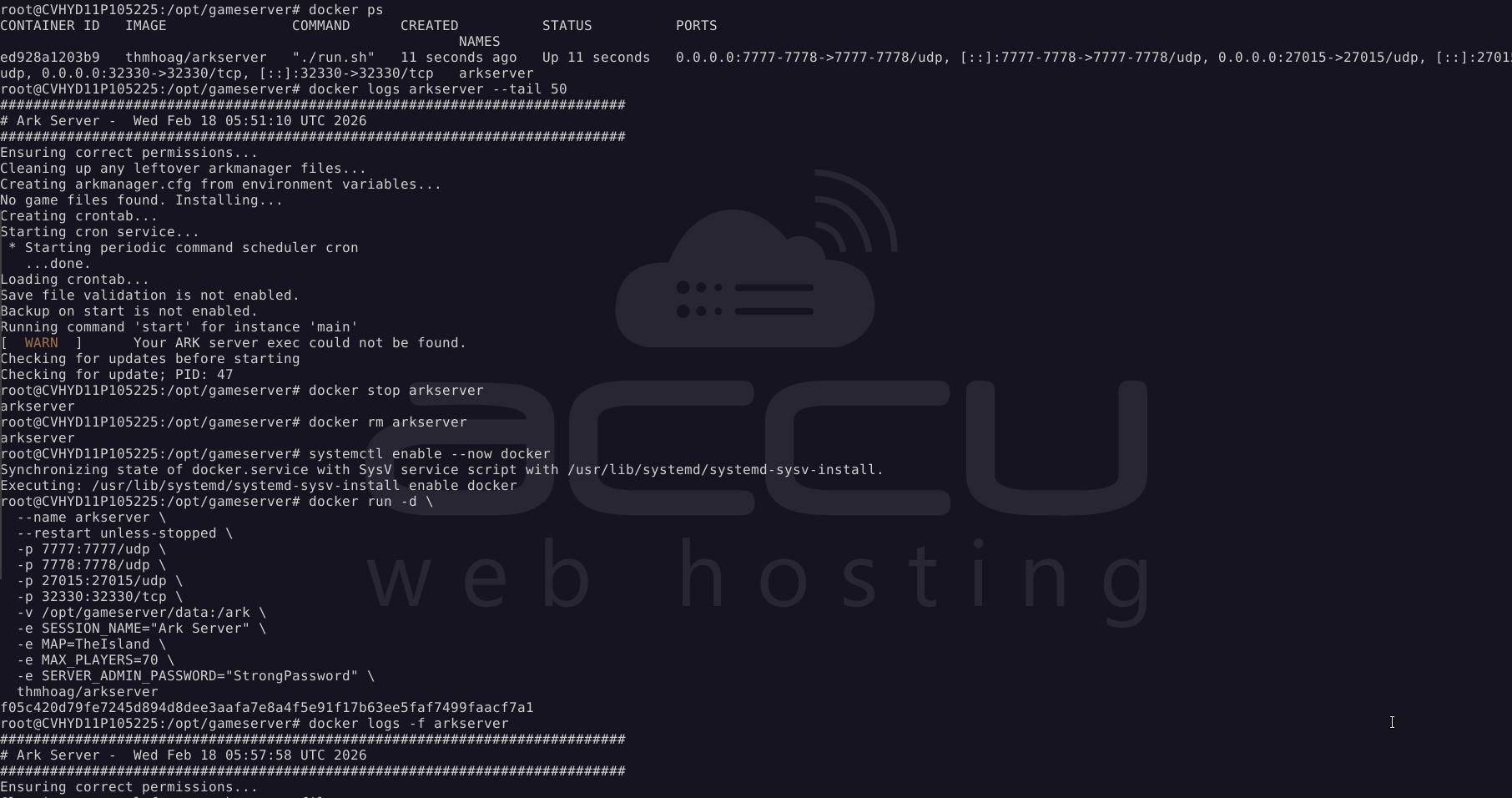

A successful startup will include:
server is up

Step 7: Confirm Ports Are Open
> ss -u -lntp | grep docker

You should see:
- UDP 7777 (game)
- UDP 7778 (raw socket)
- UDP 27015 (Steam query)
- TCP 32330 (RCON)
Docker automatically manages iptables rules—no manual firewall configuration is required.
Step 8: How to Connect to Your ARK Server
Method 1 (MOST RELIABLE): Steam “Add Server”
Steps:
- Open Steam Desktop mode
- Go to View -> Game Servers
- Open the Favourites tab
- Click Add a Server
- Enter: <YOUR_SERVER_IP>:27015
- Click Add this address to favourites
- Close the window
Now, Launch ARK: Survival Evolved on your PC/Console
- Click Join ARK
- Select Unofficial
- Set filter: Show Password Protected (if used), Show Empty
- Your server will now appear. Click on Join
Method 2: Direct Console Connect (Fastest)
Launch ARK: Survival Evolved on your PC/Console
- Once at the main menu, press TAB
- Type: <YOUR_SERVER_IP>:7777
- Press Enter
This bypasses Steam completely. You should connect immediately.
Step 9: Managing the Server
Common commands:
> docker restart arkserver
> docker stop arkserver
> docker start arkserver
Updating the server:
> docker pull thmhoag/arkserver
> docker stop arkserver
> docker rm arkserver
# re-run the same Docker run command
Note: Your saved data remains safe in /opt/gameserver/data.
Can This Server Run Other Games?
Although this guide focuses on hosting ARK: Survival Evolved, the underlying server setup is not limited to ARK. The VPS and Docker environment you configured can host multiple different game servers simultaneously, as long as each game runs in its own Docker container.
Important Clarification:
The ARK Docker image used in this guide (thmhoag/arkserver) is exclusive to ARK. You cannot run other games inside this container. However, Docker allows you to run multiple containers side by side, each dedicated to a different game server.
> One container = one game server
This design ensures isolation, stability, and easy management.
Other Games You Can Host Using the Same Docker Setup
Using the same Ubuntu 24.04 VPS and Docker installation, you can host many popular game servers simply by deploying different Docker images.
Survival and Sandbox Games
- Minecraft
- Valheim
- Rust
- 7 Days to Die
- Terraria
- Project Zomboid
Shooter and Action Games
- Counter-Strike 2
- Team Fortress 2
- Left 4 Dead 2
- Garry's Mod
Strategy and Simulation Games
- Factorio
- Satisfactory
- OpenTTD
Running Multiple Game Servers on One VPS
Docker allows multiple game servers to run concurrently on the same VPS by assigning different ports and storage paths to each container.
Example layout:
| ARK Server | UDP | 7777, 7778, 27015 |
| Minecraft Server | TCP | 25565 |
| Valheim Server | UDP | 2456–2458 |
| CS2 Server | UDP | 27015–27020 |
Each game server:
- Uses its own Docker image
- Has its own persistent data directory
- Can be started, stopped, or updated independently
Example: Hosting Another Game Alongside ARK
For example, to host Minecraft alongside ARK:
> docker run -d \
--name minecraft \
-p 25565:25565 \
-v /opt/minecraft/data:/data \
-e EULA=TRUE \
itzg/minecraft-server
This will not affect the running ARK server.
Summary:
Docker provides a clean, reliable, and repeatable way to run game servers on Ubuntu 24.04. By containerizing the server, you avoid dependency issues, simplify updates, and gain better control over ports, storage, and restarts.
- This Docker-based setup is not limited to ARK
- Each game requires its own Docker container
- Multiple game servers can run on the same VPS
- Docker provides isolation, stability, and scalability
- The server can evolve into a multi-game hosting platform
Conclusion:
Running a game server via Docker is now the preferred industry approach for both hobbyists and production environments. It eliminates manual setup errors, keeps servers isolated, and allows fast recovery or migration.
Whether you’re hosting ARK, Valheim, Minecraft, or any modern multiplayer game, Docker ensures your server remains stable, maintainable, and scalable, making it an ideal solution for Ubuntu-based VPS hosting.


