
Introduction:
Appwrite is a self-hosted backend-as-a-service platform that provides authentication, databases, storage, cloud functions, and more. The recommended and most reliable way to deploy Appwrite is using Docker and Docker Compose v2. This document provides a clean, reproducible, and error-free procedure to install Appwrite on an Ubuntu 24.04 VPS, suitable for production and documentation purposes.
Prerequisites:
- Ubuntu 24.04 LTS VPS
- Minimum 2 CPU cores
- Minimum 4 GB RAM
- Root or sudo access
- Open ports: 80 and 443
Step 1: Log in to your VPS and Install Required Dependencies
Install system dependencies required for Docker:
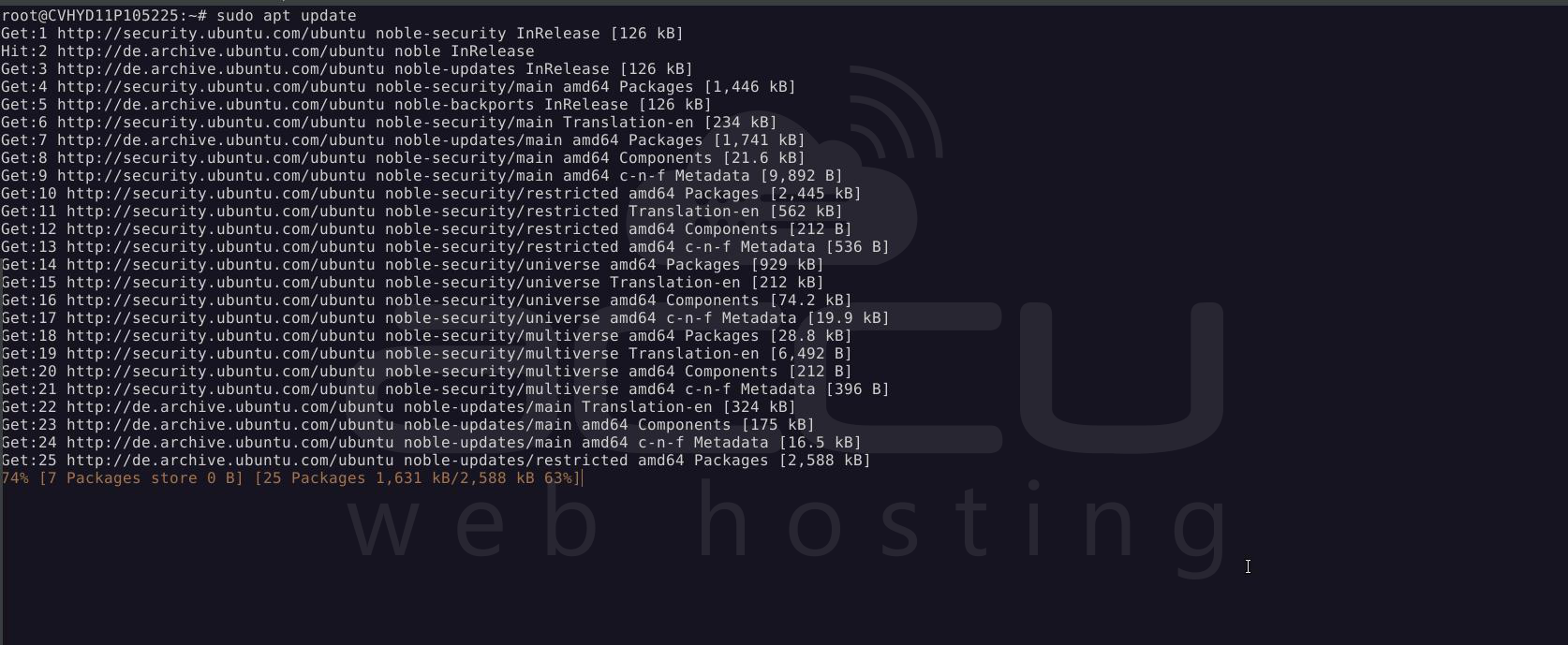
> sudo apt update
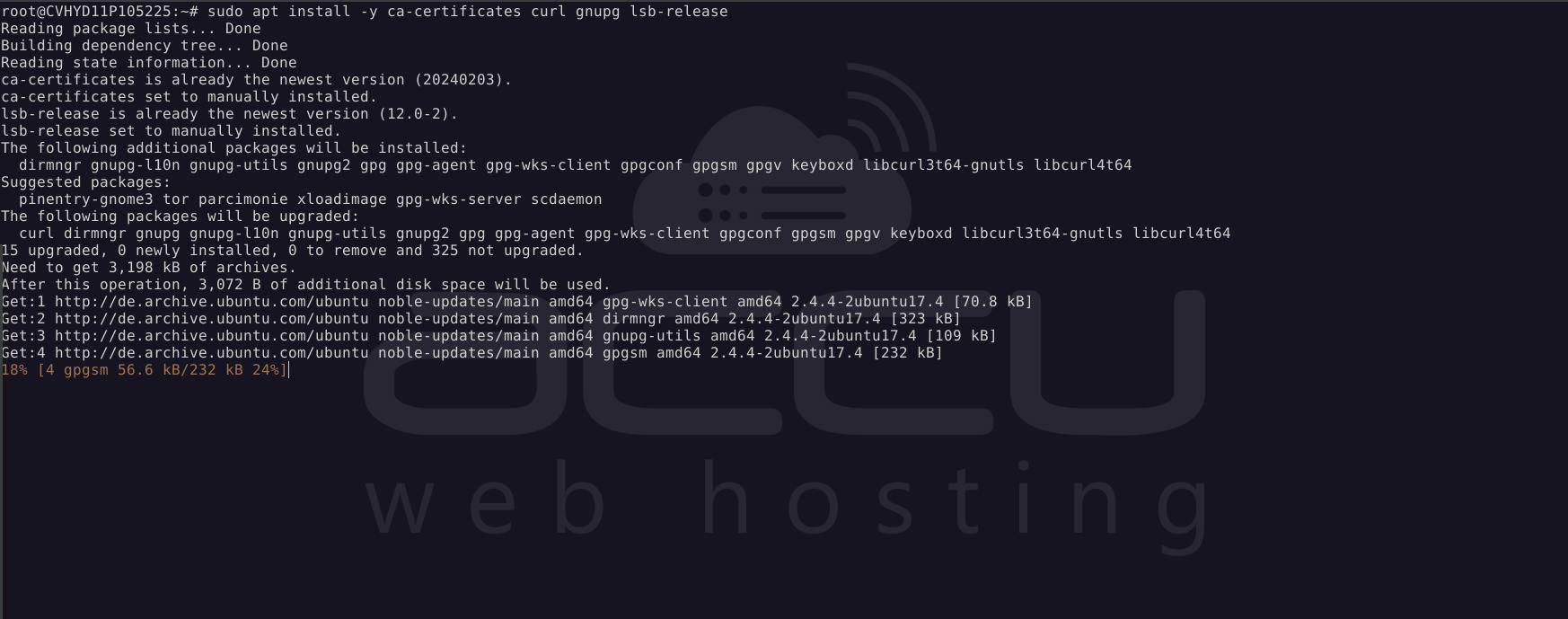
> sudo apt install -y ca-certificates curl gnupg lsb-release
Step 2: Add Docker Official GPG Key
Add Docker’s official signing key:
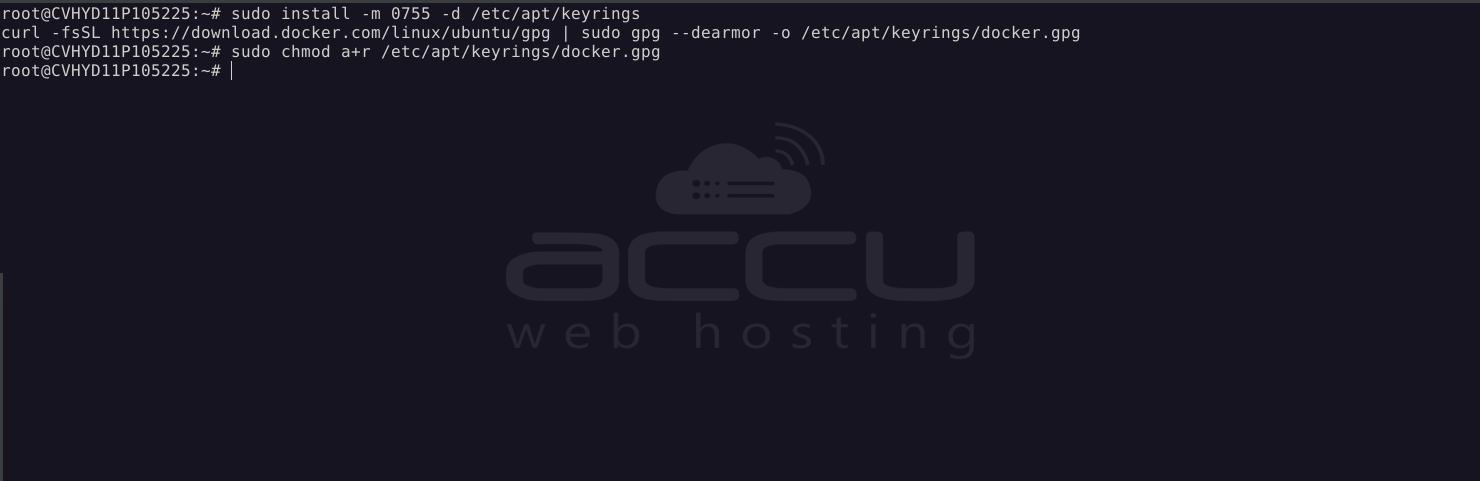
> sudo install -m 0755 -d /etc/apt/keyrings
curl -fsSL https://download.docker.com/linux/ubuntu/gpg | sudo gpg --dearmor -o /etc/apt/keyrings/docker.gpg
> sudo chmod a+r /etc/apt/keyrings/docker.gpg
Step 3: Add Docker Official Repository
Add Docker’s official repository for Ubuntu 24.04:
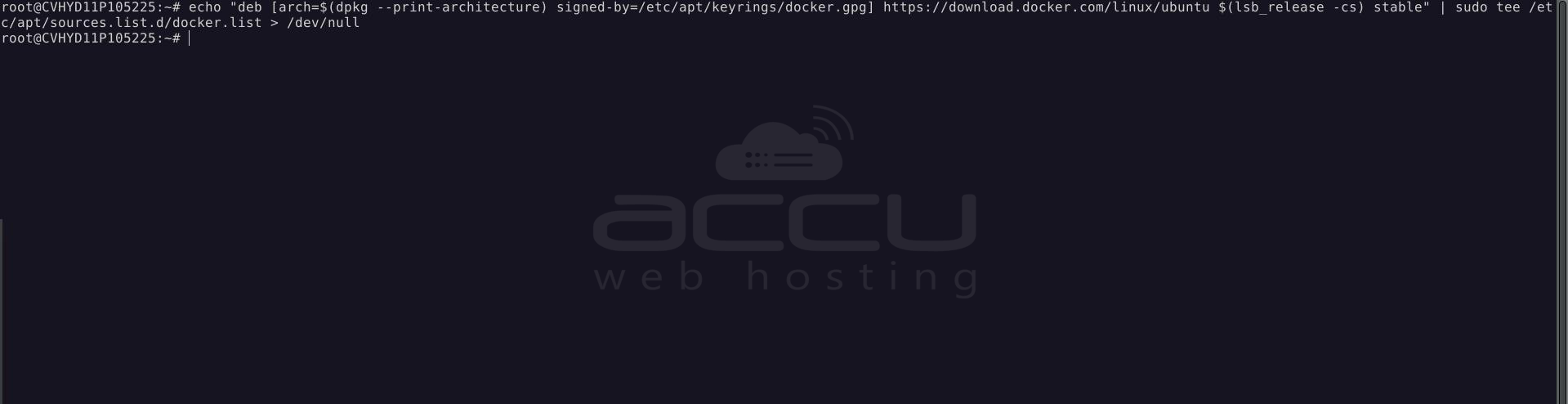
> echo "deb [arch=$(dpkg --print-architecture) signed-by=/etc/apt/keyrings/docker.gpg] https://download.docker.com/linux/ubuntu $(lsb_release -cs) stable" | sudo tee /etc/apt/sources.list.d/docker.list > /dev/null
Step 4: Install Docker Engine and Docker Compose v2
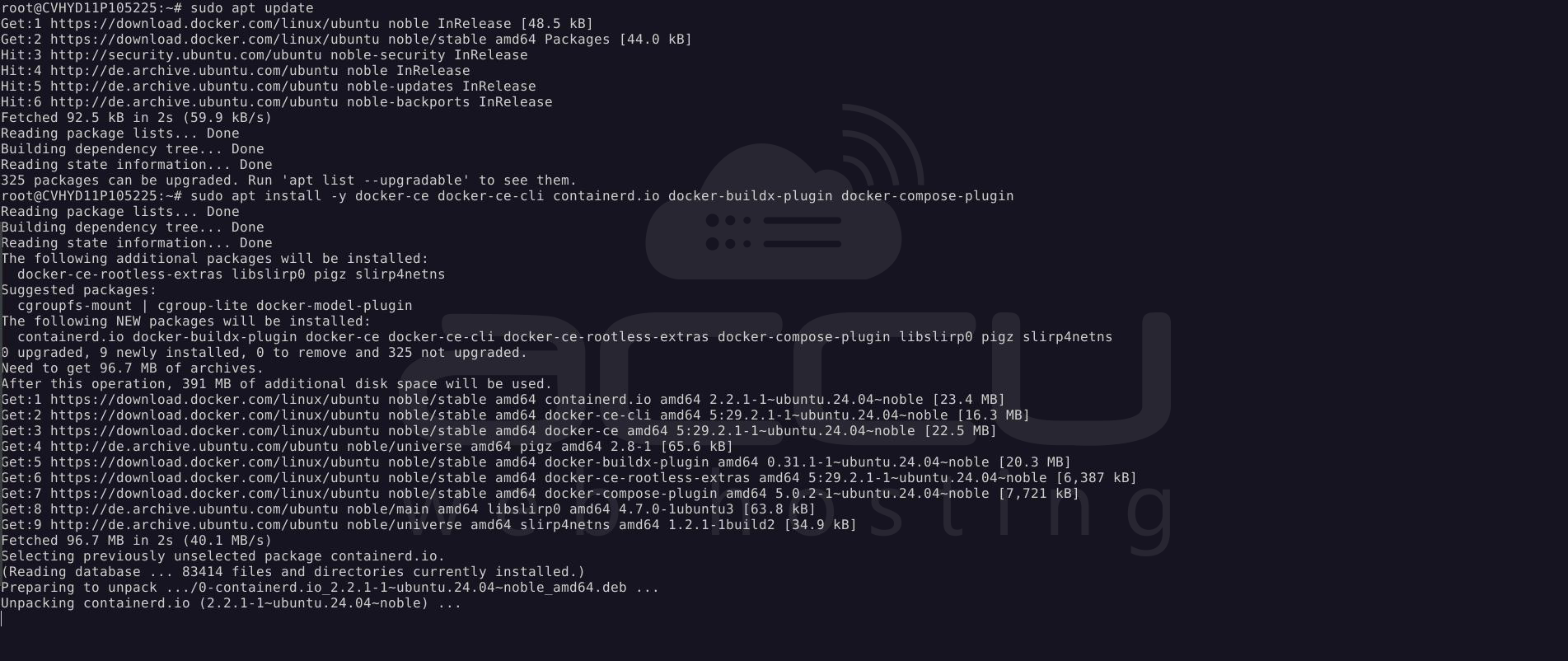
Update package index and install Docker:
> sudo apt update
> sudo apt install -y docker-ce docker-ce-cli containerd.io docker-buildx-plugin docker-compose-plugin
Step 5: Enable and Start Docker Services
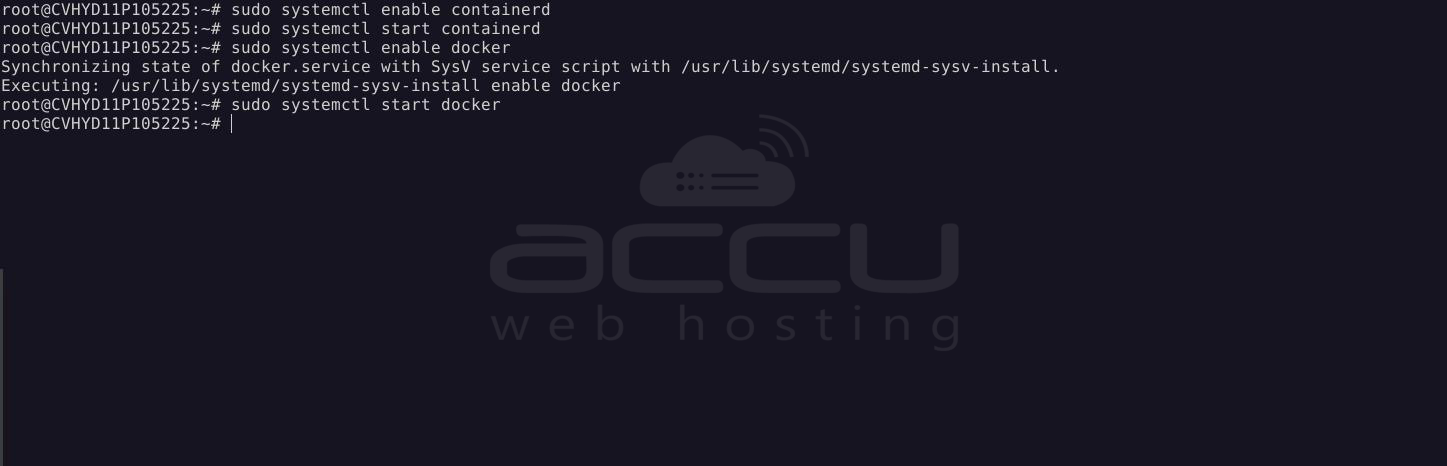
Enable and start required services:
> sudo systemctl enable containerd
> sudo systemctl start containerd
> sudo systemctl enable docker
> sudo systemctl start docker
Step 6: Verify Docker Installation
Verify Docker and Compose:
> docker --version
> docker compose version

Test Docker:
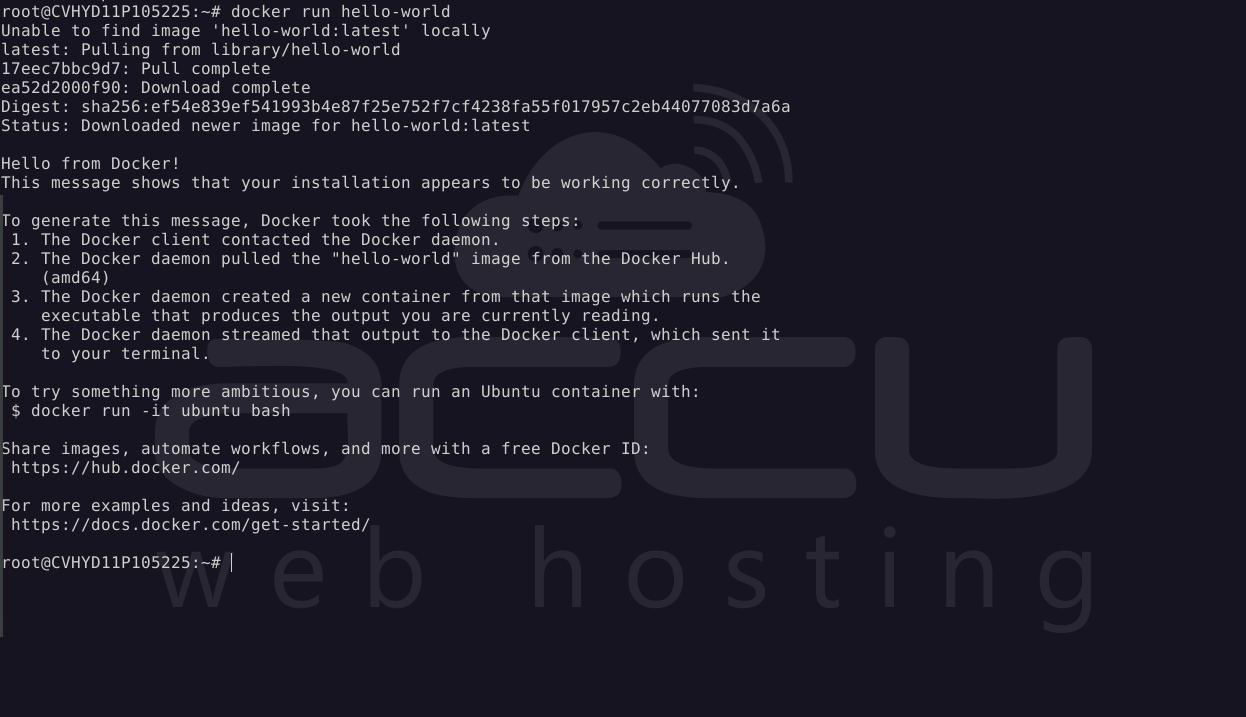
> docker run hello-world
You must see:
Hello from Docker!
This message shows that your installation appears to be working correctly.
Step 7: Install Appwrite
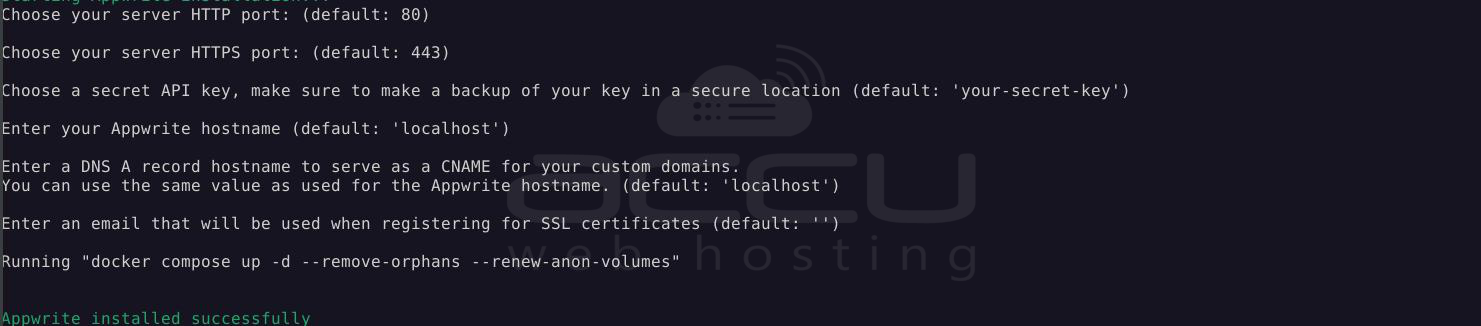
Run the Appwrite installer:
> docker run -it --rm \
-v /var/run/docker.sock:/var/run/docker.sock \
-v "$(pwd)"/appwrite:/usr/src/code/appwrite:rw \
--entrypoint="install" \
appwrite/appwrite
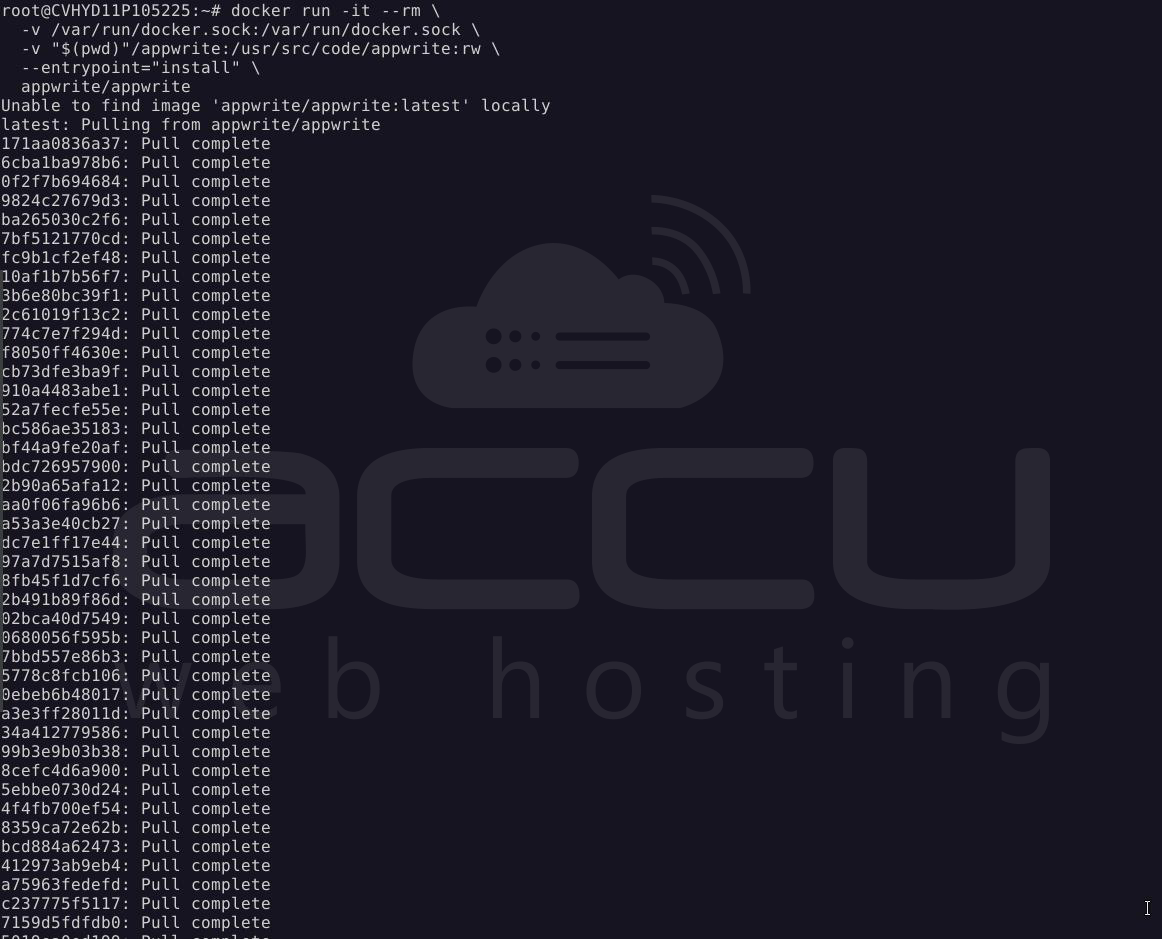
It will ask for the information, just press Enter for all.
Step 8: Start Appwrite
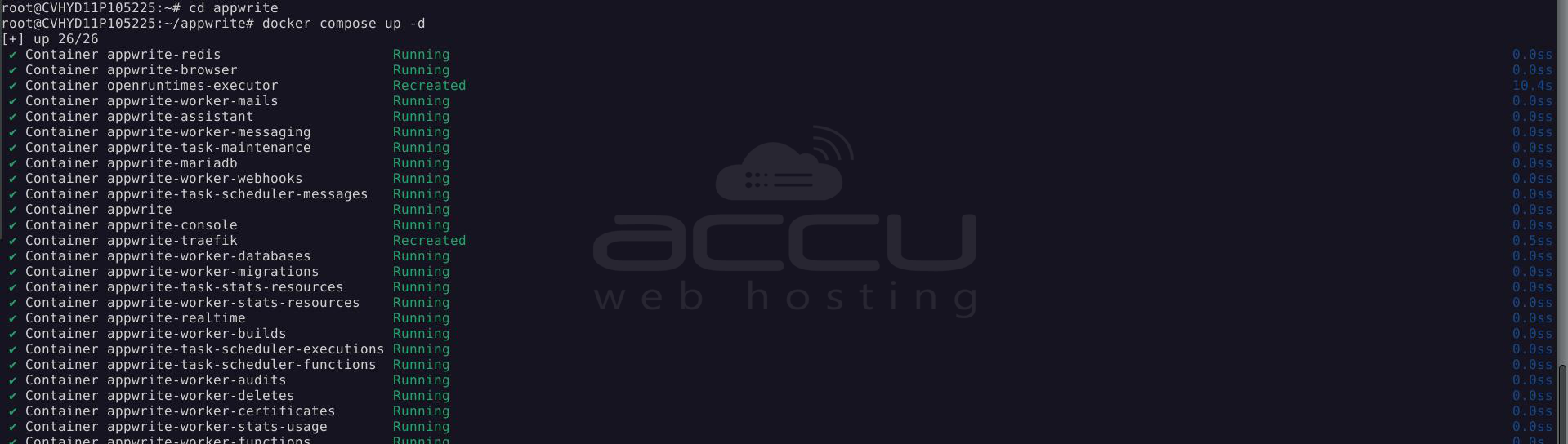
Navigate to the Appwrite directory and start services:
> cd appwrite
> docker compose up -d
Accessing Appwrite:
Open a browser and access Appwrite using:
> http://YOUR_SERVER_IP or https://yourdomain.com
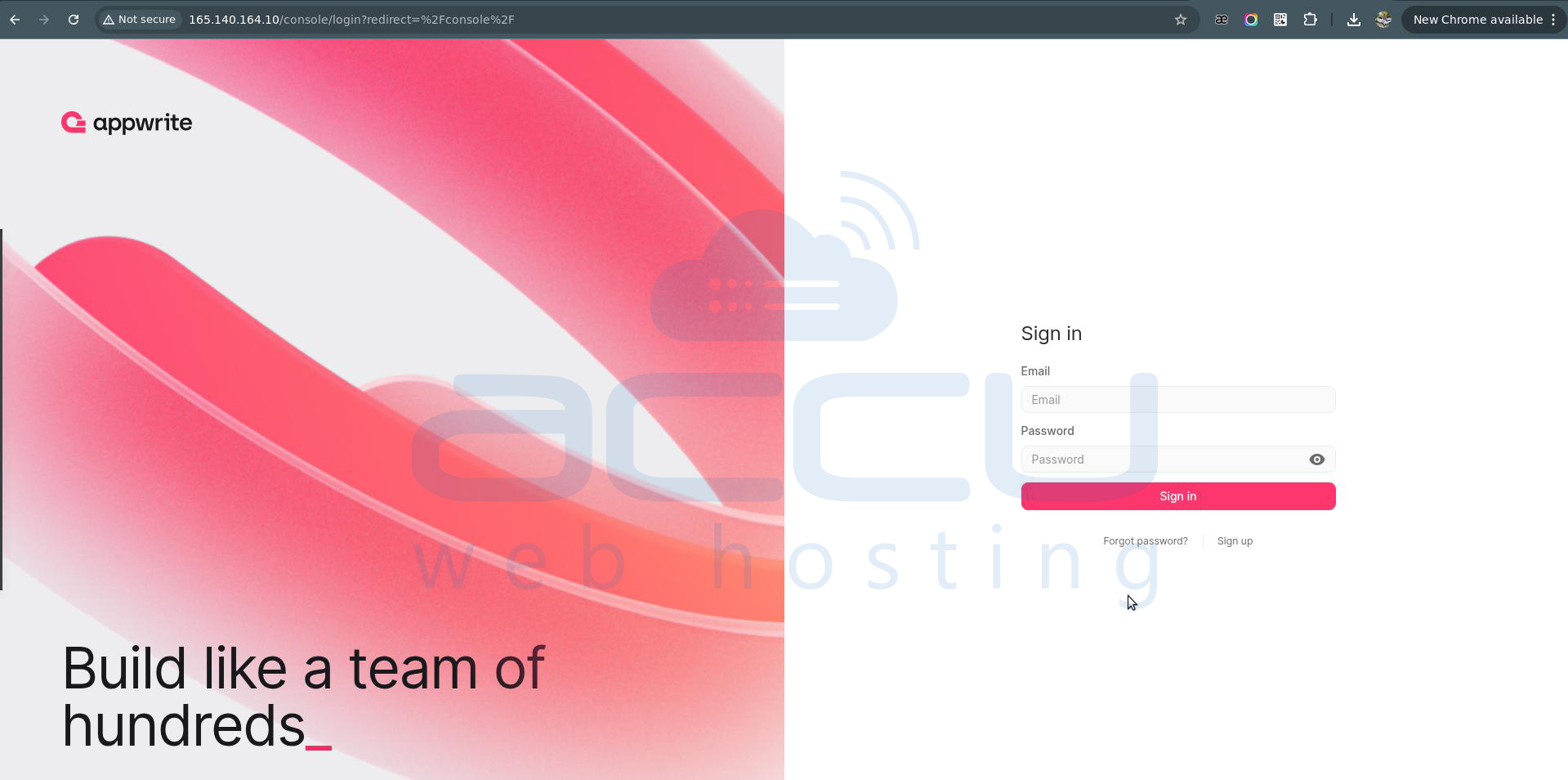
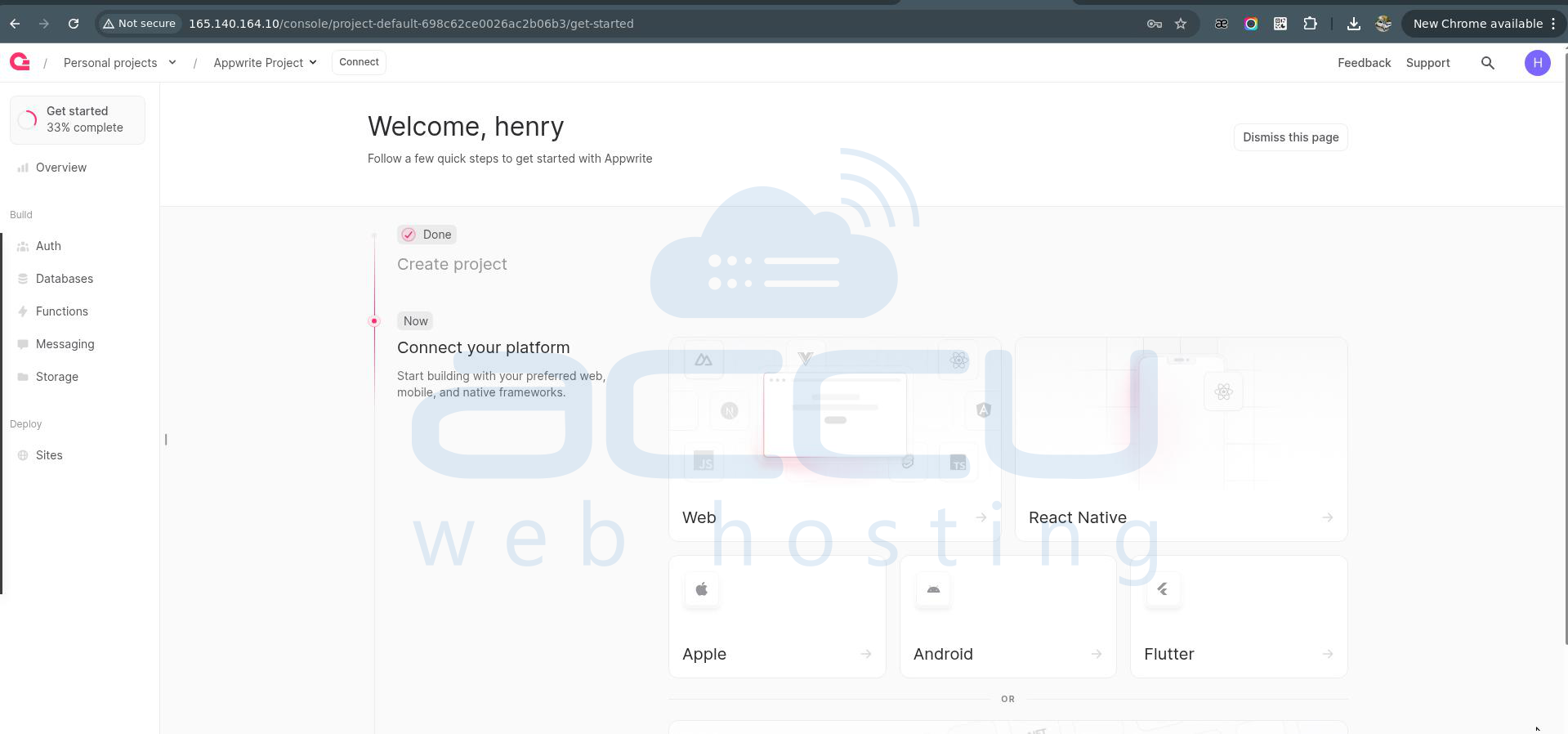
You should see the Appwrite signup/login screen. Create your admin account and manage projects from the dashboard.
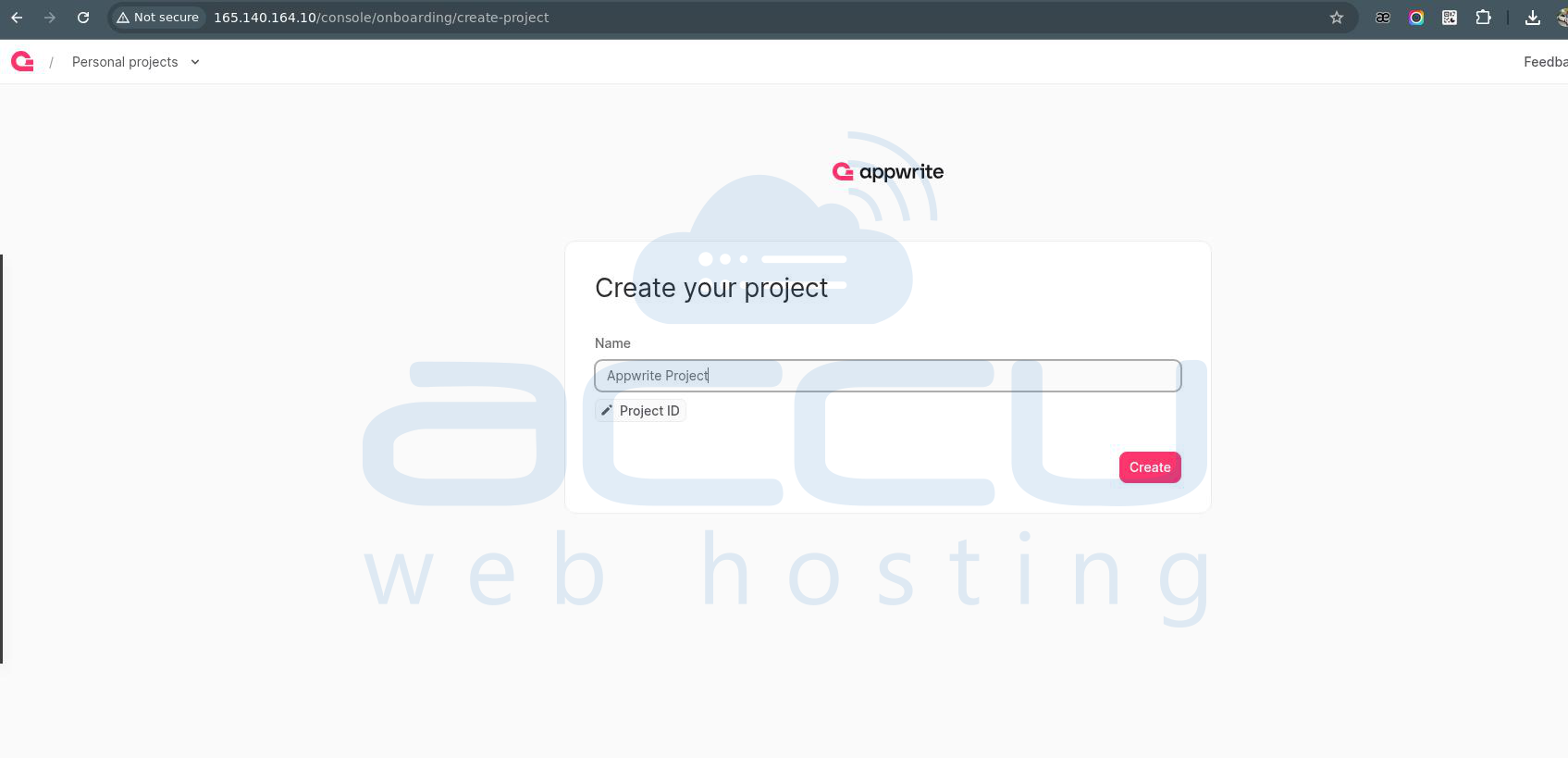
Create your Project:
Name your Project and click on the create button.
Dashboard:
Summary:
This document covered only the essential steps required to install Appwrite on an Ubuntu 24.04 VPS. By using Docker’s official repository, Docker Compose v2 is installed correctly, ensuring full compatibility with Appwrite.
Conclusion:
Installing Appwrite on Ubuntu 24.04 requires careful attention to Docker installation sources. Using Docker’s official repository ensures compatibility and stability. Once Docker and Docker Compose v2 are correctly installed, Appwrite can be deployed quickly and reliably as a production-ready backend platform.


