
Installing and Configuring Flowise on Ubuntu Server Using Docker
Flowise is an open-source visual tool for building AI workflows using large language models (LLMs). It provides a graphical interface that allows users to create and manage AI pipelines without writing complex backend code. Flowise is commonly deployed using Docker because containerization ensures portability, scalability, and simplified dependency management.
This guide provides a detailed explanation of how to install and configure Flowise on an Ubuntu server using Docker and Docker Compose.
System Requirements
Before starting the installation, ensure the following requirements are met:
Operating System
-
Ubuntu Server 20.04 LTS or 22.04 LTS (recommended)
Minimum Hardware
-
2 CPU cores
-
4 GB RAM (8 GB recommended for production)
-
20 GB free disk space
Network Requirements
-
Public IPv4 address (for external access)
-
Port 3000 open in firewall
-
SSH access to the server
Required Permissions
-
Root or sudo privileges
Step 1: Before installing Docker and Flowise, update the system packages.
sudo apt update && apt upgrade -y
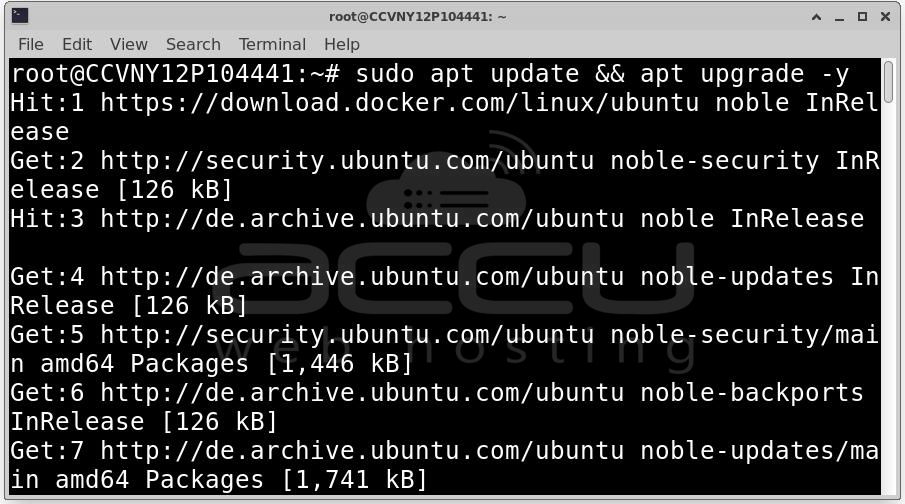
This ensures the system has the latest security patches and package updates.
Step 2: Docker is required to run Flowise in a containerized environment.
Download Docker Installation Script: curl -fsSL https://get.docker.com -o get-docker.sh
This command downloads the official Docker installation script.
Install Docker: sudo sh get-docker.sh
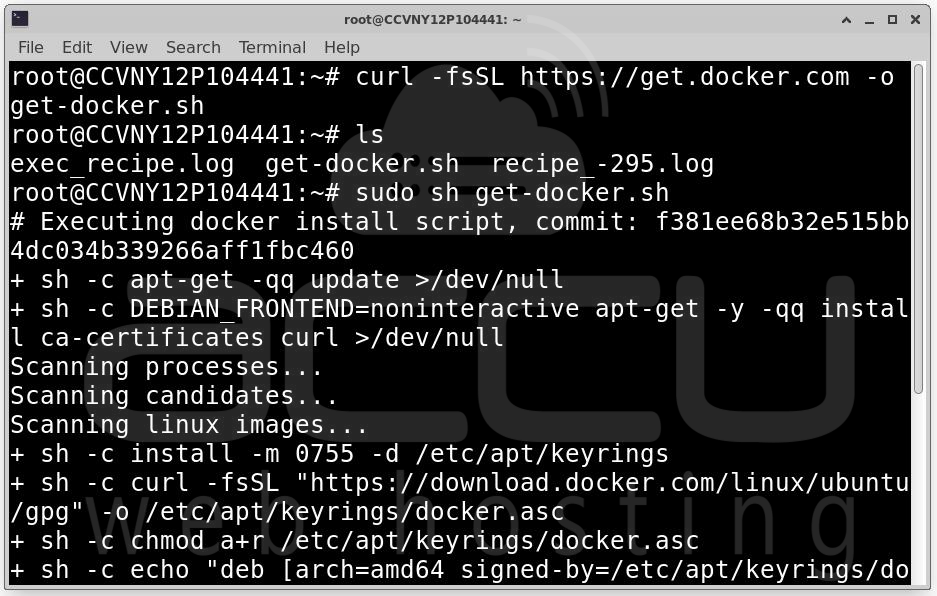
The script automatically installs Docker Engine, configures Docker service and starts Docker daemon.
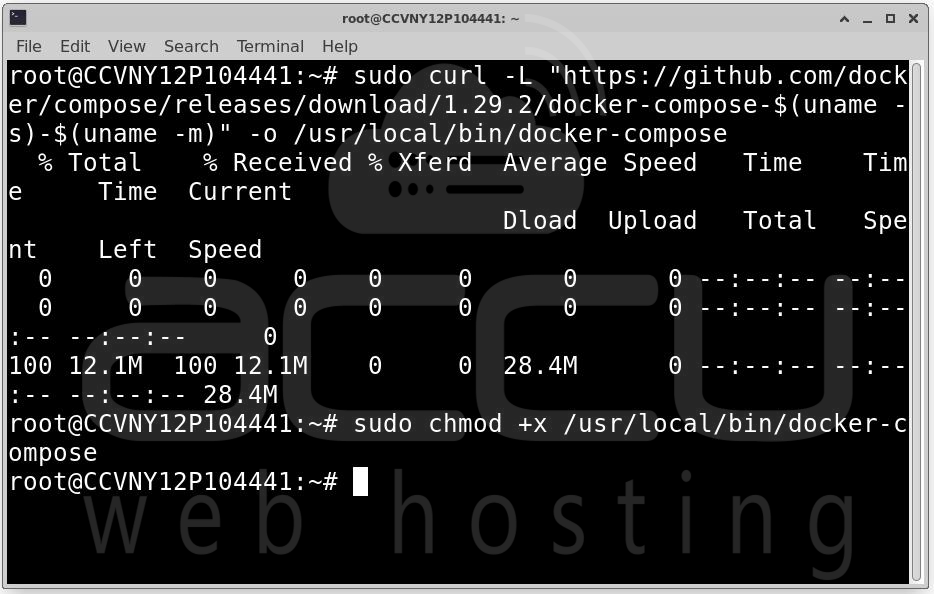
Step 3: Docker Compose is used to manage multi-container applications through YAML configuration files.
Download Docker Compose Binary: sudo curl -L "https://github.com/docker/compose/releases/download/1.29.2/docker-compose-$(uname -s)-$(uname -m)" -o /usr/local/bin/docker-compose
Set Executable Permission: sudo chmod +x /usr/local/bin/docker-compose
Step 4: Cloning the Flowise Repository
Clone the Official Repository: git clone https://github.com/FlowiseAI/Flowise.git
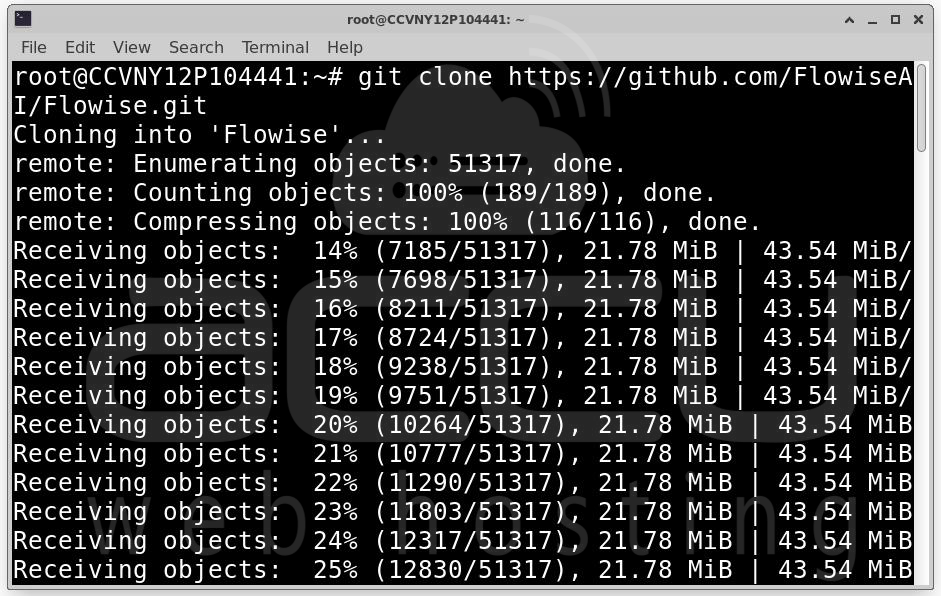
This downloads the full Flowise source code to your server.
Navigate to Docker Directory: cd Flowise && cd docker
The Docker folder contains docker-compose.yml, sample configuration files and container definitions.
Step 5: Flowise uses environment variables for runtime configuration.
Create .env File: nano .env
Add the following configuration:
PORT=3000
DATABASE_PATH=/root/.flowise
SECRETKEY_PATH=/root/.flowise
LOG_PATH=/root/.flowise/logs
BLOB_STORAGE_PATH=/root/.flowise/storage
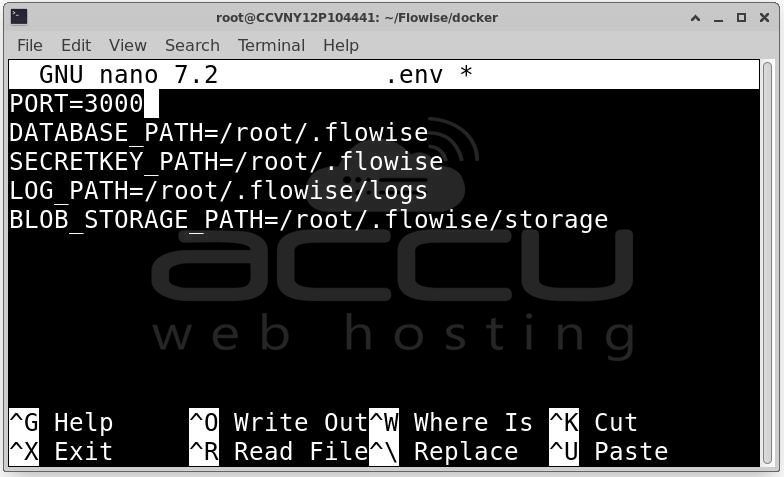
Save the file and exit.
Step 6: Starting Flowise Using Docker Compose.
Run in Detached Mode: docker compose up -d
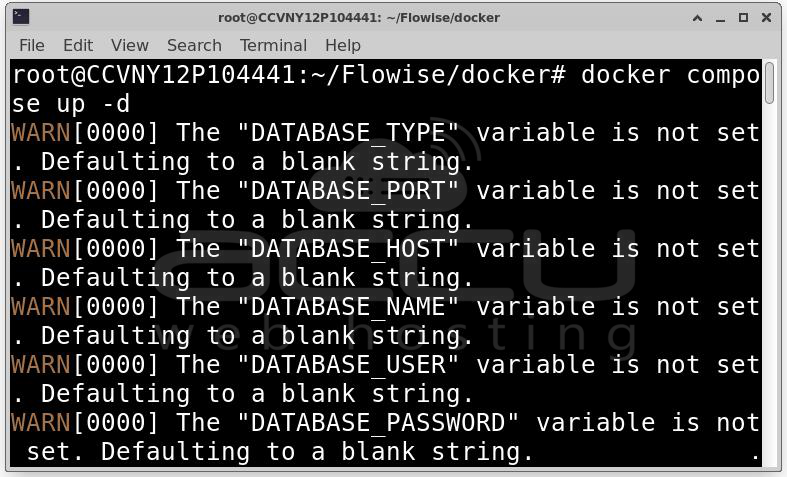
This command pulls the required Docker image, builds containers and starts services in the background.
Step 7: Once you have Flowise running on the server, open your web browser and navigate to the assigned address. You will be greeted with the Setup Account screen.
http://<Your_Public_IP>:3000
Example: http://176.11.22.123:3000
Step 8: Fill in the following details to secure your hosted server:
Administrator Name: Enter the name you want to be displayed in the system.
Administrator Email: Provide a valid email address. This will serve as your login ID.
Password: Create a password that is at least 8 characters long.
Confirm Password: Re-type your password to ensure they match.
Click the Sign Up button to finalize your credentials.
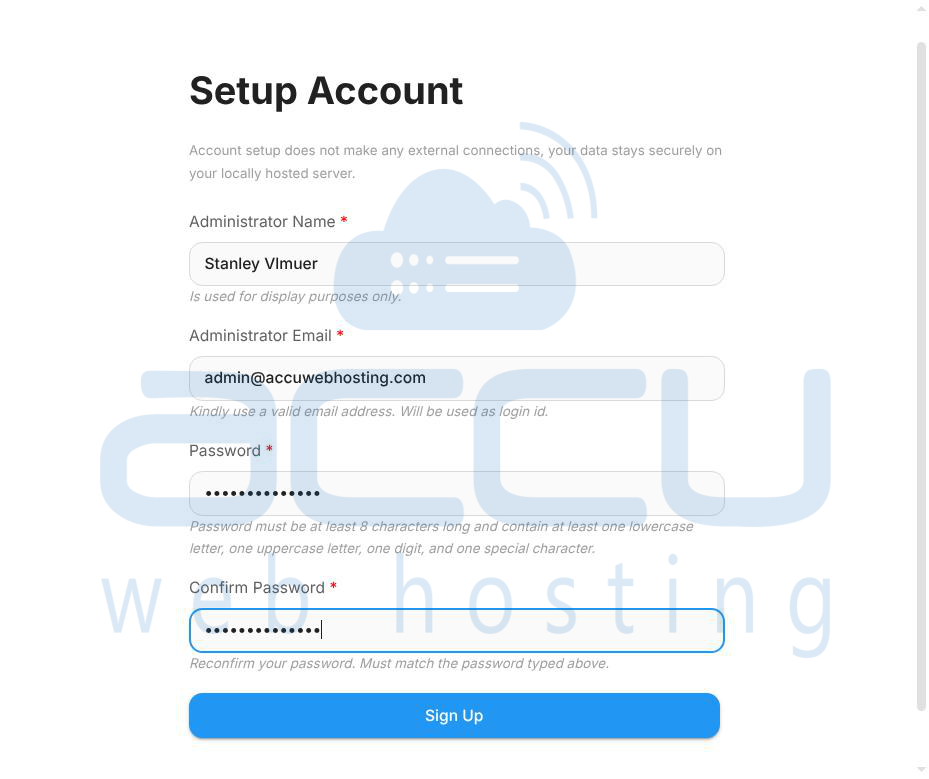
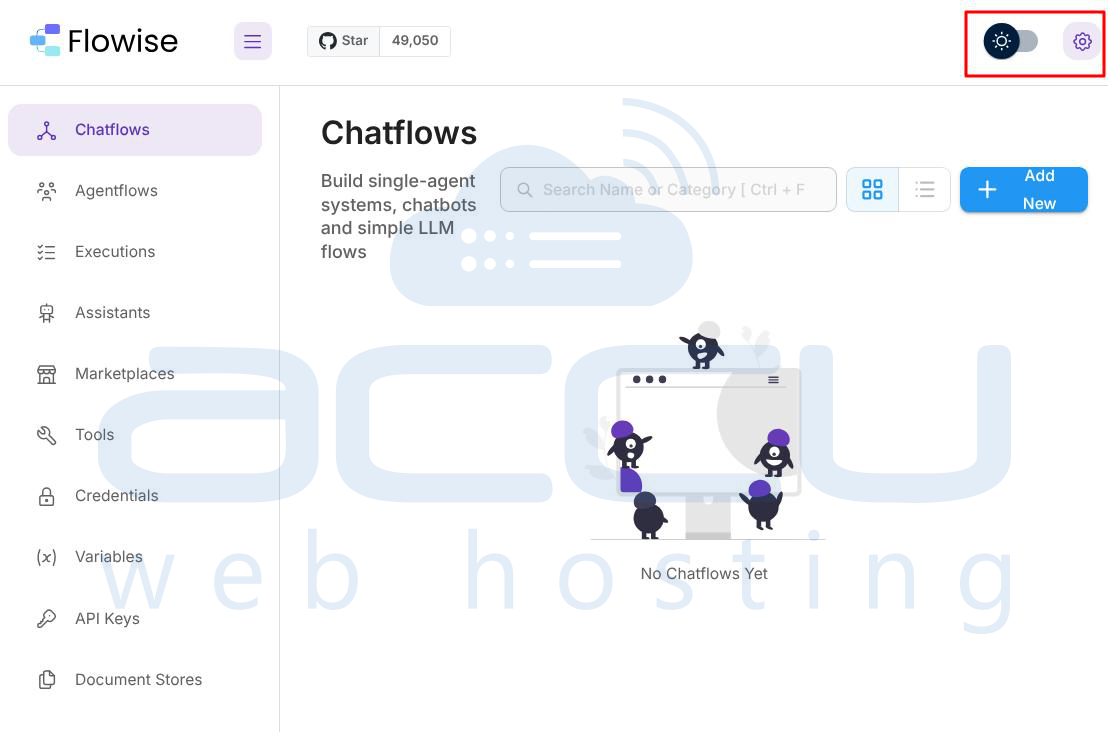
Step 9: After signing up, you will be redirected to the main interface. The default landing page is the Chatflows section.
Main Navigation: Use the left-hand sidebar to access different features such as Agentflows, Marketplaces, Tools, and API Keys.
Create Your First Flow: Since there are "No Chatflows Yet," click the + Add New button in the top right corner to start building your first single-agent system or LLM flow.
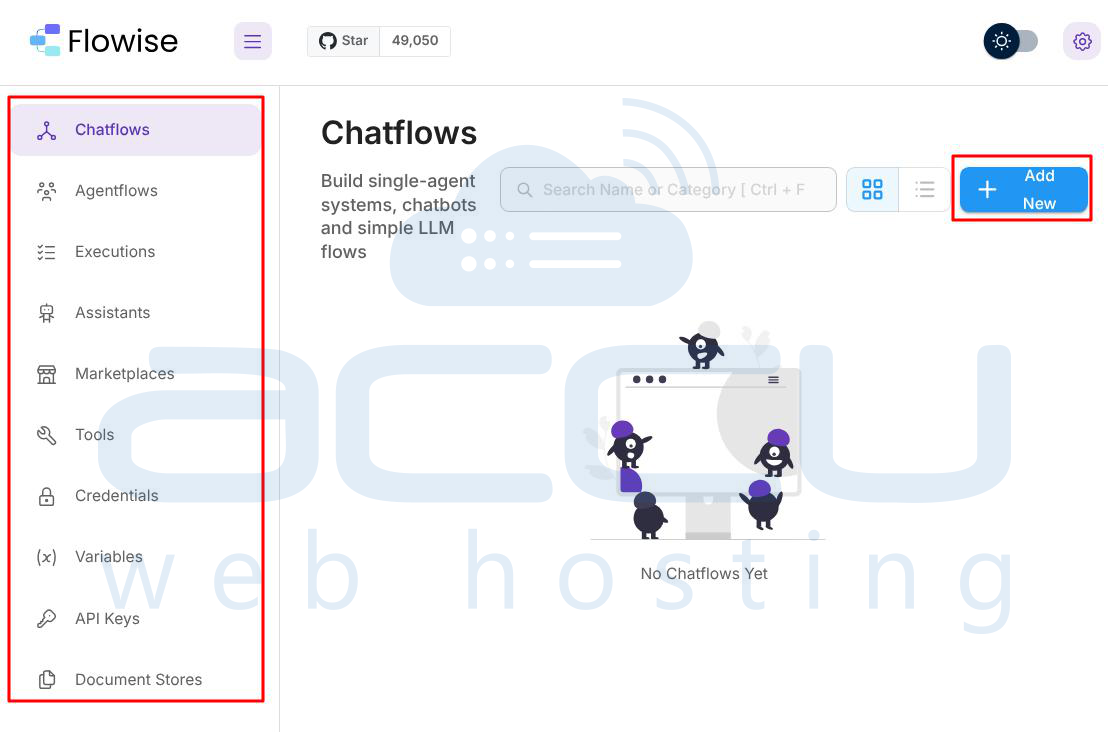
System Settings: You can toggle between light and dark modes or access advanced settings using the gear icon in the top right corner.
Conclusion
Flowise can be efficiently deployed on an Ubuntu server using Docker and Docker Compose. The installation process is straightforward and requires minimal configuration. Using Docker ensures portability, scalability, and maintainability.
For production environments, it is recommended to implement:
-
Reverse proxy with Nginx
-
SSL encryption
-
Automatic restart policies
-
Backup automation
-
Monitoring solutions
By following this detailed guide, administrators can deploy Flowise securely and reliably in both development and production environments. Flowise provides a powerful visual AI workflow builder, and running it in a properly configured Docker environment ensures stability, performance, and long-term maintainability.


