
Fix Laravel Routes Not Working on a Linux Shared Hosting
Laravel is one of the most popular PHP frameworks in the world. It is widely used because of its clean syntax, powerful routing system, built-in security features, and developer-friendly tools. However, deploying Laravel on a Linux shared hosting server can sometimes be challenging. Shared hosting environments have limitations. These include restricted server access, limited permissions, and lack of SSH or terminal access. Because of these limitations, developers often face issues after deployment.
One of the most common problems is Laravel routes not working on live servers. Pages may return 404 errors, routes may not load, or only the home page may work. This issue must be fixed immediately because broken routes make your website unusable for visitors. In this guide, we will explain why Laravel routes fail on shared hosting and provide solutions to fix the problem.

Common Symptoms of Laravel Routes Not Working
Before fixing the issue, it is important to understand the symptoms. Some common signs include:
- Home page works, but other routes show 404 Not Found
- Routes work locally but not on live server
- URLs with parameters fail
- Laravel returns Page Expired or Internal Server Error
- php artisan route:list shows routes, but they do not load in browser
If you are experiencing any of these issues, this guide will help you resolve them.
How to Deploy Laravel on Shared Hosting?
Correct deployment is the foundation for fixing routing issues. Many problems happen because Laravel is deployed incorrectly. Below are the steps to deploy Laravel on Linux shared hosting using cPanel.
Step 1: On your local machine navigate to your Laravel project folder, select all files and folders, compress them into a ZIP file and name it something like laravelapp.zip.

Step 2: Log in to cPanel, open File Manager, navigate to the root directory (usually public_html) and upload laravelapp.zip.

Step 3: Right-click on laravelapp.zip, click Extract and Extract it in the same directory. After extraction, you will see your Laravel project folder.

Step 4: Laravel has a public directory. This directory contains index.php, .htaccess and Assets (CSS, JS, images). Shared hosting requires these files to be inside public_html.
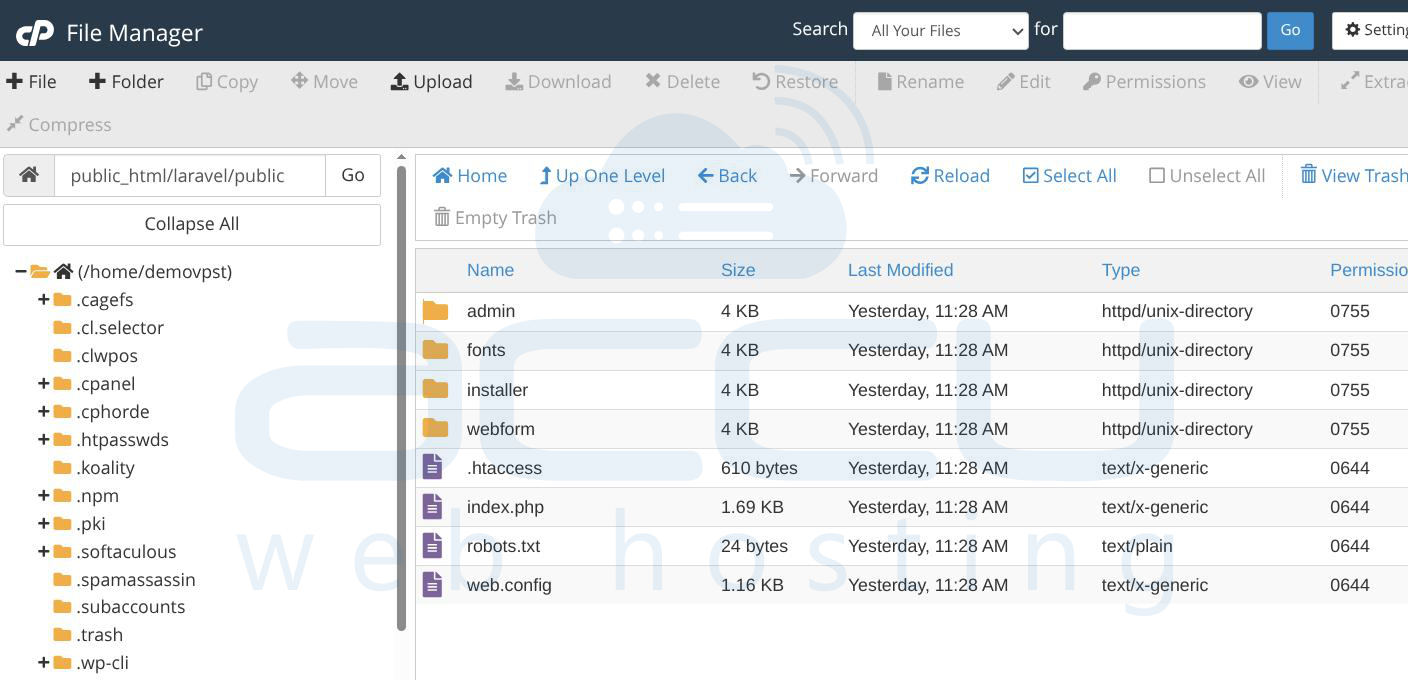
What to Do: Open your Laravel public directory, select all files inside public, and move them to public_html. Delete the empty public folder
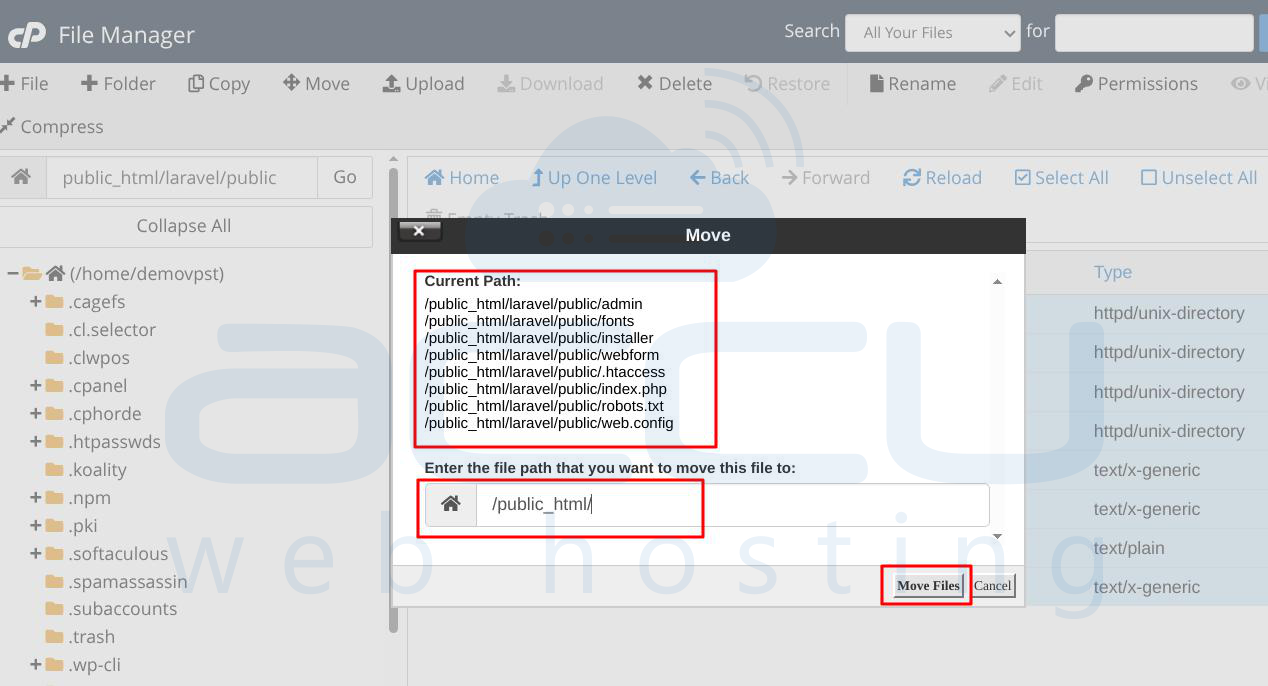
Step 5: Update index.php File. Open public_html/index.php and update the paths.
Original Code:
require __DIR__.'/../bootstrap/autoload.php';
$app = require_once __DIR__.'/../bootstrap/app.php';
Updated Code:
require __DIR__.'/../laravel/bootstrap/autoload.php';
$app = require_once __DIR__.'/../laravel/bootstrap/app.php';
Make sure laravel is the correct folder name of your project.

Step 6: Check or Create .htaccess File. Go to public_html, Enable Show Hidden Files.

Check if .htaccess exists
If it does not exist, create a new file named .htaccess.
Sample .htaccess for Laravel:
<IfModule mod_rewrite.c>
RewriteEngine On
RewriteRule ^(.*)$ public/$1 [L]
</IfModule>
This file is critical for routing.

Step 7: Create Database and Import Data. Update .env file with correct database credentials.
Step 8: Configure .env File. Copy .env.example, Rename it to .env
- Update:
- APP_URL
- DB_DATABASE
- DB_USERNAME
- DB_PASSWORD

Your website should be acessible.
Steps to fix Laravel Routes
Method 1: Clear and Rebuild Laravel Route Cache
Laravel uses route caching to improve performance. However, cached routes can cause issues after deployment.
Clear Route Cache (With SSH Access)
If SSH or Terminal is available:
php artisan route:clear
Then regenerate cache:
php artisan route:cache
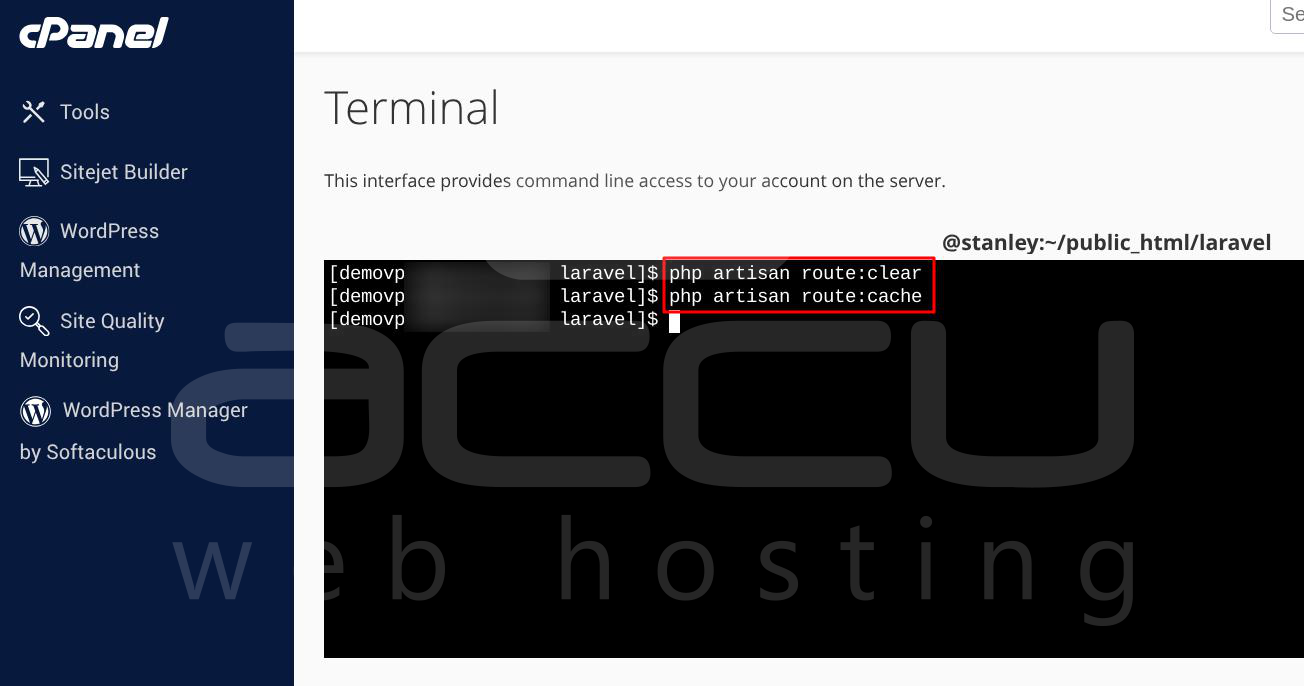
No SSH Access? Use a PHP File (Shared Hosting Solution)
Most shared hosting plans do not provide SSH access. In this case, you can trigger Artisan commands using a PHP script.
Step 1: Open cPanel File Manager, go to Laravel root directory and create a new file named run_artisan.php
Step 2: Add Code to PHP File
<?php
$path = '/home/your_cpanel_username/public_html/your_laravel_directory';
chdir($path);
echo "Current path: " . getcwd() . "<br>";
exec('php artisan route:cache', $output, $status);
echo "<pre>";
print_r($output);
echo "</pre>";
echo "Command status: $status";
?>
Replace the path with your actual Laravel path.
Step 3: Run the Script by visiting: https://yourdomain.com/run_artisan.php
You should see success output.

Step 4: Delete the PHP File. This file is a security risk. Delete it immediately after execution.
Many hosting providers will run Artisan commands for you if requested.
Method 2: Fix index.php and .htaccess Location
Laravel routing depends heavily on Apache rewrite rules. Common Issue index.php is in public_html and .htaccess is missing or located elsewhere. This breaks URL rewriting.
Solution: Open File Manager, enable Show Hidden Files.

Confirm index.php is in public_html and .htaccess is in the same directory. If .htaccess does not exist, create it manually and add Laravel rewrite rules. Apache uses .htaccess to redirect all requests to index.php. Without it, Laravel cannot handle routes.

Method 3: Create a Symbolic Link to public_html
If nothing else works, use a symbolic link. This method usually requires SSH access. A symbolic link points one directory to another. It allows public_html to point directly to Laravel’s public folder.
Steps to Create Symbolic Link
Rename existing public_html: public_html_old
Run the command:
ln -s /home/user/laravel_project/public /home/user/public_html
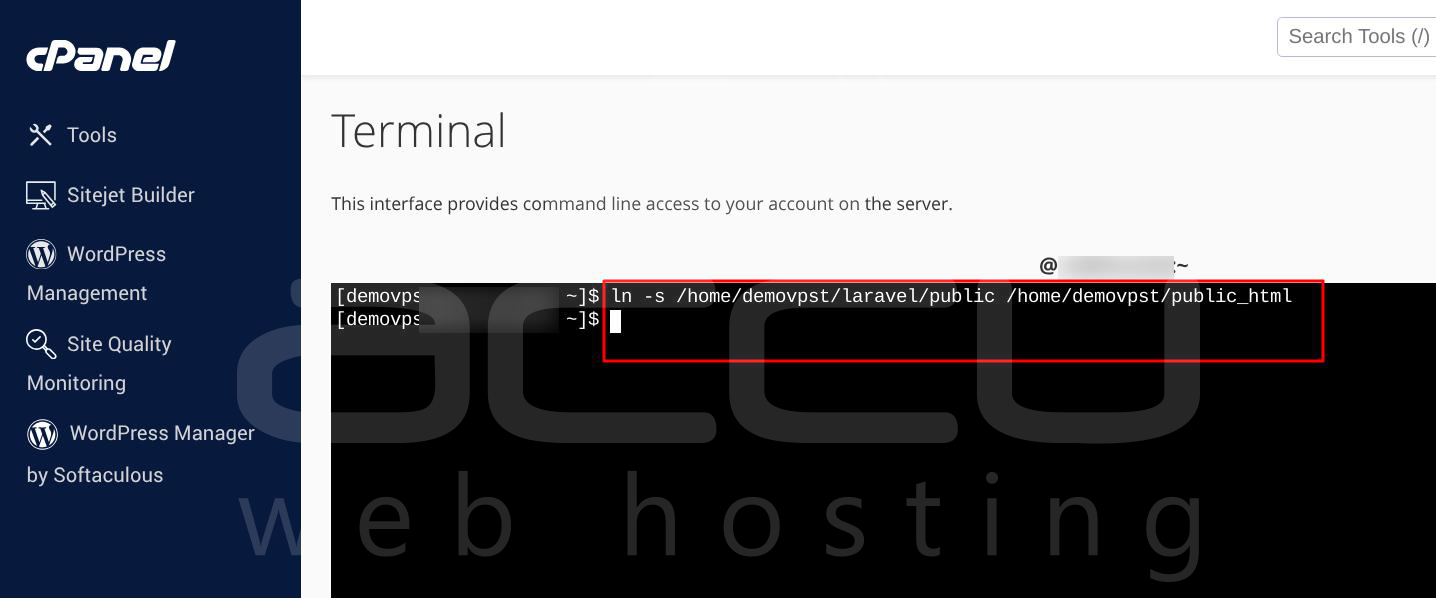
Replace user with your cPanel username and laravel_project with your project folder name
Laravel expects the public directory to be web-accessible. The symbolic link ensures correct routing without changing Laravel structure.
Additional Common Causes of Route Issues
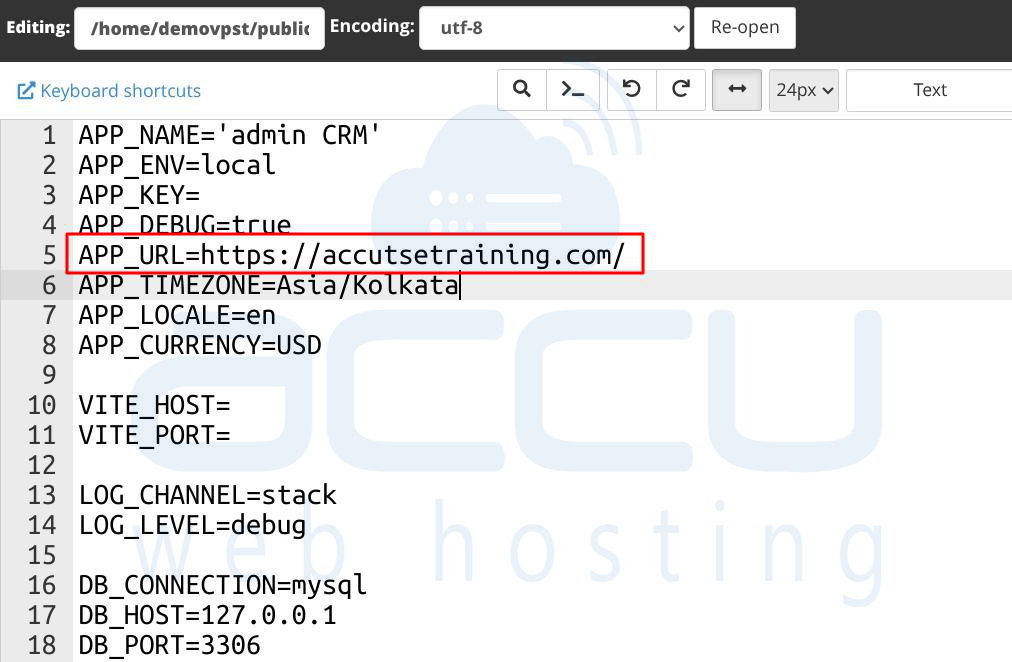
Incorrect APP_URL: Make sure .env contains correct domain:
APP_URL=https://yourdomain.com
Missing mod_rewrite Module: Laravel requires Apache mod_rewrite. Most shared hosts enable it by default, but you can confirm with support.
Case Sensitivity on Linux: Linux servers are case-sensitive.
- /User ≠ /user
- /HomeController ≠ /homeController
Always use the correct case in routes and controllers.
Cached Config Files: Clear config cache:
php artisan config:clear
Conclusion
Laravel routes not working on Linux shared hosting is a common issue, especially for developers deploying Laravel for the first time. The problem usually occurs due to incorrect deployment structure, cached routes, missing .htaccess files, or shared hosting limitations. By carefully following these steps, you can successfully fix routing issues and ensure your Laravel application works correctly on shared hosting. If problems persist, always consult your hosting provider or consider upgrading to VPS or a dedicated server for better control and performance.


