
Monitoring system authentication logs on Ubuntu is essential for ensuring the security and integrity of your system. Authentication logs record all login attempts, including successful and failed logins, along with activities like sudo usage, SSH logins, and any other actions that might impact the security of your system. By keeping an eye on these logs, you can detect unauthorized access, investigate suspicious activity, and maintain a secure environment. In this article, we’ll explore effective methods to monitor authentication logs on Ubuntu.
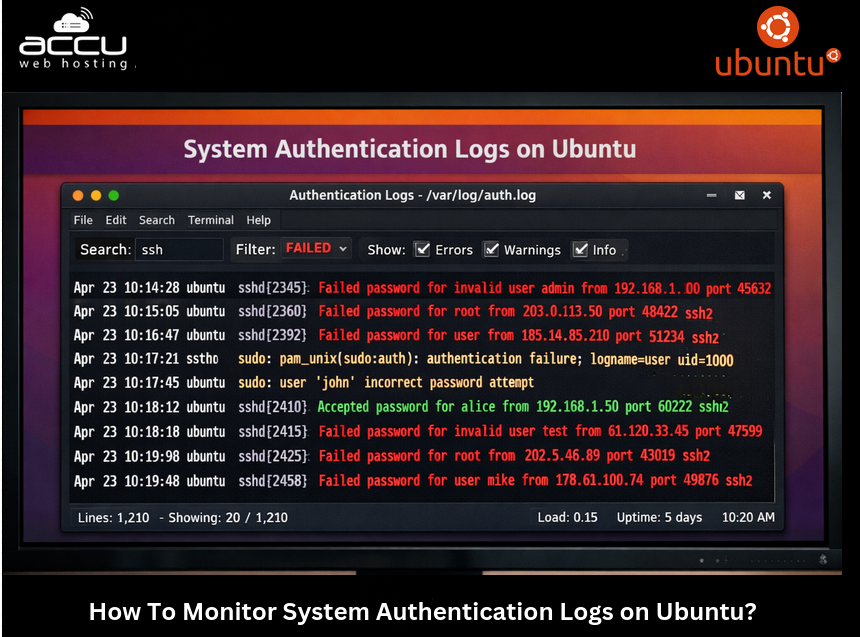
Method 1. Using auth.log File
The primary log file for authentication-related events in Ubuntu is located in /var/log/auth.log. This log file contains all of the login attempts, sudo activities, and other authentication-related events.
View the log: You can use the cat, less, or tail commands to view this log. For example, to view the last 50 lines of the auth log, you can run:
sudo tail -n 50 /var/log/auth.log
To view the log in real time: sudo tail -f /var/log/auth.log
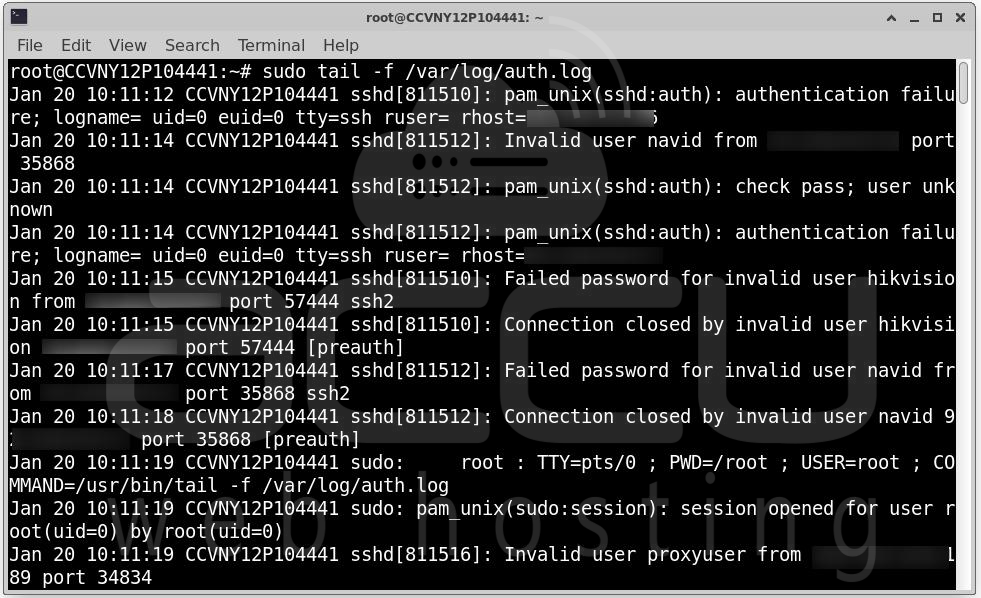
Search for specific events: If you're looking for failed login attempts or specific user actions, you can use the grep command:
sudo grep 'Failed password' /var/log/auth.log
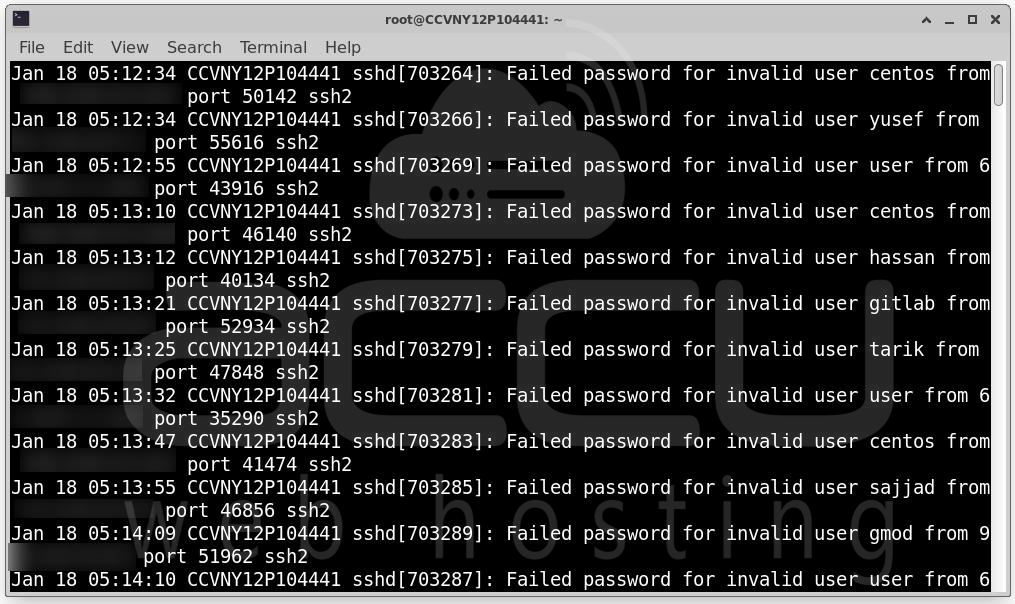
This will show you all failed login attempts, which is crucial for identifying potential brute force or unauthorized access attempts.
Benefits:
- Provides a detailed log of all authentication events.
- Easy to access and monitor with simple commands.
Method 2. Using journalctl for Systemd Logs
Ubuntu uses systemd as its init system, and many system-related logs, including authentication events, are stored in the journal logs. You can use the journalctl command to view logs across various system services, including authentication.
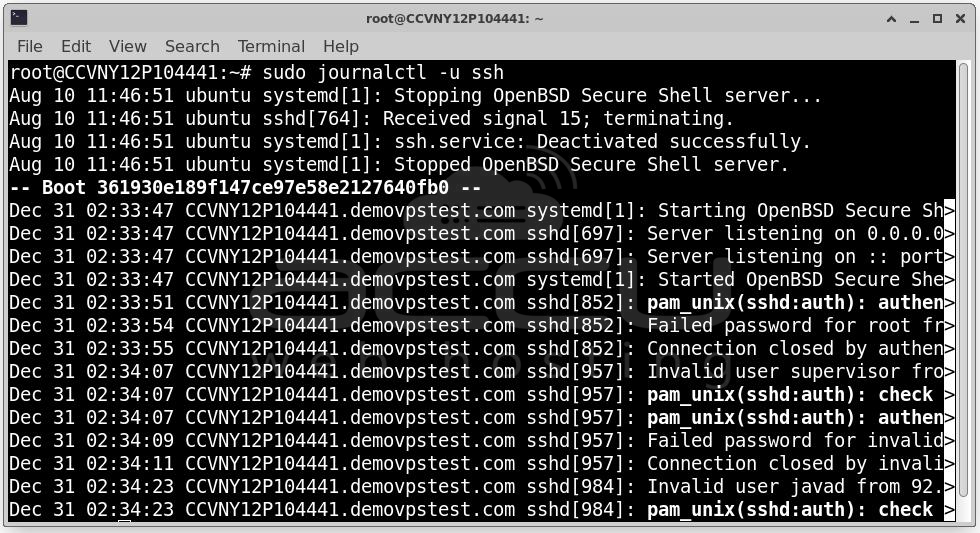
View Authentication Logs: You can view authentication-related logs by filtering the journal logs. For example, to view logs related to SSH authentication, run:
sudo journalctl -u ssh
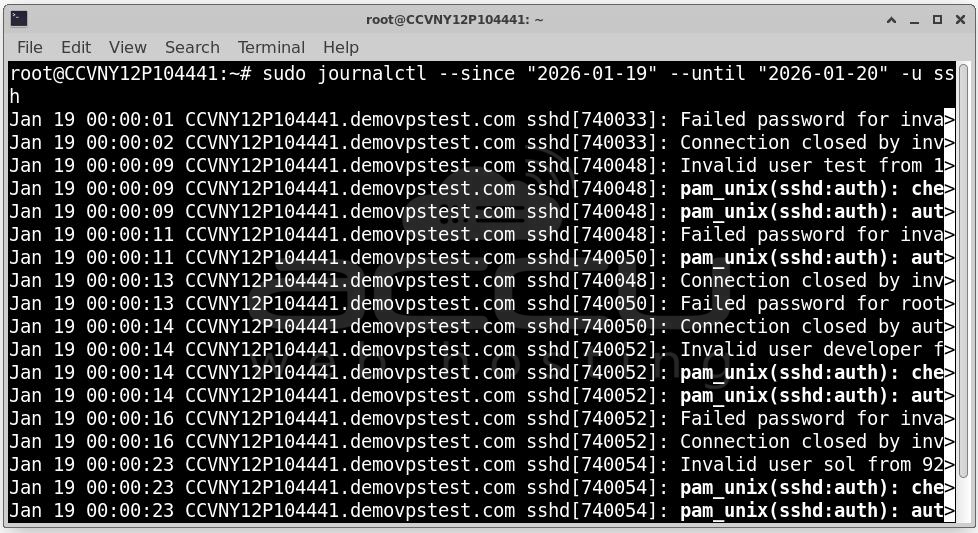
View logs for a specific time: If you want to monitor logs in real-time or look for events from a particular date, you can use:
sudo journalctl --since "2026-01-19" --until "2026-01-20" -u ssh
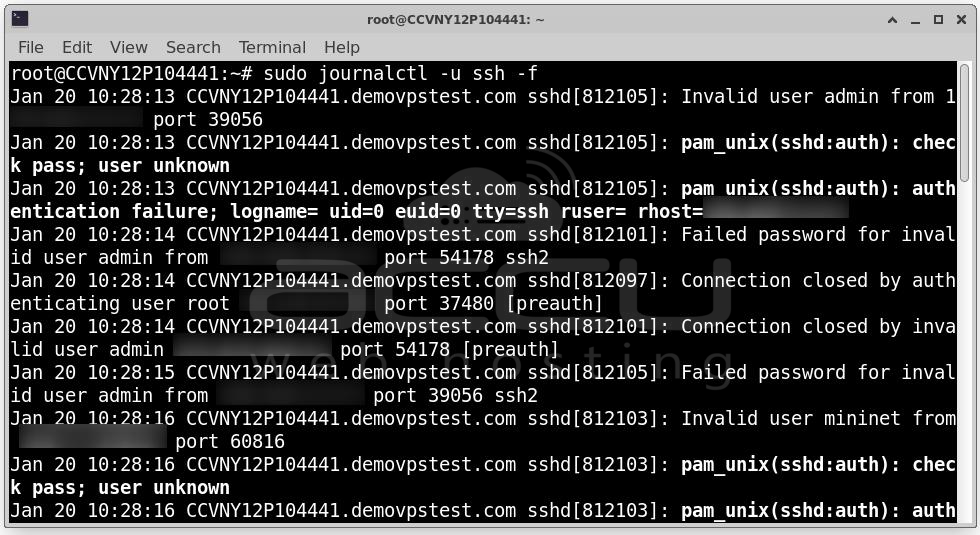
Follow logs in real-time: To follow authentication events in real-time, you can use:
sudo journalctl -u ssh -f
Benefits:
- Centralized log management with systemd's journalctl.
- Flexible filtering options by service, time, or message content.
Method 3. Using fail2ban to Monitor and Prevent Brute Force Attacks
fail2ban is a powerful tool that monitors system logs for suspicious login attempts and can automatically block IP addresses after a certain number of failed login attempts. It works by scanning logs such as /var/log/auth.log and triggering actions when it detects multiple failed login attempts.
Steps:
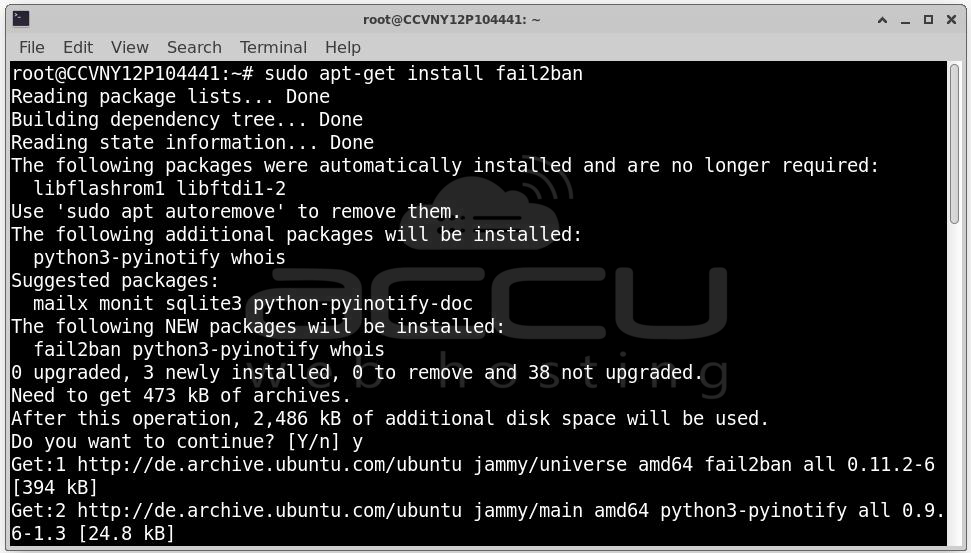
Install fail2ban: sudo apt-get install fail2ban
Configure fail2ban: By default, fail2ban protects SSH and other services. To modify its configuration, you can edit the jail.conf or jail.local file:
sudo nano /etc/fail2ban/jail.local
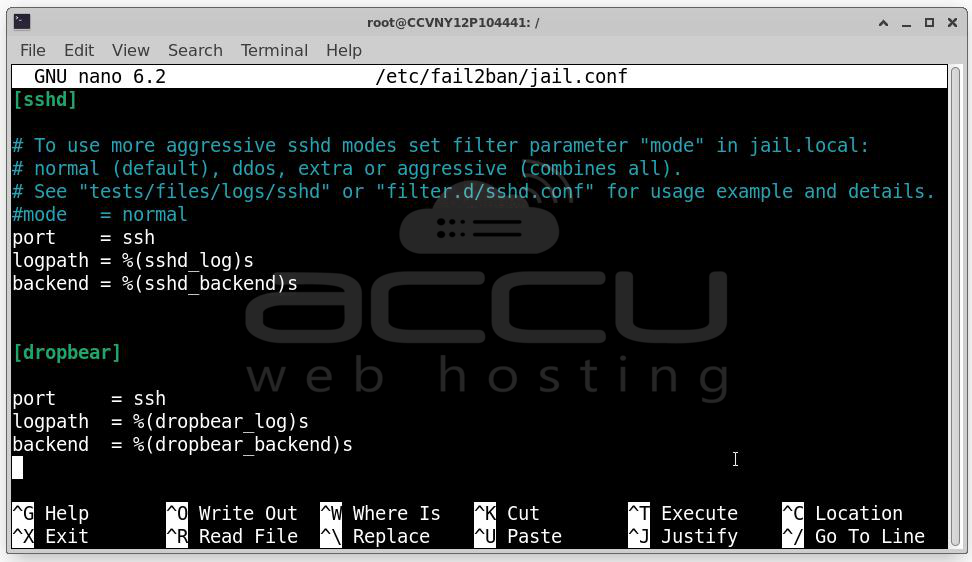
Ensure that SSH and other services you want to protect are configured under the [ssh] section.
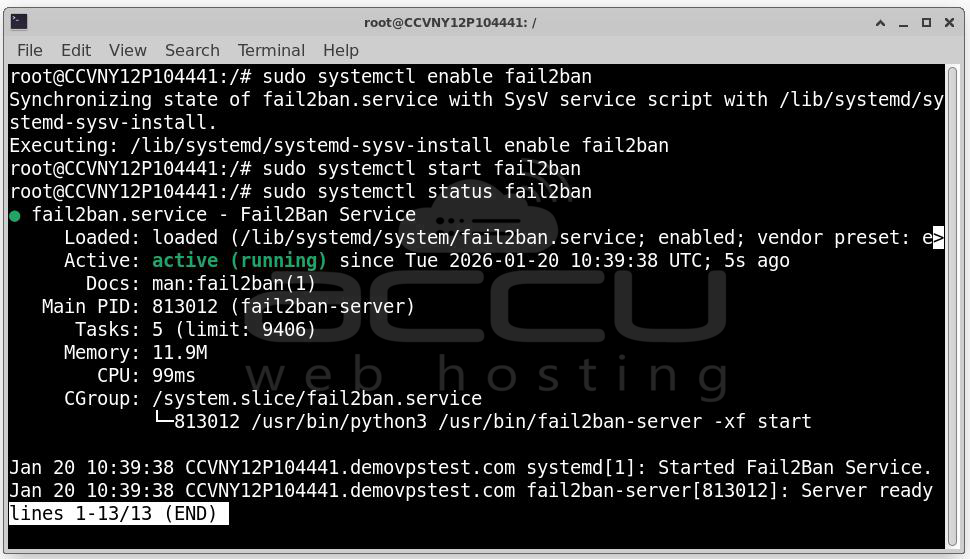
You can also enable fail2ban to start automatically on boot:
sudo systemctl enable fail2ban
Start the fail2ban service: sudo systemctl start fail2ban
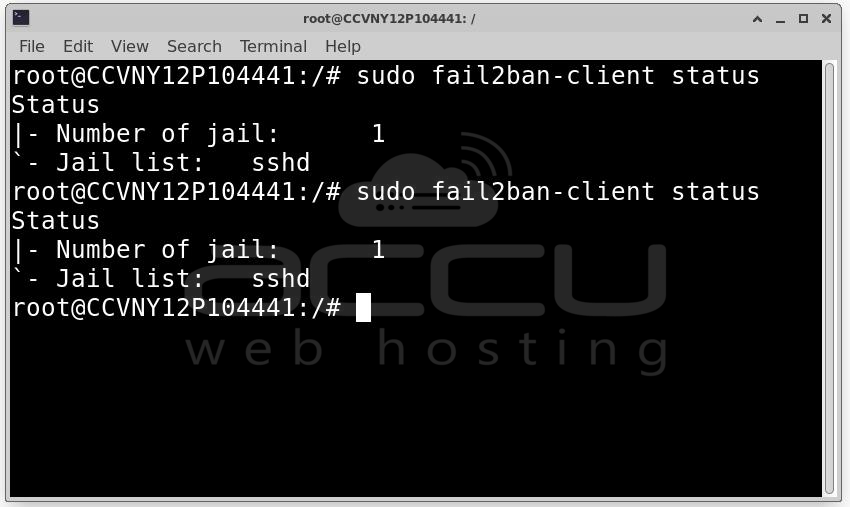
Check fail2ban status: To monitor the current bans and their status:
sudo fail2ban-client status
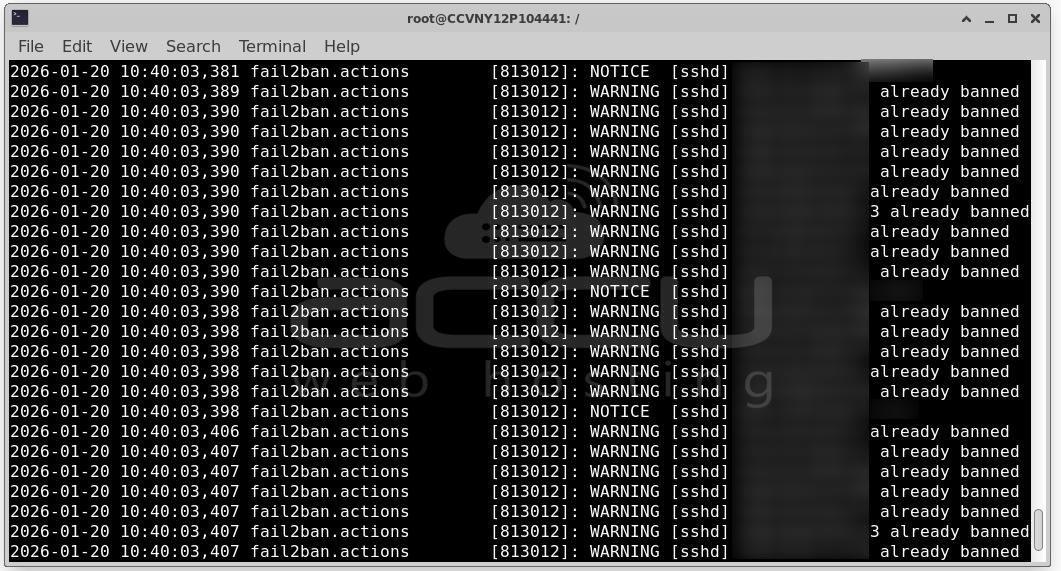
To get more insights into the fail2ban activity, you can view the fail2ban log file:
sudo cat /var/log/fail2ban.log
Benefits:
- Automates the process of blocking brute force attackers.
- Provides real-time protection by dynamically modifying firewall rules.
Method 4. Using auditd for Advanced Auditing
auditd is the Linux Auditing System, designed for monitoring system calls, file accesses, and user activities. It provides advanced logging and auditing functionality, including monitoring authentication events.
Steps:
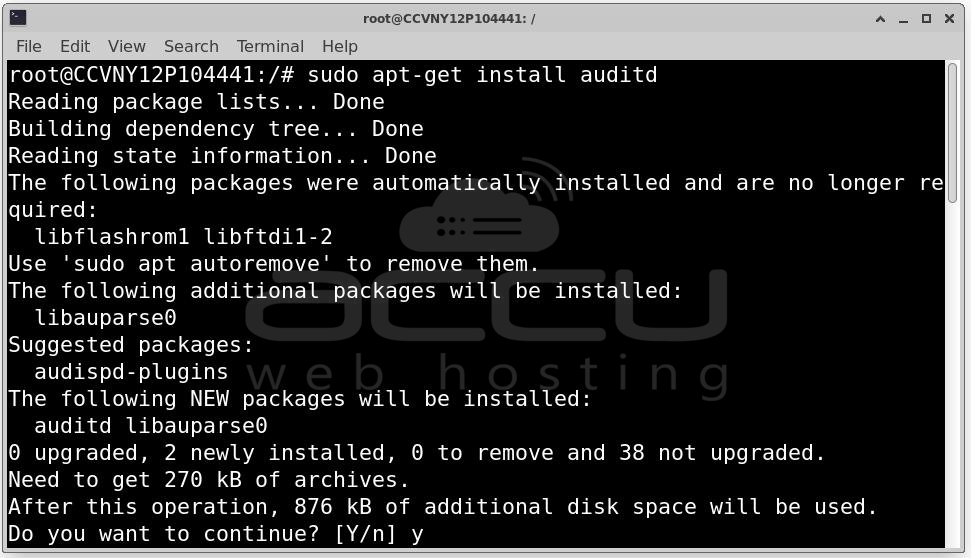
Install auditd: sudo apt-get install auditd
Configure audit rules: Auditd allows you to define custom rules. To track login and authentication events, you can configure audit rules in /etc/audit/rules.d/audit.rules or /etc/audit/rules.d/50-default.rules.
Example: To monitor all authentication events, you can add the following rule:
-w /var/log/auth.log -p wa
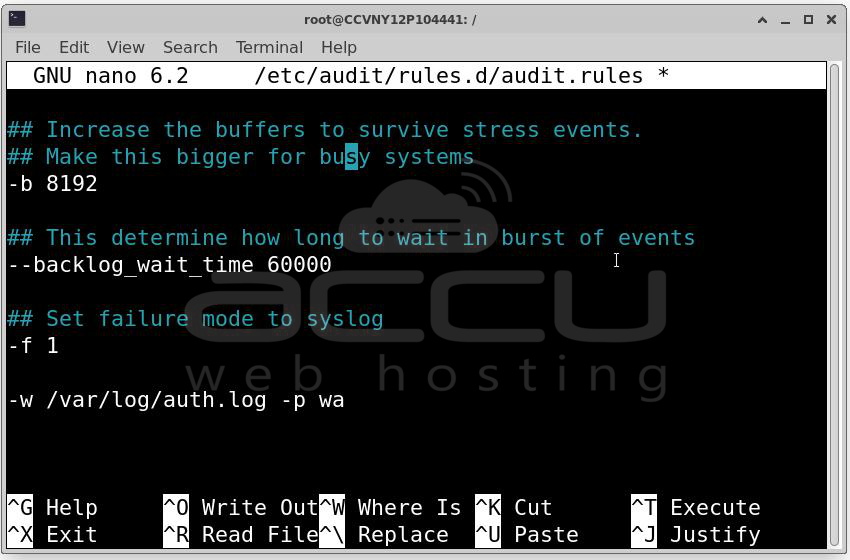
This will watch the auth.log file for any changes.
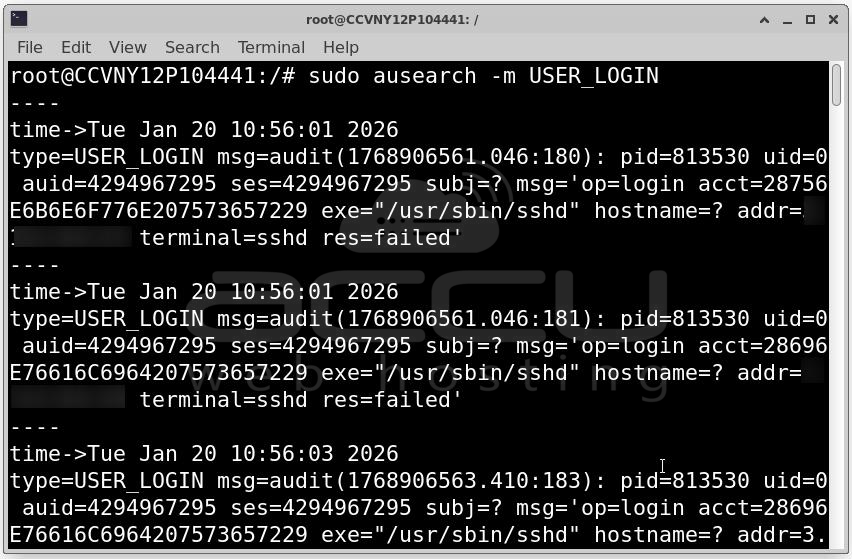
View audit logs: Use ausearch to search audit logs for authentication events:
sudo ausearch -m USER_LOGIN
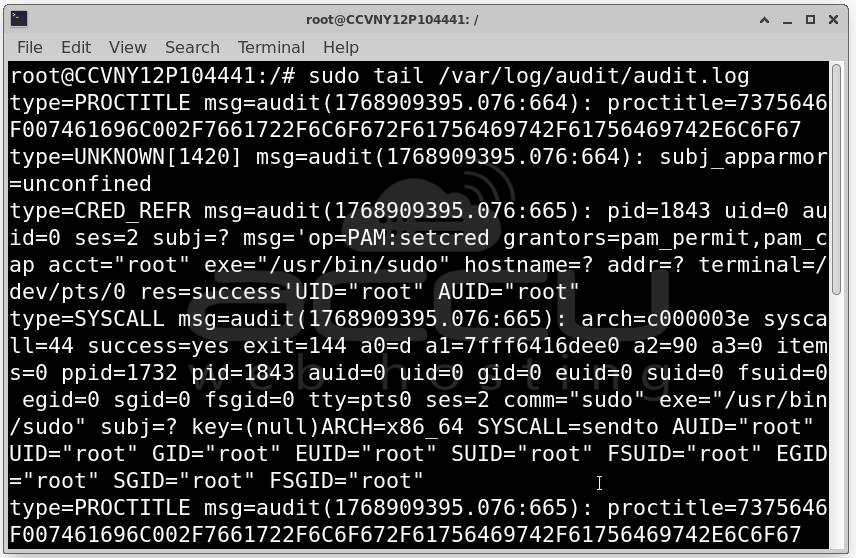
Alternatively, view the logs directly: sudo cat /var/log/audit/audit.log
Benefits:
- Provides a detailed and high-security logging mechanism.
- Great for compliance and auditing needs.
Method 5. Using logwatch for Log Monitoring Reports
logwatch is a system log analyzer and reporter that can summarize logs and send periodic reports on activities like authentication events, system usage, and errors. This can be helpful for administrators who want regular updates on authentication activity.
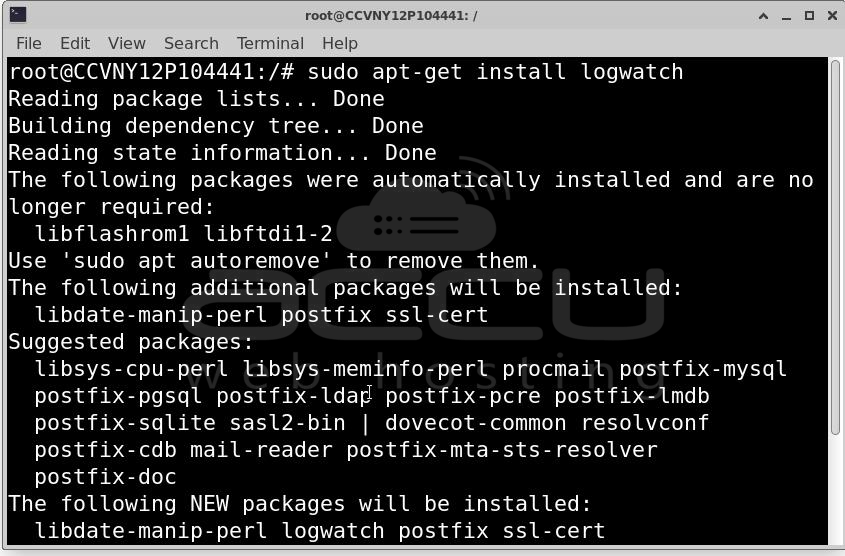
Install logwatch: sudo apt-get install logwatch
Generate a logwatch report: You can run logwatch manually with the following command to generate a report for authentication logs:
sudo logwatch --detail High --service sshd --range 'yesterday' --format html
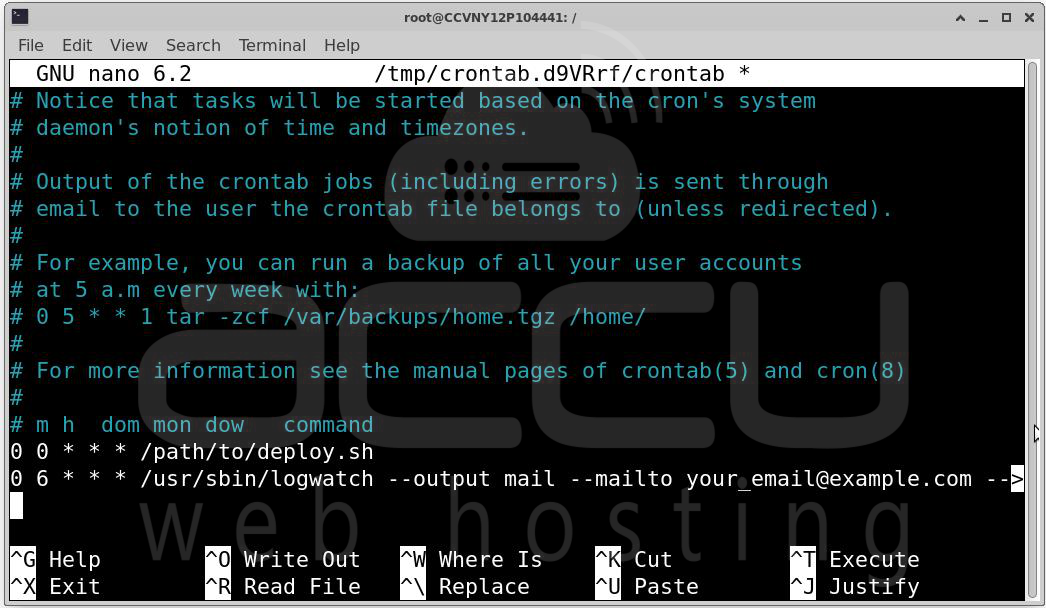
Schedule regular reports: You can set up a cron job to send you daily or weekly reports by adding a cron job for logwatch:
sudo crontab -e
Add the following line for daily reports: 0 6 * * * /usr/sbin/logwatch --output mail --mailto [email protected] --detail high
Benefits:
- Generates easy-to-read reports on authentication logs.
- Automates periodic monitoring and alerting.
Conclusion
Monitoring authentication logs is an essential part of maintaining the security of your Ubuntu system. By using the above methods, you can efficiently monitor logins, track suspicious activity, and respond quickly to potential security threats. Whether you are looking for real-time monitoring, automated blocking, or detailed auditing, these tools and techniques provide the flexibility and control you need to keep your system secure. Implementing any combination of these methods will help you stay on top of authentication events, ensuring that your Ubuntu server remains protected against unauthorized access.


