
Nmap (Network Mapper) is one of the most popular and powerful open-source tools for network exploration, monitoring, and security auditing. It is commonly used by network administrators, system engineers, and cybersecurity professionals to discover hosts, services, and vulnerabilities on a computer network. In this article, we will discuss how to install Nmap on Ubuntu using different methods.

What is Nmap?
Nmap is an open-source tool used for network discovery and security auditing. It allows users to scan networks to detect devices connected to the network, Discover services running on a network and their version, detects open ports on a system or network and identify vulnerabilities and security risks in networked systems.
Nmap is useful for anyone who manages or monitors a network. Here are some reasons why you might need Nmap:
-
Network Discovery: You can quickly identify all active devices on your network, including routers, printers, and computers.
-
Security Audits: Nmap is widely used by cybersecurity experts to discover vulnerabilities in a system and assess security.
-
Service Enumeration: Nmap can reveal what services are running on a device and help identify weak points for attack.
-
Port Scanning: You can check for open ports on devices to see which ports are exposed and may need to be closed or secured.
Method 1: Installing Nmap using APT (Advanced Package Tool)
APT is the default package manager on Ubuntu. It simplifies the installation process by retrieving software packages from the official repositories and installing them.
Step 1: Before installing any software, it’s a good practice to update the local repository list. This ensures that you are installing the latest version of Nmap available in the repositories.
sudo apt update
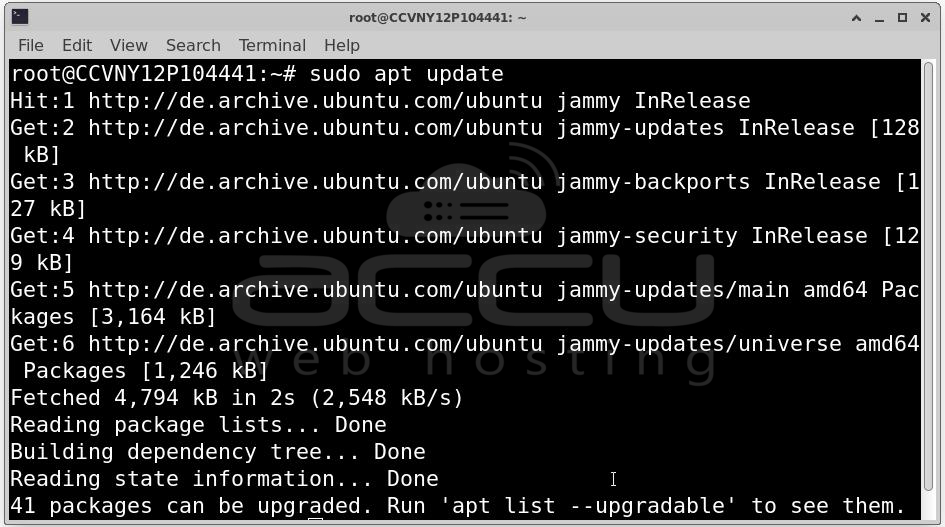
Step 2: Now, you can install Nmap with the following command:
sudo apt install nmap
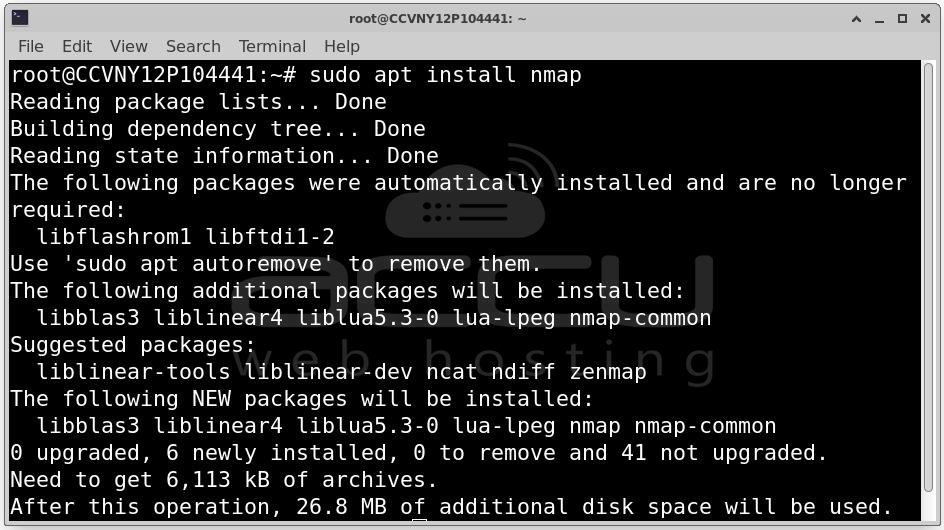
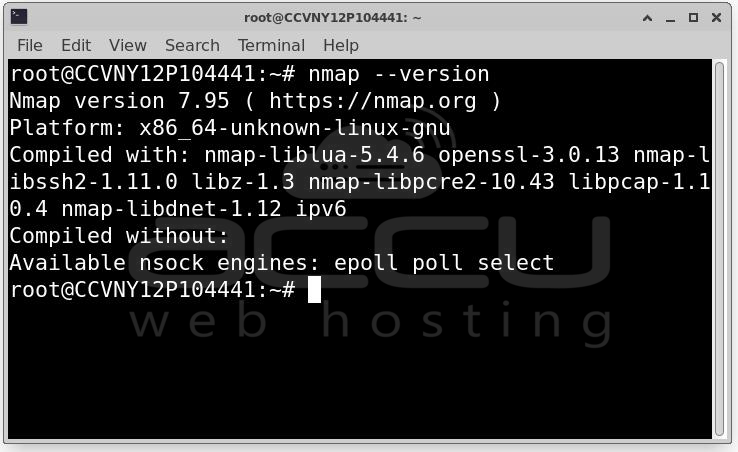
Step 3: Once the installation is complete, verify that Nmap has been installed correctly by checking its version:
nmap --version
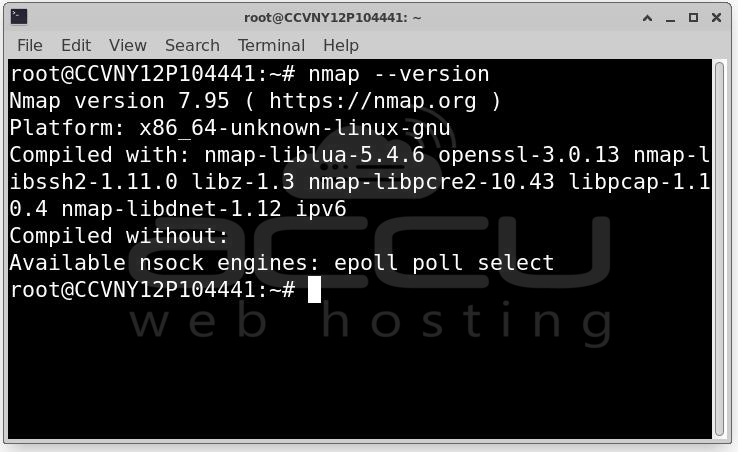
If everything is installed correctly, you should see output similar to: Nmap version 7.95 ( https://nmap.org ). Now you’re ready to use Nmap on your system!
Method 2: Installing Nmap from Source
Sometimes, you may want to install the latest version of Nmap or a custom version tailored for your needs. In such cases, you can download and compile Nmap from source.
Step 1: You need to install development tools such as build-essential, libpcap-dev, and libssl-dev to compile Nmap.
sudo apt install build-essential libpcap-dev libssl-dev
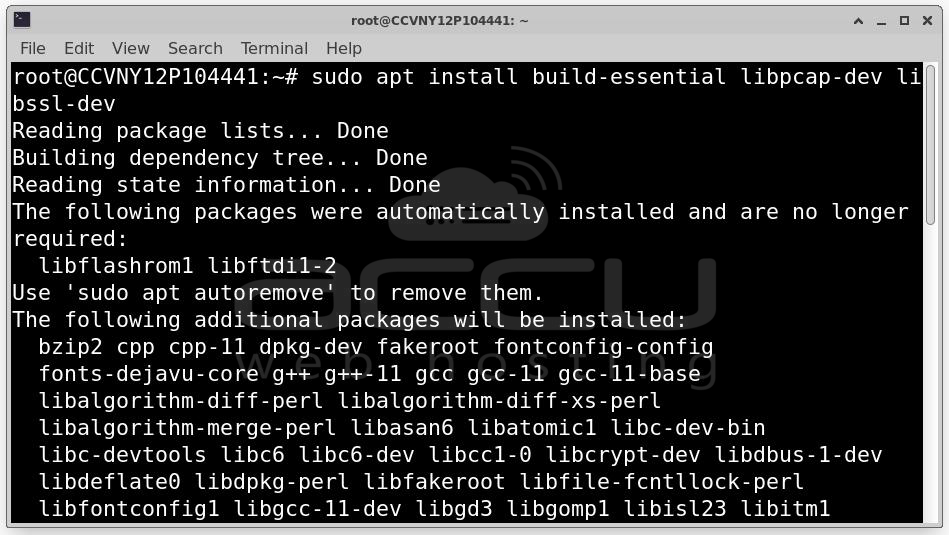
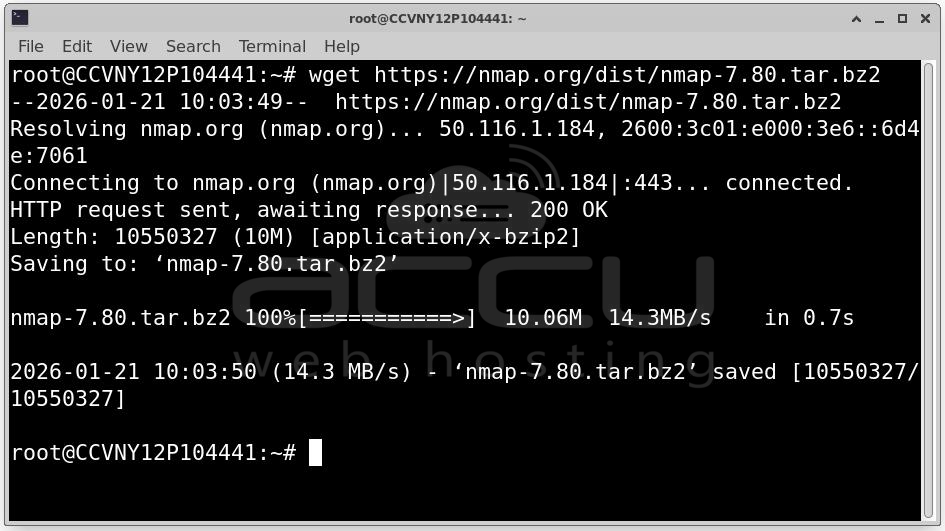
Step 2: You can download the latest stable version of Nmap from the official website or GitHub repository. Here’s the command to download the latest stable release:
wget https://nmap.org/dist/nmap-7.80.tar.bz2
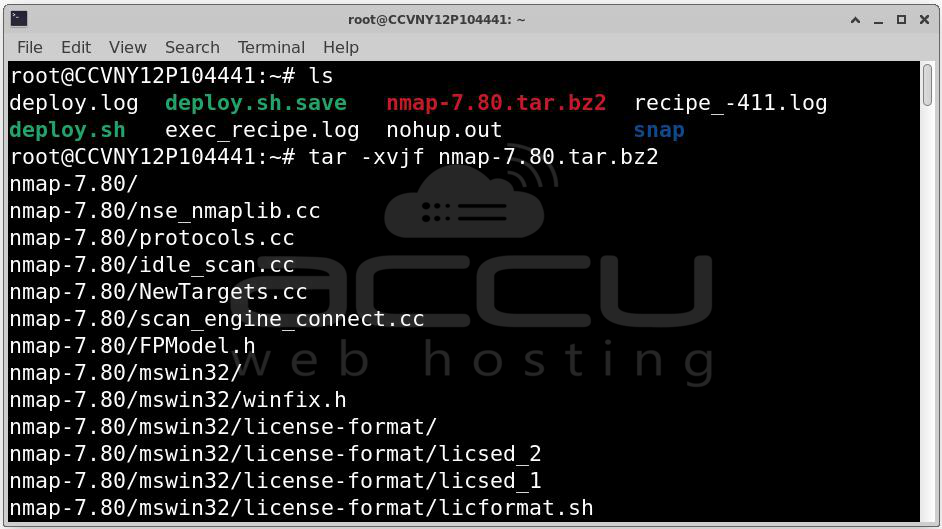
Step 3: Once downloaded, extract the source code:
tar -xvjf nmap-7.80.tar.bz2
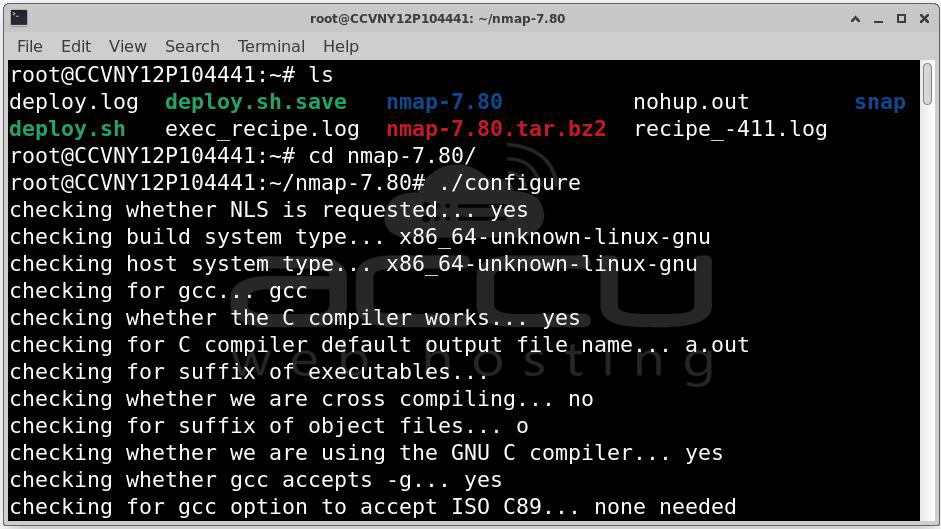
Step 4: Navigate to the extracted directory and start the installation process:
cd nmap-7.80
./configure
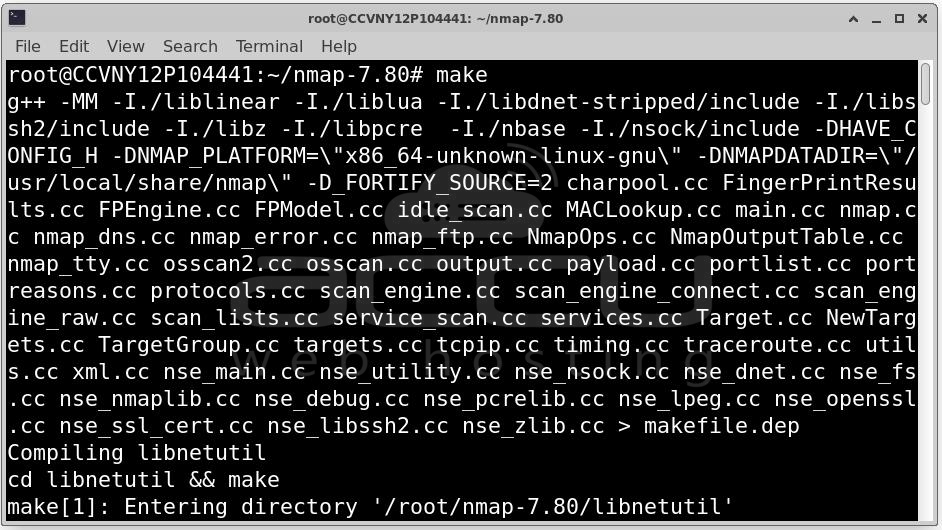
make
sudo make install
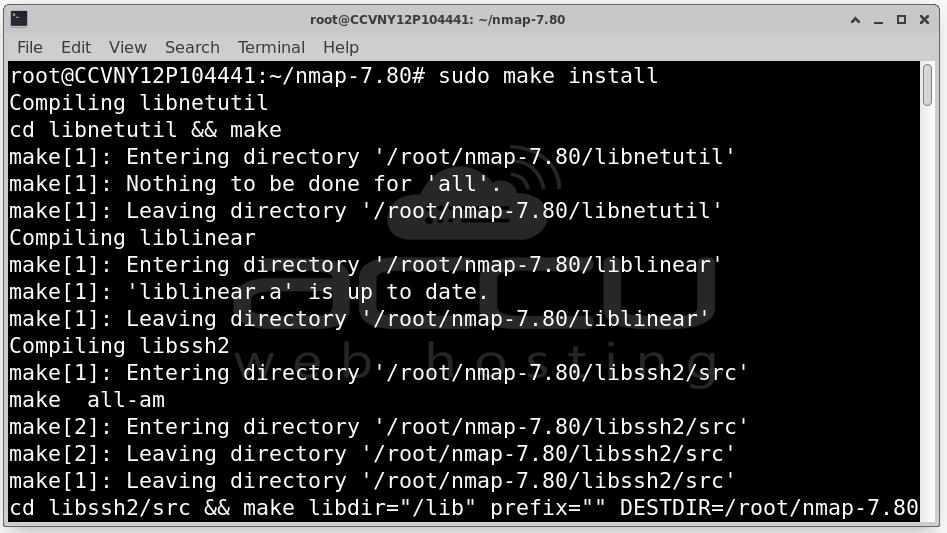
This process might take some time, depending on your system’s performance.
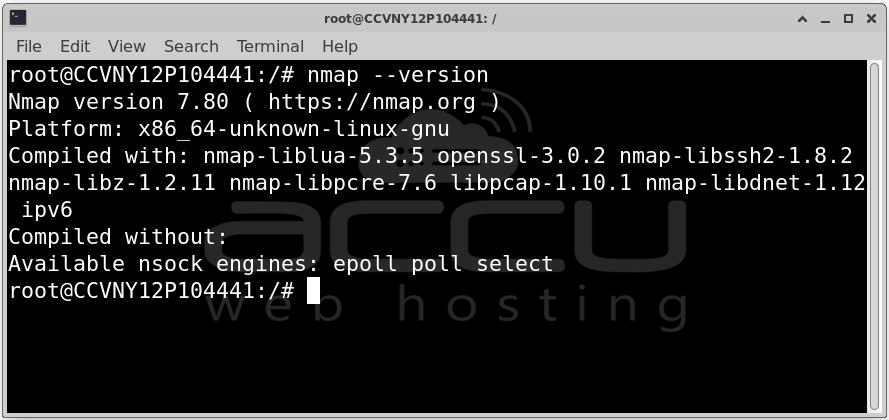
Step 5: Once the installation is complete, verify the installation by checking the version of Nmap:
nmap --version
Method 3: Installing Nmap using Snap Package
Snap is a universal Linux package manager that allows you to install software across various Linux distributions, including Ubuntu.
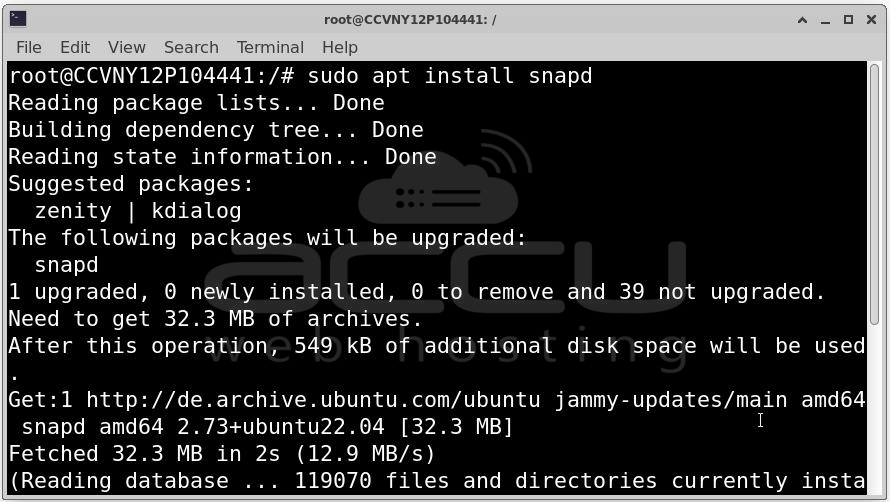
Step 1: Snap is pre-installed on Ubuntu 16.04 and later versions. If it's not installed, you can install it by running:
sudo apt install snapd
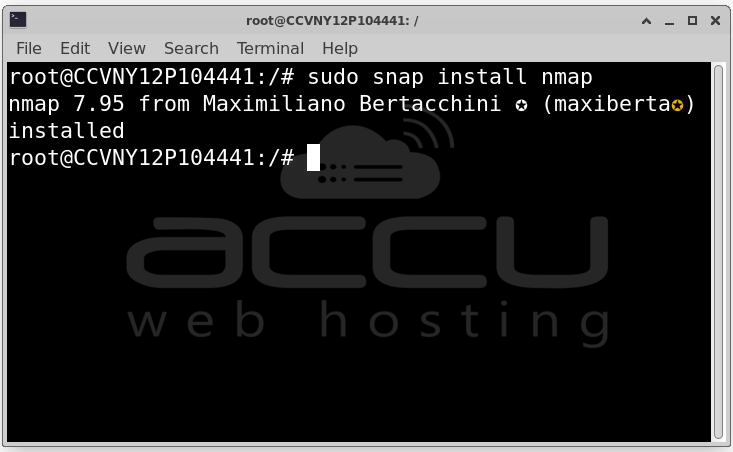
Step 2: Once Snap is installed, you can install Nmap using the following command:
sudo snap install nmap
Step 3: To confirm that Nmap has been installed successfully, run:
nmap --version
Conclusion
Nmap is a versatile and powerful tool for network monitoring and security auditing. Whether you're a network administrator or a cybersecurity professional, understanding how to install and use Nmap is essential. In this article, we covered three methods to install Nmap on Ubuntu.


