
Running a shell script on a VPS is very similar to running it on any Linux machine. However, there are a few additional considerations, like setting up SSH to access your VPS remotely, and managing your scripts efficiently. Here's a guide for executing a shell script on a VPS:
Steps to Execute a Shell Script on a VPS
Step 1: First, you'll need to connect to your VPS remotely. You can do this using SSH. If you're using a terminal on Linux or macOS, open it and run:
ssh username@your_vps_ip_address
Replace username with your VPS username (usually root or a specific user you set up) and your_vps_ip_address with the IP address of your VPS.
Example: ssh [email protected]
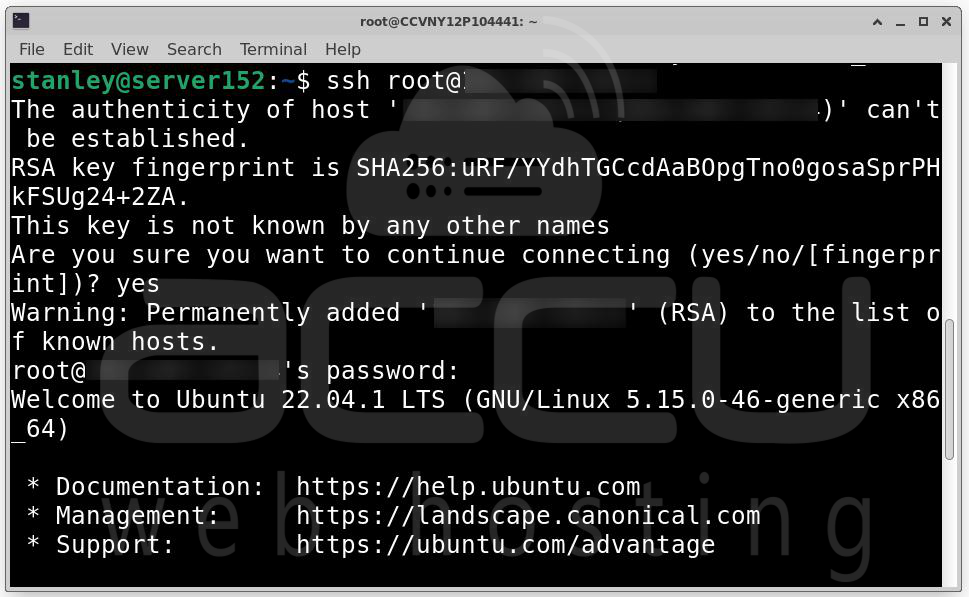
On Windows, you can use an SSH client like PuTTY or use the built-in PowerShell (ssh command).
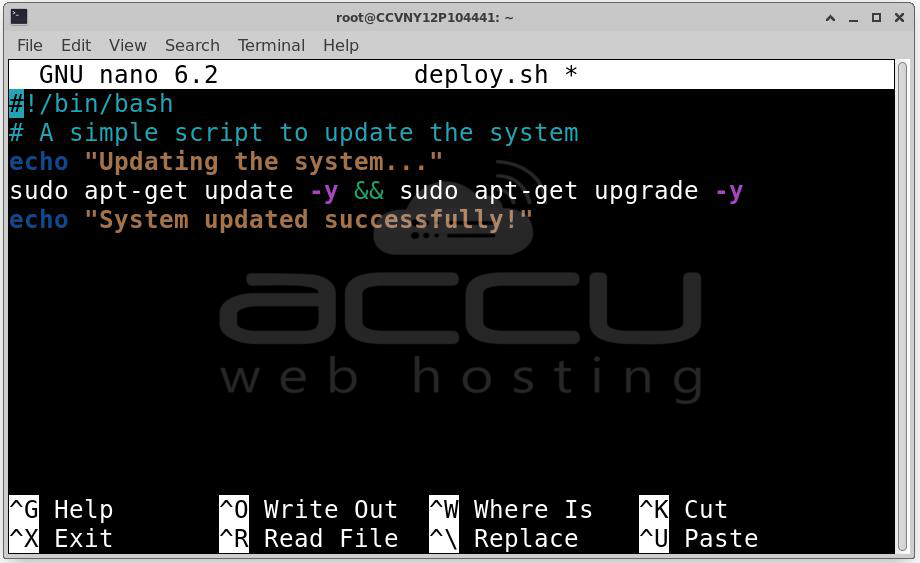
Step 2: Once logged in, you can create a shell script on your VPS. You can use any text editor available on your VPS. For example, nano, vim, or vi are common editors. For example, to create and edit a script named deploy.sh:
nano deploy.sh
Inside the file, you can write your script. Here’s a basic example:
#!/bin/bash
# A simple script to update the system
echo "Updating the system..."
sudo apt-get update -y && sudo apt-get upgrade -y
echo "System updated successfully!"
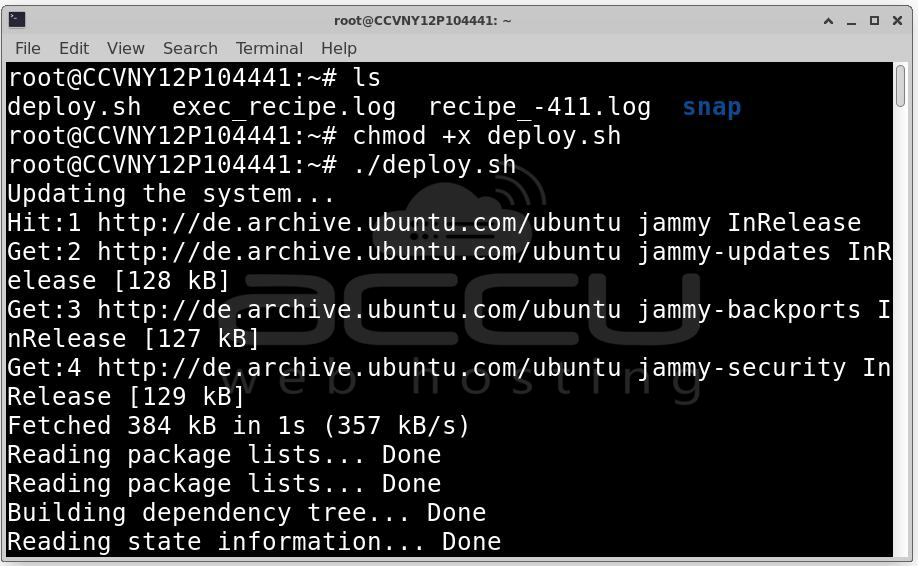
Step 3: After saving and closing the file, you need to give the script executable permissions so you can run it.
chmod +x deploy.sh
Step 4: Now that your script is executable, you can run it:
./deploy.sh
This will execute the commands inside the deploy.sh file.
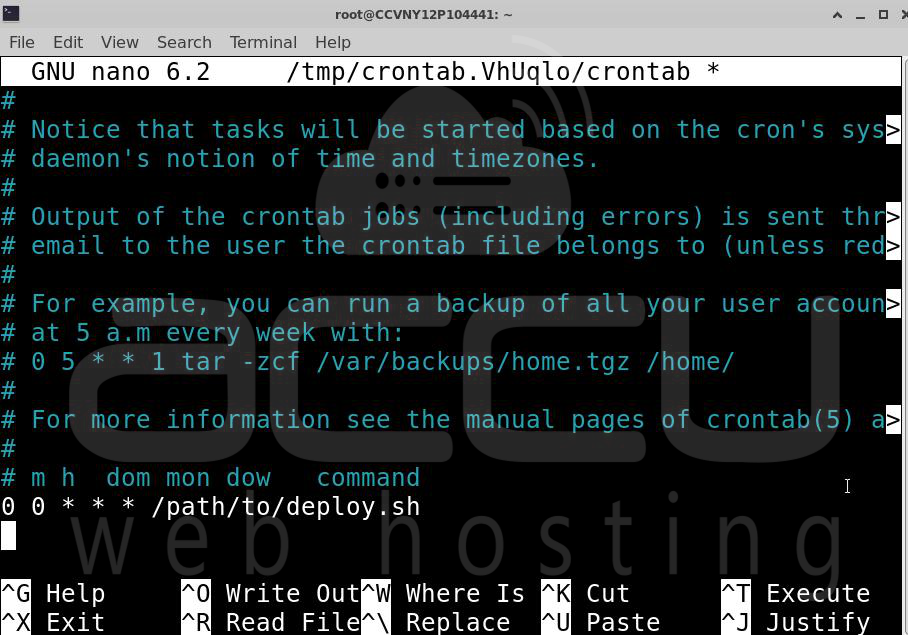
Step 5: If you want your script to run automatically on a schedule (for example, every day at midnight), you can set up a cron job. To open the crontab editor:
crontab -e
Then, you can add a cron job like this to run your script at midnight every day:
0 0 * * * /path/to/deploy.sh
This will run the deploy.sh script at midnight. Adjust the time and frequency according to your needs.
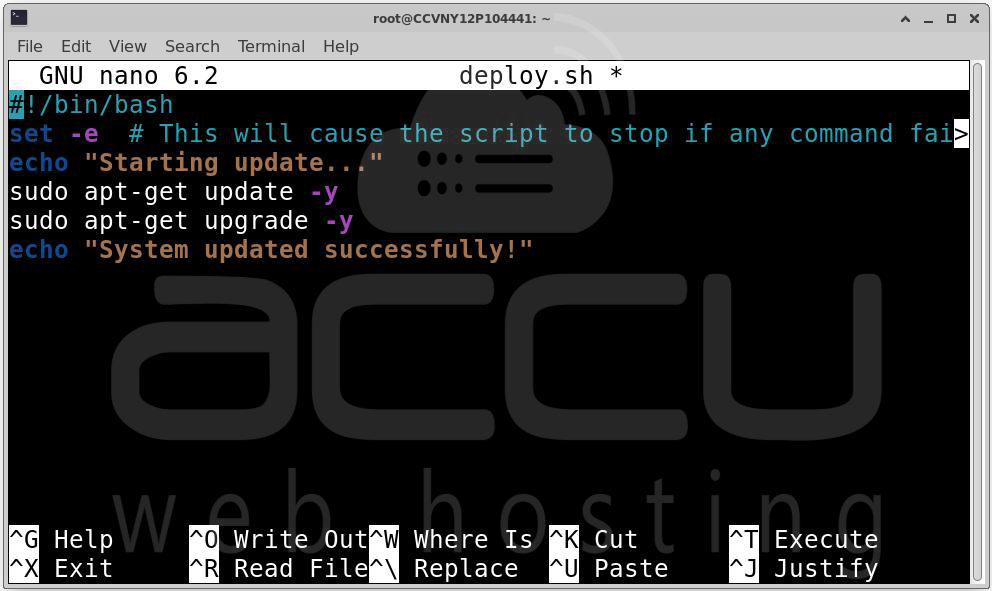
Step 6: When running scripts on a VPS, it's important to handle errors to avoid breaking your server. For example, you can modify your script to exit if any command fails:
#!/bin/bash
set -e # This will cause the script to stop if any command fails
echo "Starting update..."
sudo apt-get update -y
sudo apt-get upgrade -y
echo "System updated successfully!"
Once your script runs, you can view its output in the terminal. You can also redirect the output to a log file to check it later: ./deploy.sh > deploy.log 2>&1
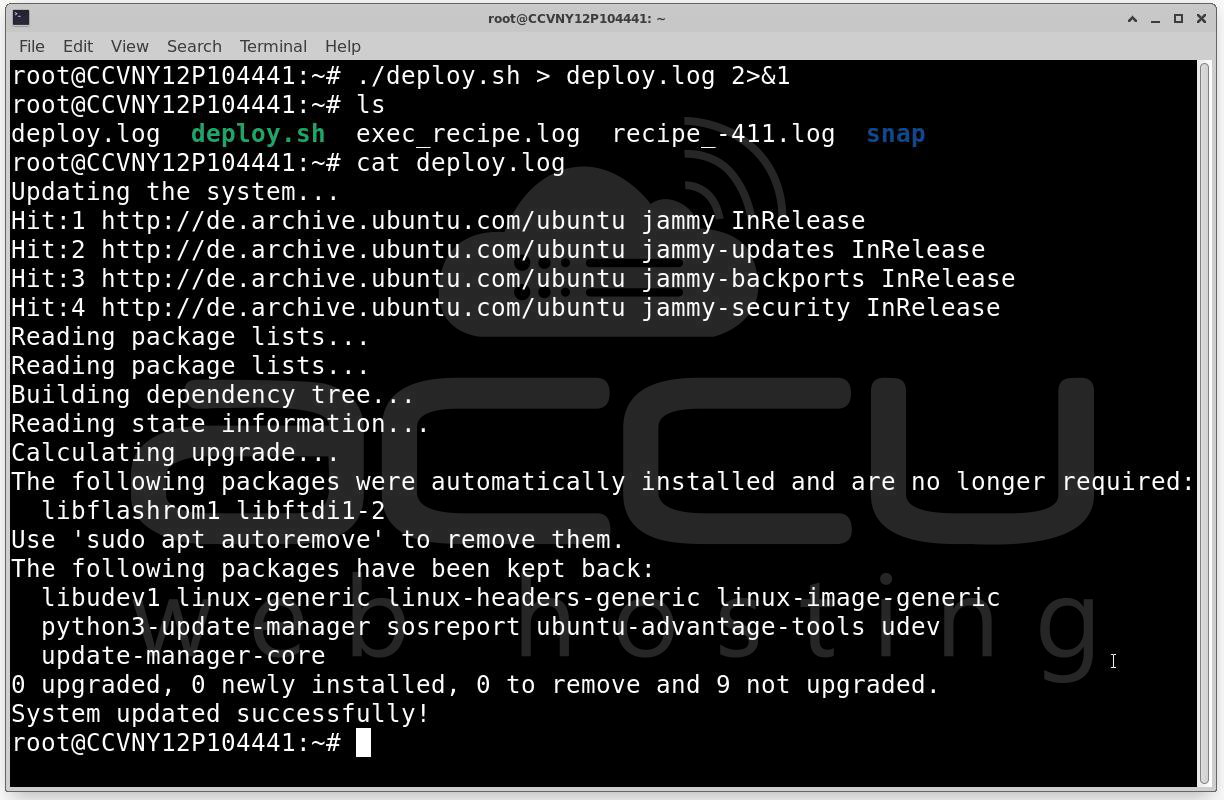
This will save both the standard output and error output into the deploy.log file.
If you need to run a script in the background, you can use the nohup command: nohup ./deploy.sh &
This will run the script in the background, and you can log out of the VPS without interrupting the process.
Conclusion
Running a shell script on a VPS is largely similar to executing it on any other Linux system, but with the added step of remotely accessing your server via SSH. By following the steps outlined above, you can create, manage, and execute shell scripts on your VPS to automate various tasks, whether it's system updates, backups, or other maintenance operations.


