
Introduction:
Deploying WordPress on a VPS doesn’t have to be complicated. With Docker, you can set up WordPress on a Linux VPS quickly and in a clean, organized way. Docker allows you to run WordPress and its required services in isolated containers, so you don’t need to install and configure everything manually. In this article, we’ll explain to you the step-by-step process to deploy WordPress using Docker in Linx VPS.
Prerequisites:
Before you begin, make sure you have:
An Ubuntu 22.04 VPS
Root or sudo access
A domain name (optional, but recommended)
Step 1: Update the System
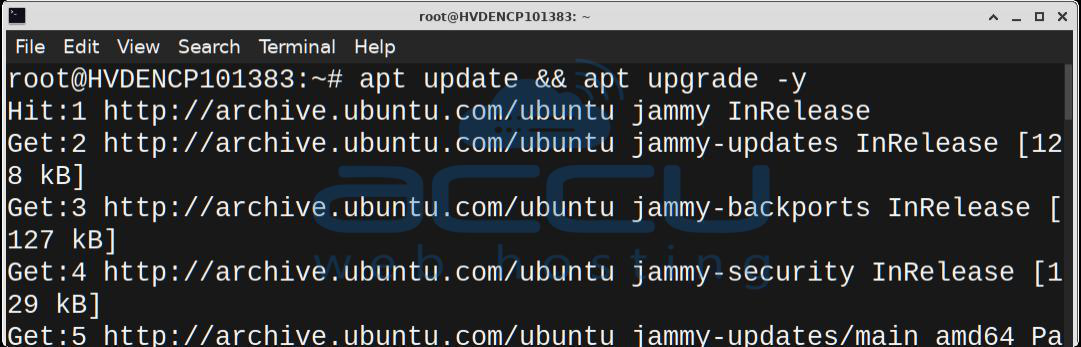
First, update your server packages to the latest versions.
sudo apt update && sudo apt upgrade -y
Step 2: Install Docker
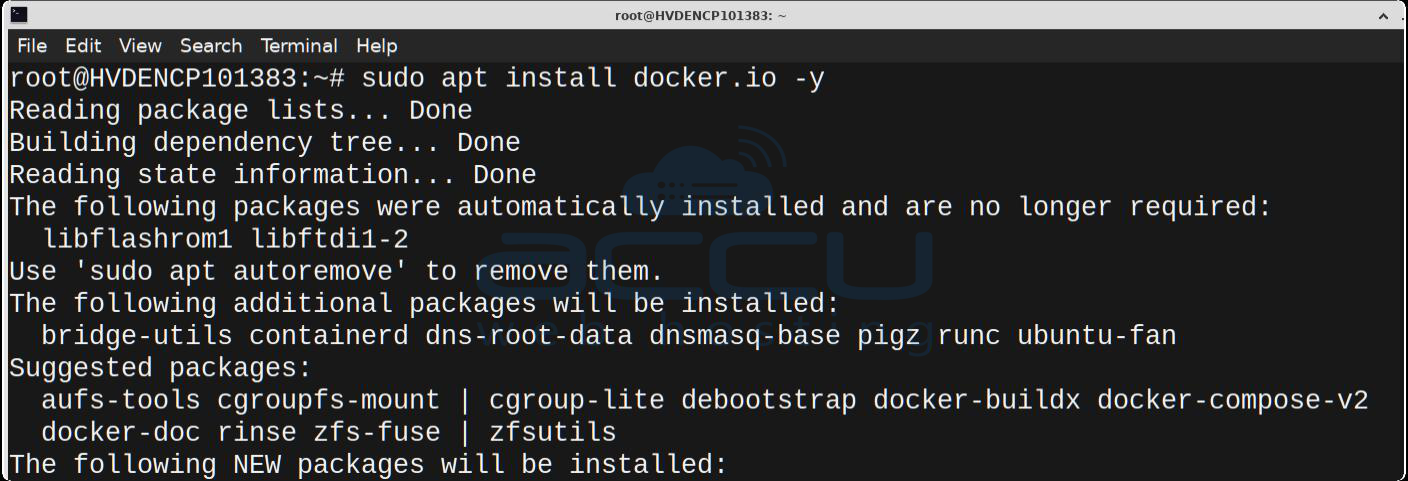
Install Docker using the official repository.
sudo apt install docker.io -y
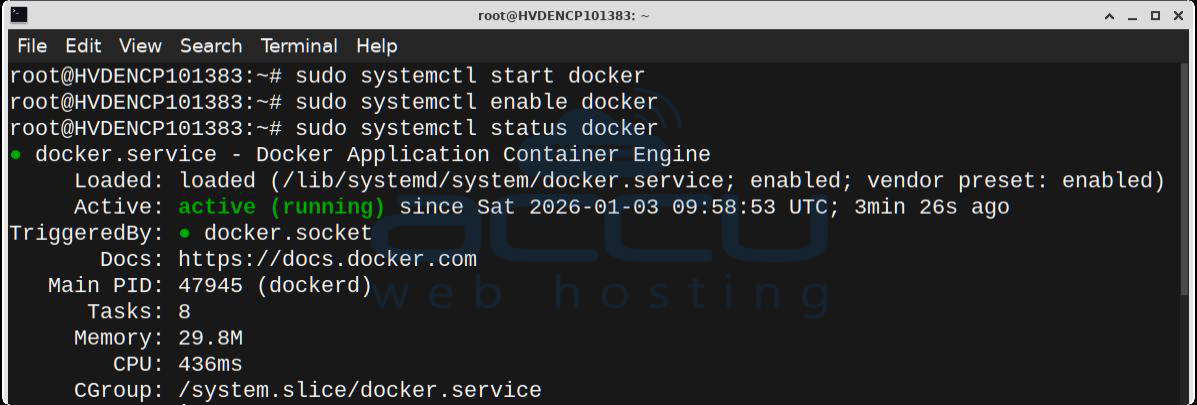
Start and enable Docker at boot:
sudo systemctl start docker
sudo systemctl enable docker
Verify Docker installation:
docker --version

Step 3: Install Docker Compose
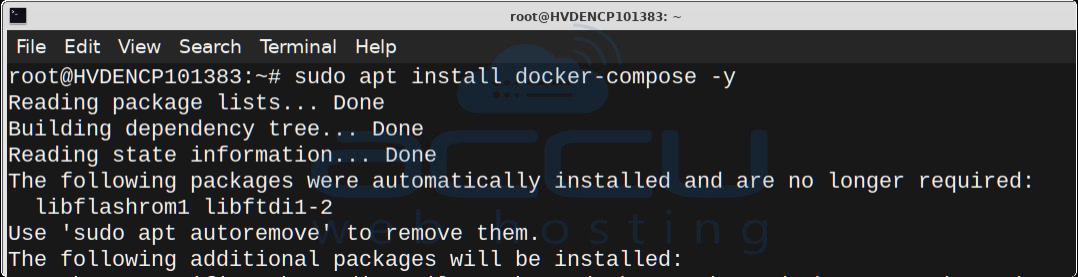
Docker Compose helps manage multi-container applications like WordPress.
sudo apt install docker-compose -y
Check the version:
docker-compose --version

Step 4: Create a WordPress Project Directory
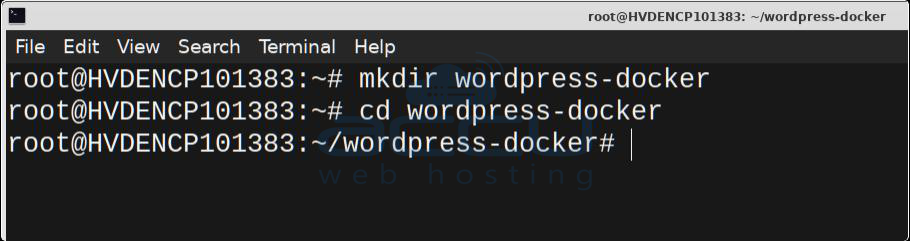
Create and move into a dedicated directory:
mkdir wordpress-docker
cd wordpress-docker
Step 5: Create a docker-compose.yml File
Create the Docker Compose configuration file:
nano docker-compose.yml
Paste the following content:
services:
db:
image: mysql:5.7
container_name: wordpress_db
restart: always
environment:
MYSQL_DATABASE: wordpress
MYSQL_USER: wpuser
MYSQL_PASSWORD: strongpassword
MYSQL_ROOT_PASSWORD: rootpassword
volumes:
- db_data:/var/lib/mysql
wordpress:
image: wordpress:latest
container_name: wordpress_app
restart: always
ports:
- "80:80"
environment:
WORDPRESS_DB_HOST: db:3306
WORDPRESS_DB_USER: wpuser
WORDPRESS_DB_PASSWORD: strongpassword
WORDPRESS_DB_NAME: wordpress
volumes:
- wp_data:/var/www/html
depends_on:- db
volumes:
db_data:
wp_data:
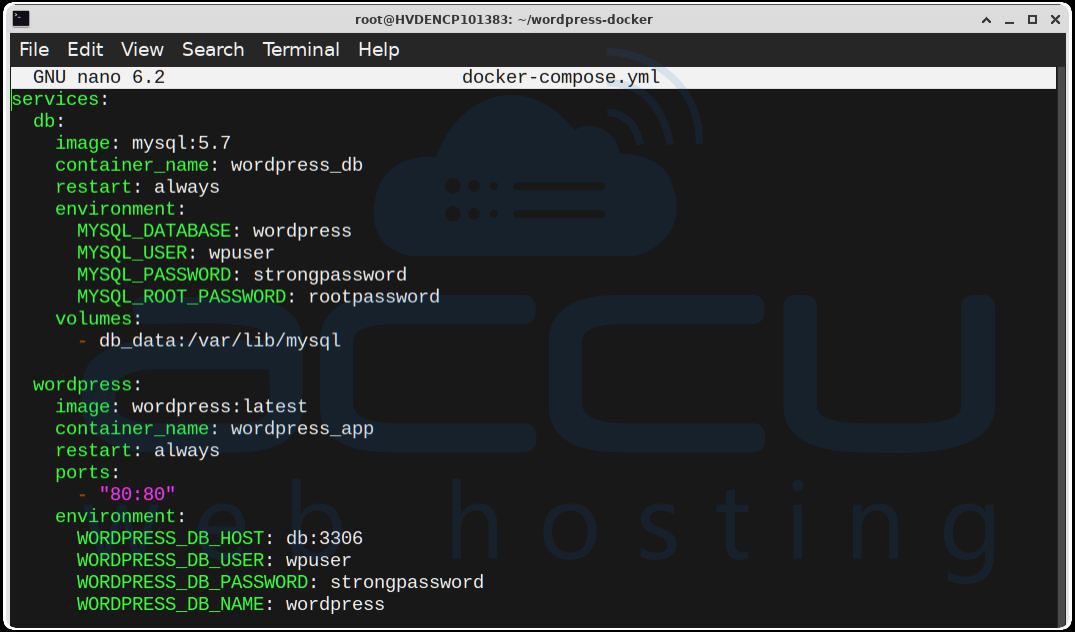
Note: Please make sure to replace passwords with strong, secure values.
Save and exit (CTRL+X, then Y, then Enter).
Step 6: Start WordPress Containers
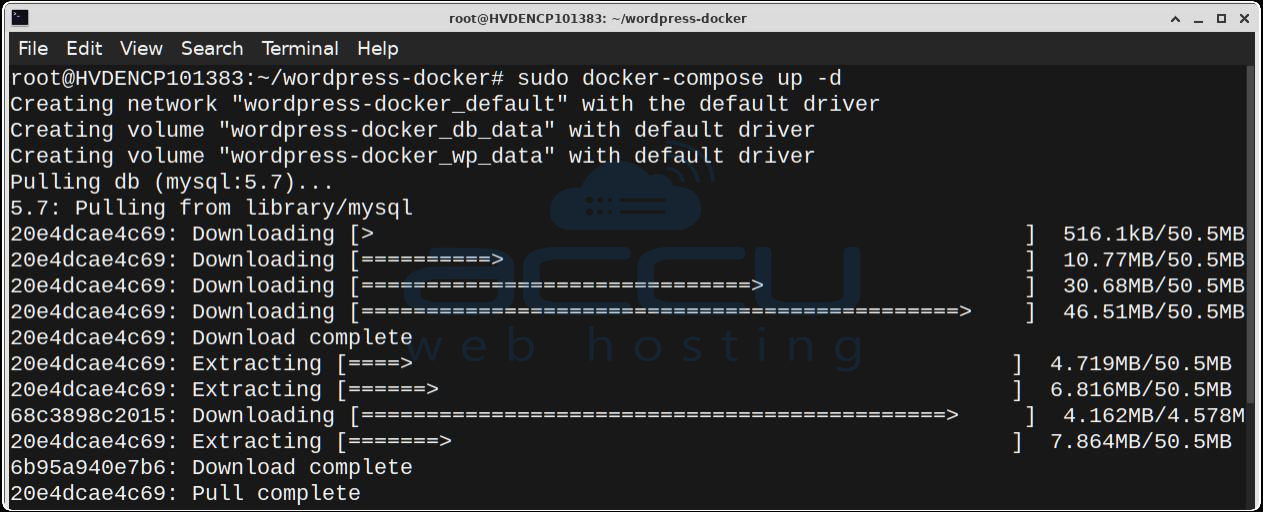
Run the following command to start WordPress and MySQL:
sudo docker-compose up -d
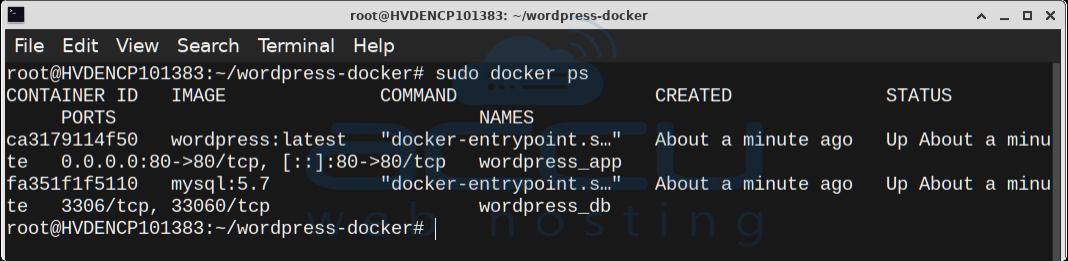
Check running containers:
sudo docker ps
Step 7: Complete WordPress Installation
Open your browser and visit:
http://your-server-ip
or http://yourdomain.com
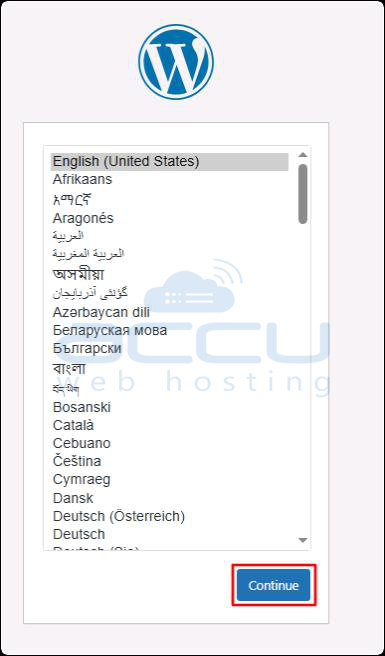
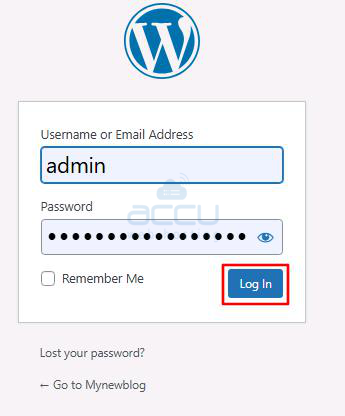
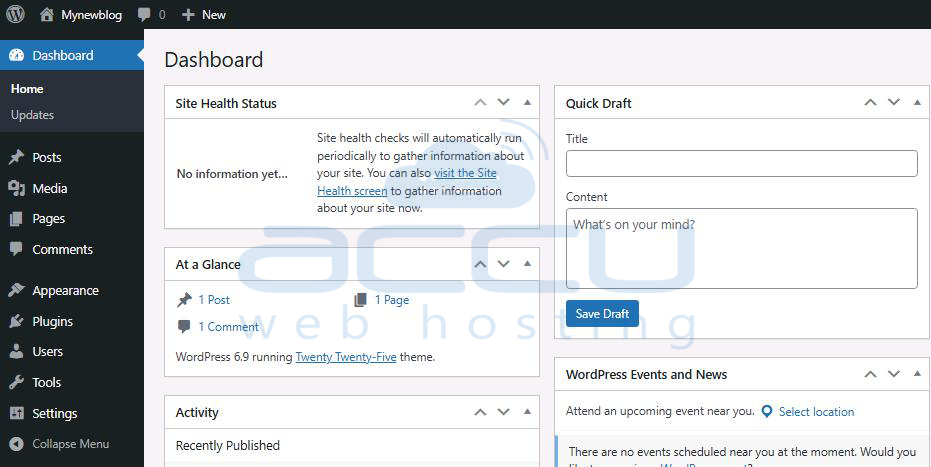
You’ll see the WordPress installation wizard:
1. Choose language
2. Enter site title, admin username, password, and email
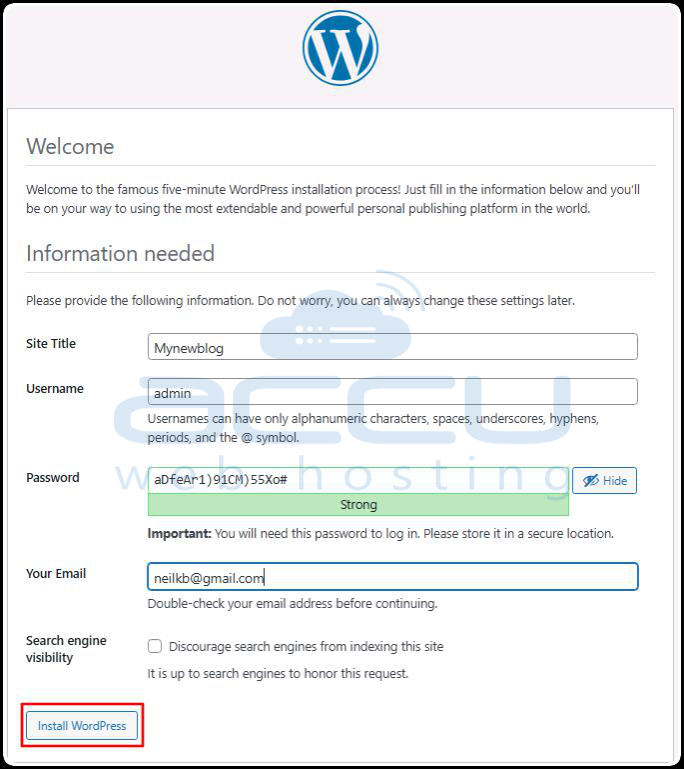
3. Click Install WordPress
Conclusion:
Using Docker to deploy WordPress on a Linux VPS is a simple and efficient approach. It helps you avoid complex server configurations while keeping your setup flexible and easy to manage. By following this article, you can deploy WordPress on a Linux VPS using Docker Containers.If you need any help with deploying WordPress on a Linux VPS using Docker Containers, you can contact us via chat or ticket. Our support team will assist you.


