
Securing regular backups of your MariaDB database is essential to protect your data from accidental loss, corruption, or system failures. Plesk provides an easy and reliable way to automate daily backups, manually download off-site copies, and restore databases when needed. In this guide, we will guide you on steps to back up and restore MariaDB databases using Plesk.
Setup Daily Backup of MariaDB Database using Plesk
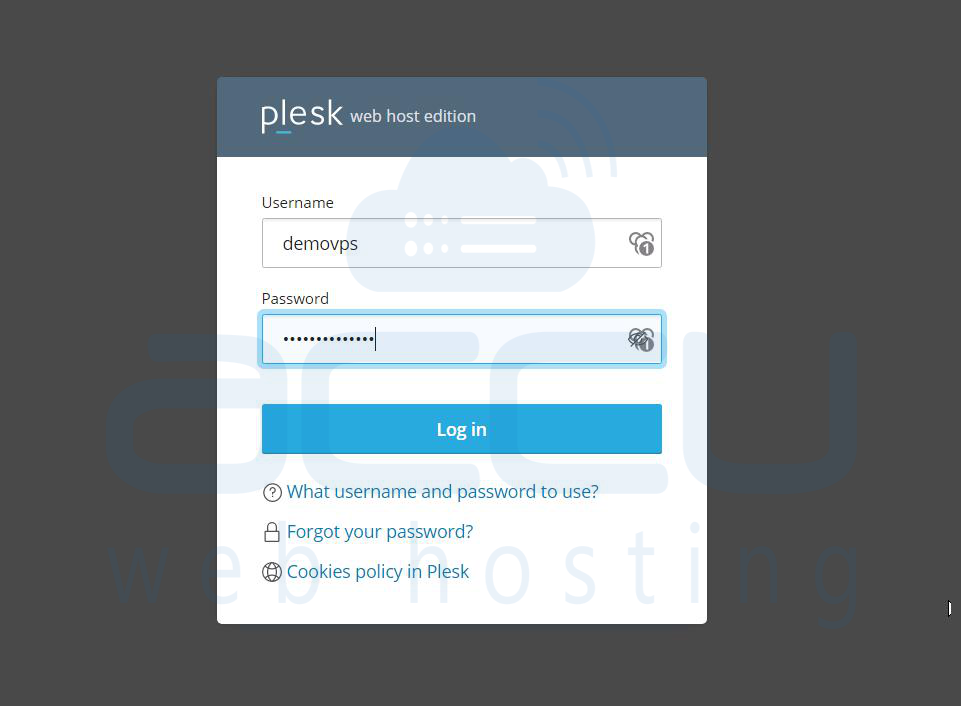
Step 1: Open your web browser and navigate to your Plesk login page. Enter your Username and Password. Click the Log in button.
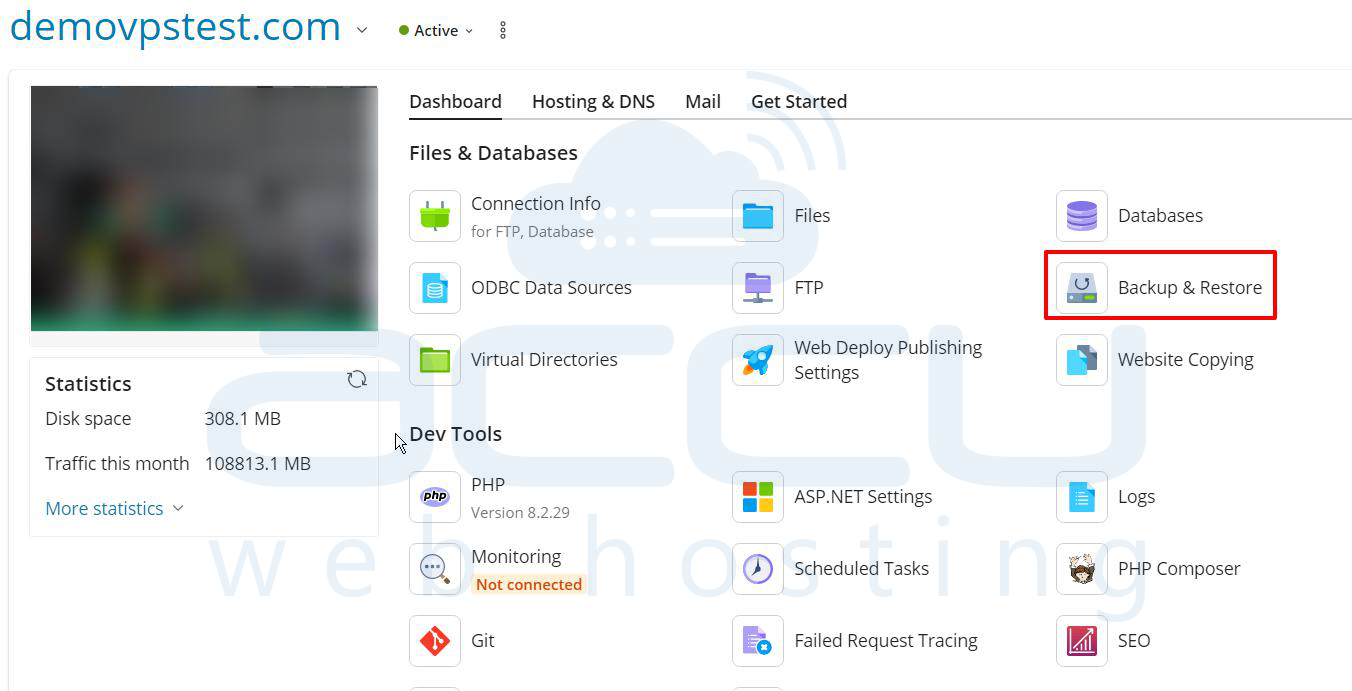
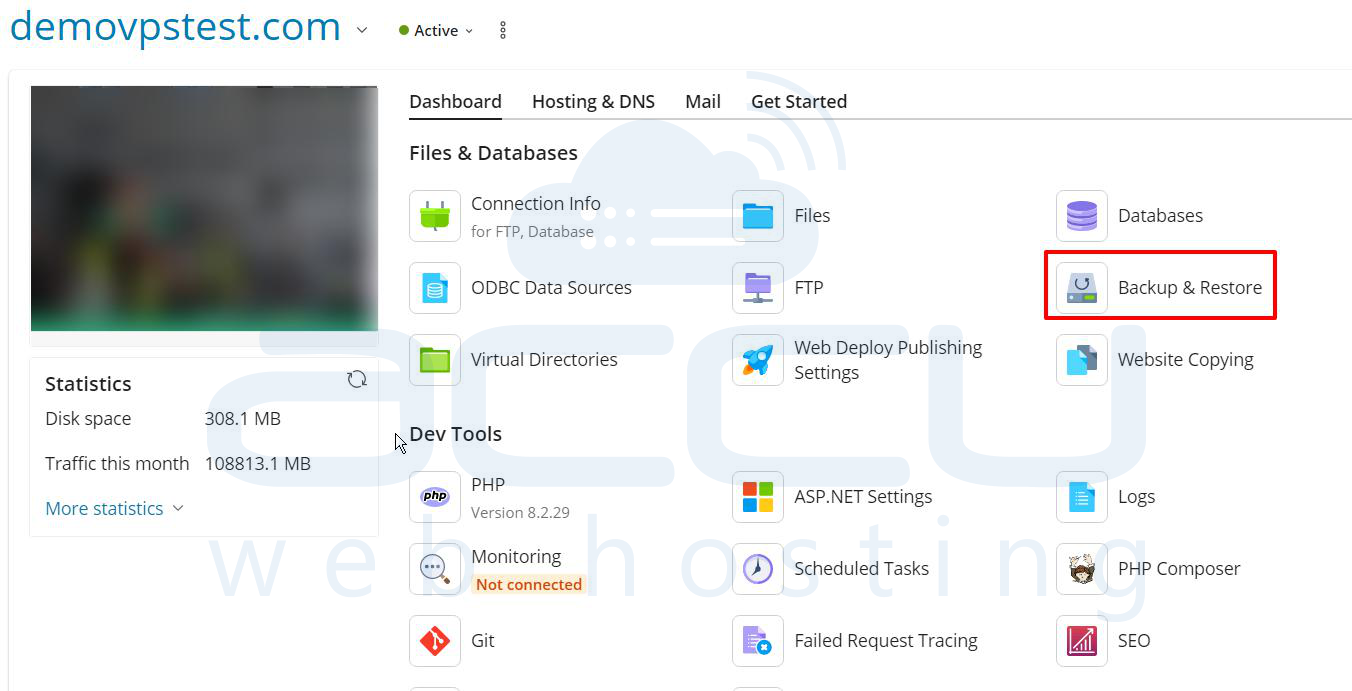
Step 2: Once logged into the Plesk domain dashboard, locate the Files & Databases section. Click on the Backup & Restore icon, which is usually positioned near the Databases icon.
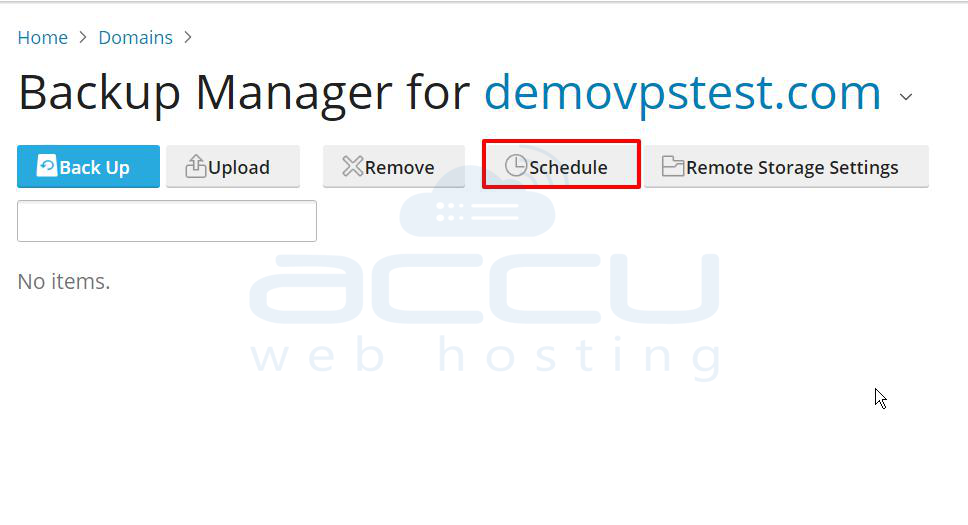
Step 3: You will be taken to the Backup Manager screen. To set up an automated daily backup, click on the Schedule button.
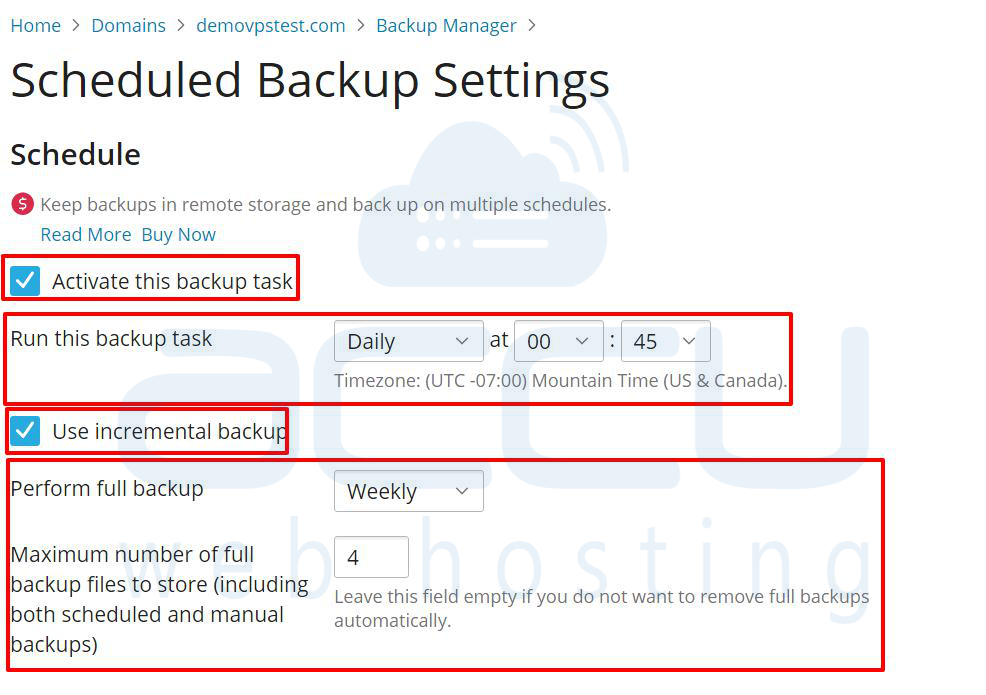
Step 4: On the Scheduled Backup Settings page, you will define when and how often the backup runs.
- Check the box next to Activate this backup task.
- Set the Run this backup task frequency to Daily and choose a specific time. Note: Ensure this time is during off-peak hours for your website.
- Check the box for Use incremental backup. This saves disk space and time by only backing up files that have changed since the last full backup.
- Set the Perform full backup frequency (e.g., Weekly).
- Set the Maximum number of full backup files to store (e.g., 4). This controls the retention policy for your backups.
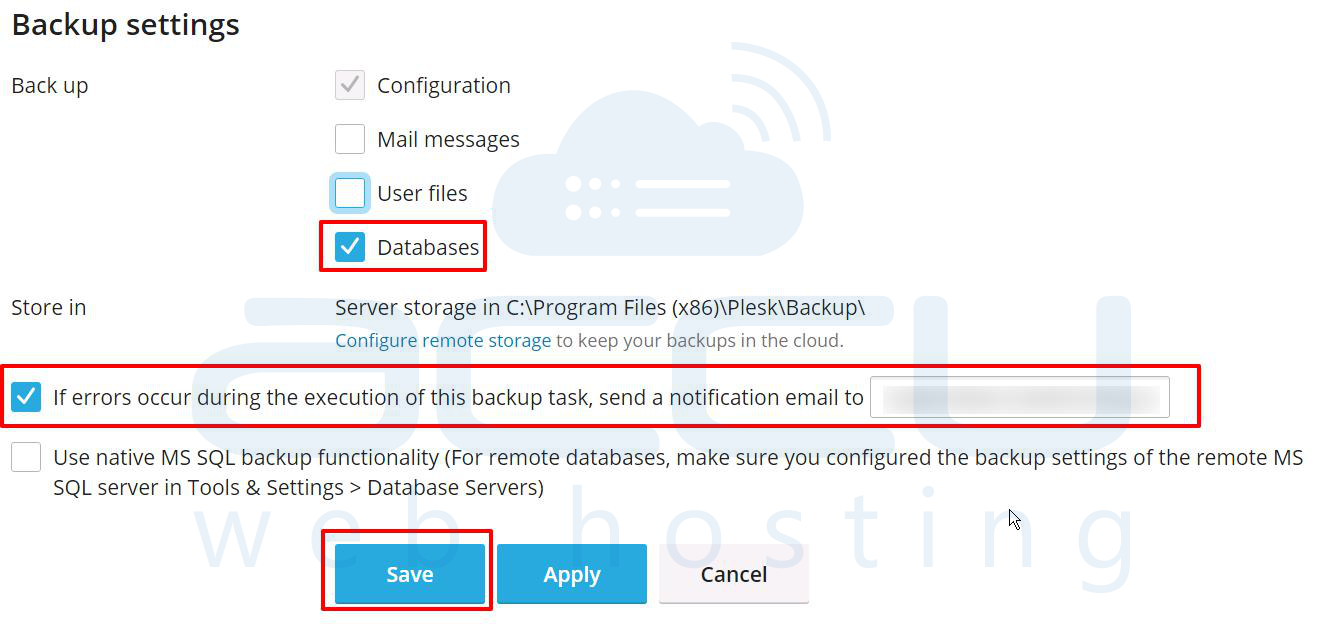
Step 5: Scroll down to the Backup settings section to define what gets backed up.
- Ensure that the Databases option is checked to include your MariaDB/MySQL databases in the daily backup. You should also keep Configuration and User files checked for a complete domain backup.
- To be notified of issues: Check the box next to If errors occur during the execution of this backup task, send a notification email to... and enter a valid email address.
Step 6: Finally, click the Save button to apply your new scheduled daily backup settings.
Your domain, including its MariaDB database, is now configured for secure, scheduled daily backups.
Downloading a Backup File (Manual Off-site Storage)
This method is best for occasional, full backups you want to keep completely separate from your server.
Step 1: Log into Plesk, go to Websites & Domains, and click on Backup Manager.
Step 2: Locate the full backup file you wish to download (it will be named with the date and time, e.g., backup_2025-12-15_12-00-00.tar).
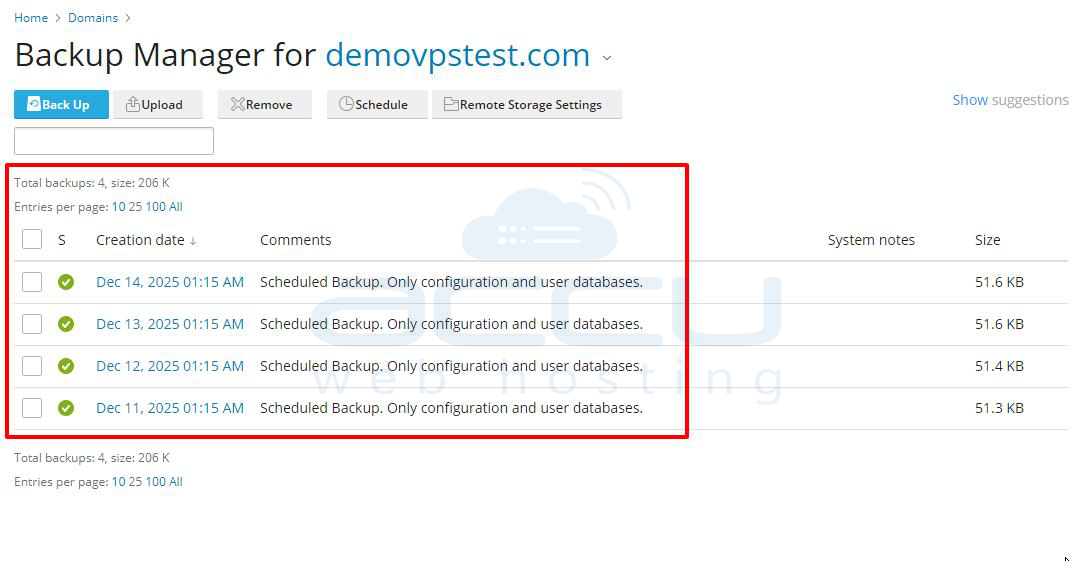
Step 3: Click on the download icon.
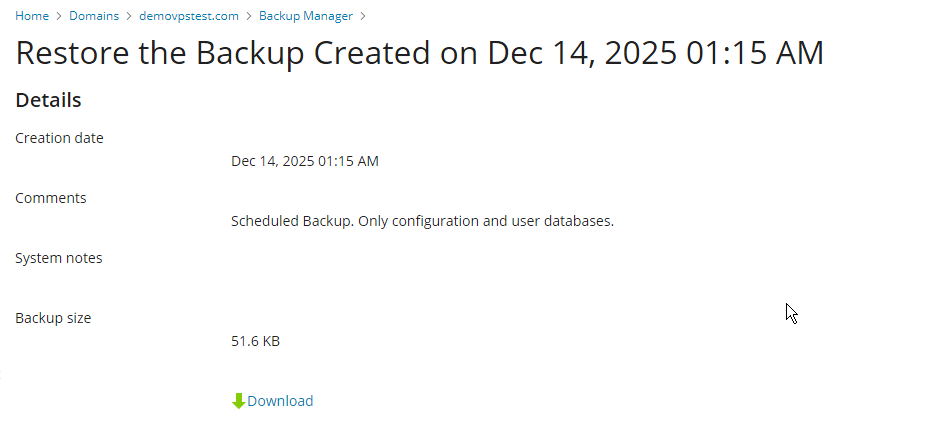
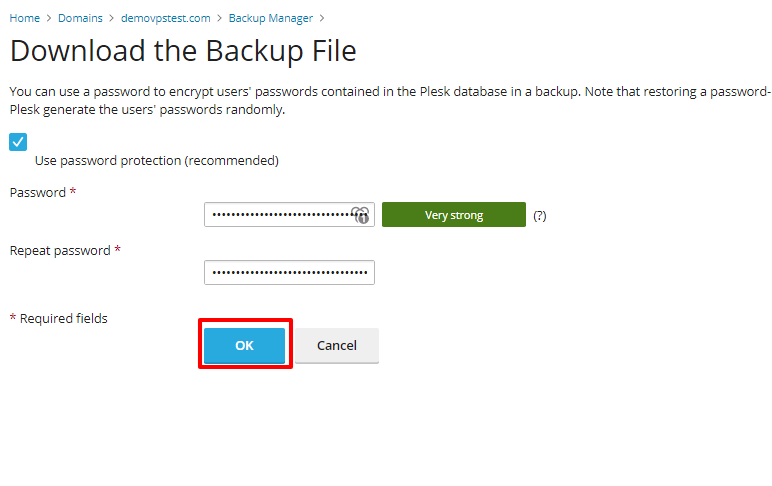
Step 4: Plesk will prompt you to set a password for the backup file. It is highly recommended to protect your backup with a strong password to encrypt sensitive data (like database passwords) inside the archive.
Step 5: Click OK. The backup file will download to your computer, typically as a .tar or .zip file.
Once downloaded, safely store this file in a separate, secure location. You can then safely remove it from the Plesk server storage to save disk space.
Restore a MariaDB Database from a Backup using Plesk
Step 1: Log in to your Plesk control panel using your username and password. Navigate to your domain's dashboard. In the Files & Databases section, click on Backup & Restore.
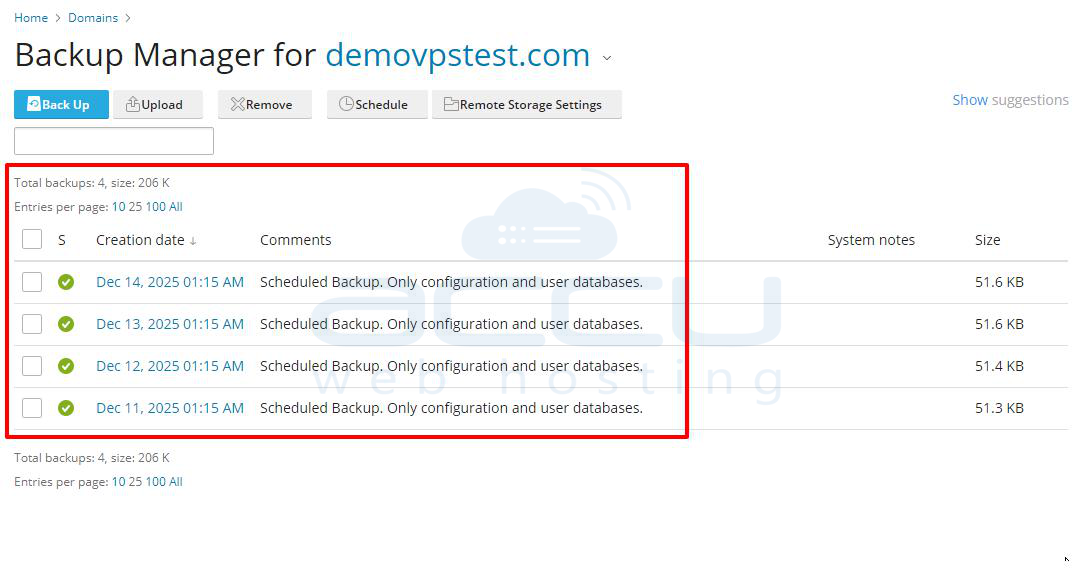
Step 2: You will be taken to the Backup Manager screen. Review the list of available backups, which includes scheduled daily backups. Click on the date and time of the backup file you wish to restore.
Step 3: On the Restore the Backup page, under Backup content, select the radio button for Selected objects. Under Type of object to restore, make sure Database is selected.
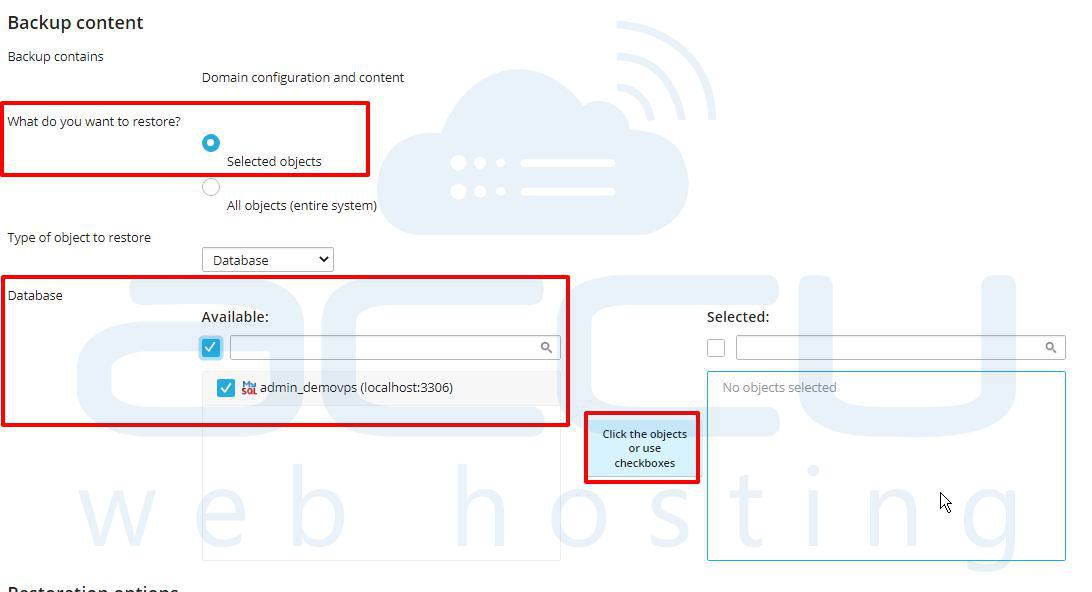
Step 4: In the Database section, you will see the list of databases available in that backup. Check the box next to the specific MariaDB database you want to restore. The selected database will move to the Selected pane on the right.
Step 5: Scroll down to the Restoration options section. Ensure that the option Configuration and contents of the selected objects is chosen under Restore.
Step 6: Click the Restore button to start the process.
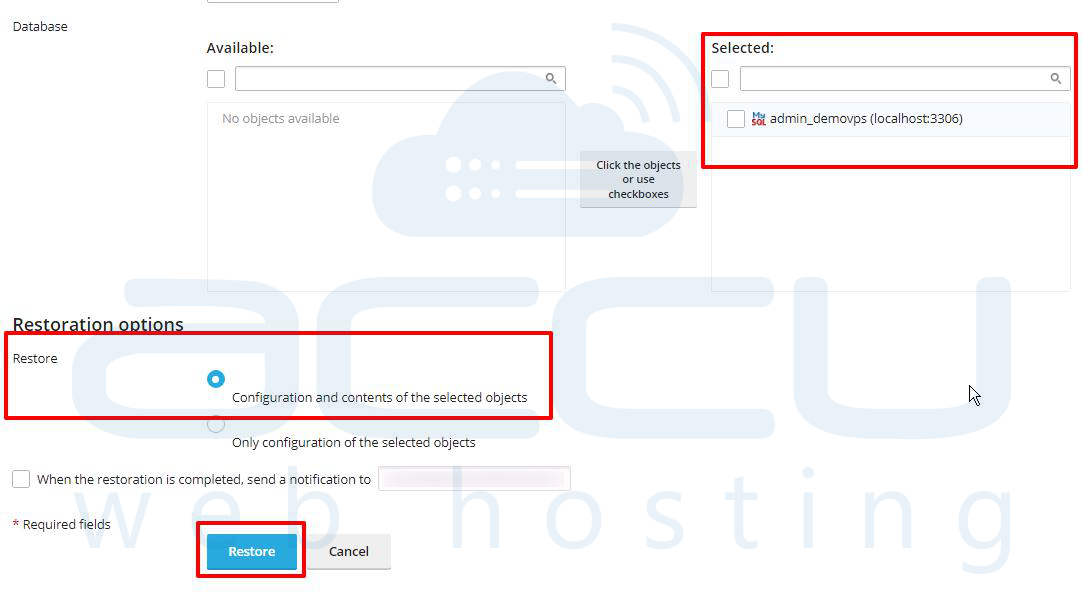
Plesk will now restore the selected database from the chosen backup file. The time taken depends on the size of the database.
Exporting a Database Dump (For Single Database Backup)
This method is useful if you only need a backup of a single, specific database, as it creates a portable SQL file (dump).
Step 1: Log in to your Plesk control panel. In the left-hand navigation menu, click on Databases.
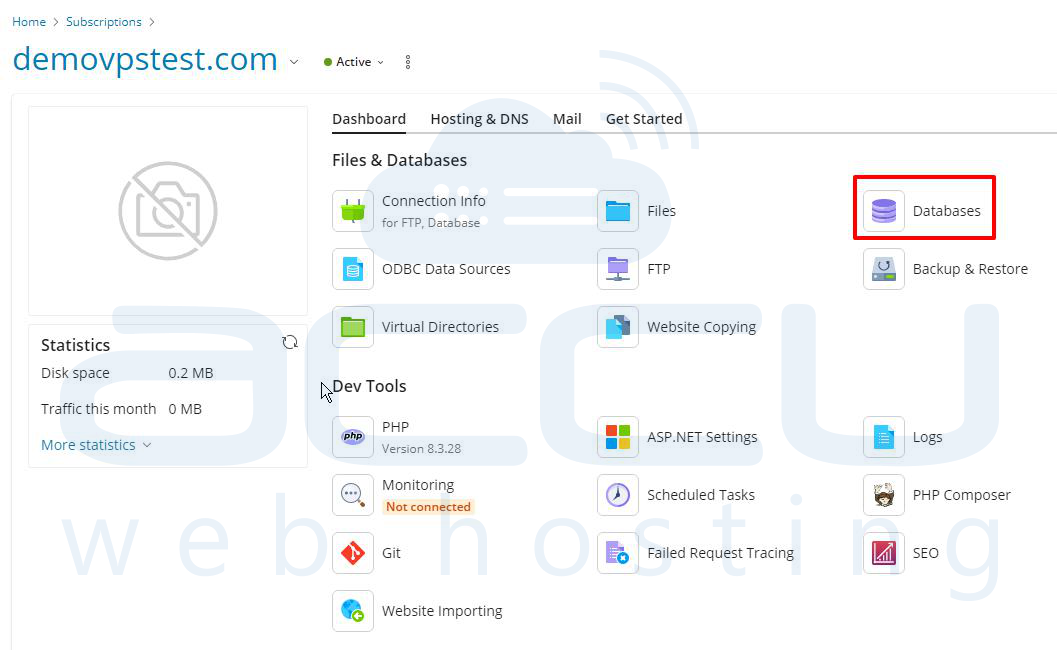
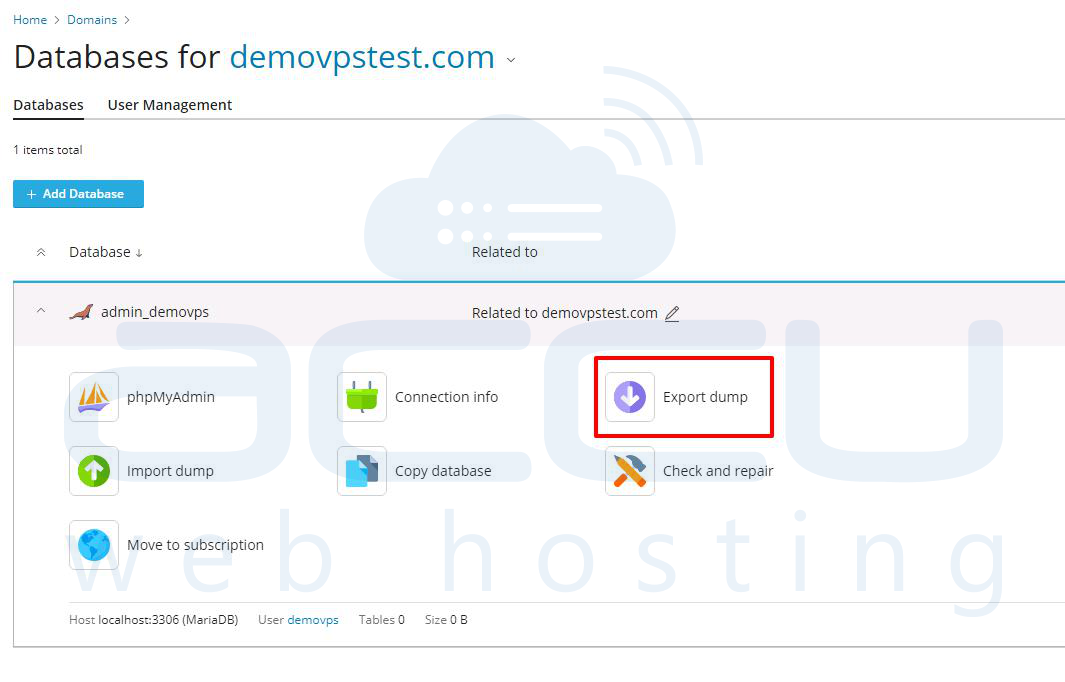
Step 2: Find the specific MariaDB/MySQL database you want to back up in the list. Click on the name of the database.
Step 3: On the database management page, click the Export Dump button.
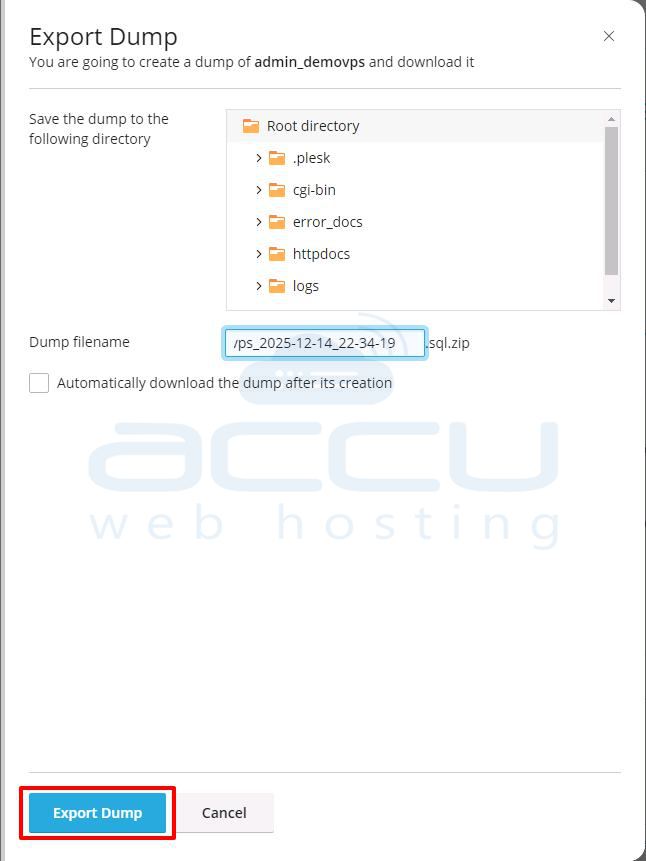
Step 4: On the Export Database Dump screen: You can keep the default filename (e.g., db_name.sql) or change it. Choose where the file should be saved.
Step 5: Click OK. The database dump file (e.g., db_name.sql.zip) will be created in the directory you specified. You can then download this file using the Plesk File Manager to store it locally.
Daily MariaDB Backups for AccuWeb Hosting Windows Shared Hosting Customers
For customers using Windows Shared Hosting, ASP.NET Hosting, or nopCommerce Hosting, daily backups of your MariaDB database are already configured and fully managed by AccuWeb Hosting. No additional setup is required from your side.
We automatically maintain the last 10–15 days of database backups on a separate backup server to ensure data safety and reliability. If you ever need to restore your database from a backup, simply contact our support team by opening a support ticket, and we will assist you with the restoration process.
Conclusion
By configuring scheduled daily backups, maintaining off-site copies, and knowing how to restore or export database dumps, you can ensure your MariaDB data remains safe and recoverable at all times. Using Plesk’s built-in backup tools helps maintain data integrity, minimize downtime, and provide peace of mind in case of unexpected issues.


