
FastPanel is a modern and lightweight hosting control panel that simplifies the management of websites, databases, email services, DNS, and server resources through a web based interface. This guide helps you to successfully install and activate FastPanel on Debian: 9, 10, 11, 12.
Prerequisites
Before proceeding, make sure your server meets all of the following requirements:
-
Operating System: Debian: 9, 10, 11, 12
-
System State: Clean installation (no Apache, Nginx, PHP, MySQL, or other web services installed)
-
RAM: Minimum 1 GB (2 GB recommended)
-
Disk Space: Minimum 5 GB free
-
CPU: At least 1 core
-
Access: Full root SSH access
-
Server Type: VPS or Dedicated Server
Steps to Install FastPanel Hosting Control Panel on Debian OS
Step 1: To begin, connect to your Debian server using SSH. From your local computer, run:
Replace your.server.ip with the public IP address of your server. You will be prompted to enter the root password.
Step 2: Confirm that the server is running a supported Debian version.
Run: cat /etc/os-release
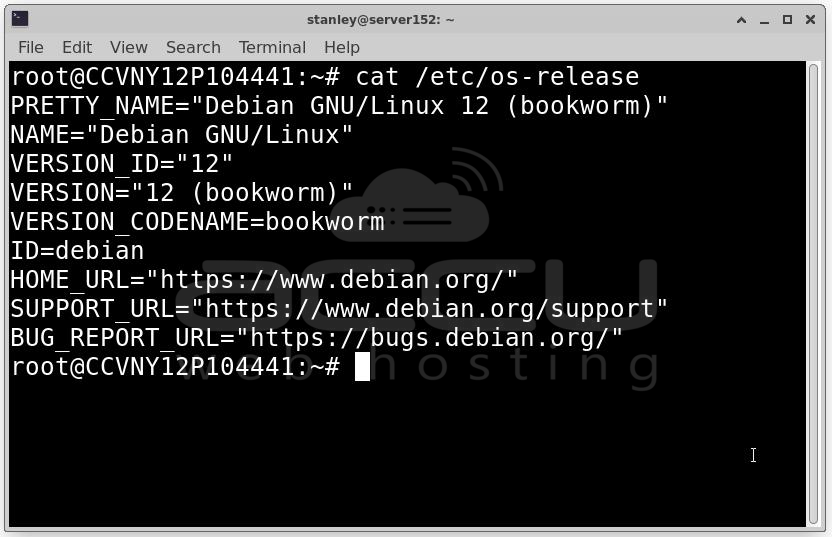
This command displays detailed OS information.
Step 3: Update the System Packages. Updating the system ensures latest security patches, stable repositories and compatibility with FastPanel installer
Run: apt update && apt upgrade -y
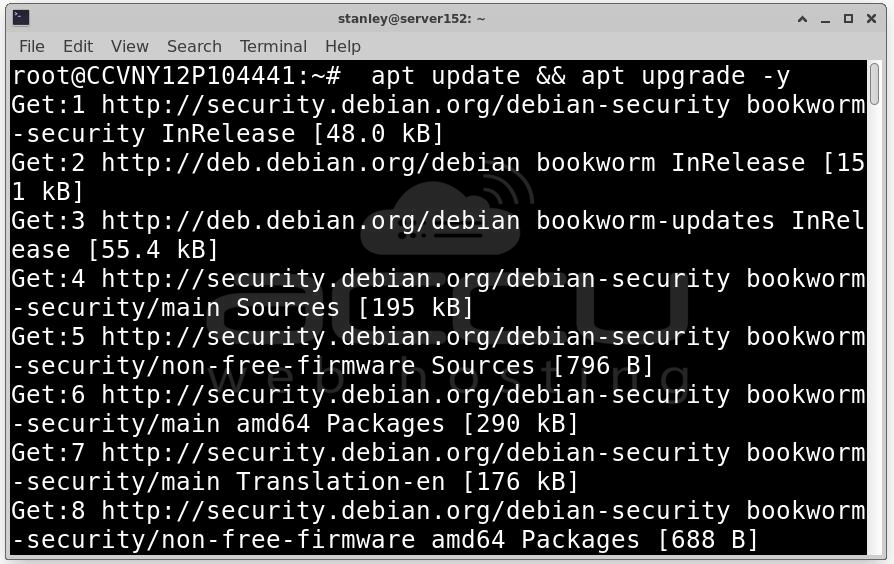
apt update refreshes the package index and apt upgrade -y upgrades all installed packages automatically.
Step 4: FastPanel requires specific tools to download and verify installation files.
Run: apt install -y ca-certificates wget
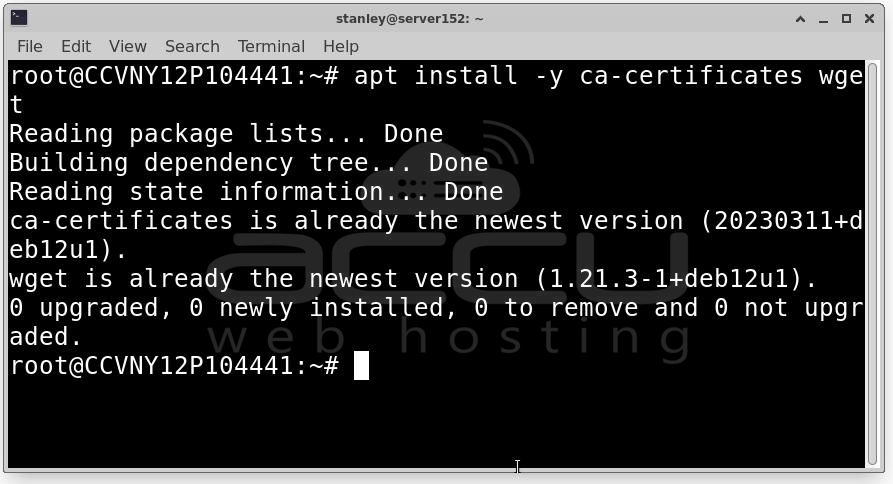
Ca-certificates is required for secure HTTPS downloads and wget Used to download the FastPanel installation script
Step 5: After updates and package installation, reboot the server to ensure all changes are applied correctly.
Run: reboot
Step 6: Once the server is back online, reconnect using SSH and download and Run the FastPanel Installation Script
Execute the official FastPanel installer:
wget https://repo.fastpanel.direct/install_fastpanel.sh -O - | bash -
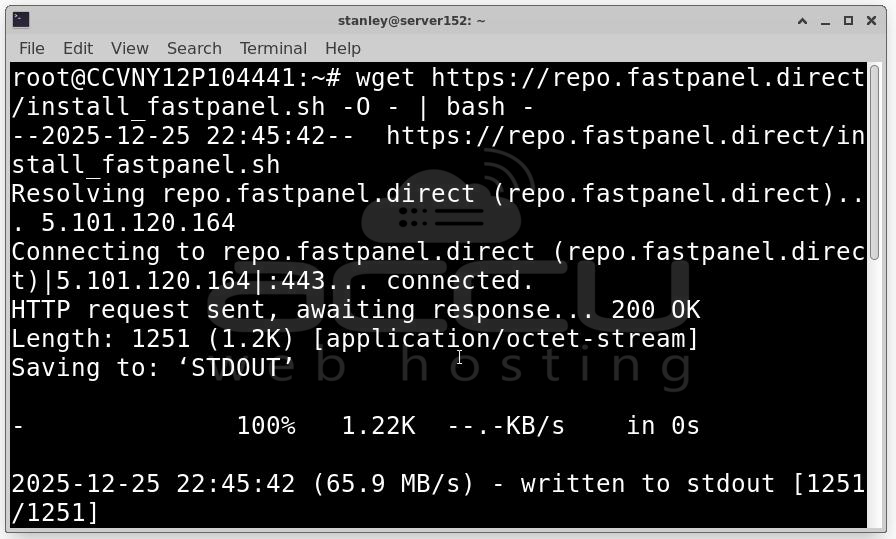
Downloads the FastPanel installation script directly from the official repository and executes it automatically. The installer will install web server components, configure PHP and databases, set up mail services, apply firewall rules and configure system dependencies. Installation may take 5–15 minutes depending on server performance.
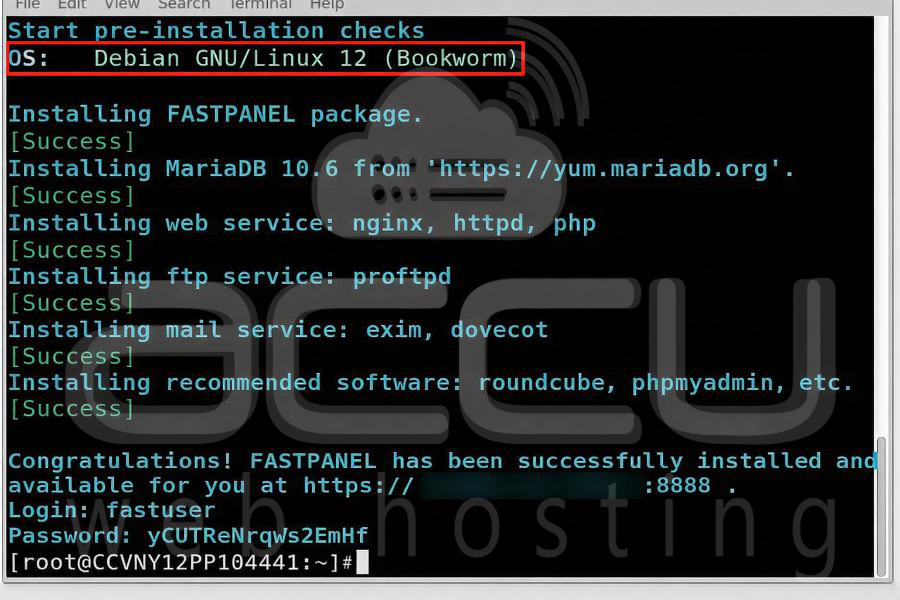
Step 7: After successful installation, you will see output similar to:
Congratulations! FASTPANEL successfully installed and available for you at:
https://<your-server-ip>:8888
Login: fastuser
Password: <generated-password>
Save the username and password. You will need these credentials to access the control panel.
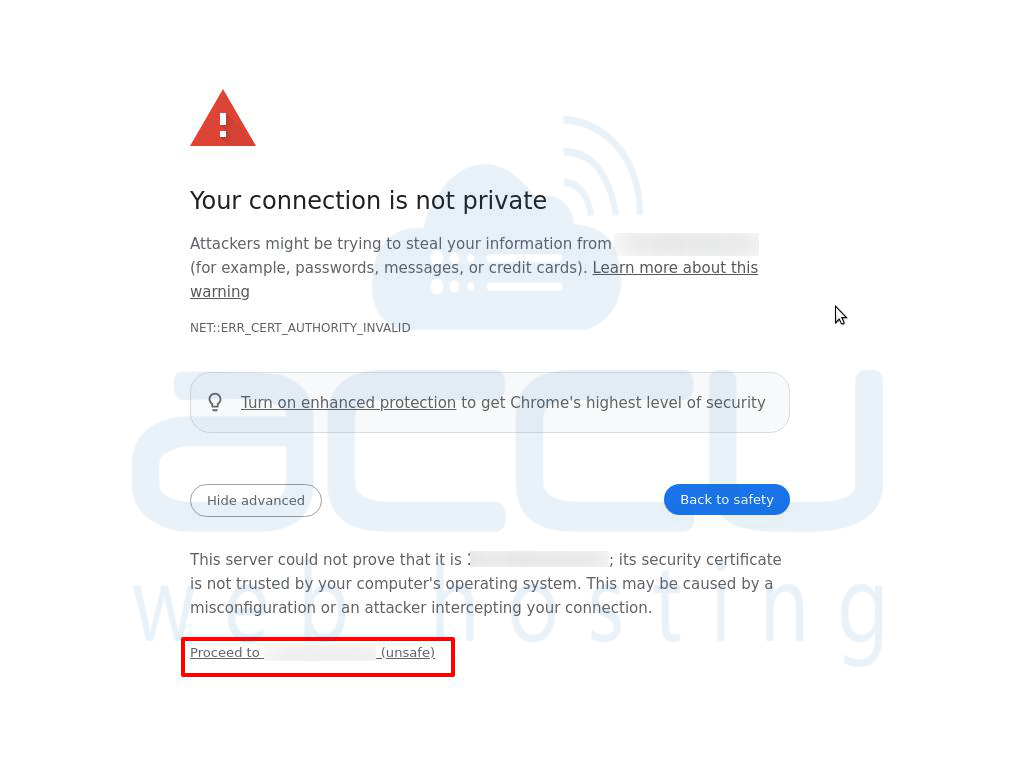
Step 8: Access the FastPanel Web Interface https://<your-server-ip>:8888.Port 8888 is the default FastPanel access port. You may receive a browser security warning (self-signed SSL certificate). Proceed safely by clicking Advanced → Continue
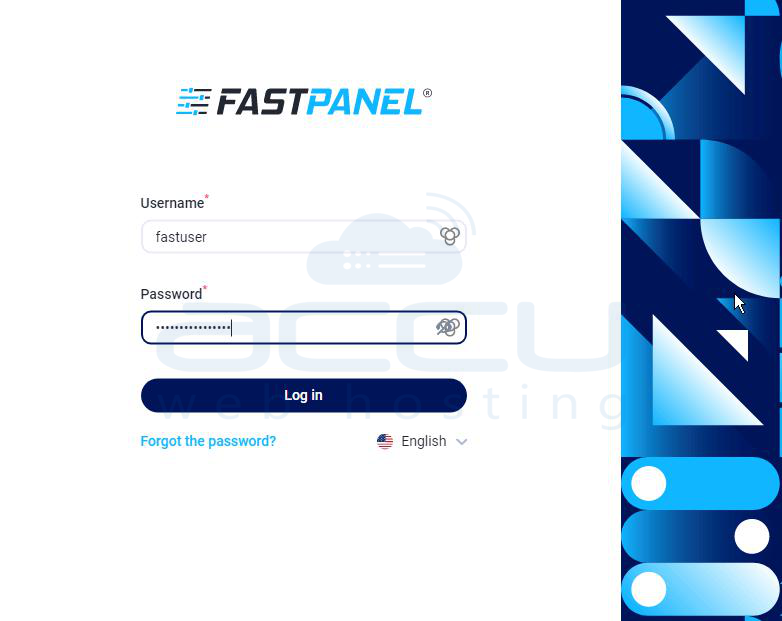
Step 9: Use the credentials provided during installation. Username: fastuser and Password: Generated password. This is your main administrative account. You can change the password later from the panel.
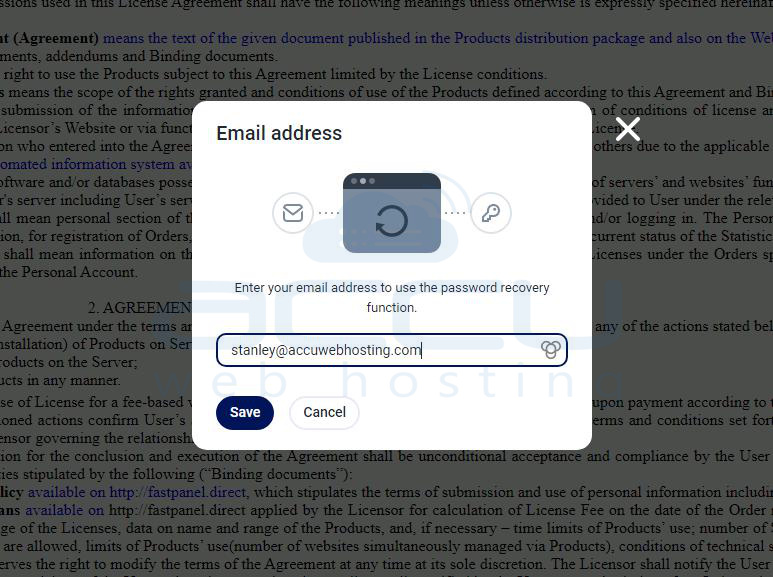
Step 10: After logging in, FastPanel will prompt you to activate a license. Enter a valid email address and Click Request the license.
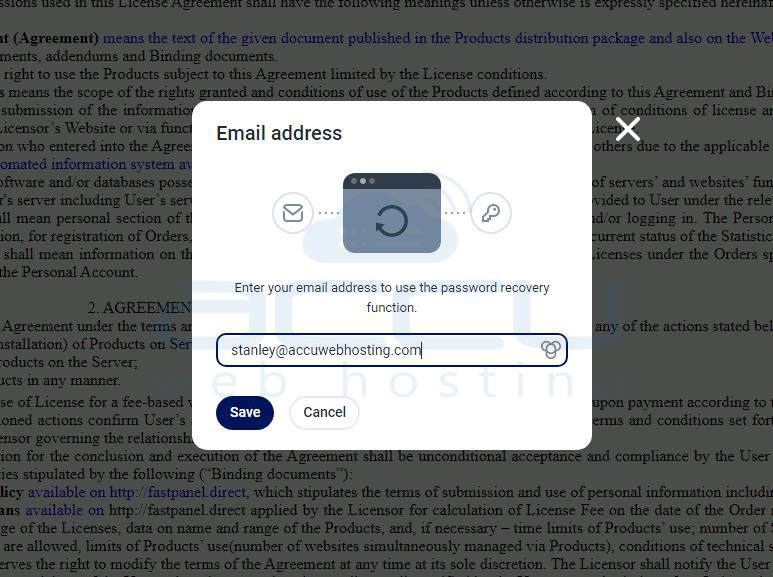
Step 11: Check your inbox for an email from FastPanel. Open the email and click the confirmation/activation link. This verifies email ownership.
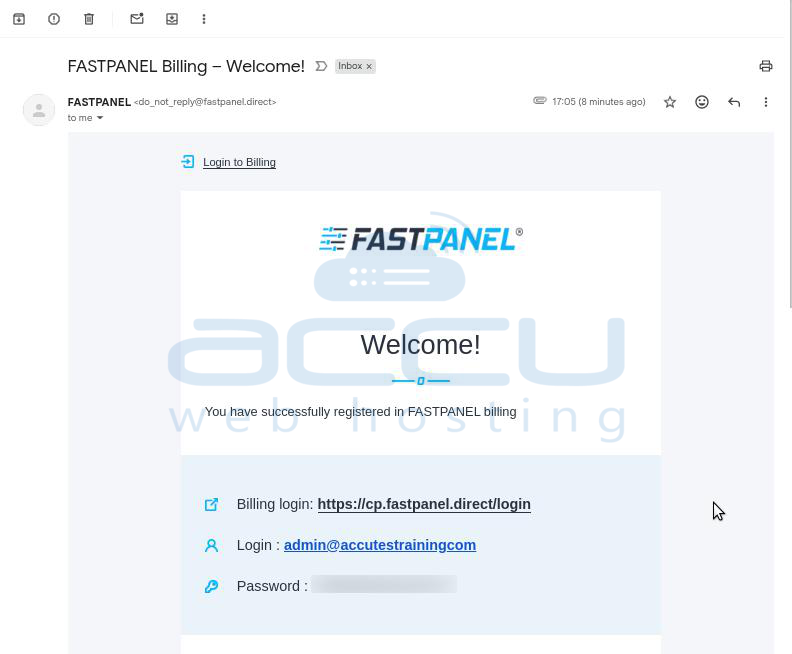
Step 12:After email confirmation, FastPanel will send a billing portal login URL, Username and password for license management.
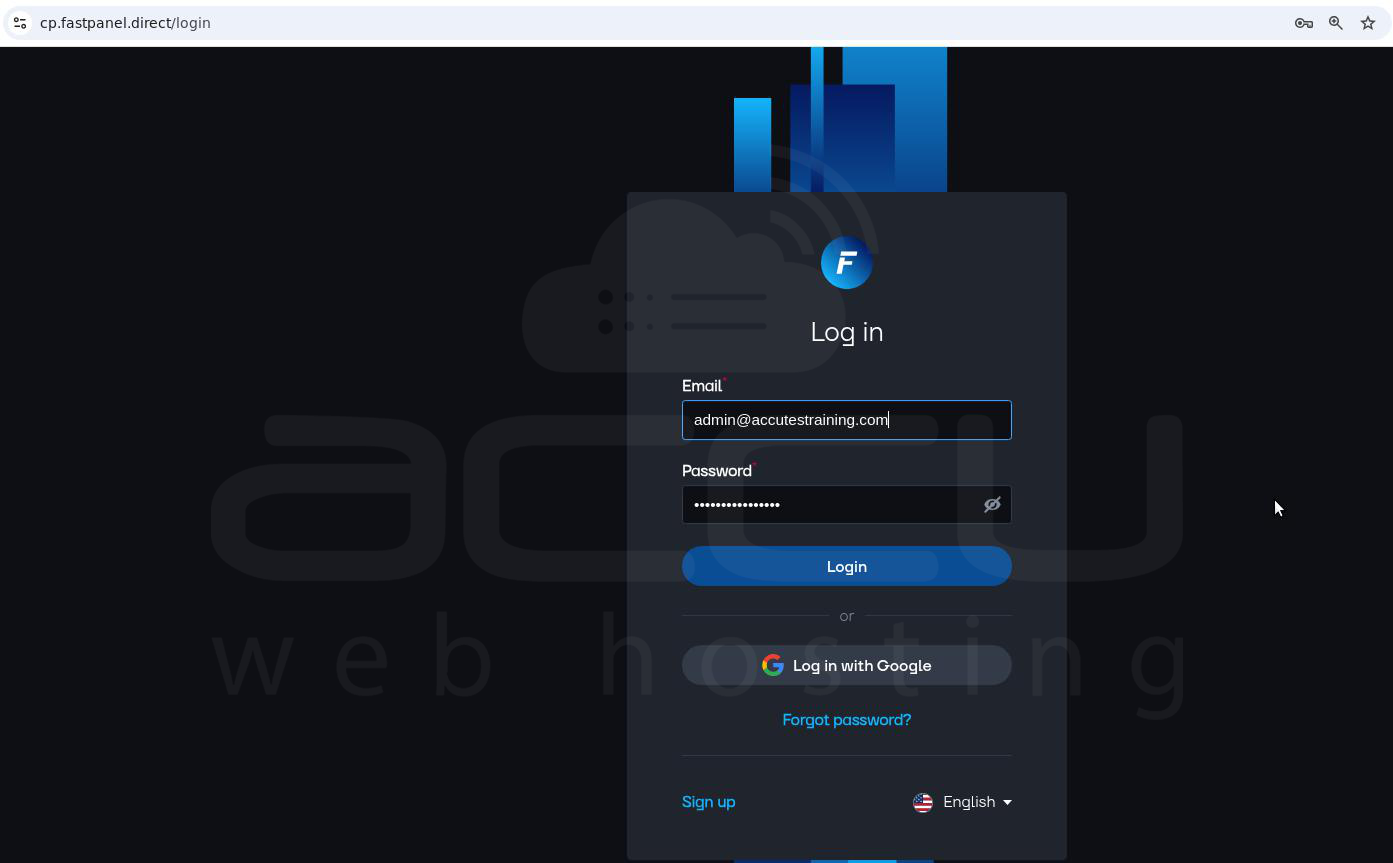
Step 13: Log In to the FastPanel Billing Portal. Use the received credentials to log in. The billing portal is used to manage licenses.
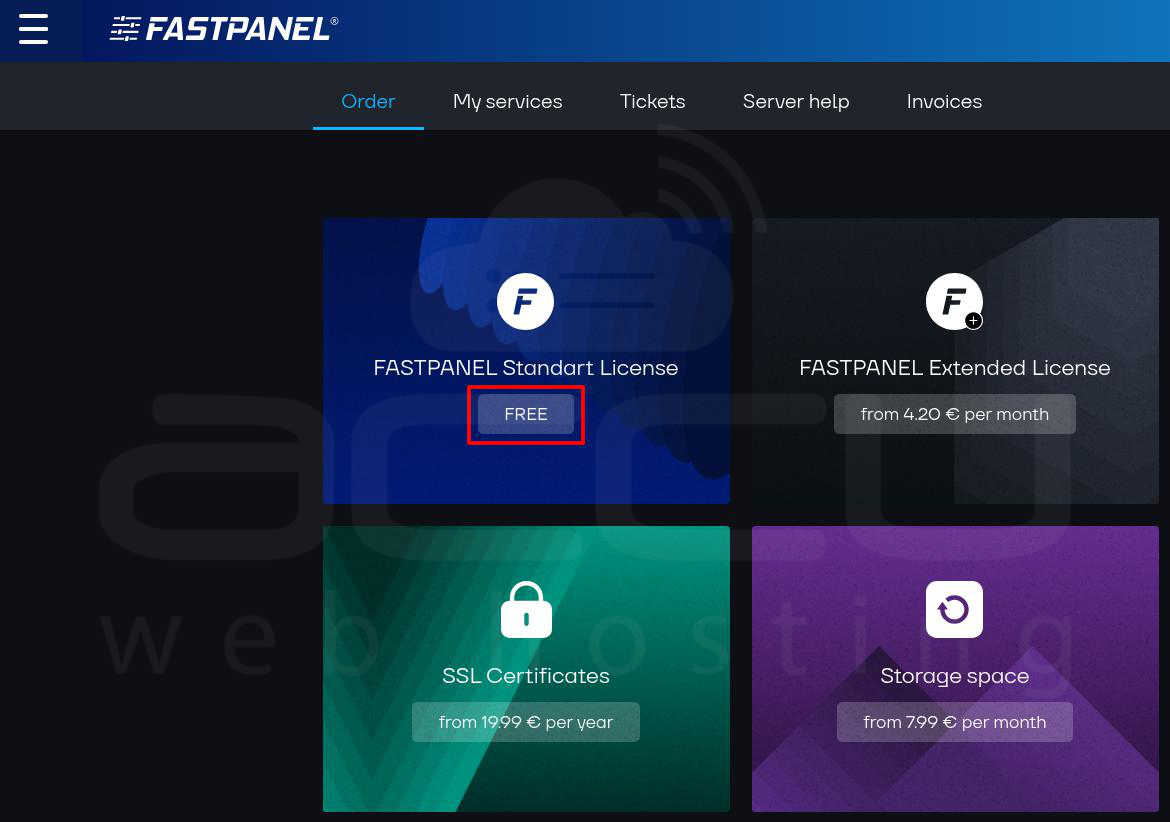
Step 14: Navigate to License Ordering, Select Free License or Paid License and click Add to Cart.
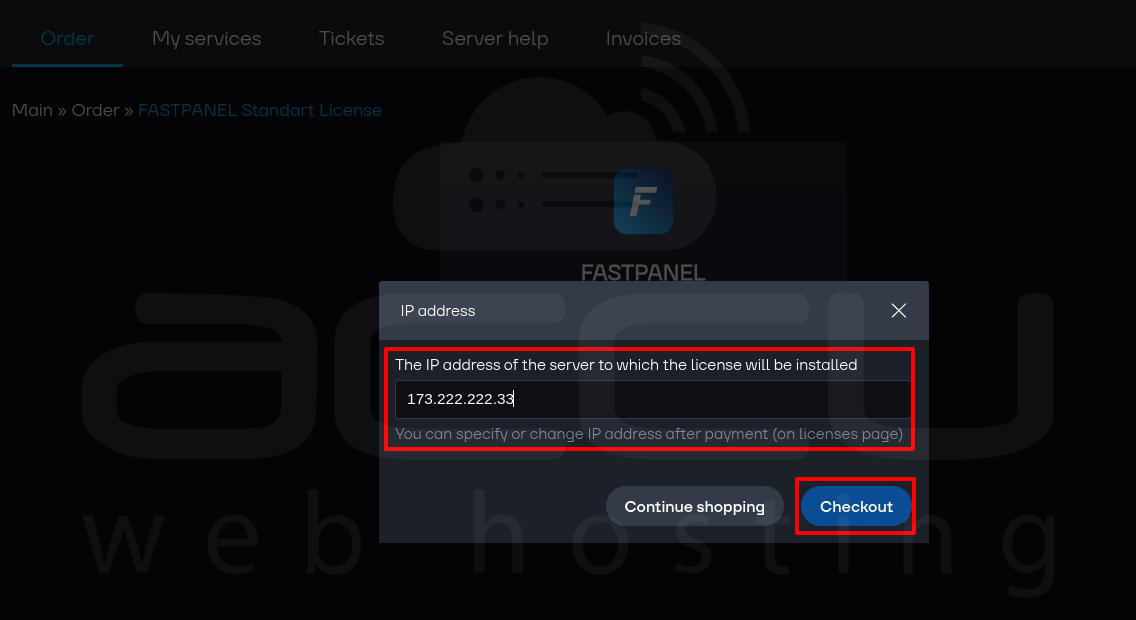
Step 15: During license setup enter your server’s public IP address and confirm assignment. The license is bound to the server IP.
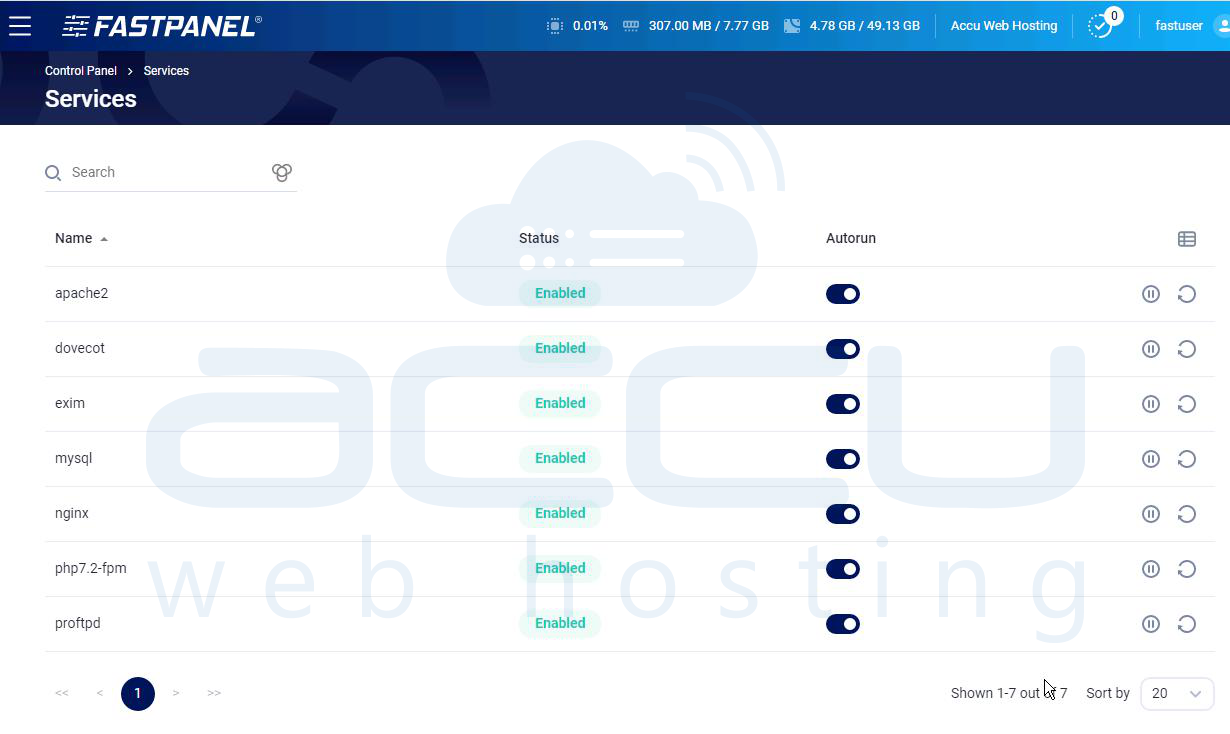
Step 16: Once activated, Log in to FastPanel and navigate to Control Panel → Services. Ensure all services show Running status.
Conclusion
Installing FastPanel on Debian OS provides a powerful, efficient, and user-friendly hosting control panel for managing server resources. By following these detailed steps, you ensure a clean installation, proper license activation, and fully operational services. This setup allows you to manage websites, databases, emails, and DNS securely and efficiently from a single interface.


