
Managing websites or client projects often involves choosing the right control panel for efficient server management. cPanel is widely used, but some web professionals prefer alternatives like ISPmanager for its lightweight design, modern interface, and flexible features. Migrating websites from cPanel to ISPmanager ensures a smooth transition while maintaining all website data, databases, email accounts, and configurations intact.
ISPmanager offers two reliable methods for migration: Rsync-based migration and Backup archive import. This guide will walk you through an Rsync-based migration.
Rsync-Based Migration
Rsync-based migration is a fast and secure way to move live data directly from a cPanel server to ISPmanager without creating or unpacking backups. This method is ideal for minimal downtime and up-to-date data transfer.
Advantages of Rsync-Based Migration
- Direct migration: No need to create backups manually.
- Minimal storage overhead: Only the transferred data occupies space.
- Live data transfer: Your website is migrated as it exists.
- Secure and fast: Data is transferred over SSH in real time.
Steps to Migrate via Rsync
Step 1. Preparing the Servers
- On cPanel (source server):
- Ensure users have FTP accounts and databases enabled.
- If using CloudLinux, disable CageFS for users.
- On ISPmanager (target server):
- Confirm compatible software versions (web server, PHP, mail server, FTP server, DBMS).
- Ensure the database system allows importing users with existing passwords.
- Disable password strength checks to avoid migration failures.
Step 2. Connecting to the Source Server
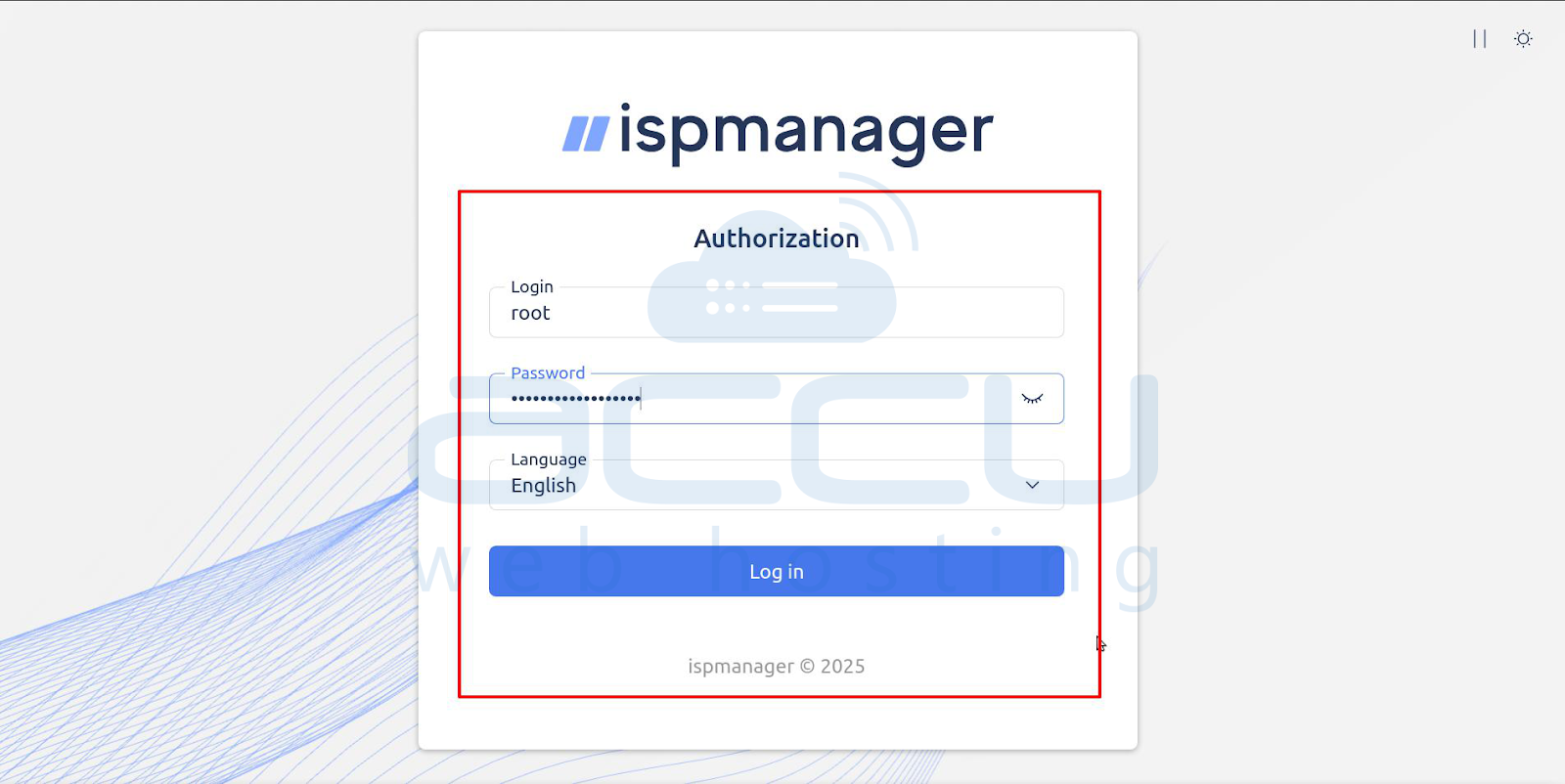
1. Log in to ISPmanager.
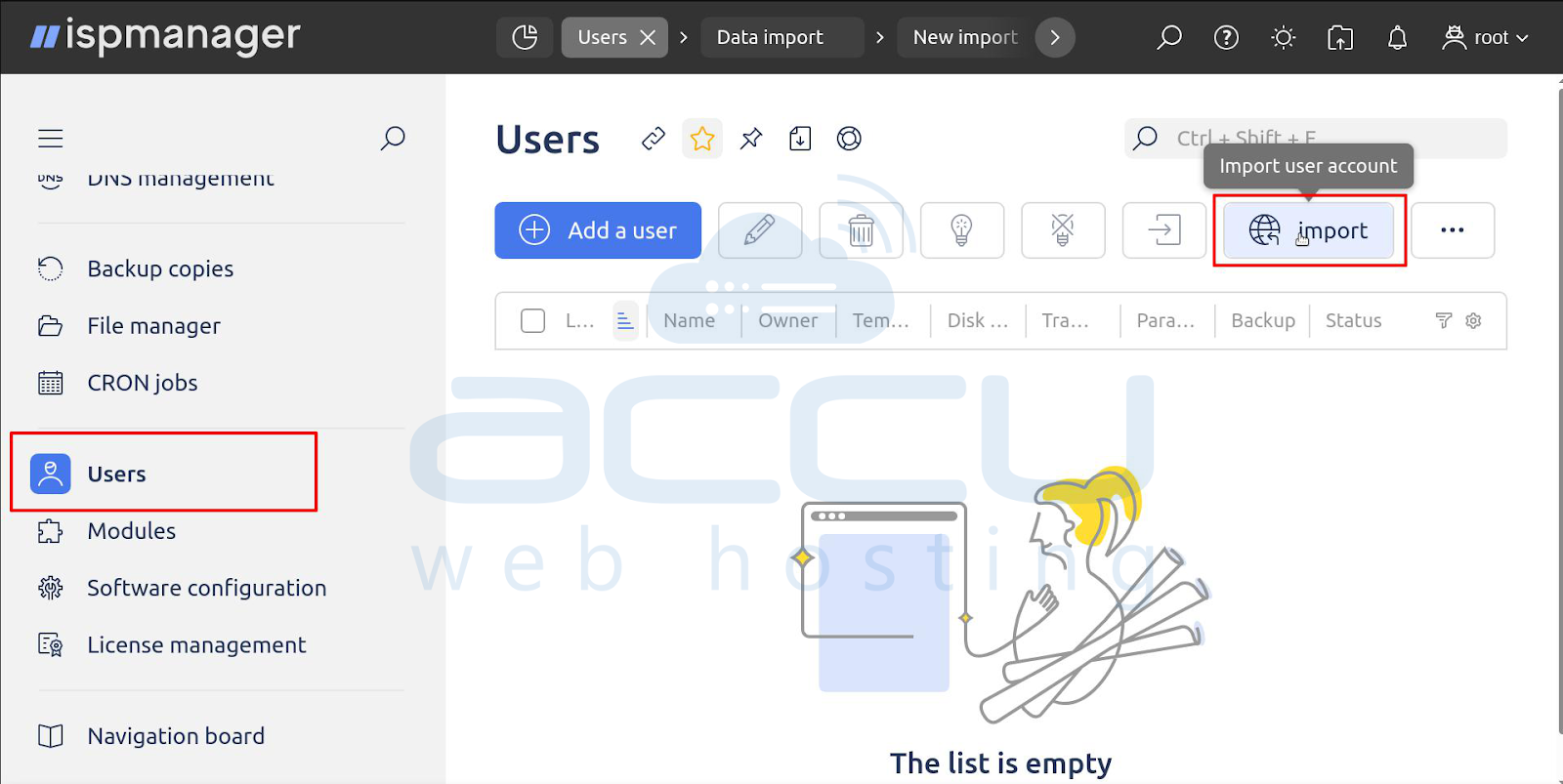
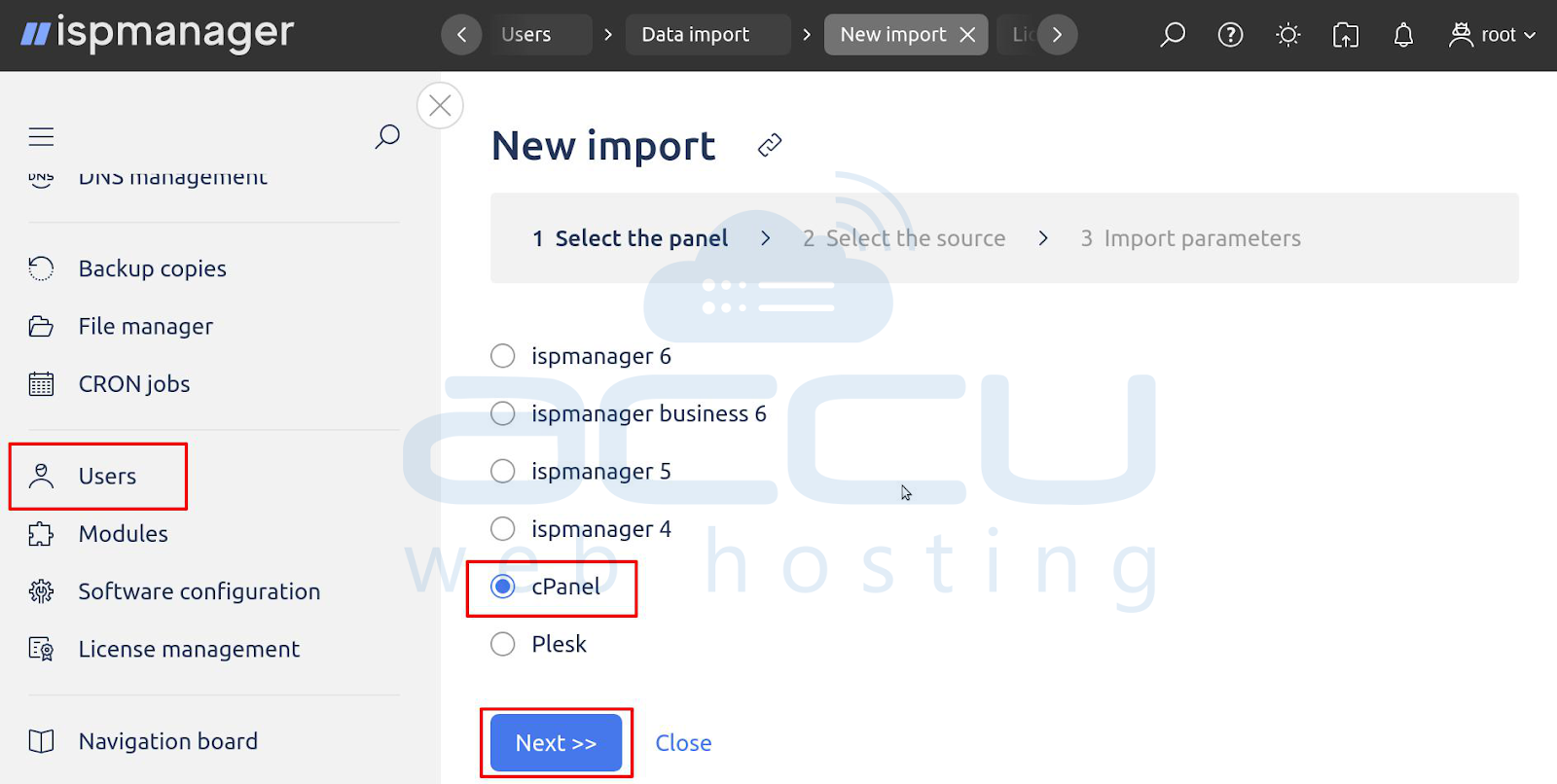
2. Go to Users→Import User account.
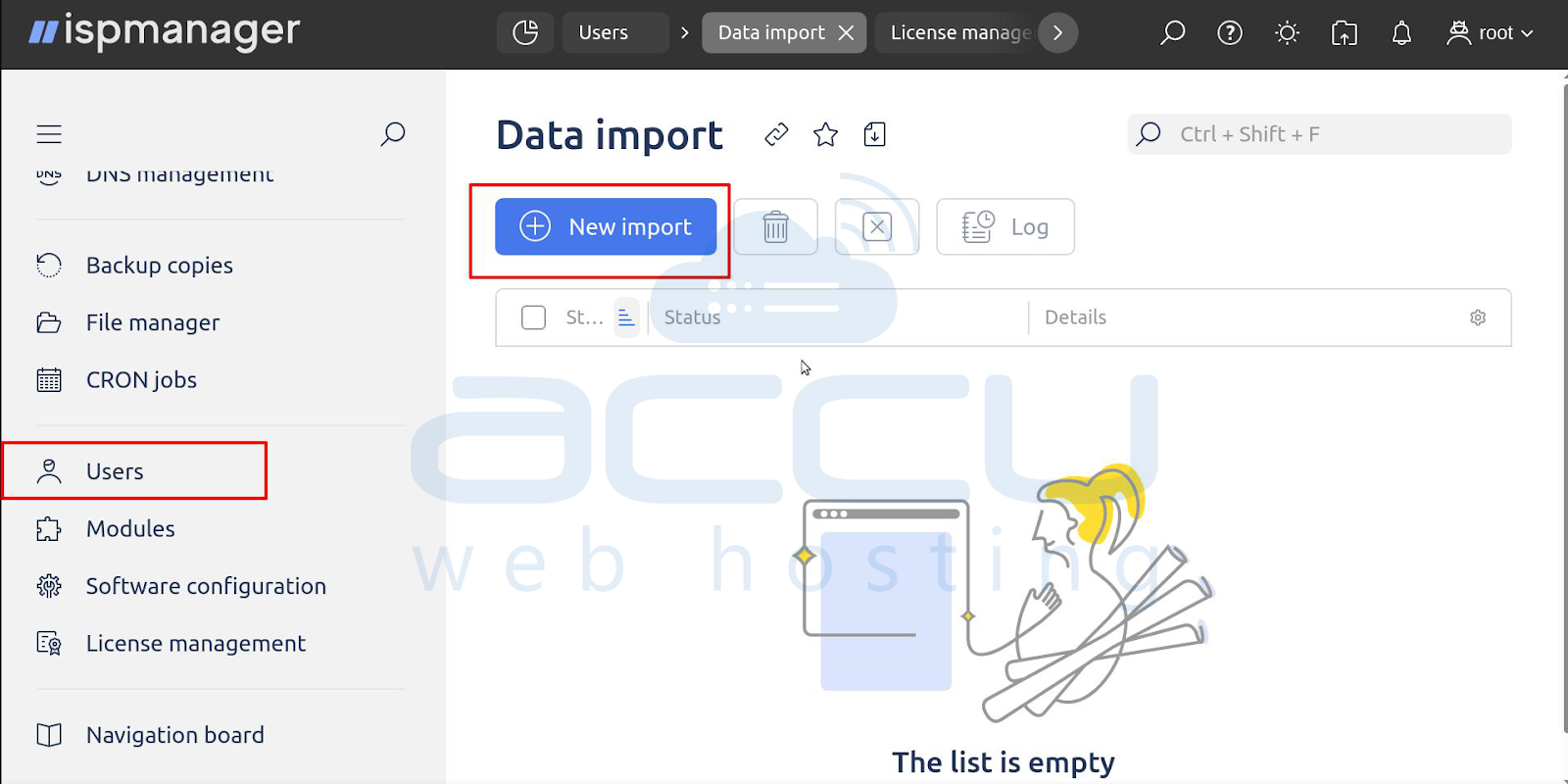
3. Click New Import.
4. Choose cPanel and then click on Next.
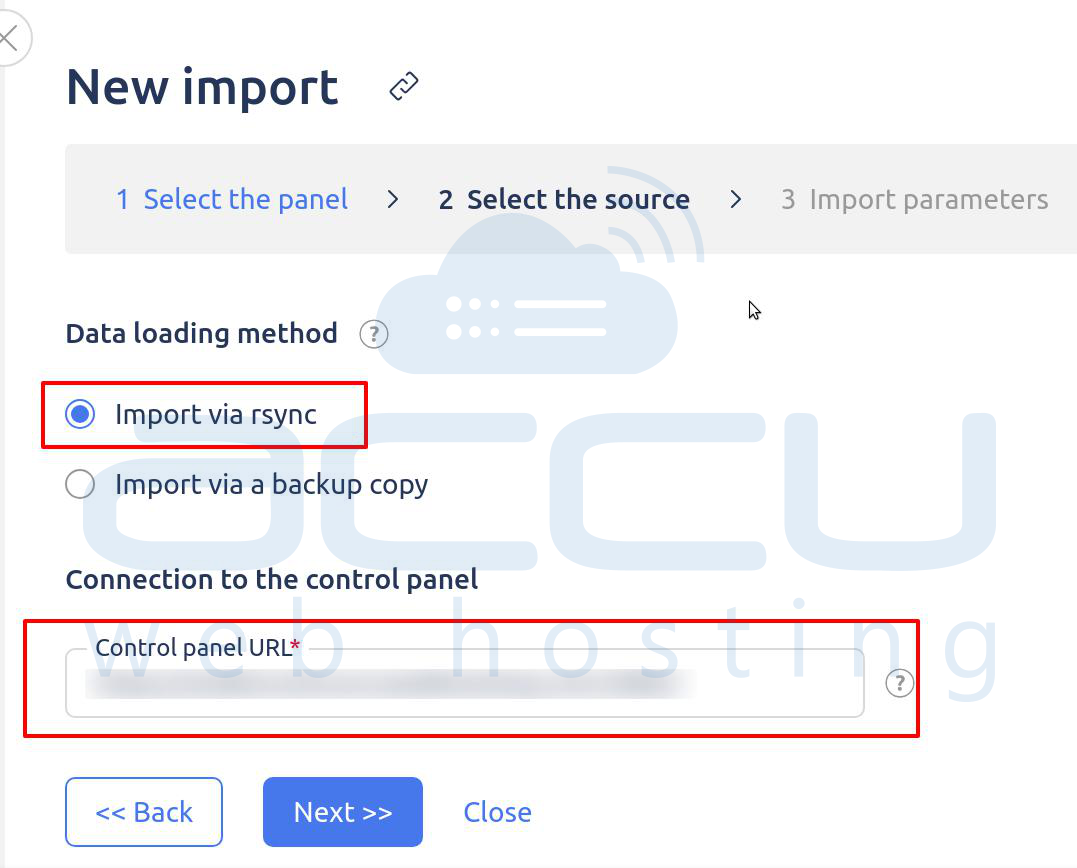
5. Click on Import via rsync.
6. Enter the cPanel server address.
7. Log in with the root user of cPanel.
8. Authorise via password.
9. And click on Next.
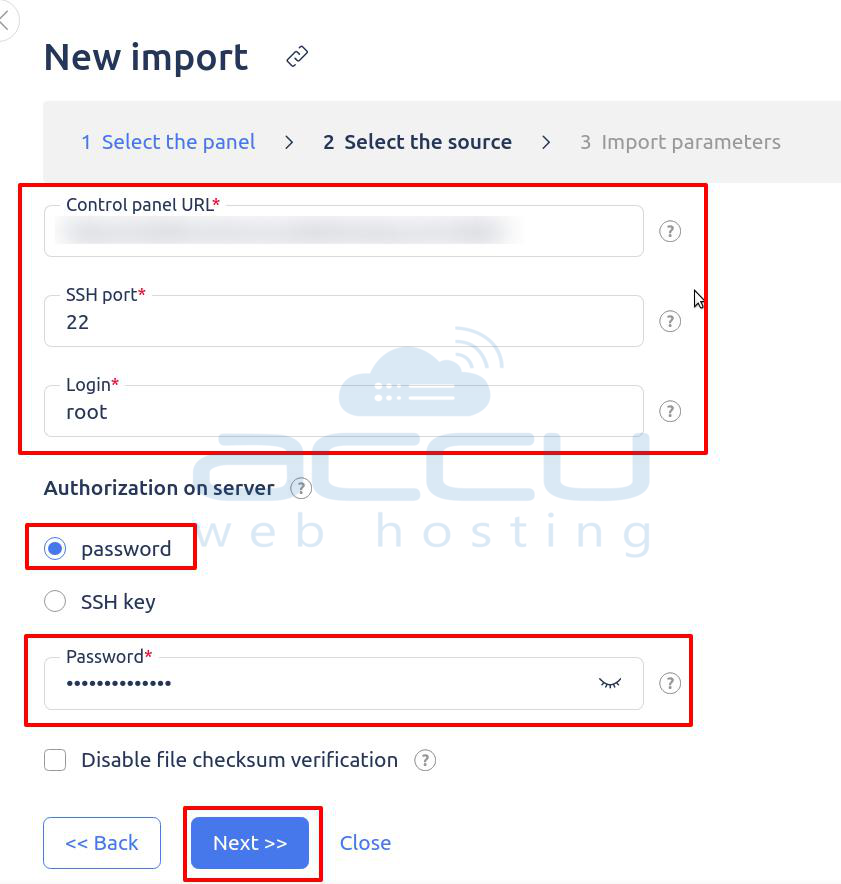
ISPmanager will automatically fetch the list of available users for migration.
Please be informed that AccuWebHosting does not provide terminal or SSH access to cPanel with a shared hosting plan.
If you get such an error means-
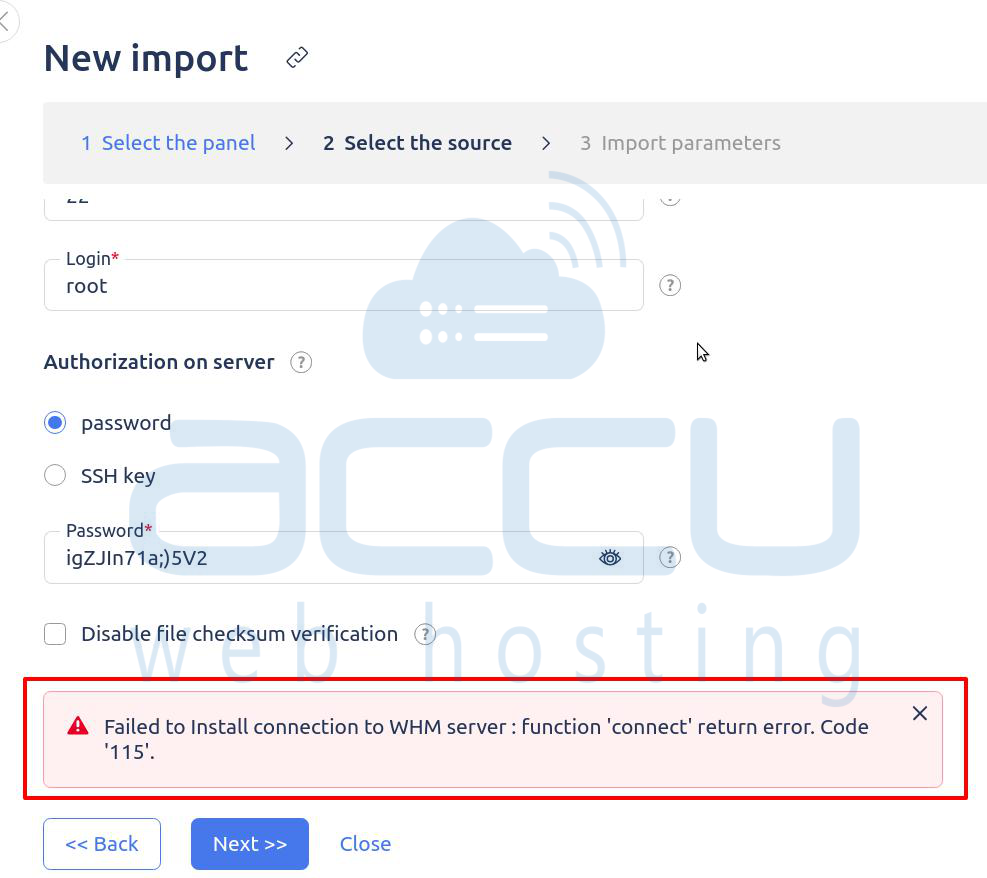
The error you are seeing:
Failed to install connection to WHM server: function 'connect' returned an error. Code '115'
means ISPManager cannot establish an SSH connection to your cPanel server.
Error 115 = Operation in progress/connection timed out
This indicates a network or SSH access issue.
If you have SSH access, then you can continue with the steps below and complete the migration.
3. Setting Up Import Preferences
- Assign IP addresses to migrated sites.
- Decide how to handle existing users (skip, merge, or overwrite).
- Specify the ISPmanager reseller for the imported users.
This step ensures you have full control over what is migrated and how.
4. Process Completion and Reporting
ISPmanager handles the migration, including:
- Converting user accounts
- Copying files and databases
- Generating a summary report with created, skipped, or failed items
Users can log in to ISPmanager using their existing cPanel credentials once migration completes.
Conclusion
Migrating a cPanel account to ISPmanager using the Rsync method is an efficient, secure, and reliable way to transfer live data with minimal downtime. By establishing a direct SSH connection between the source and target servers, ISPmanager ensures that files, databases, and user configurations are synchronized exactly as they exist on the cPanel server.


