
aaPanel is a free, open-source control panel that makes server management easy through a simple web interface. On Windows, it works as a powerful tool that lets you install and manage key parts of the WIMP stack, Windows, IIS or Nginx, MySQL/MariaDB, and PHP, with just one click. It supports modern Windows Server versions (2012, 2016, 2019, 2022) as well as 64-bit systems like Windows 8, 10, and 11. In this guide, we will walks you through the complete installation and configuration process of aaPanel on Windows Server.
aaPanel Installation Steps
Step 1: The process begins by obtaining the correct installer for the Windows environment. Since aaPanel for Windows is a dedicated application, it comes as a self-contained executable file.
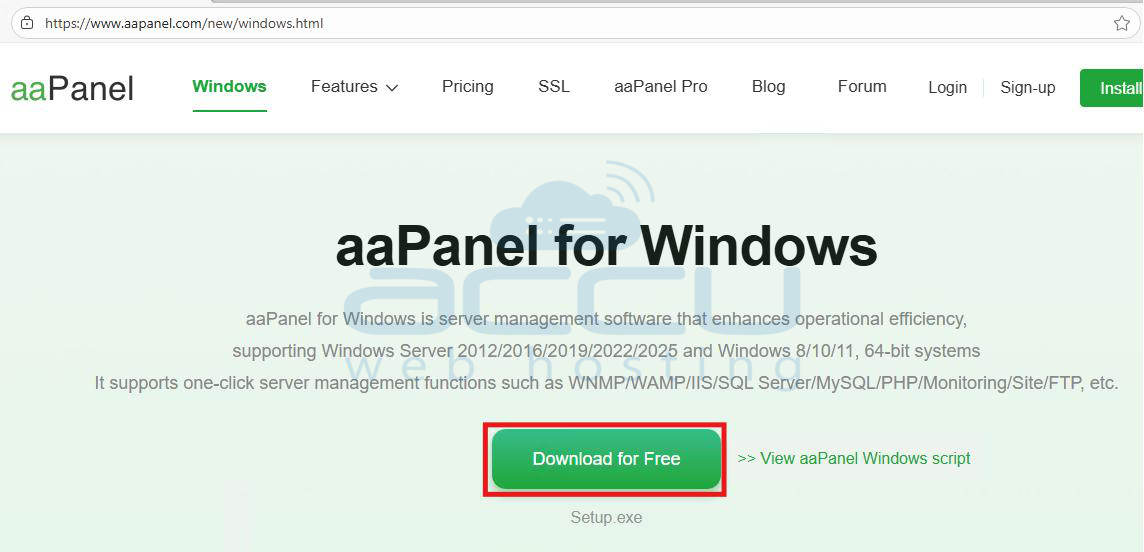
Open a web browser on your Windows Server and go to the official aaPanel website dedicated to the Windows version.
Click the prominent "Download for Free" button. This will download a file named Setup.exe.
Step 2: aaPanel usually sets up its core files and services in a more central location (often C:\BtSoft\). Therefore, administrator privileges are mandatory. Locate the downloaded Setup.exe. Right-click on the file and select "Run as administrator."
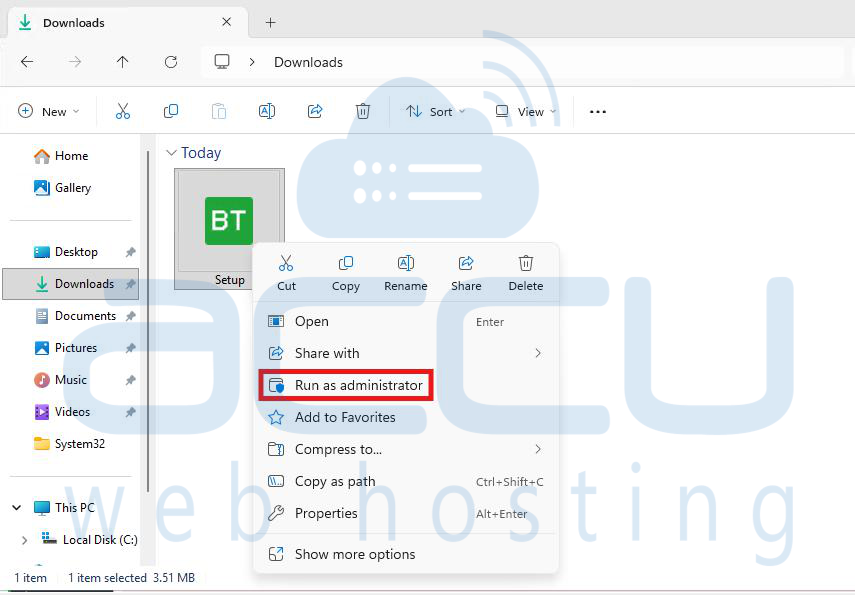
This ensures the installer has the necessary permissions to set up system services and modify firewall rules.
Step 3: On the initial splash screen of the aaPanel Windows installer, carefully read the user license agreement. Check the box confirming that you have read and agree to the terms. Click the "One-click installation" button.
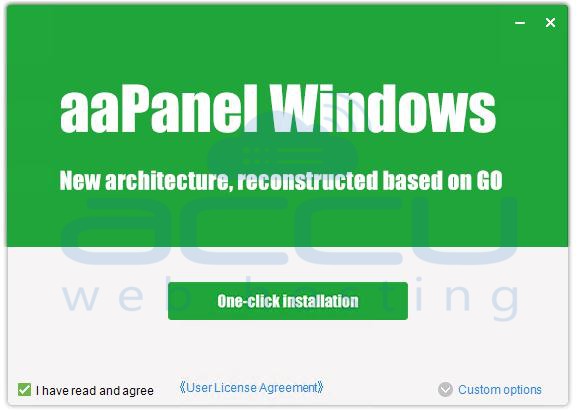
The installer will now extract the required files, set up the base environment, and configure the necessary GO-based core services in the background.
Step 4: Once the installation finishes, click "Get Started."
Step 5: A Command Prompt (CMD) window will automatically launch and display the "aa-Panel default info." This output contains:
- Panel access address: The full URL (e.g., http://[Your_IP_Address]:8888/unique_key).
- UserName: A randomly generated, secure username.
- Password: A randomly generated, complex password.
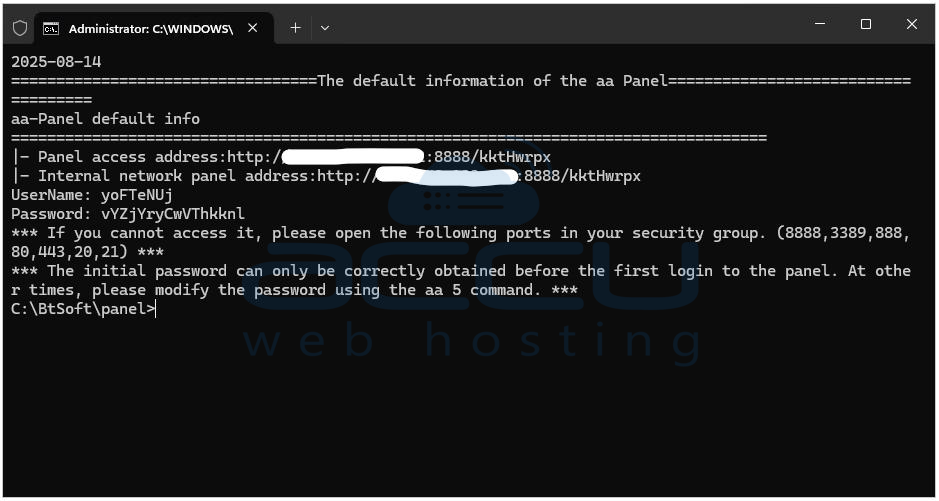
Copy these three pieces of information immediately into a secure password manager or note. The password cannot be easily retrieved after this window is closed or after the first login.
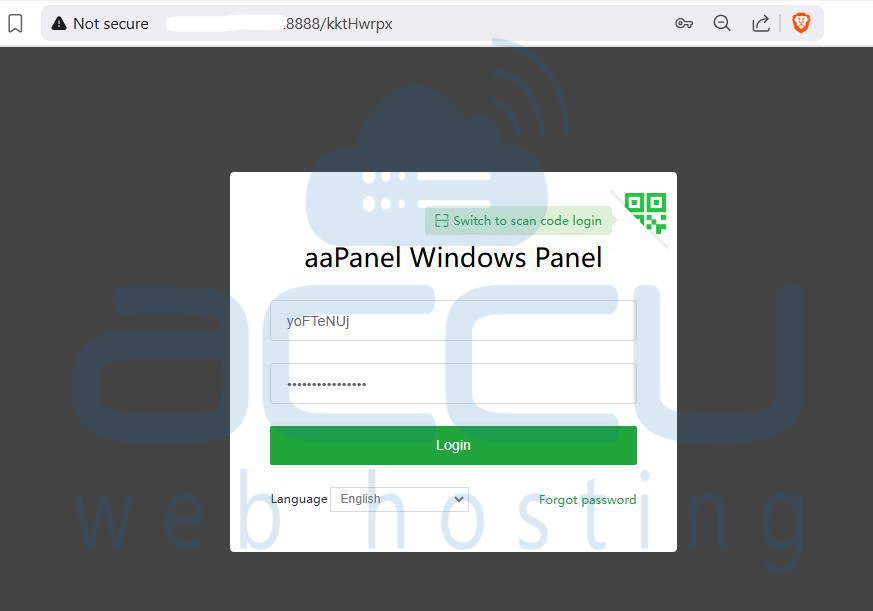
Step 6: Open a web browser and navigate to the Panel access address you saved. Enter the saved UserName and Password.
Step 7: Upon successful login, you will be presented with the main aaPanel Dashboard, which shows a concise overview of the server's vital statistics (CPU, Memory, Disk usage, Network Traffic).
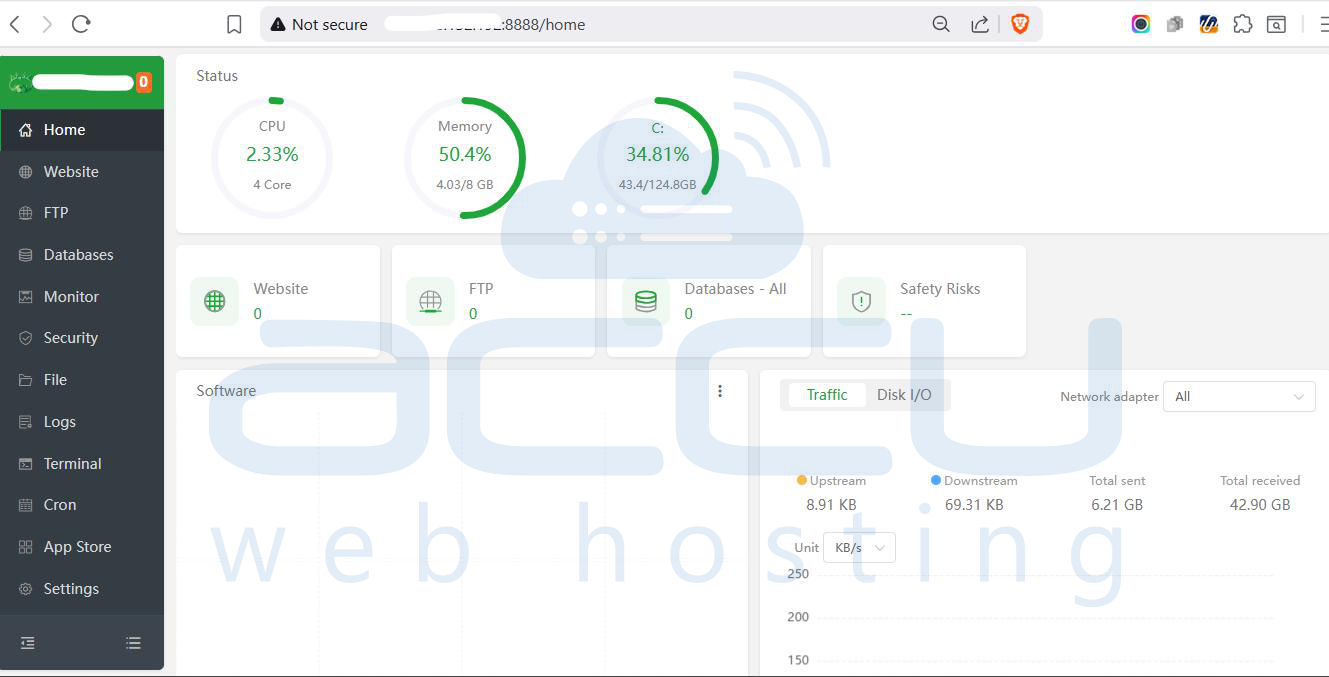
Step 8: The default port 8888 is universally known for aaPanel. Changing it is an immediate and effective deterrent against basic scanning attacks.
In the aaPanel dashboard, click Settings (the gear icon) and select the Security tab. Find the "Panel Port" field, which shows the current port (8888). Click the "Setting" button next to it.
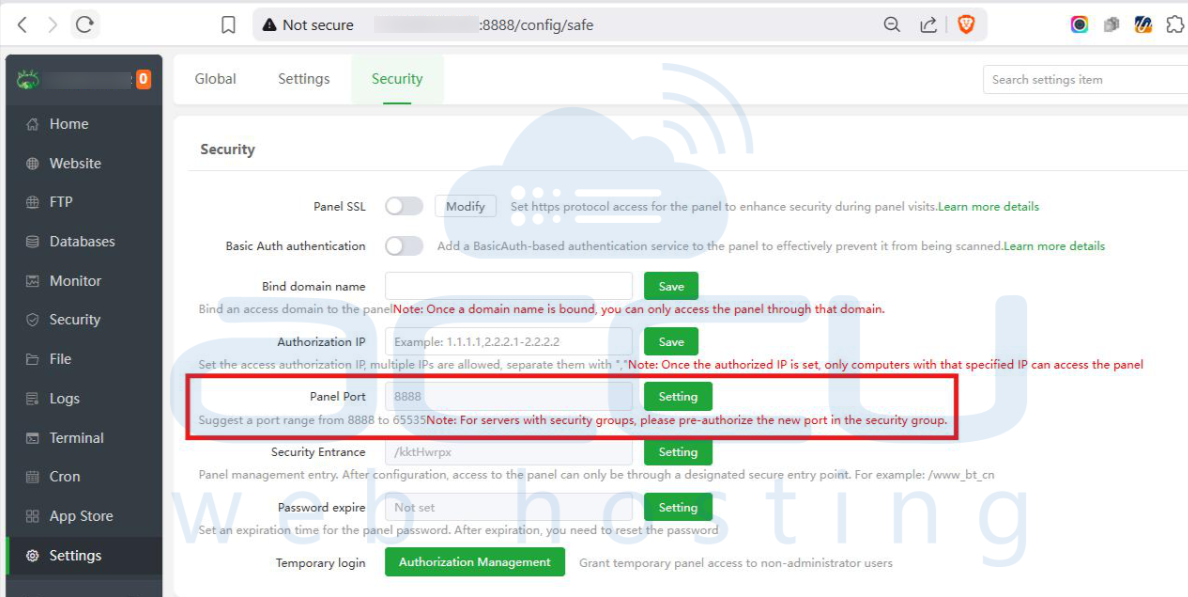
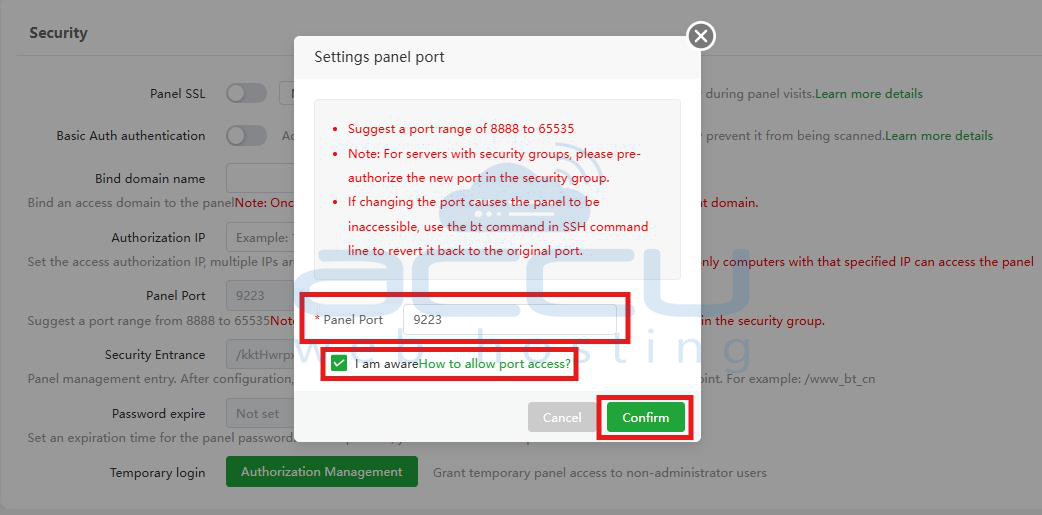
In the pop-up window, select a random, non-standard port number between 8888 and 65535. A number like 9223, 12345, or 54321 is ideal.
Check the box confirming your awareness of firewall requirements, and click "Confirm." The panel will reload, and you will need to access it using the new port.
Step 9: While the default credentials are secure, a known-to-you password provides peace of mind and is necessary for any compliance requirements.
Click Settings and switch to the Global tab. Find the fields for User Name and Password.
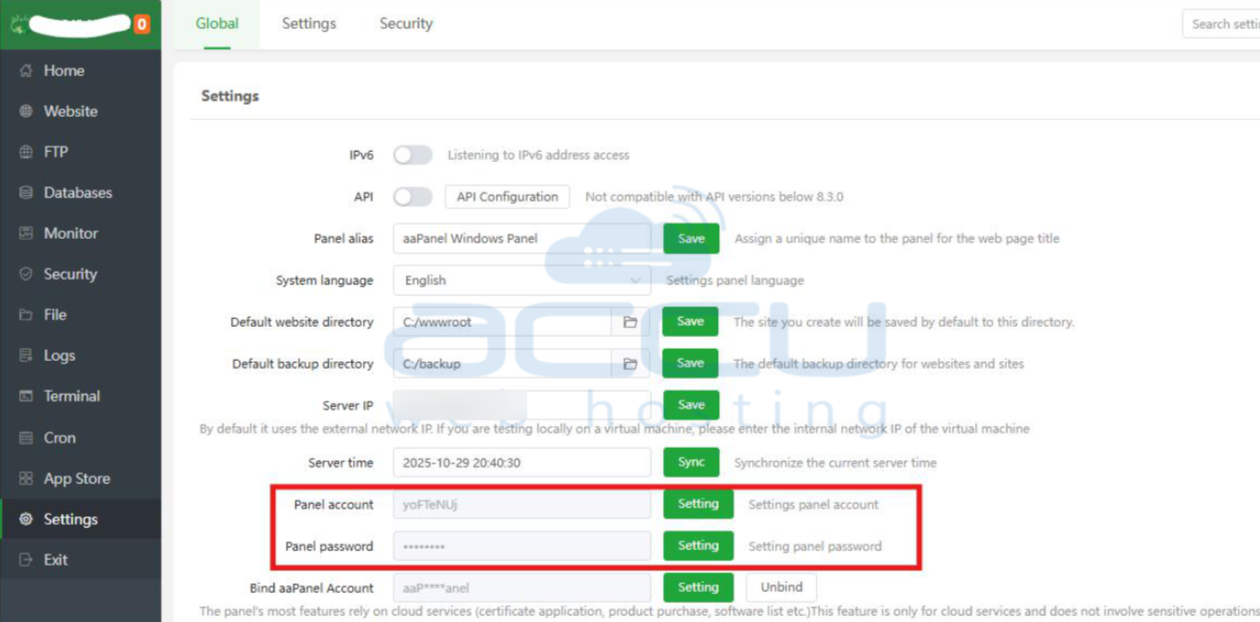
Set a new, easy-to-remember username (e.g., your initials) and a new, strong password. Click "Confirm" and immediately log back in using the new credentials to verify they work.
Step 10: For a Windows Server, IIS (Internet Information Services) is the native and most optimized choice. aaPanel also offers alternatives like Nginx or Apache, which can be useful for specific application compatibility.
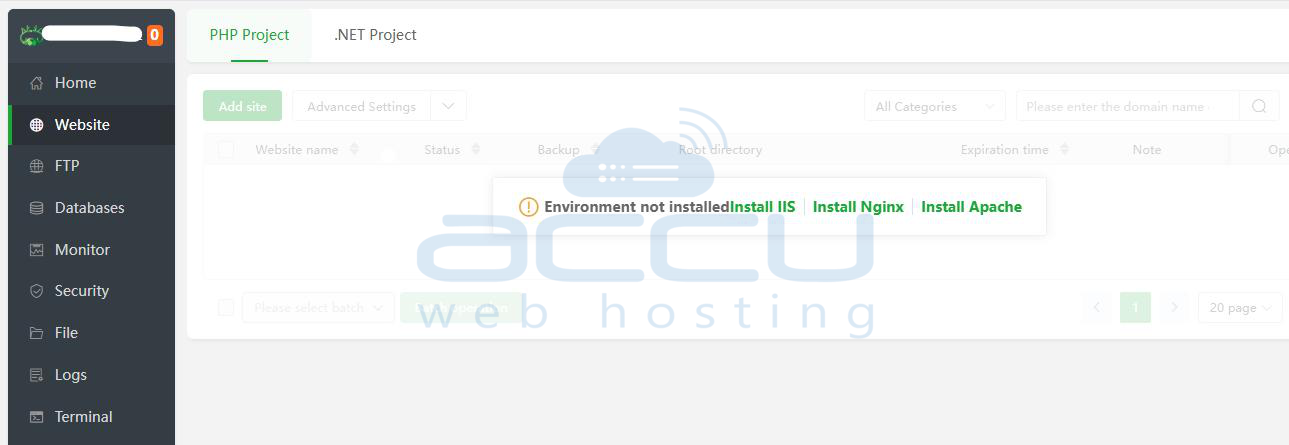
Click the Website link in the left navigation panel. The screen will show an "Environment not installed" warning with three options: Install IIS, Install Nginx, and Install Apache. Click "Install IIS."
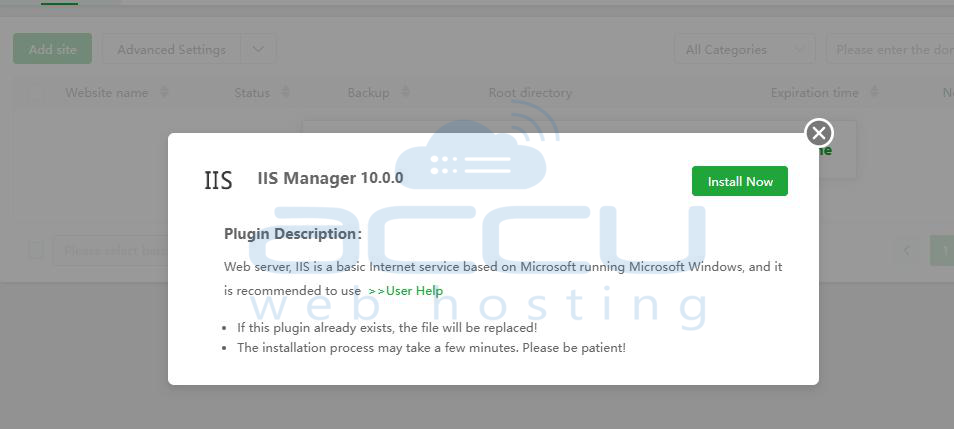
A pop-up for the IIS Manager will appear (e.g., IIS Manager 10.0.0). This is the aaPanel plugin for managing the native IIS service. Review the description and click "Install Now." The installation will run in the background.
Step 11: Most modern web applications (WordPress, Joomla, etc.) rely on the open-source MySQL or its fork, MariaDB.
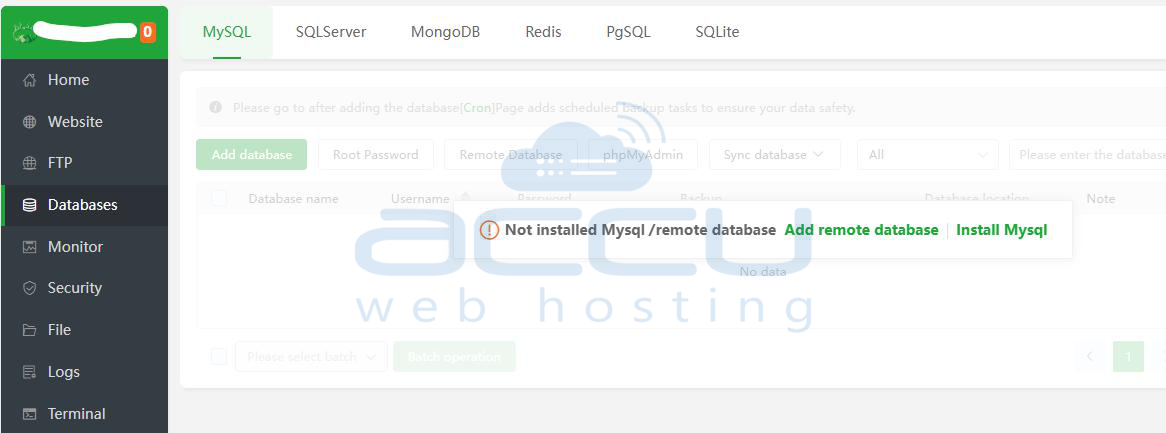
Click the Databases link in the left menu. The page will display options like MySQL, SQLServer, MongoDB, etc., with a message "Not installed Mysql." Click the "Install Mysql" link.
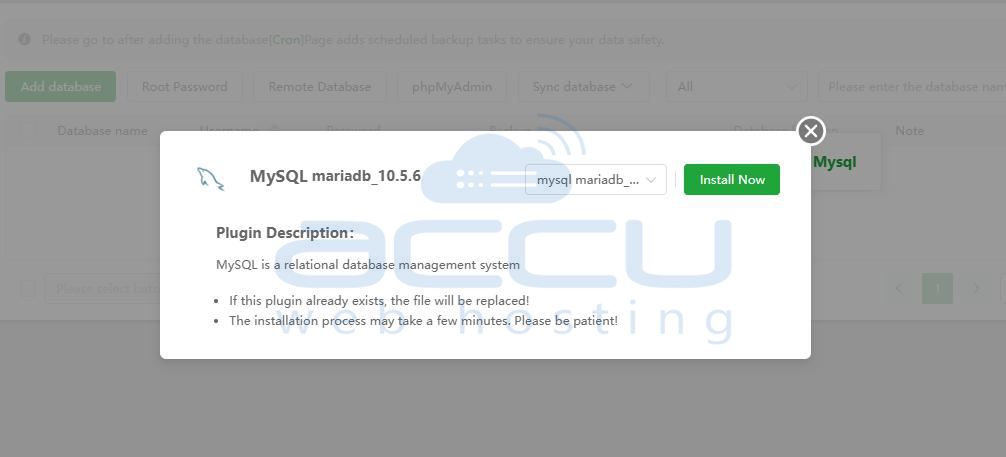
A pop-up for MySQL or MariaDB (often MariaDB 10.5.6) will appear. You may have an option to select a specific version from a dropdown menu. Select a stable, recommended version. Click "Install Now."
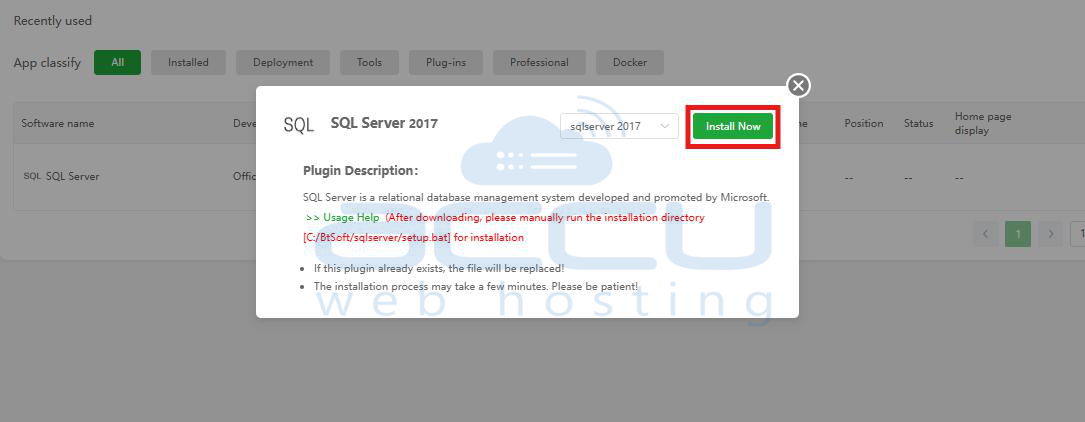
You can also install MSSQL server from aaPanel. Go to App Store and search SQL server.
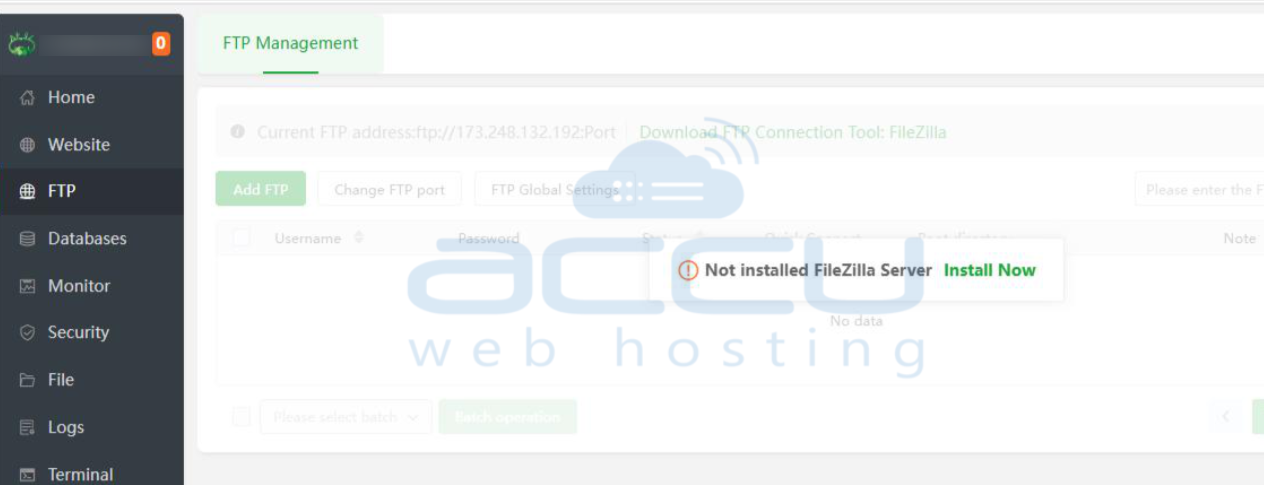
Step 12: An FTP server is required to allow external clients to upload website files easily. Click the FTP link in the left menu. The page will show "Not installed FileZilla Server." Click "Install Now."
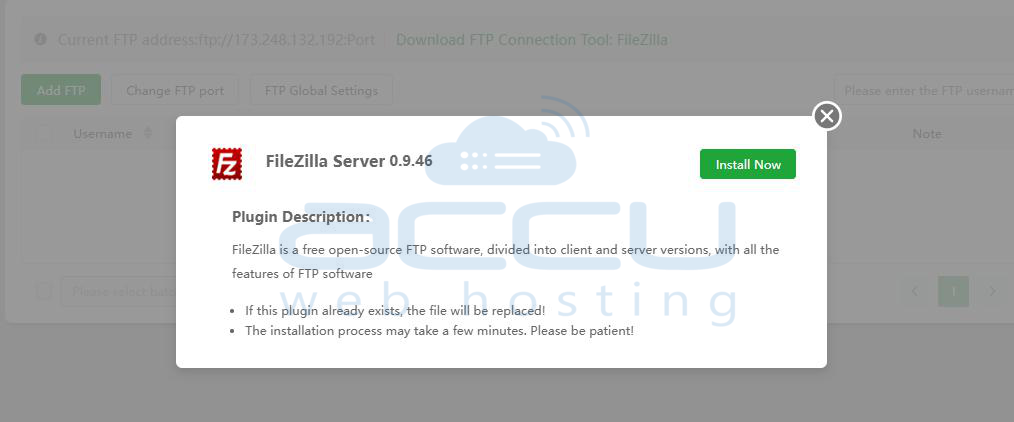
The pop-up for FileZilla Server (a common, robust FTP solution for Windows) will appear. Click "Install Now."
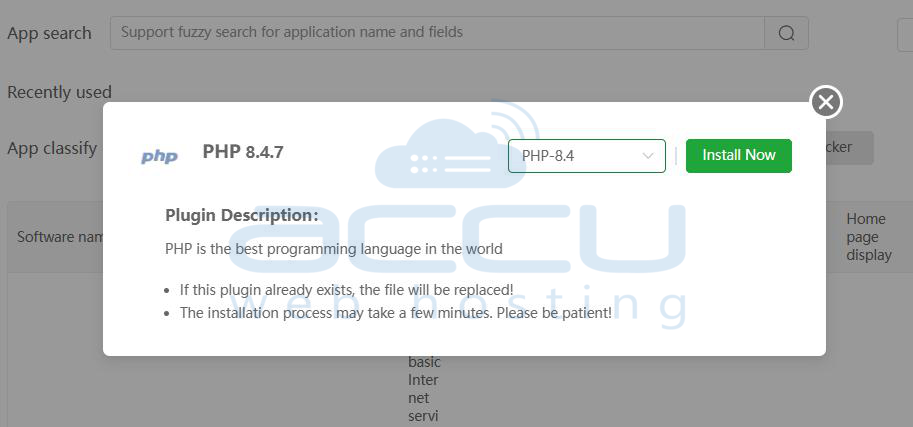
Step 13: PHP is necessary for dynamic websites. While IIS is installed, you still need to install and configure PHP.
Click the App Store link in the left menu. Filter or search for "PHP."
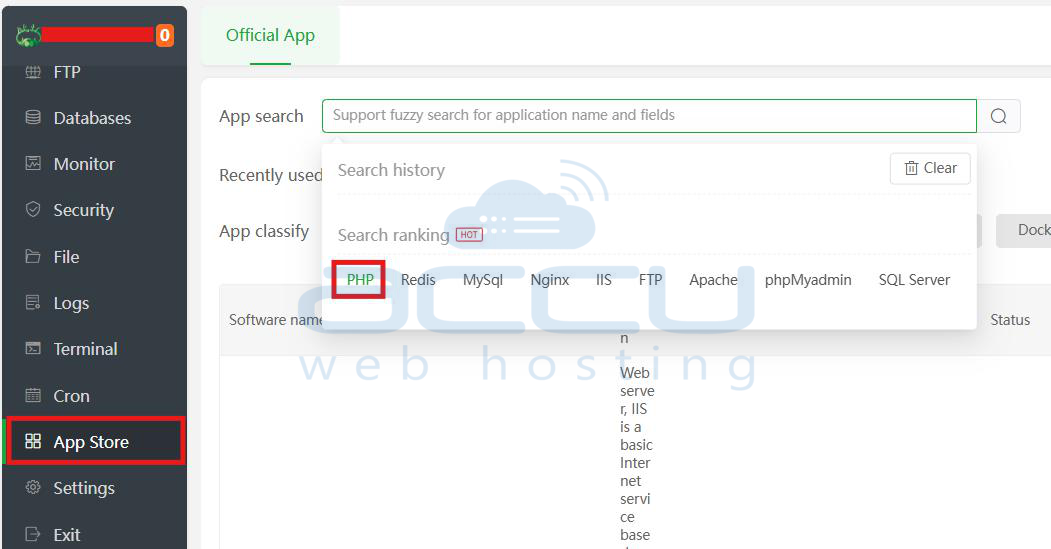
Install the PHP versions required by your application (e.g., PHP 8.4 for modern WordPress). Click "Install" next to the desired version.
Conclusion
You have successfully installed aaPanel, secured its access, and installed the three essential components for any hosting environment: IIS (Web Server), MariaDB (Database), PHP, and FileZilla (FTP Server). Your Windows Server is now ready for hosting!


