
Docker is an open source platform that allows you to package applications and run them in containers. These containers are lightweight, isolated environments that can run your code anywhere on your laptop, a server, or in the cloud without worrying about differences between systems. In this article, we will guide you on how to set up and operate Docker Engine on an AlmaLinux VPS.
Steps to set up and operate Docker Engine on an AlmaLinux VPS
Step 1: Start by logging into your VPS using SSH.
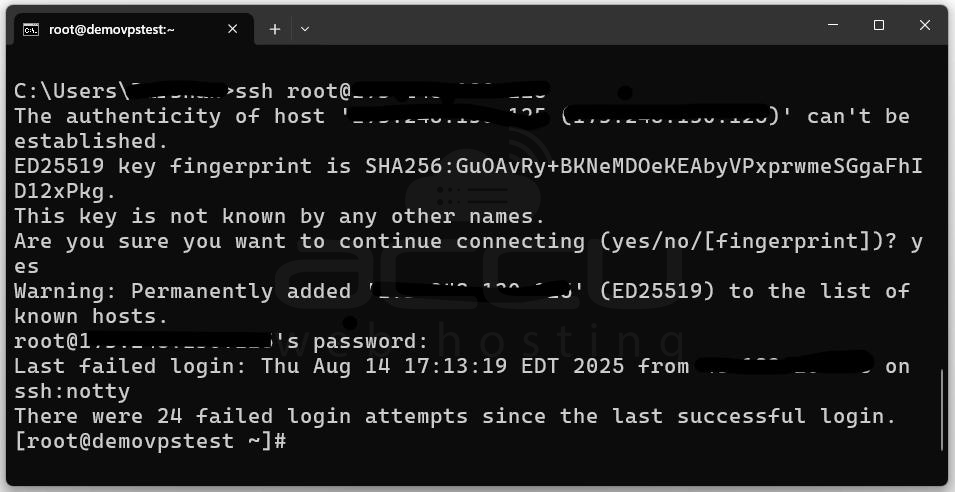
Now, update all your system packages:
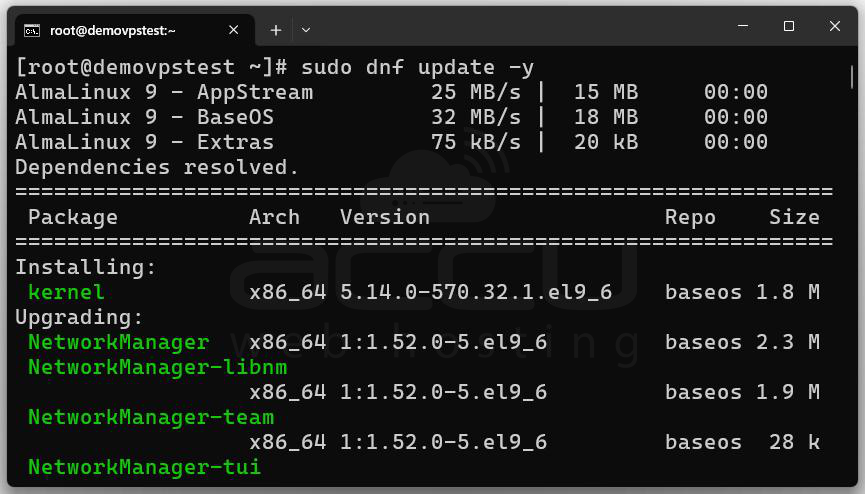
This makes sure your server has the latest security patches and software versions.
Step 2: Docker needs some extra packages to be installed before you can use it. Install required dependencies by running the following command.
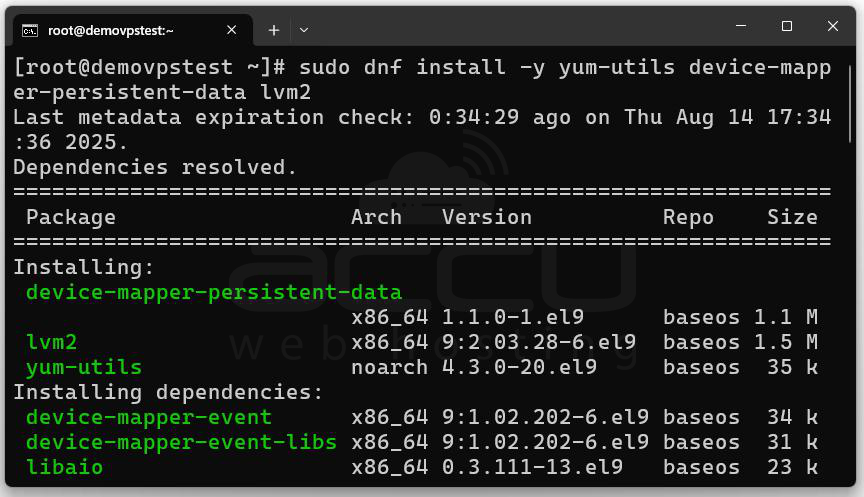
These are tools that help Docker manage storage and other resources.
Step 3: Now, add Docker Repository. Docker isn’t included in the default AlmaLinux repositories, so we’ll add the official Docker repo.
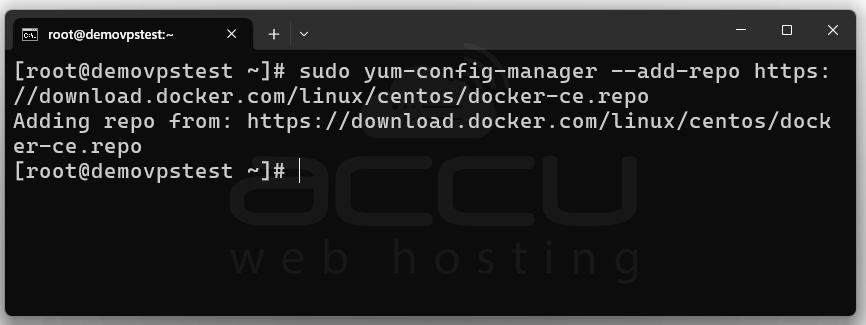
Even though it says "CentOS", it works fine with AlmaLinux, since AlmaLinux is binary compatible with CentOS and RHEL.
Step 4: Now let’s install Docker Engine and its components.
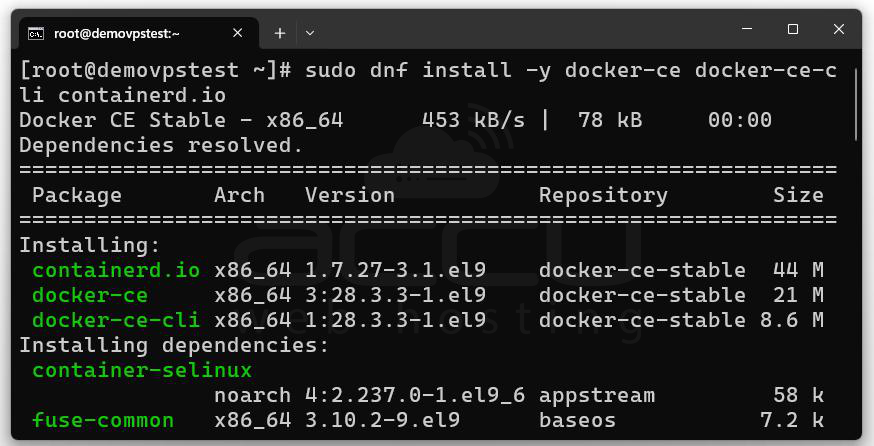
This command installs:
-
dockerce (Community Edition of Docker)
-
dockercecli (Commandline tools)
-
containerd.io (A container runtime)
Step 5: Now that Docker is installed, let’s start the service and make sure it launches on boot:
sudo systemctl start docker
sudo systemctl enable docker
Check the status: sudo systemctl status docker
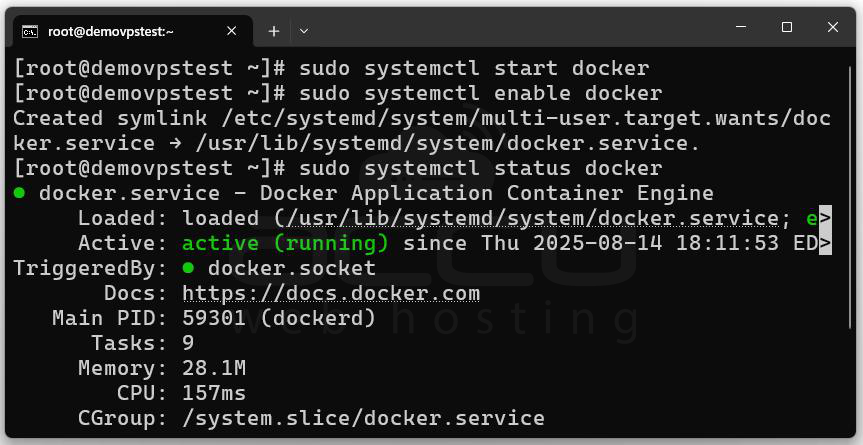
You should see something like: Active: active (running)
Step 6: By default, you need to use `sudo` with every Docker command. If you want to avoid that, you can add your user to the `docker` group.
sudo usermod -aG docker $USER
Now, log out and back in again, or type:
newgrp docker
You can now run Docker commands without `sudo`.
Step 7: Let’s test if everything is working:
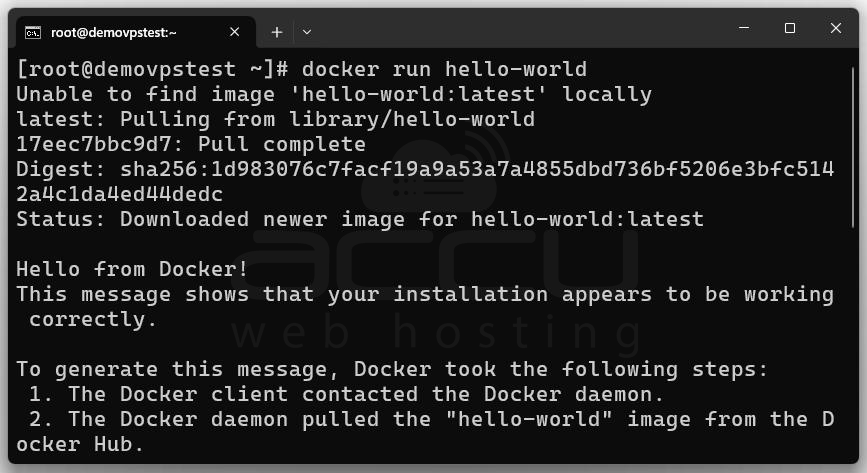
This command downloads a small test container from Docker Hub, runs it, and prints a message.
If you see this: Hello from Docker!
Then you’re good to go!
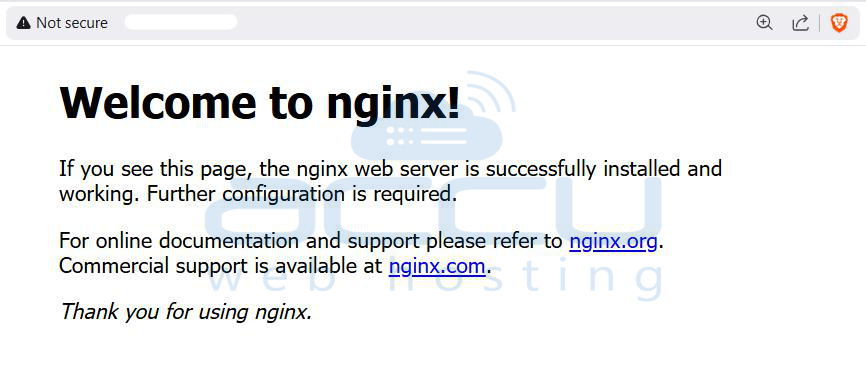
Step 8: Now that Docker is working, you can run any container you like. For example, to run NGINX, a popular web server:
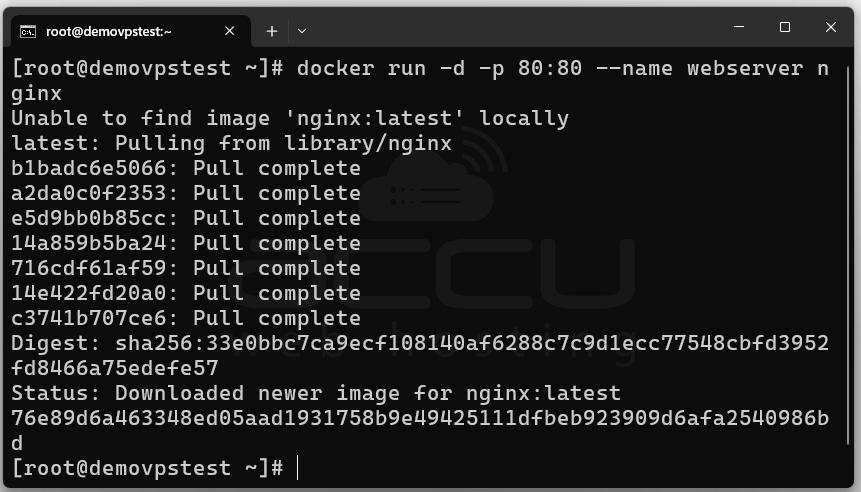
Visit your server’s IP address in a browser, and you’ll see the NGINX welcome page.
Manage Docker Containers
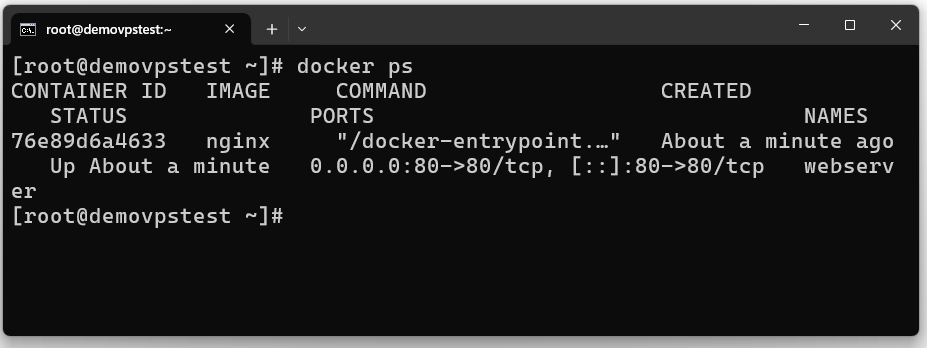
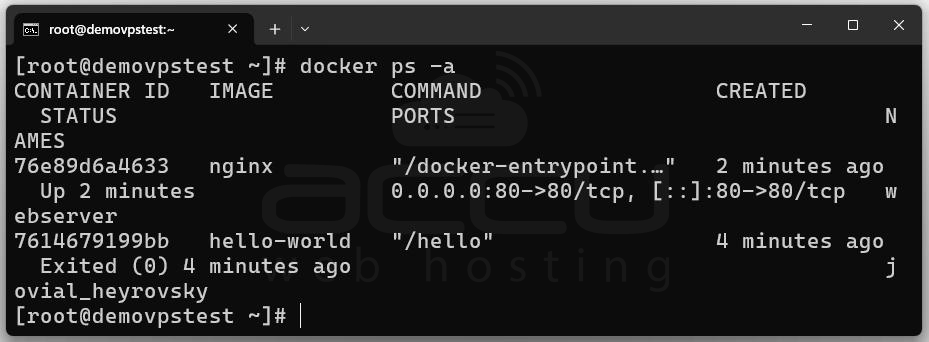
Here are some basic Docker commands to manage containers:
List running containers:
List all containers (including stopped):
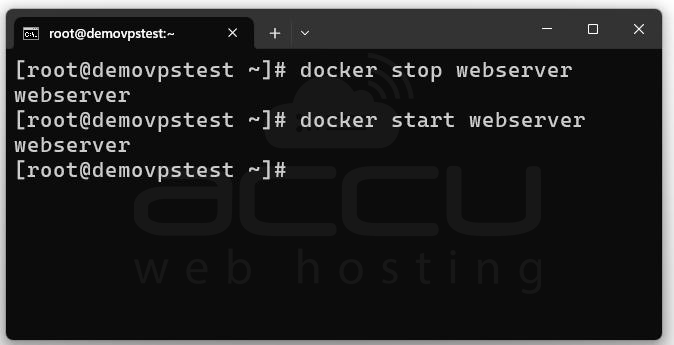
Stop a container:
docker stop webserver
Start a container:
docker start webserver
Remove a container:
docker rm webserver
Remove an image:
docker rmi nginx
Conclusion
Setting up Docker Engine on an AlmaLinux VPS is a straightforward process. By completing these steps, you can deploy applications in secure, portable, and isolated environments, making it easier to manage workloads, scale services, and maintain consistency across development, testing, and production.


