
In Linux, important system tasks can be done by the root user or by other users who have special permissions. However, it's not recommended to use the root account for everyday tasks due to security reasons. Instead, a safer method is to assign sudo privileges to regular users so they can execute administrative commands on demand using sudo. In this article, we will guide you on how to grant a user sudo privileges on a Debian VPS.
Steps to grant a user sudo privileges on a Debian VPS
Step 1: Log in to the VPS. You can log into your VPS via SSH:
ssh root@your-server-ip
Replace your-server-ip with the IP address of your VPS.
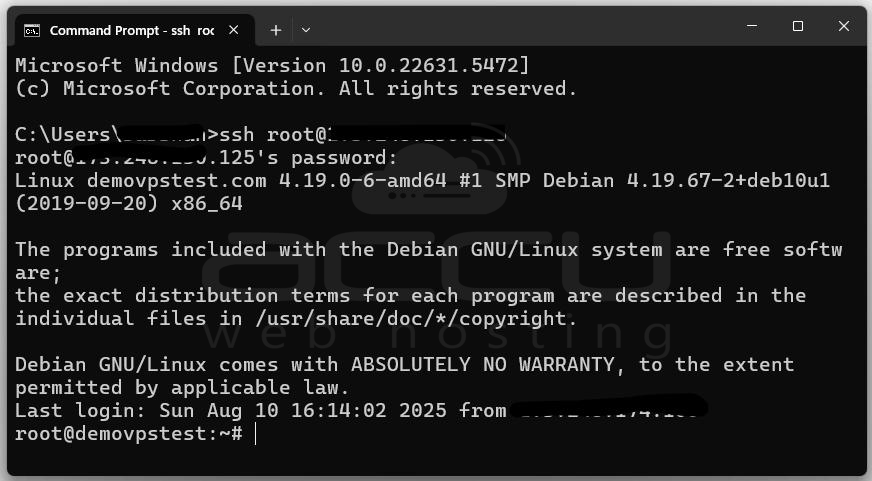
If you already have a user with sudo privileges, you can use ssh username@your-server-ip. Once logged in, you can proceed to manage users and privileges.
Step 2: To determine whether you are currently logged in as the root user or not, there are multiple methods.
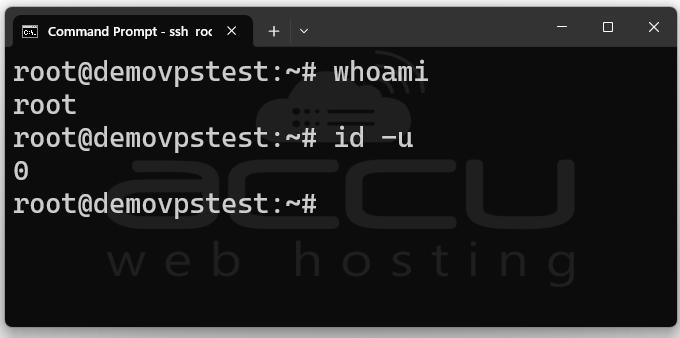
Method 1: Check with whoami: This is the simplest way by running the whoami command.
If the output is root, you are currently logged in as the root user. If it shows another username, then you're logged in as that non-root user.
Method 2: Check UID (User ID): Each user has a User ID. The root user always has a UID of 0.
Run:
id -u
If the result is 0, you're the root. Any other number starting at 1000 for regular users. means you're not root.
Step 3: If you want to create a new user who will eventually be granted sudo privileges, follow these steps.
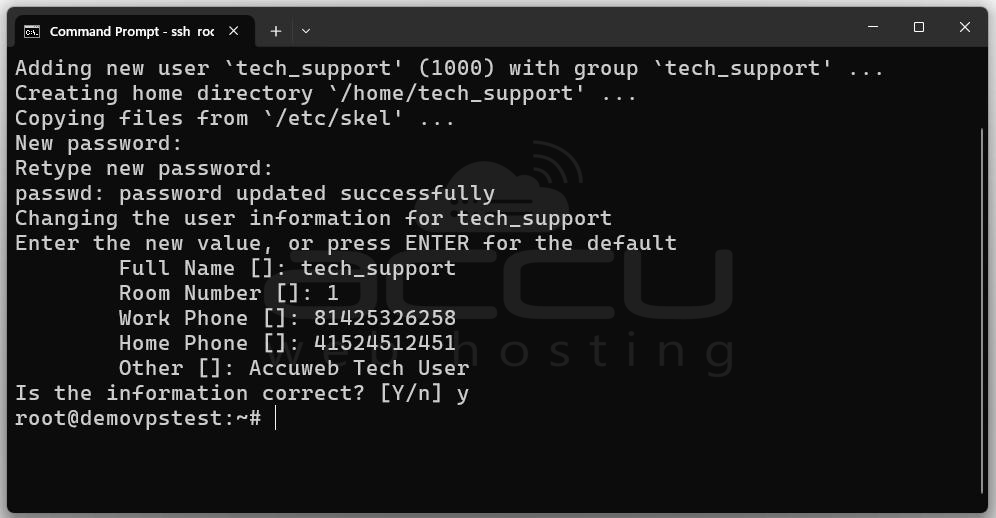
1. Create the User: Use the adduser command.
adduser newusername
Replace newusername with the desired username. You’ll be prompted to set a password and provide optional information (like name, phone number, etc.). You can skip the full name and other information by pressing Enter.
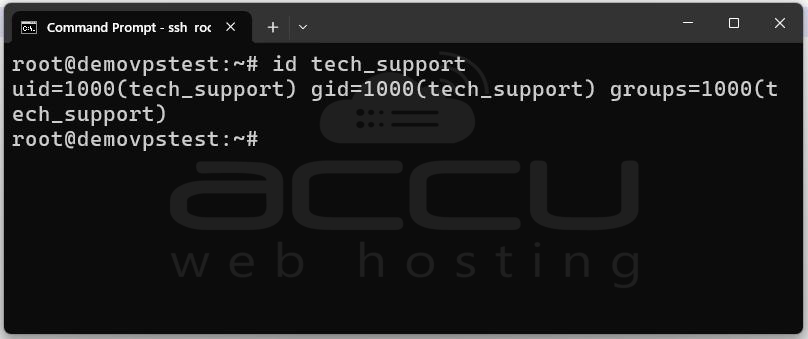
2. Confirm the User was Added: To confirm the new user has been created:
id newusername
This will show the user's UID, GID, and group memberships.
Step 4: Install sudo Package: Debian systems might not have sudo installed by default, especially when using the root account for initial access.
Check if sudo is installed:
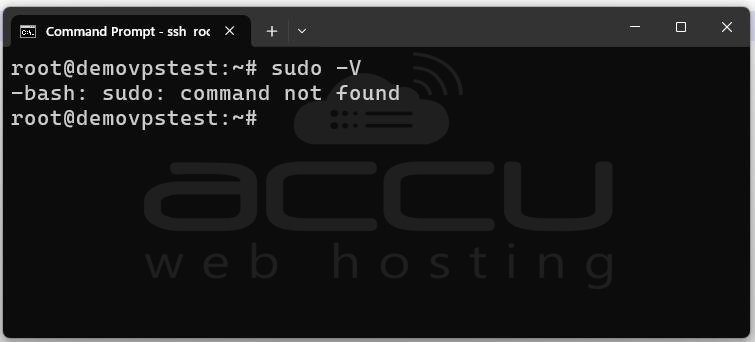
If it returns the version number, it's installed. If sudo is missing, install it as root:
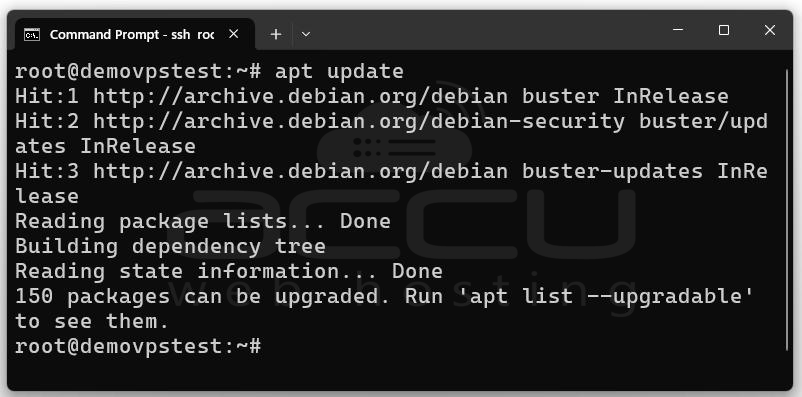
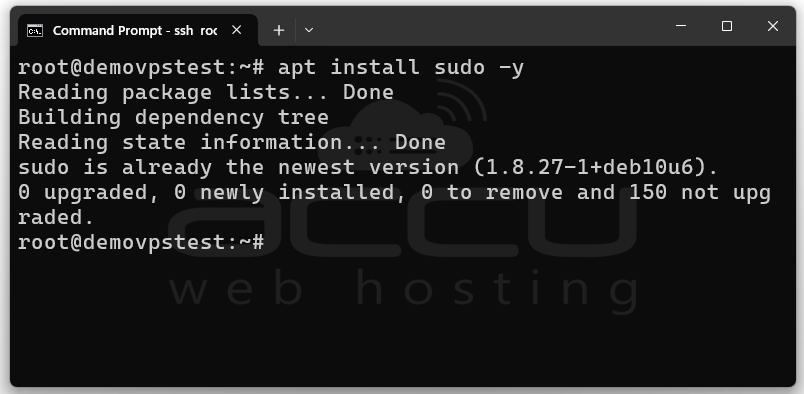
Step 5: On Debian systems, users in the sudo group are allowed to run commands with elevated privileges using sudo.
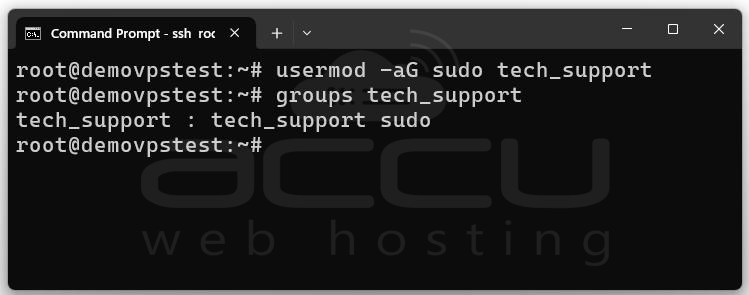
To add your user to the sudo group:
usermod -aG sudo newusername
-aG means “append the user to the group” and sudo is the group you’re adding the user to.
To check if the user was successfully added to the sudo group:
groups newusername
You should see something like:
newusername : newusername sudo
Step 6: Switch to the New User and Verify Sudo Access
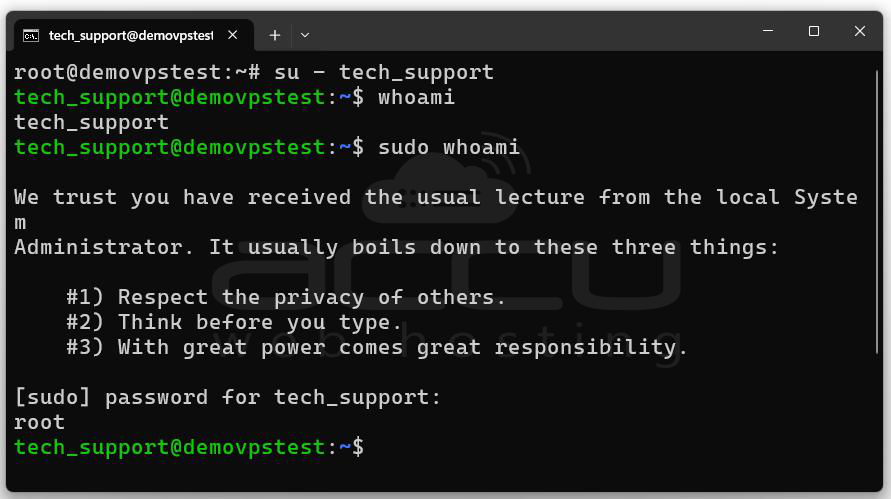
su - newusername
The hyphen (-) ensures you get the user's environment variables and shell settings.
Now try running a command with sudo: sudo whoami
The system should prompt you for the new user’s password. Enter it. If everything is configured correctly, you should see:
root
This means the user successfully ran a command with root privileges using sudo.
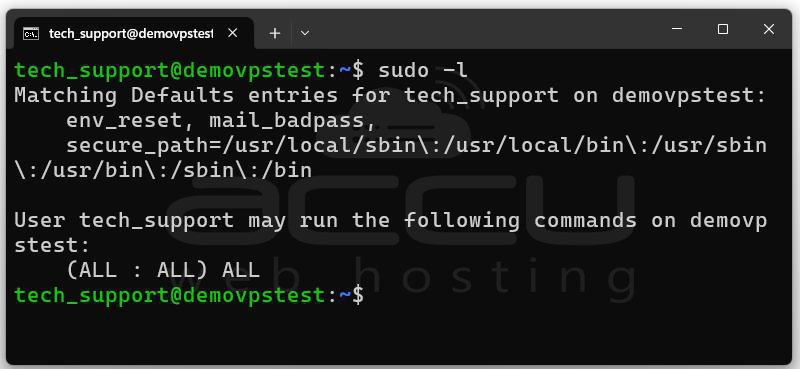
Step 7: Confirm sudo privileges are working properly by the sudo -l command to list the commands the user is allowed to run:
sudo -l
This shows the configured sudo permissions for the current user. If everything is set up correctly, you’ll see:
User newusername may run the following commands on debian:
Conclusion
Giving a user sudo access on a Debian VPS is an important part of managing your server. In this guide, we explained each step on how to check if a user is root, how to create a new user, how to install and set up `sudo`, and how to manage permissions safely. By following these steps, you make sure only trusted users can run powerful commands and reduce the risk of problems from using the root account directly.


