
Automating server maintenance tasks is a critical aspect of efficient VPS (Virtual Private Server) management, and one of the most common tasks is scheduling reboots.
Reboots can help apply system updates, clear temporary files, release locked resources, and prevent performance degradation over time. In the case of Windows-based VPS hosting, PowerShell offers a powerful and script-friendly way to schedule these reboots, ensuring they occur at optimal times with minimal disruption to services.
PowerShell, Microsoft’s task automation and configuration management framework, provides direct access to the Windows Task Scheduler and system commands. This enables administrators to set up precise, recurring reboot schedules without relying on manual intervention.
In the following guide, we’ll explore how to use PowerShell to schedule automated VPS restarts
Step 1: Log in to Your Windows VPS
Open your Remote Desktop Protocol client. Enter your VPS IP address, username, and password provided by your hosting provider. Click Connect and wait until your Windows VPS desktop appears.
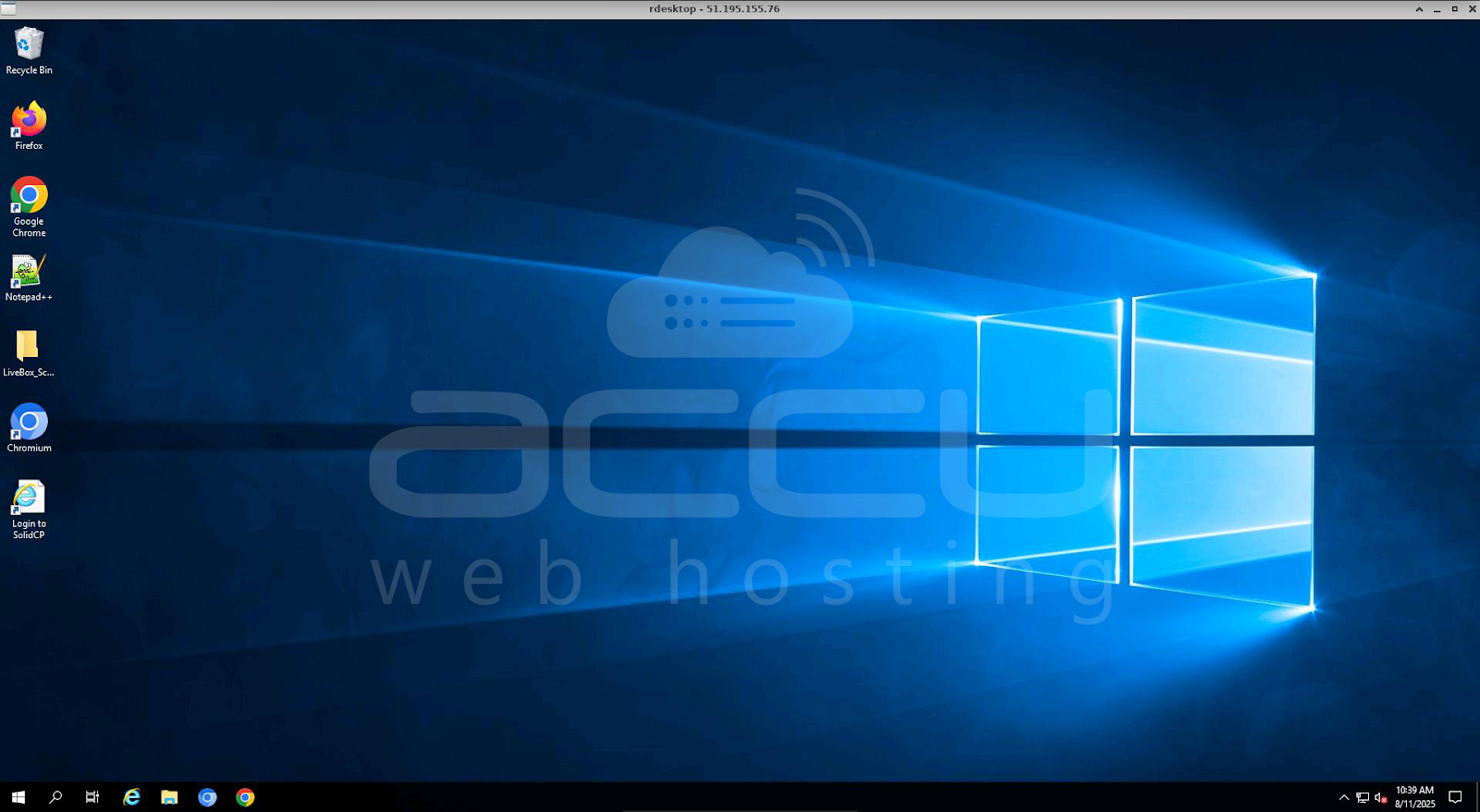
Step 2: Launch PowerShell as Administrator
Click Start on your VPS desktop. Search for Windows PowerShell. Right-click Windows PowerShell → choose Run as administrator.
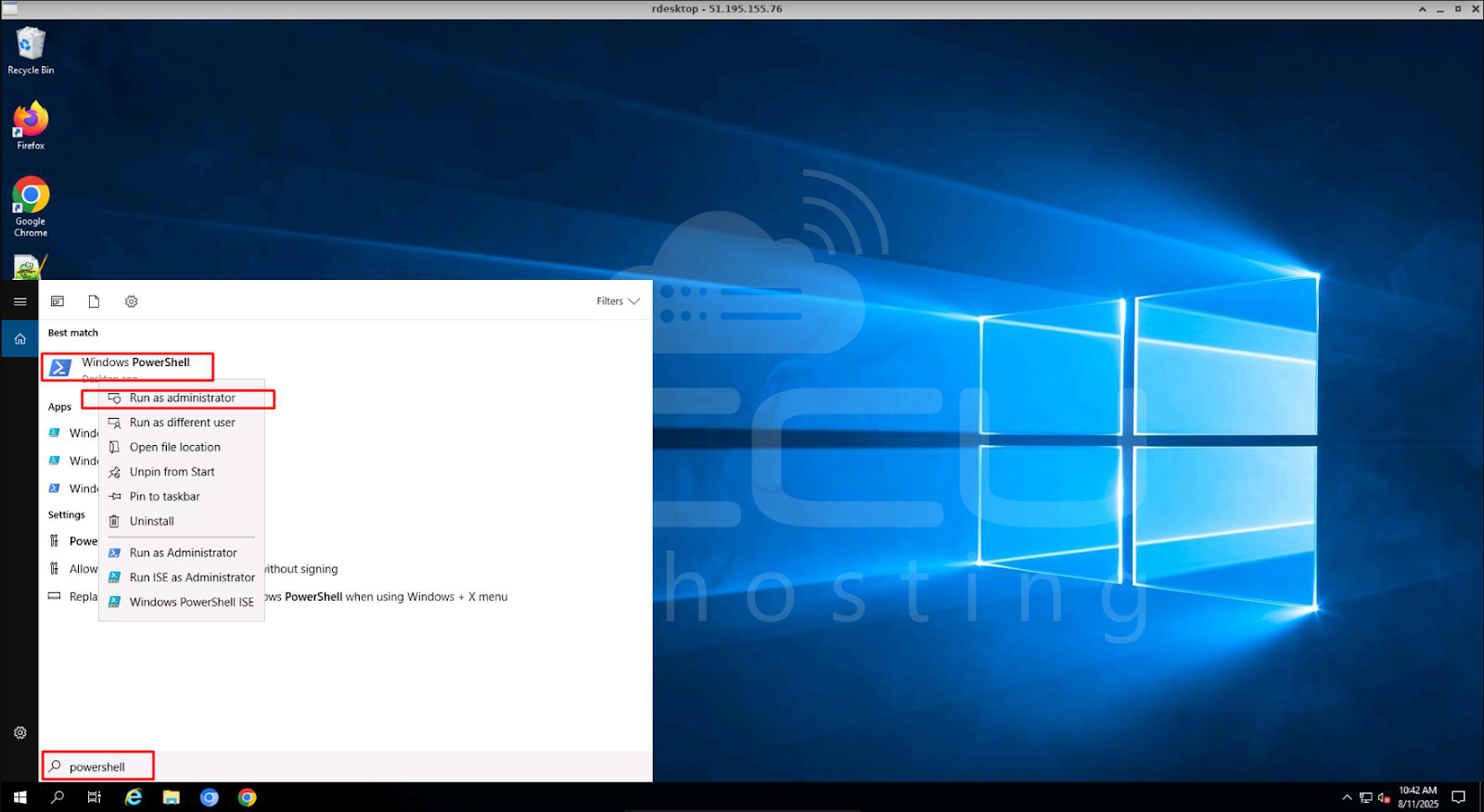
Step 3: Scheduling a Reboot Using PowerShell
Command:
# schtasks.exe /Create /SC ONCE /TN "ScheduledRestart" /TR "shutdown.exe /r /f /t 0" /ST 02:00 /RU "SYSTEM"
This command creates a one-time task named “ScheduledRestart” that forces a reboot at 2:00 AM, using the system account.
Explanation of the command:
- /SC ONCE — This task will run one time. You can change this to DAILY, WEEKLY, etc.
- /TN — The task name (ScheduledRestart).
- /TR — Task action: shutdown.exe /r /f /t 0 = immediate reboot.
- /ST 02:00 — Scheduled for 2:00 AM.
- /RU SYSTEM — Run as the built-in SYSTEM account (no password required).

Step 4: Verify the Scheduled Task
After creating your reboot schedule, it’s important to confirm that it has been successfully added to the Windows Task Scheduler and is active. This prevents surprises and ensures your VPS will reboot at the intended time.
# Get-ScheduledTask | Where-Object {$_.TaskName -like "*scheduledrestart*"}
Explanation of the command:
- Get-ScheduledTask: Retrieves all tasks from the Task Scheduler.
- Where-Object {$_.TaskName -like "*scheduledrestart*"}: Filters tasks whose names contain “scheduledrestart.”
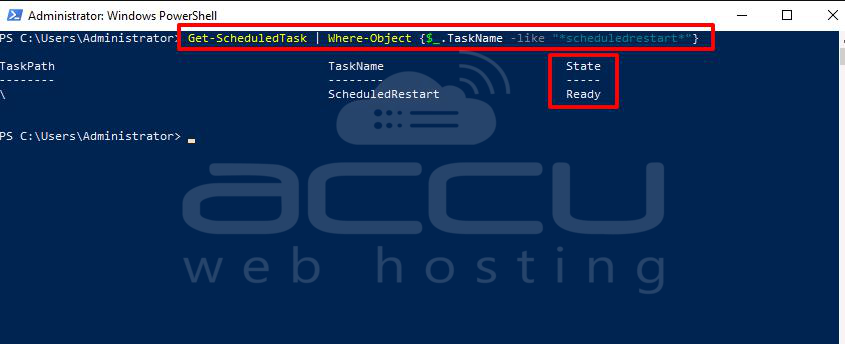
If your task appears in the output:
State: Ready: The task is active and waiting for the scheduled time.
State: Disabled: The task exists but won’t run until enabled.
Step 5: Check Last and Next Run Time
Once your automated reboot task is created, you may want to verify its scheduling details without opening the Task Scheduler GUI. The Get-ScheduledTaskInfo cmdlet
# Get-ScheduledTaskInfo -TaskName "scheduledrestart"
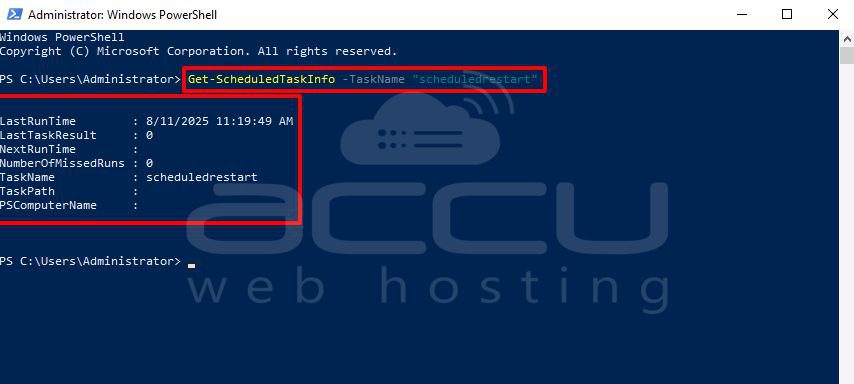
This tells you that the task “scheduledrestart” last ran successfully at 8/11/2025 11:19:49 AM, with no errors (result 0), but currently has no future scheduled runs.
Step 6: Enable or Disable Scheduled Reboots
You may want to pause your automated reboot schedule without deleting it. Disabling a task keeps it in Task Scheduler but prevents it from running until you enable it again.
Enable a Scheduled Task:
# Enable-ScheduledTask -TaskName "DailyVPSReboot"
Disable a Scheduled Task:
# Disable-ScheduledTask -TaskName "DailyVPSReboot"
By following these steps, you can establish a dependable, low-maintenance system that ensures your VPS remains responsive and secure.
Conclusion:
Scheduling automated reboots for your Windows VPS through PowerShell is a practical and efficient way to keep your server running smoothly without the need for manual intervention. Regularly planned restarts can help clear temporary files, apply pending updates, free up locked resources, and resolve memory leaks, ultimately improving the overall performance and stability of your hosting environment.
By implementing the verification, logging, and condition-setting steps, you can maintain better control over your reboot policy, avoid accidental downtime, and keep your VPS performing at its best.


