
Docker is a powerful tool for deploying applications using lightweight, portable containers. However, one of the most common issues users face is the permission denied error. This often happens when you run a Docker command without sudo, for example:
docker ps
Instead of a list of containers, you might get this Docker socket error:
permission denied while trying to connect to the Docker daemon socket at unix:///var/run/docker.sock
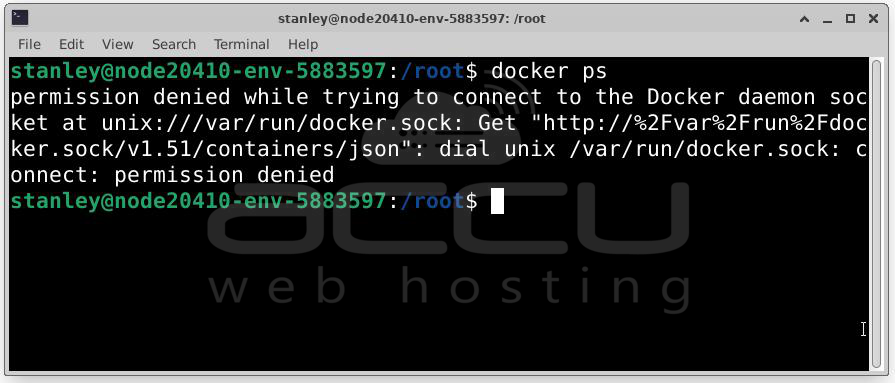
This error happens because the Docker service runs as the root user and uses a special file to talk to other programs. If your user doesn't have permission to access that file, Docker commands won’t work. In this guide, we’ll guide you on how to fix the "permission denied" error in Docker.
Simulating the "Permission Denied" Error
Run the following command to list running Docker containers.
docker ps
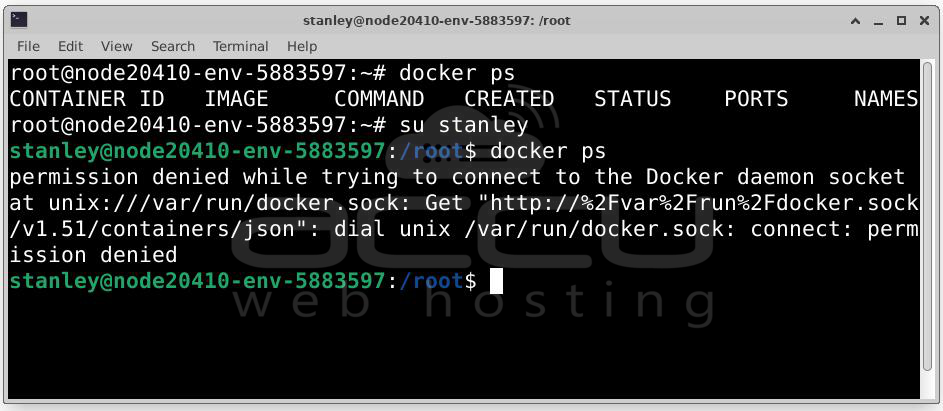
As root, this will work. But if you switch to a non-root user (e.g., su - youruser) and try:
docker ps
You’ll get: Got permission denied while trying to connect to the Docker daemon socket at unix:///var/run/docker.sock
How to Fix the Docker Permission Denied Error?
Below are the recommended steps to fix this error.
1. Verify Docker Installation
Before anything else, check that Docker is running correctly:
systemctl status docker
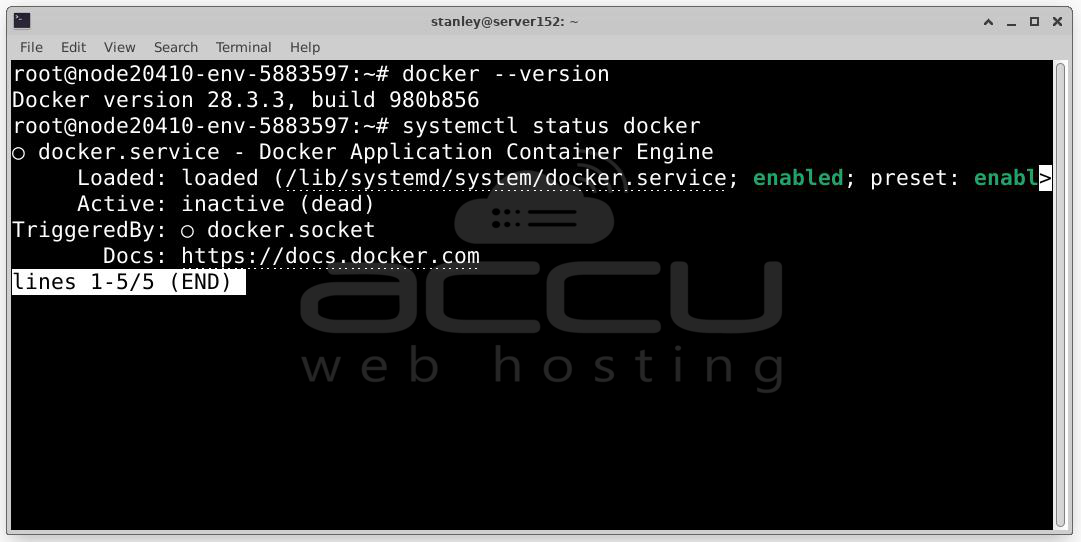
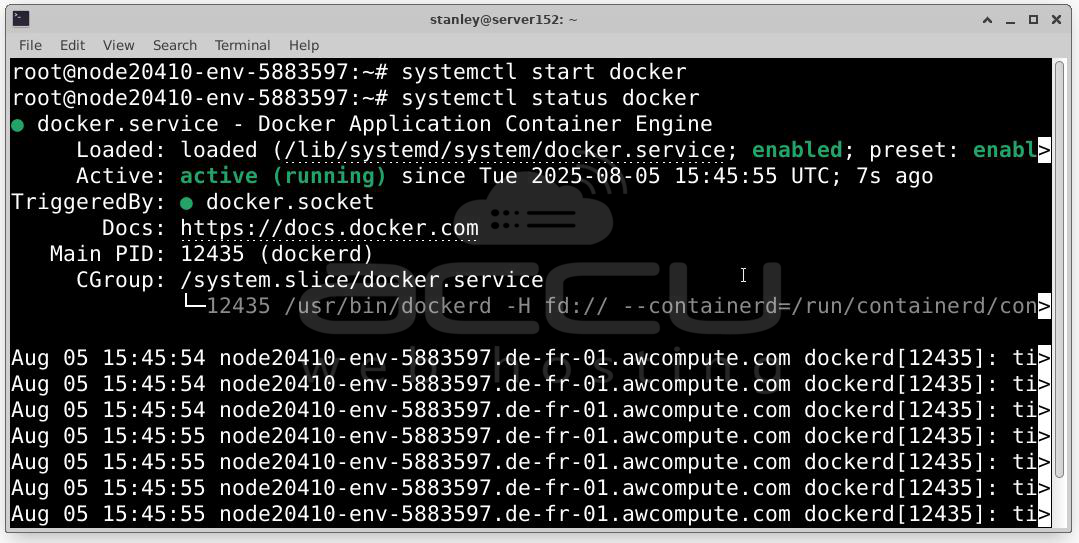
Make sure the service is active and not failing. You can start the service and check the status using the following commands.
systemctl status docker
2. Add Your User to the Docker Group
The Docker daemon binds to a Unix socket (/var/run/docker.sock) that’s owned by the docker group. To let your user access it:
usermod -aG docker yourusername
Then log out and back in, or run:
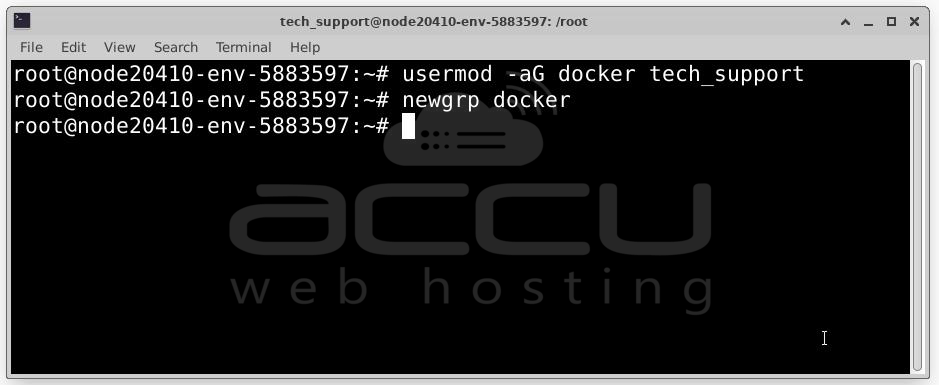
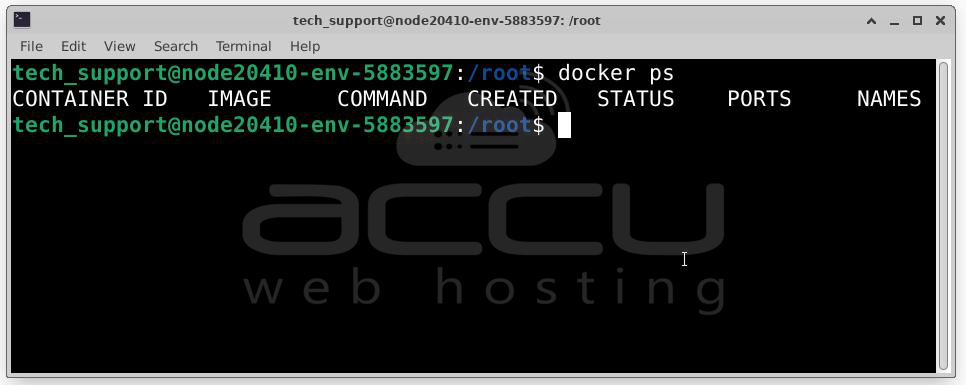
Now, log in to the user account on you were getting the error and run the docker ps command.
3. Adjust File and Directory Permissions
Check the permissions of the Docker socket:
ls -l /var/run/docker.sock
You should see something like:
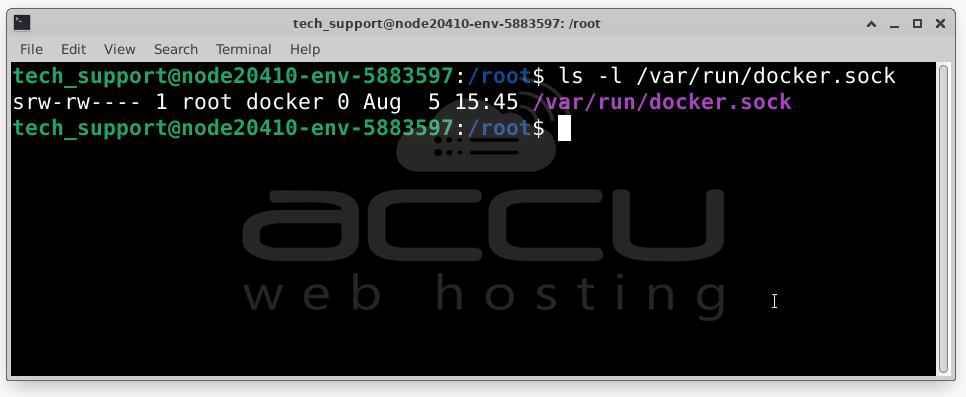
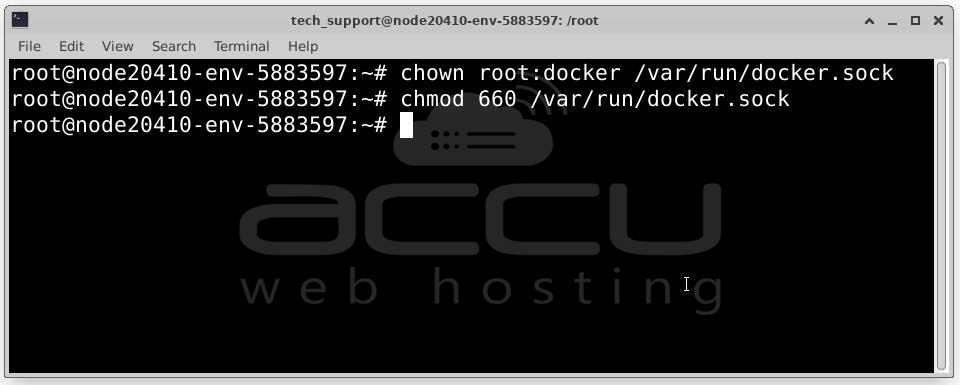
If not, fix it:
chmod 660 /var/run/docker.sock
4. Check Docker Socket Permissions
If for some reason the Docker socket has incorrect permissions or group ownership after a reboot, consider creating a systemd override:
systemctl edit docker
Then add:
ExecStartPost=/bin/chmod 660 /var/run/docker.sock
ExecStartPost=/bin/chown root:docker /var/run/docker.sock
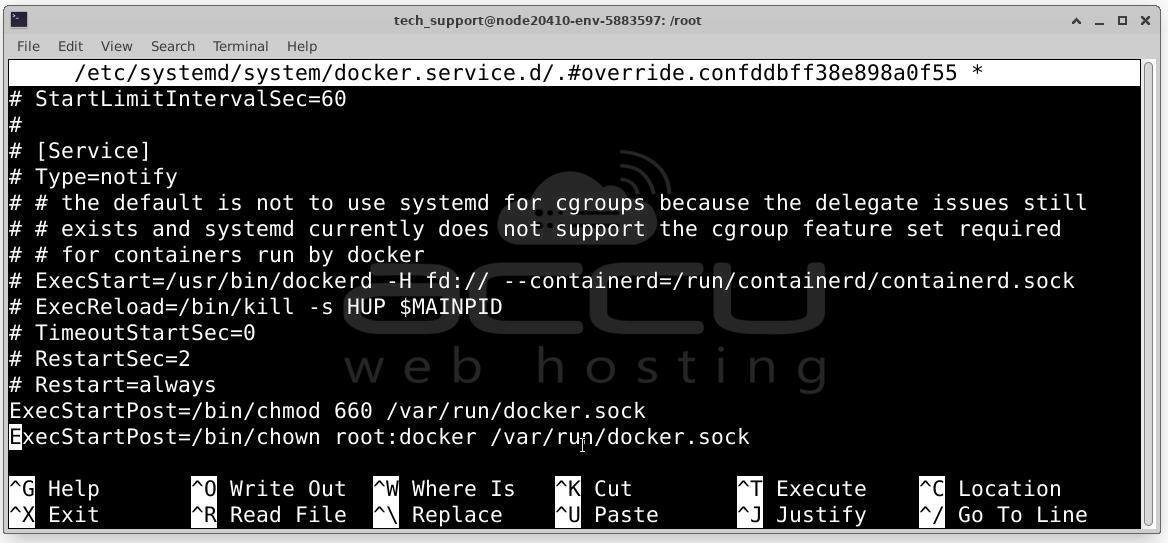
Save and restart Docker:
systemctl restart docker
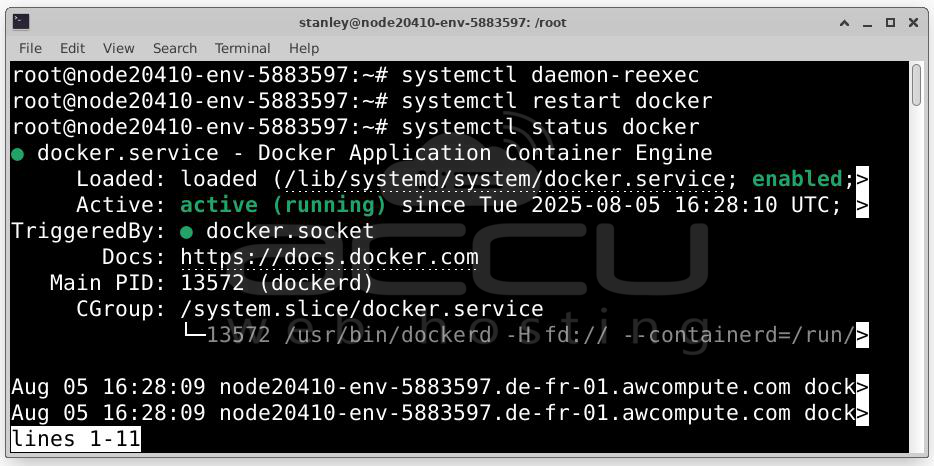
5. Restart Docker and Verify
Restart the Docker service:
systemctl restart docker
Then log in as your non-root user, and try:
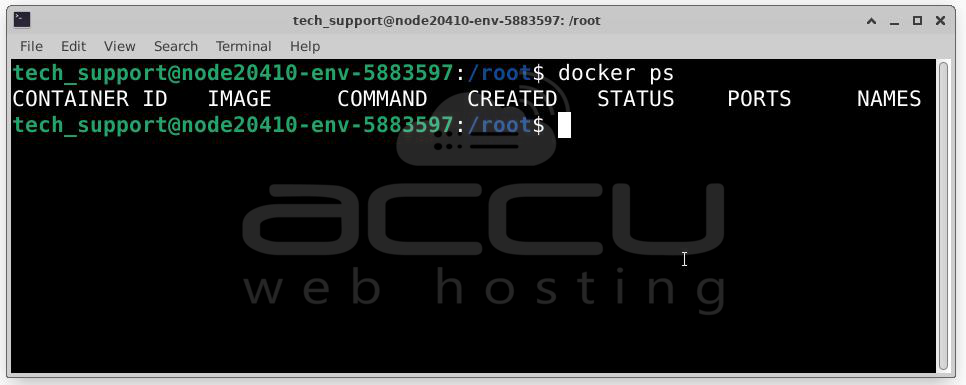
You should no longer see the permission denied error.
Test with a Container docker run hello-world
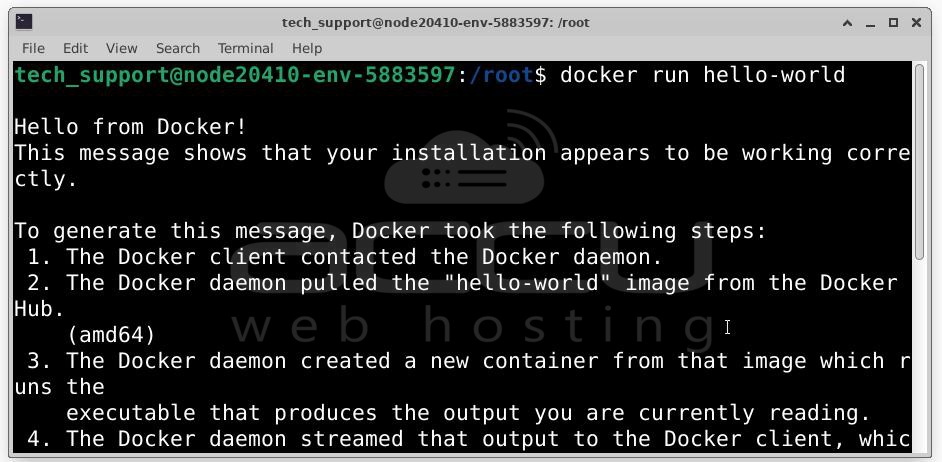
This tests both your Docker install and that your user has permission.
Conclusion
A "permission denied" error when using Docker means your user doesn't have access to the Docker daemon. By adding the user to the Docker group and checking socket permissions, you can resolve this easily.


