
Docker is a containerization platform that allows you to package and run applications in isolated environments called containers. This helps improve consistency across development, testing, and production environments. Debian 12 is a stable and widely used Linux distribution, and installing Docker on it is straightforward. In this guide, we will walk you through installing Docker on Debian 12.
Supported Architectures
Docker Engine is compatible with multiple CPU architectures on Debian 12, including: x86_64 (amd64), armhf – ARM 32-bit, arm64 – ARM 64-bit, and ppc64le (ppc64el) – IBM Power architecture. You can check your server architectures using the hostnamectl command.
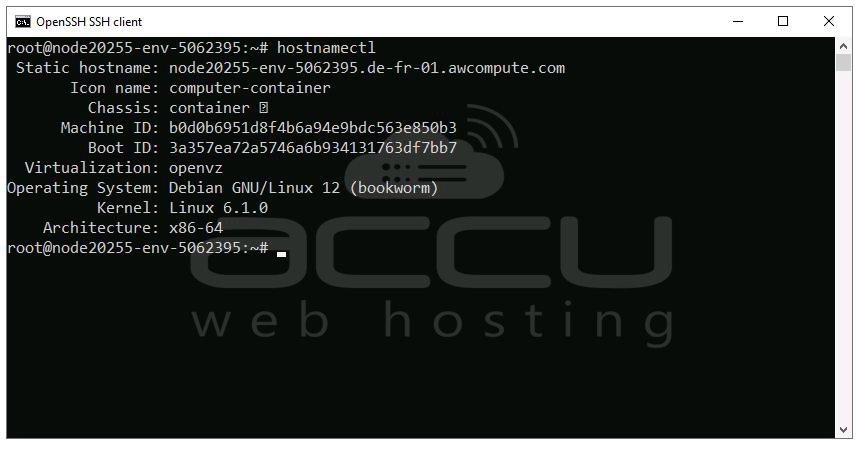
Make sure your hardware architecture is supported before proceeding.
Step-by-Step Guide to Install Docker on Debian 12
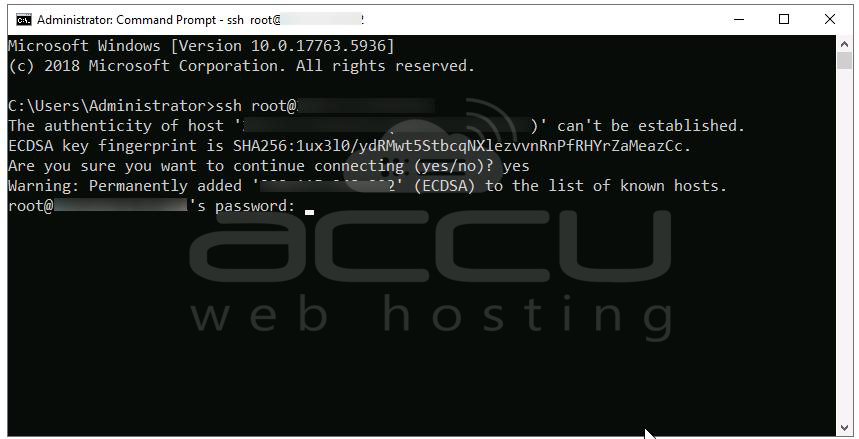
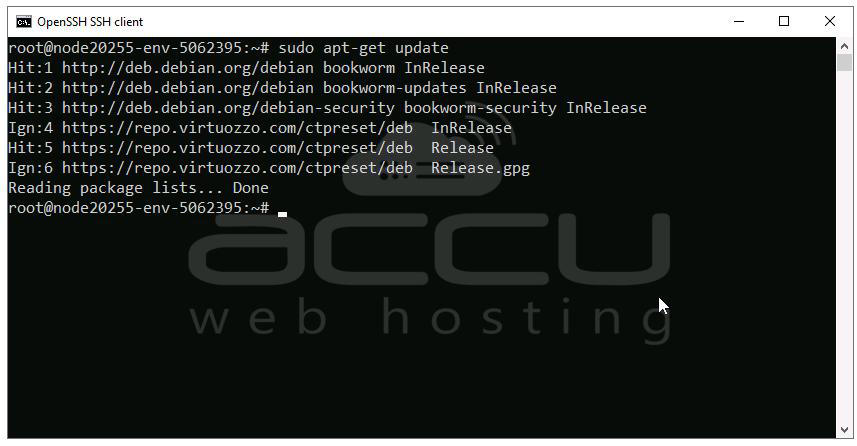
Step 1. Log in to the server. Before installing Docker, update your system's package index and install prerequisites to securely fetch packages over HTTPS.

Step 2. To ensure the software you download is authentic and has not been tampered with, Docker signs its packages with a GPG key. You need to add this key to your system:
sudo curl -fsSL https://download.docker.com/linux/debian/gpg -o /etc/apt/keyrings/docker.asc
sudo chmod a+r /etc/apt/keyrings/docker.asc

Step 3. Debian’s default repositories may not always have the latest Docker packages. To get the latest stable release, add Docker’s official repository:
echo \
"deb [arch=$(dpkg --print-architecture) signed-by=/etc/apt/keyrings/docker.asc] https://download.docker.com/linux/debian \
$(. /etc/os-release && echo "$VERSION_CODENAME") stable" | \
sudo tee /etc/apt/sources.list.d/docker.list > /dev/null
Finally, sudo apt-get update refreshes the package index to include packages from the new Docker repository:

Step 4. Now that the repository is set up, you can install Docker packages:
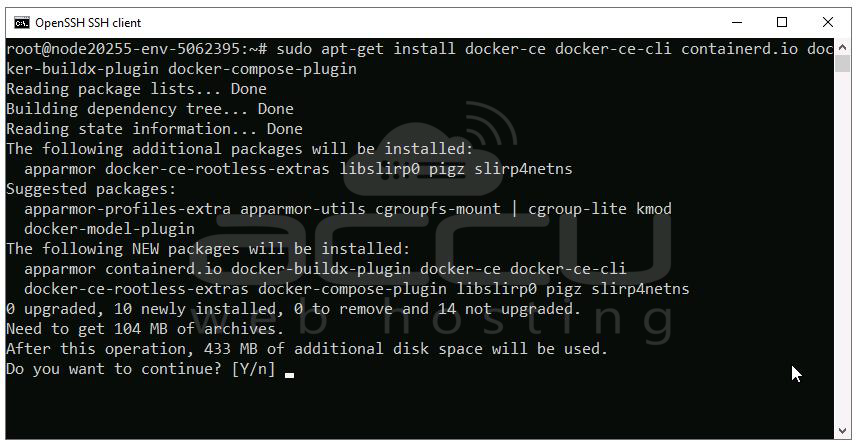
This command installs the latest stable Docker and related tools.
Step 5. Once installed, start the Docker service:
sudo service docker start
To ensure Docker starts automatically on system boot, enable it with:
sudo systemctl docker status

Step 6. To confirm Docker is installed and working correctly, run the official hello-world image:
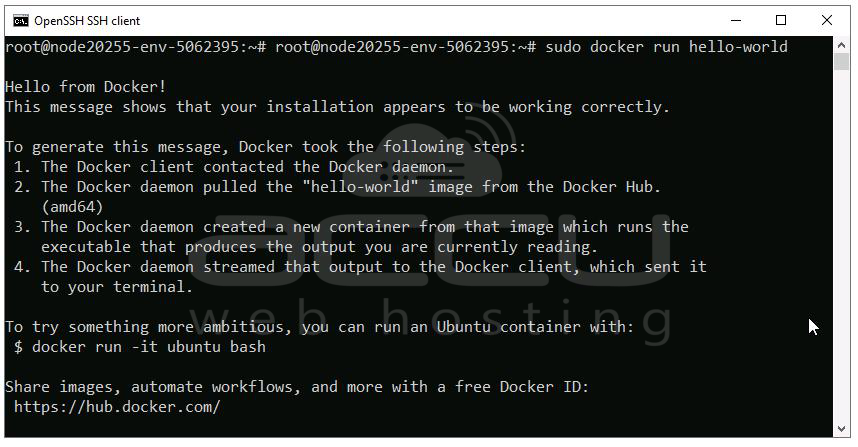
This command downloads a small test container and runs it. If Docker is working properly, the container prints a message confirming the setup. It also verifies your Docker client can communicate with the Docker daemon.
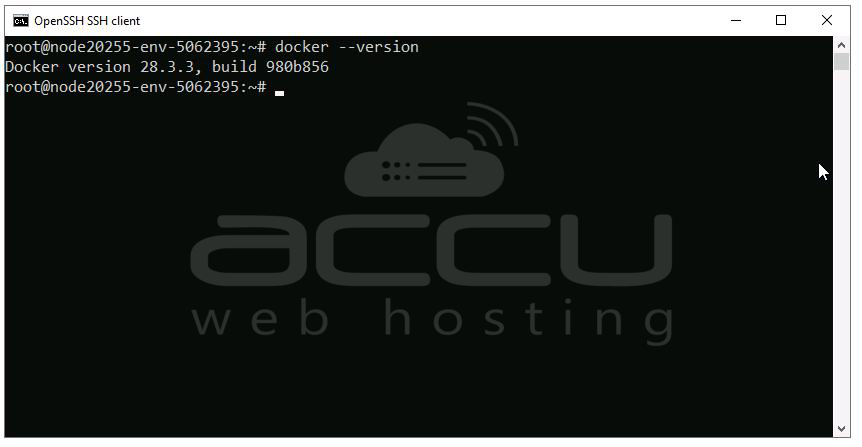
Check Docker version:
Conclusion
Installing Docker on Debian 12 is a straightforward process when using the official Docker repository. This ensures you always have access to the latest features and security patches. By following the above steps, you’ll have a reliable Docker setup that you can use for development, testing, or production on your Debian VPS or server.


