
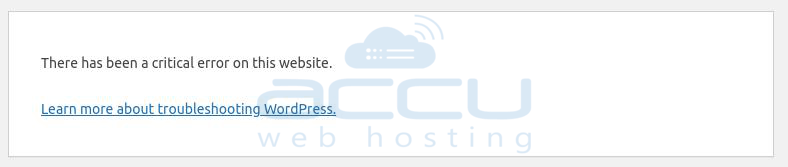
WordPress Recovery Mode is a built-in tool designed to help administrators safely access the WordPress dashboard after a fatal error has occurred, usually due to an incompatible plugin, theme, or corrupted code. Instead of locking you out entirely, WordPress detects the error and shows a message like this:
“There has been a critical error on this website. Please check your site admin email inbox for instructions.”
OR
There has been a critical error on this website.
Learn more about troubleshooting WordPress.
At the same time, an email is sent to the site administrator with a special recovery link, allowing them to bypass the issue temporarily and access the admin area. In this article, we’ll explain what WordPress Recovery Mode is, what triggers it, how to access and use it, and how to fix the errors that caused it.
WordPress Recovery Mode is usually triggered by a plugin or theme that throws a fatal PHP error, incompatible or outdated plugins after a WordPress core update, syntax errors in custom code, memory limits, or server configuration issues.
How to Access WordPress Recovery Mode?
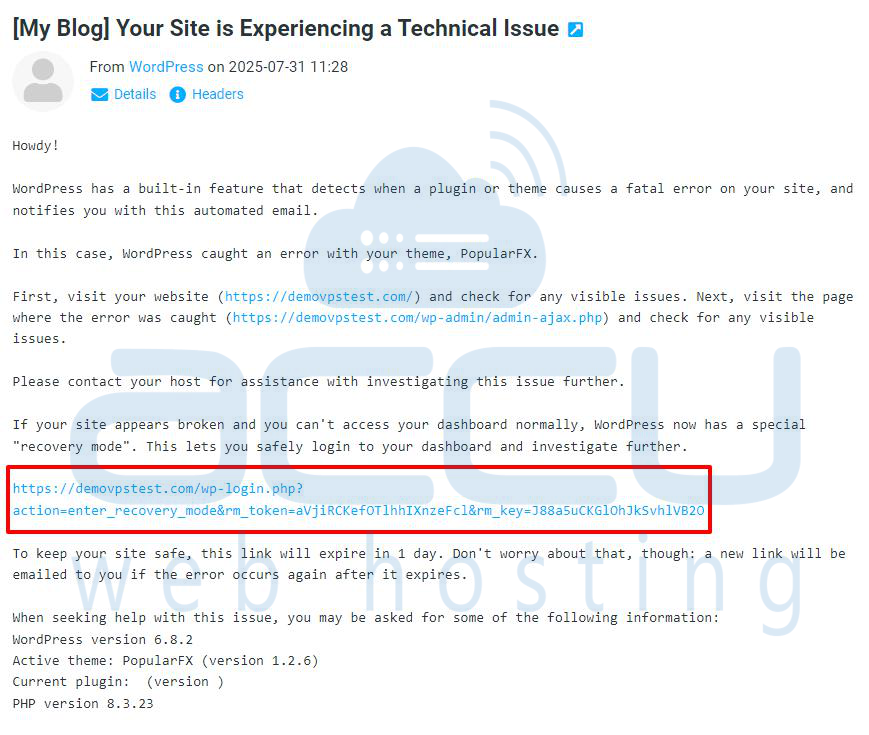
When a fatal error is detected, WordPress automatically sends an email to the admin email address registered in your site's settings. This email includes:
- A summary of the error, and the file and line number where it occurred
Example of Error Details
An error of type E_PARSE was caused in line 860 of the file /home/demovpstest/public_html/wp-content/themes/popularfx/functions.php. Error message: syntax error, unexpected token "
- A secure login link to enter Recovery Mode
Ex. If your site appears broken and you can't access your dashboard normally, WordPress now has a special "recovery mode". This lets you safely login to your dashboard and investigate further.
https://example.com.com/wp-login.php?action=enter_recovery_mode&rm_token=aVIXnzeFcl&rm_key=J88a5uCKGlOhJkSvhlVB2O
Example email snippet:
What Can You Do in Recovery Mode?
Once logged in through the special link, you are placed in a safe admin environment where WordPress disables the faulty plugin or theme for that session only. This allows you to deactivate or delete the plugin/theme causing the issue, update the plugin or theme if a newer version is available, or switch to a default theme like Twenty Twenty-Four if the active theme is broken.
How to Exit Recovery Mode?
Once you’ve fixed the issue (e.g., deactivated a plugin or theme), you can exit Recovery Mode by simply clicking the Exit Recovery Mode button in the admin bar.
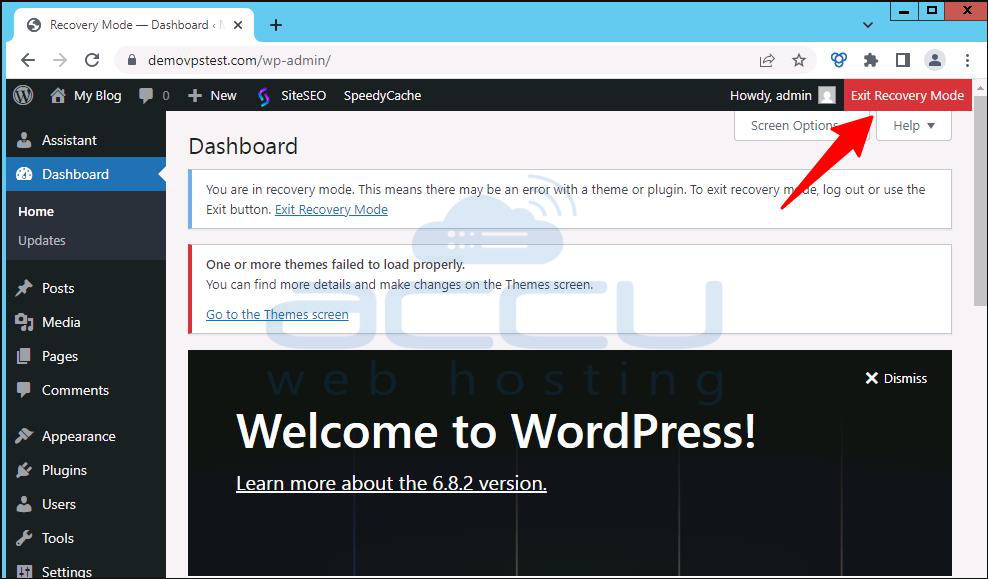
Alternatively, the session ends automatically when you log out, the 24-hour window expires, or the issue is fully resolved.
Conclusion
WordPress Recovery Mode is a powerful feature that gives site administrators a second chance to fix fatal errors without needing deep technical knowledge or direct server access. By understanding how it works and what to do when it's triggered, you can minimize downtime and keep your site running smoothly.


