
The Linux Kernel is the heart of the Linux operating system. It acts as a bridge between software and hardware, managing critical system resources such as the CPU, memory, and peripheral devices. As open-source software, it ensures efficient and secure use of these resources.
Installing a custom kernel on AlmaLinux 9 helps you adjust your system to work better for your needs, whether that means faster performance, better hardware support, improved security, or something specific you want to do. This guide explains each step to install a Custom Kernel on AlmaLinux 9.

Why Custom Kernel?
While AlmaLinux comes with a stable and secure kernel, you might need a custom kernel to:
-
Add or remove specific drivers or modules.
-
Enable experimental kernel features.
-
Apply custom patches or performance tweaks.
-
Use the latest kernel version from kernel.org.
Disclaimer: Compiling your own kernel can break your system if not done properly. Always test on a non-production environment first.
Prerequisites:
Ensure you're running AlmaLinux 9 and have:
-
Root or sudo access
-
At least 10 GB of free disk space.
Steps to Install Custom Linux Kernel on AlmaLinux 9
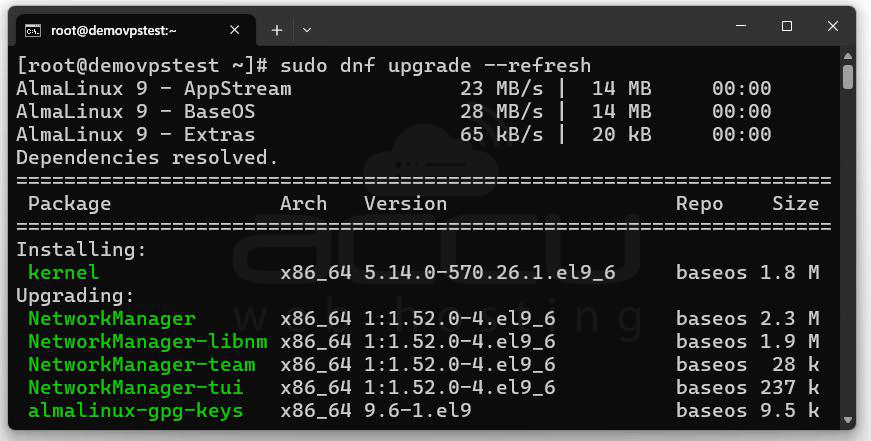
Step 1: First, log in to your server/system and update your system. Ensure your system is fully updated before installing the new kernel:
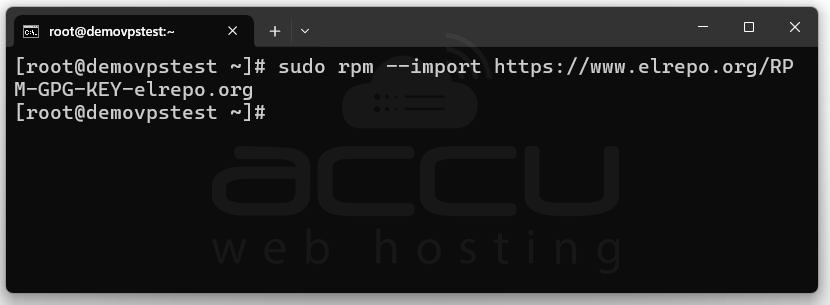
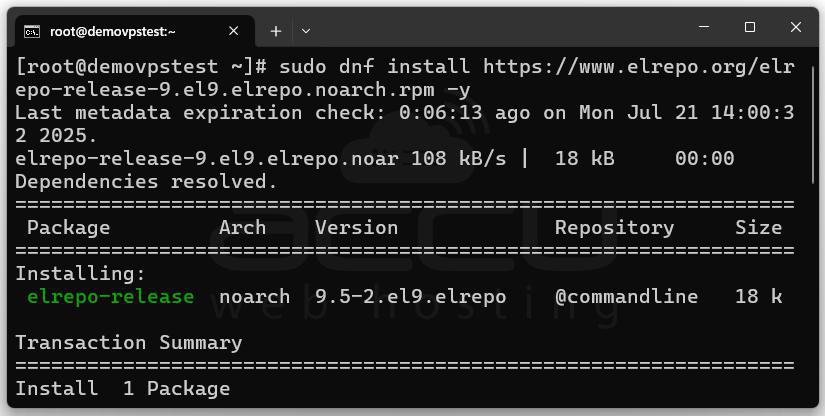
Step 2: Now, add ELRepo Repository for Linux Kernel 6.7. ELRepo provides precompiled kernel packages, simplifying installation without manual compilation.
Import ELRepo GPG Key:
Add ELRepo Repository:
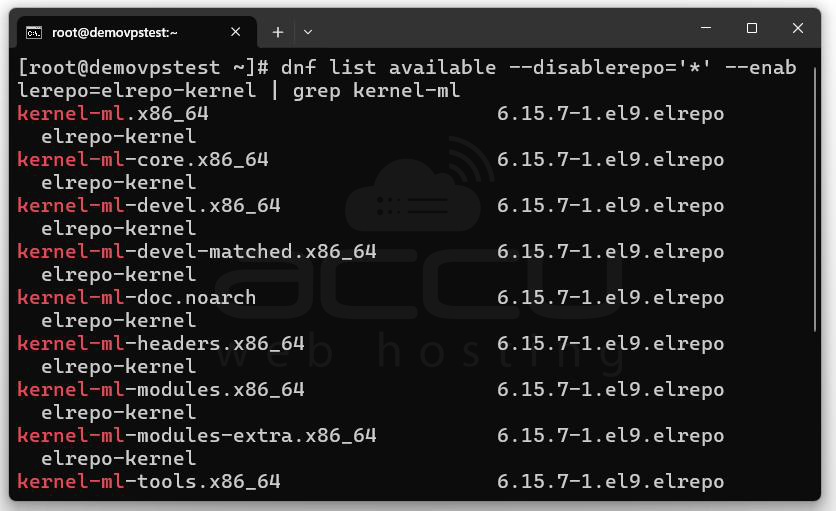
Step 3: Once it is added, verify ELRepo Repository. List available kernels from ELRepo to confirm the repository is correctly set up:
Step 4: Install Kernel 6.7 on AlmaLinux 9 server.
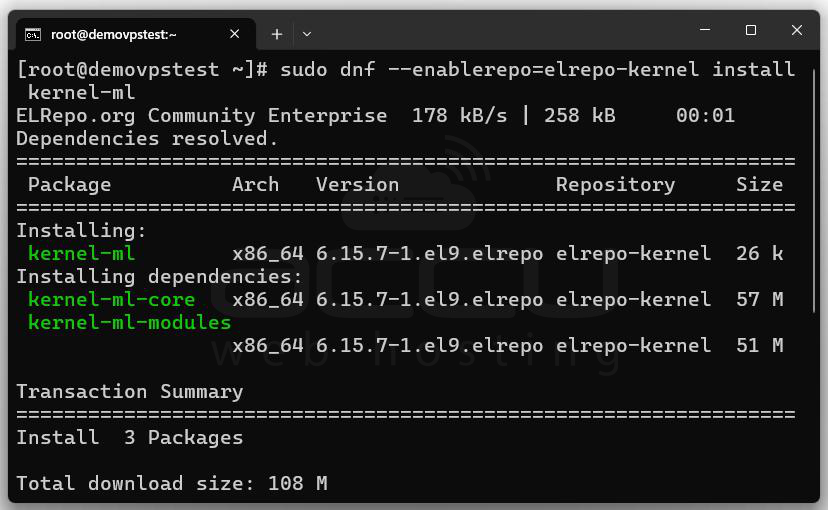
Step 5: Install Additional Kernel Packages. For headers, modules, and extra modules, run:
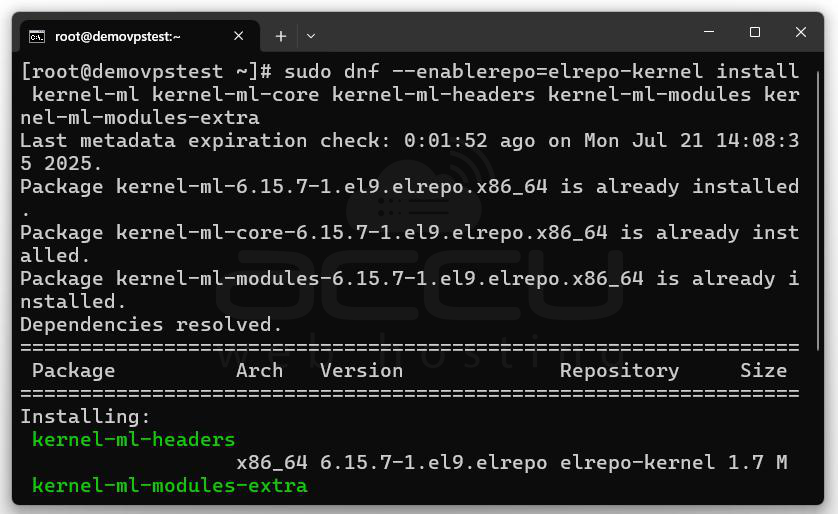
If unsure, the basic install in Step 1 is sufficient.
Step 6: To apply changes, restart your machine:
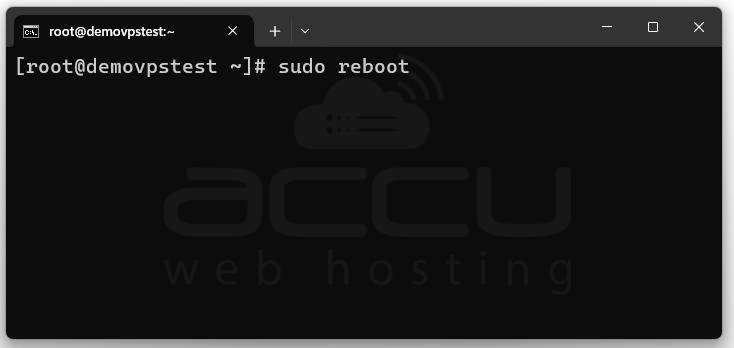
At boot, if Linux Kernel 6.7 isn’t the default, select it manually. You can always switch back to the previous kernel if needed.
Step 7: Launch the terminal from your applications menu and
Check Kernel Version.
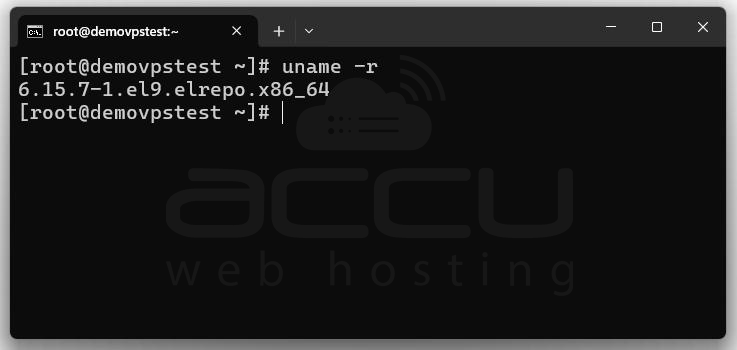
This should display the installed Linux Kernel 6.7 version.
Step 8: To view detailed system Info, run the following command.
uname -a
This outputs comprehensive system details including the kernel version, build date, and architecture.
Managing Linux Kernel 6.7 on AlmaLinux 9
Keep your system updated using:
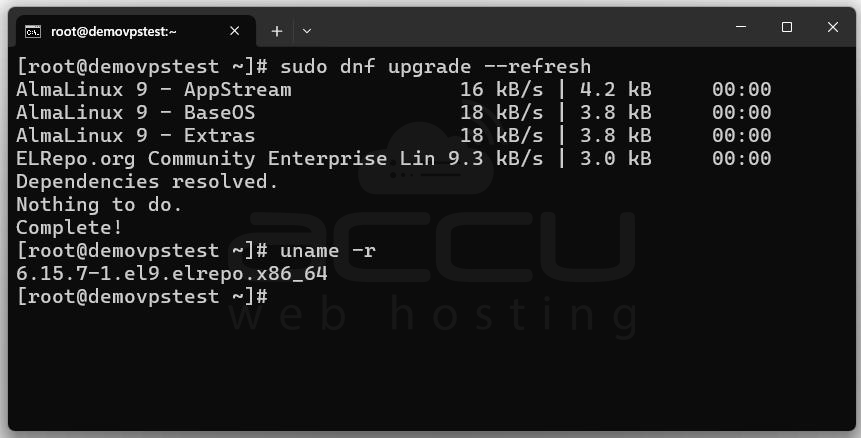
Reboot after updates to activate new kernel versions.
Reverting to the Default Kernel: If you encounter issues with Kernel 6.7, revert as follows:
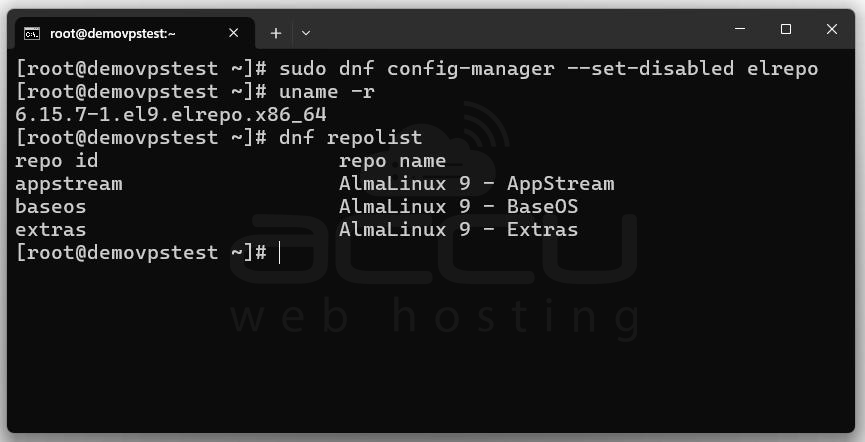
Disable ELRepo: sudo dnf config-manager --set-disabled elrepo
Verify ELRepo is disabled:
Reinstall default kernel packages:
sudo dnf reinstall kernel kernel-core kernel-modules kernel-headers
Reboot: sudo reboot
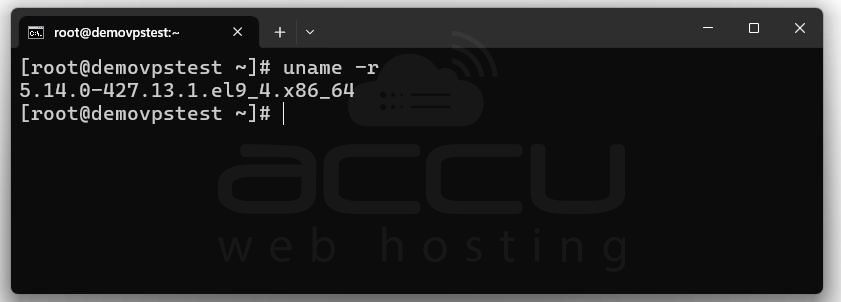
Check current kernel:
Remove Old Kernels: To free up space by removing unused kernels, use caution:
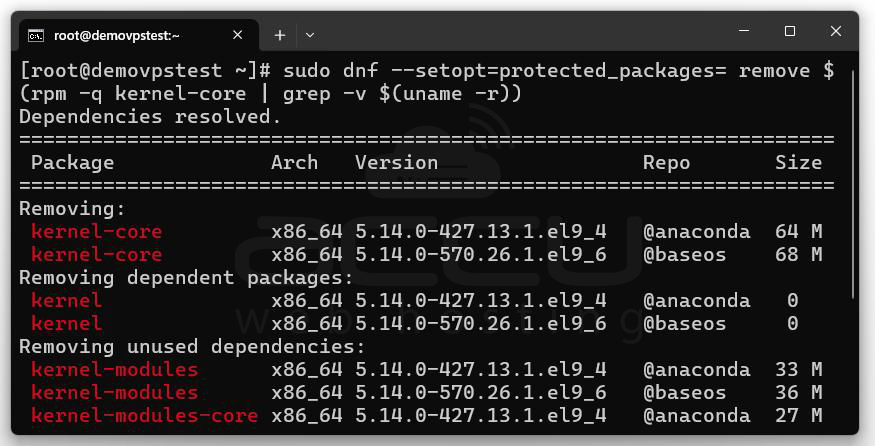
This removes all kernels except the one currently in use. Ensure you don’t need the older kernels before running this command.
Conclusion
Installing a custom kernel on AlmaLinux 9 gives you deep control over how your Linux system runs. While the default kernel suits most users, advanced users benefit from tuning performance, security, and hardware compatibility. If you're using this setup in production, make sure to keep a backup kernel in GRUB to fall back on in case something goes wrong.


