
Think of breadcrumbs on your WordPress site as little trail markers not just for your visitors, but also for search engines trying to make sense of your content. They create a clear path through your site’s structure, showing users exactly where they are and how they got there.
In this guide, we’ll walk through how to set up breadcrumbs in a WordPress website and why they matter, especially when it comes to SEO.
What are the Breadcrumbs?
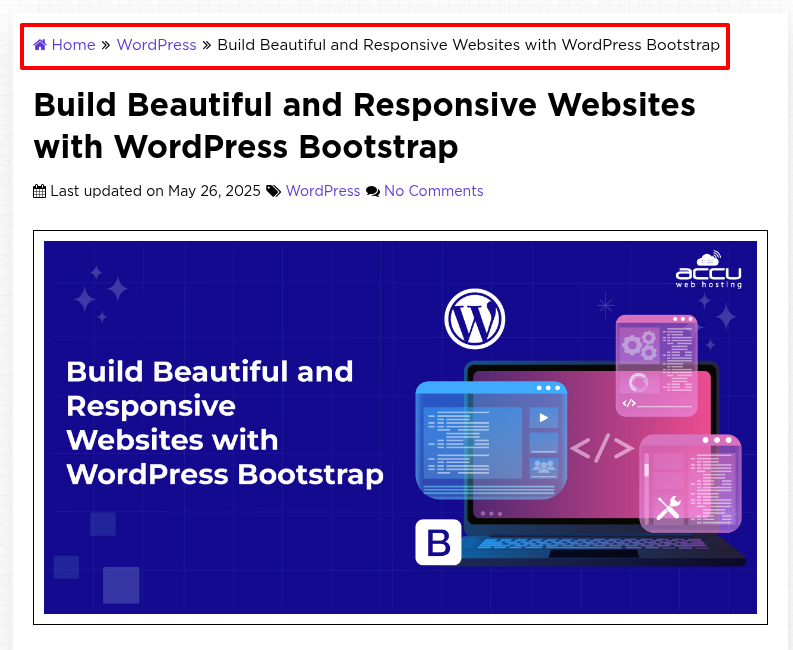
Breadcrumbs in WordPress are small links that show the path a user has taken to reach the current page. They usually appear near the top of a page and look something like:
Home > WordPress > Build Beautiful and Responsive Websites with WordPress Bootstrap
They help visitors easily find their way around your site. Additionally, they are beneficial for Google and other search engines, as they provide crawlers with a clearer understanding of your site’s structure. This can enhance your SEO by making your pages more organized, which in turn makes it easier for search engines to index them.
Breadcrumbs also reduce bounce rates by guiding visitors through your website, allowing them to explore other sections from any page.
How to Add Breadcrumbs to Your WordPress Site?
There are so many plugins available to add breadcrumbs to your WordPress site.
Option 1: Using a Yoast Plugin
- Difficulty level: Beginner
- Prerequisites: Admin access to your WordPress dashboard
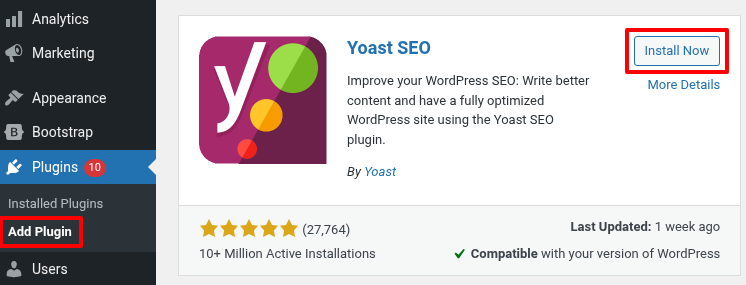
1. Log in to your WordPress dashboard.
2. Navigate to the Plugins > Add Plugin.
3. Search for Yoast SEO.
4. Click on Install Now and then activate it.
5. Next, add the below code to your WordPress theme file.
<?php
if ( function_exists('yoast_breadcrumb') ) {
yoast_breadcrumb( '<p id="breadcrumbs">','</p>' );
}
?>
Before doing these modifications, it's a good practice to implement a child theme so that your changes don't get erased during updates.
You’ll usually want to add the code to one of these files:
- single.php – to show breadcrumbs on blog posts
- page.php – to show them on pages
- header.php – to show them across your entire site
Full Site Editing (FSE) themes like Twenty Twenty-One and newer use block templates instead of traditional PHP files.
That means you usually don’t add PHP code directly for customizations like breadcrumbs.
Instead, plugins like Yoast SEO offer easy-to-use blocks or shortcodes you can add right in the Site Editor.
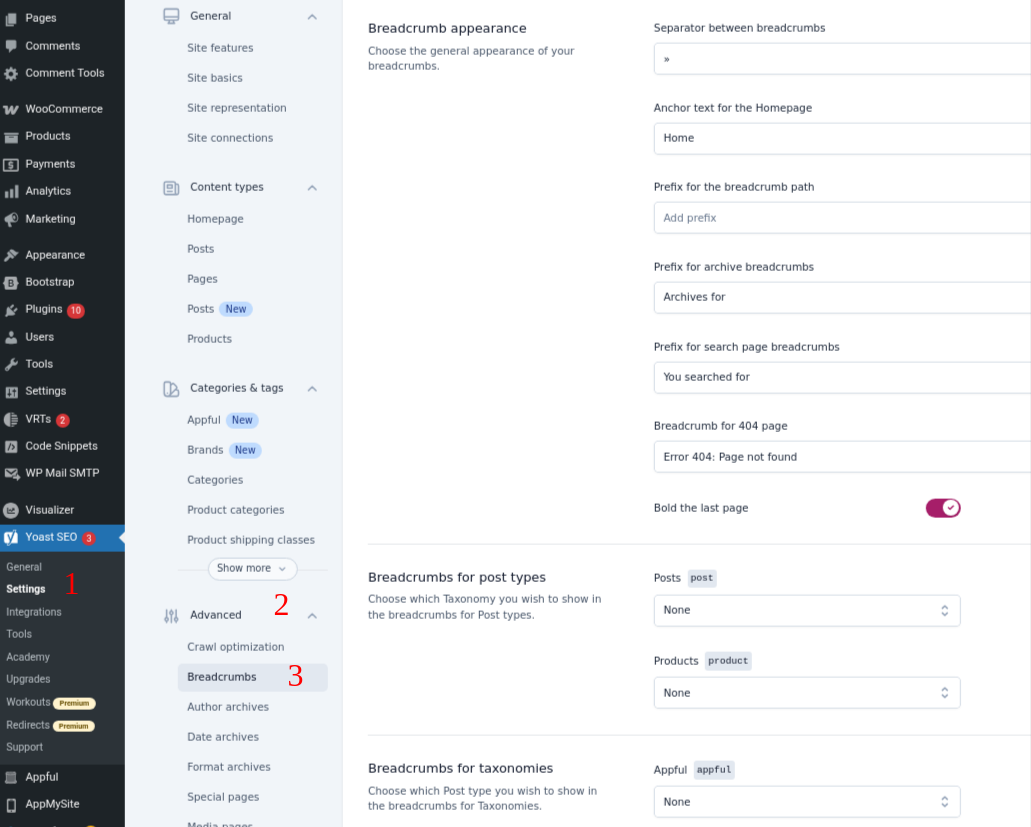
6. After adding the code, go to Yoast SEO settings, click on the "Breadcrumbs" tab located under "Advanced" or "Search Appearance," and activate the breadcrumb feature.
Option 2: Enable Breadcrumbs with a WordPress Breadcrumbs Plugin
- Difficulty level: Beginner
- Prerequisites: Admin access to your WordPress dashboard
1. Log in to the WordPress dashboard.
2. Go to the Plugins > Add Plugin.
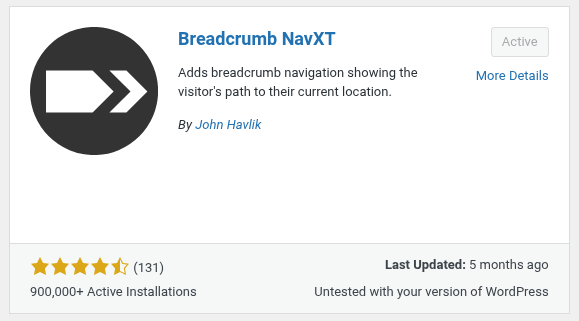
3. Search for Breadcrumb NavXT, and then install it.
4. After installation, ensure that you activate it.
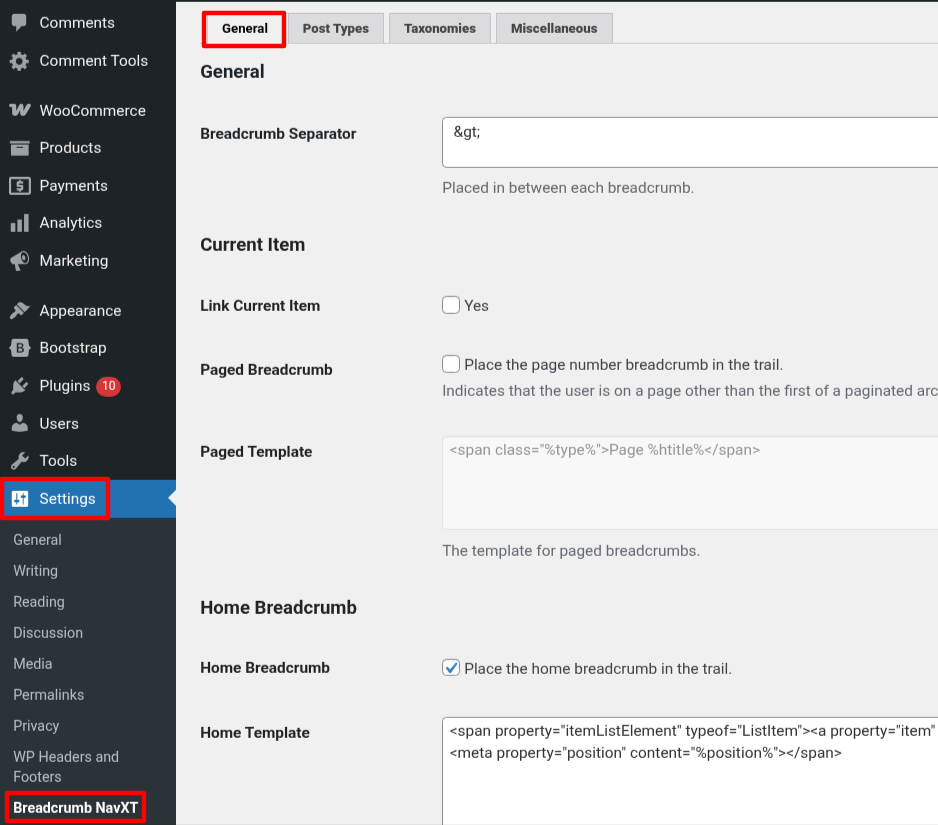
5. Navigate to the Settings > Breadcrumbs.
Once you activate the plugin, it loads the default settings. But you can customize how breadcrumbs appear across your site by going to the General tab. To control how breadcrumbs look for posts and pages, just head over to the Post Types tab.
6. Next, select your post, it will redirect you to the new page.
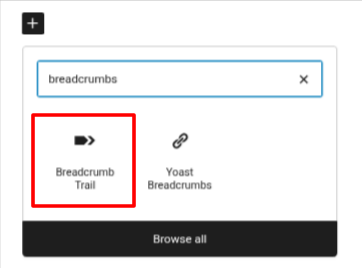
7. Here, click on Browse all (+) and type breadcrumbs.
8. Click on Breadcrumb Trail, and then save the post.
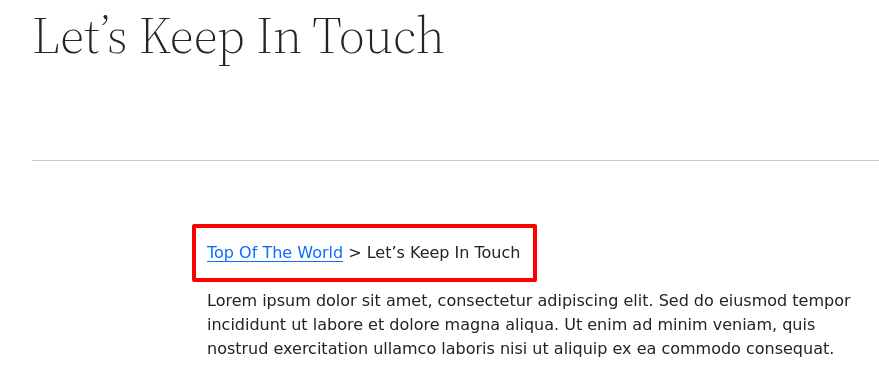
Now you can see your breadcrumbs on that post page.
Option 3: Using Themes
1. Astra
Astra is a lightweight and fast theme that offers built-in breadcrumb support when using Astra Pro. It also integrates seamlessly with SEO plugins like Yoast or Rank Math and allows you to choose breadcrumb placement through the Customizer.
2. OceanWP
OceanWP comes with built-in breadcrumb settings and works smoothly with popular breadcrumb plugins. You can control the look and position of breadcrumbs directly from the WordPress Customizer.
3. Kadence
It offers breadcrumb support out of the box (especially with Kadence Pro), including placement and styling options, making it ideal for users who want more design control.
4. Storefront
If you're running an online store, Storefront, the official WooCommerce theme, comes with built-in WooCommerce breadcrumbs that automatically appear on product and category pages without any extra setup.
Option 4: Adding Breadcrumbs Manually
- Difficulty level: Advanced
- Prerequisites:
Admin access to your WordPress dashboard
Knowledge of PHP and WordPress functions
Access to theme files
To manually display breadcrumbs on your site, follow these two steps. First, add a function to your functions.php file to create the breadcrumbs. Here's a sample code you can use:
function get_breadcrumb() {
echo ‘<a href="”’.home_url().’”" rel="”nofollow”">Home</a>’;
if (is_category() || is_single()){
echo “ » ”;
the_category (‘ • ‘);
if (is_single()) {
echo “ » ”;
the_title();
}
} elseif (is_page()) {
echo “ » ”;
echo the_title();
} elseif (is_search()) {
echo “ » ”;Search Results for…
echo ‘“<em>’;
echo the_search_query();
echo ‘</em>”’;
}
}
After that, you need to place a small line of code in the theme files where you want the breadcrumbs to appear. For example, adding it to single.php displays breadcrumbs on blog posts, while adding it to header.php displays them across the entire site.
<div class="breadcrumb"><?php get_breadcrumb(); ?></div>
Types of WordPress Breadcrumbs
1. Hierarchy-Based Breadcrumbs
These show the structure of your site based on parent and child pages or categories.
Example:
Home > Blog > Web Hosting > WordPress Hosting
Best for: Blogs, websites with nested pages or categories.
2. Attribute-Based Breadcrumbs
Commonly used in eCommerce sites, especially with WooCommerce. These breadcrumbs show product attributes like color, size, or brand.
Example:
Home > Shoes > Brand: Nike > Size: 9
Best for: Online stores with filterable products.
3. Path-Based Breadcrumbs (History-Based)
These show the path the user has taken to reach the current page.
Example:
Home > Previous Page > Current Page
Best for: Rarely used due to its inconsistency and confusion for SEO purposes. Mostly seen in older websites.
4. Search-Based Breadcrumbs
Displayed when a user lands on a page from a search result on the site.
Example:
Home > Search results for "Hosting"
Best for: Large websites or directories where users frequently search content.
5. Location-Based Breadcrumbs
Display the user's location within a specific category or tag archive.
Example:
Home > Category: WordPress > Tag: Themes
Best for: News websites, blogs, or content-heavy sites.
A successful website relies on both a strong user experience and effective SEO. Adding breadcrumbs to your WordPress site supports both visitors and search engines by making navigation easier and helping search engines understand your site’s structure.


