
Buying a VPS Hosting or any other hosting service can be confusing when you see specs like "4 vCPU" or "8 cores" without knowing what you're getting. Different hosting companies use these terms differently, and the performance gap between a "4 vCPU" plan from one provider versus another can be huge.
Here, we will explain how these terms affect your server's performance.
What are Physical Cores?
A physical core is a piece of silicon inside your server's processor. Each core has its calculator (Arithmetic Logical Unit), its boss (control unit), and its fast storage (cache). With a 4-core processor, that chip has four separate computing engines.
Think of cores like having multiple employees at a desk. Each employee can work on a completely different task without bothering the others. Core 1 might be handling your database, Core 2 might be serving web pages, Core 3 might be running backups, and Core 4 might be doing system maintenance.
This independence is why physical cores give you the most predictable performance. Core 1 doesn't slow down because Core 2 is busy. Each core does its job without interference.
What are Threads?
Here's where things get interesting. Modern processors can make each core appear to your operating system as two processors. This trick is called hyperthreading or simultaneous multithreading.
For example, you have one employee (core), but they can switch between the projects quickly. While waiting for information on Project A, they work on Project B, keeping them busy instead of idle.
A 4-core processor with hyperthreading shows up as eight processors to your system. You still only have four real cores, but each one can juggle two work streams. This works great for web servers that spend lots of time waiting for database responses or file reads.
vCPUs: Virtual Processing Power
vCPU stands for virtual CPU, where hosting providers can get creative with their marketing. A vCPU is processing power allocated to your virtual machine, but what that means varies wildly.
Some providers give you one vCPU per physical core, while others give you one vCPU per thread. An "8 vCPU" plan might include eight physical cores, four cores with hyperthreading, or even two cores shared with other customers.
The virtualization software decides when your virtual machine uses the physical hardware. If the physical server is overloaded with too many virtual machines, your performance suffers even if your plan says you have plenty of vCPUs.
Why Does This Matter for Your VPS?
These differences directly impact your server's capabilities. Running a busy e-commerce site on shared threads on vCPUs will feel much slower than running it on dedicated physical cores.
Database servers need consistent processing power, so they work best with physical cores. Web servers handling many small requests can often get by with hyperthreaded cores since they're frequently waiting for network or disk activity. Development servers with unpredictable usage patterns might work fine with virtualized resources.
Detailed Comparison of vCPU, Core, and Thread
|
Aspect |
Physical Core |
Thread |
vCPU |
|
Nature |
Actual hardware processing unit |
Logical execution stream |
Virtualized processing allocation |
|
Independence |
Completely independent operation |
Shares core resources with other threads |
Depends on the hypervisor scheduling |
|
Performance Consistency |
Most consistent and predictable |
Variable based on thread competition |
Variable based on physical mapping and overcommitment |
|
Resource Sharing |
Dedicated execution units and cache |
Shares ALU, cache, and execution units |
May share physical cores with other vCPUs |
|
Overcommitment |
Not applicable |
Limited by physical cores |
Standard practice in VPS hosting |
|
Best Use Cases |
CPU-intensive sustained workloads |
Parallel processing with frequent I/O waits |
Flexible cloud workloads with variable demands |
|
Cost Efficiency |
Higher cost but maximum performance |
Good balance of cost and performance |
Most cost-effective for variable workloads |
What to Look for When Buying?
When comparing VPS plans, ask these questions:
1. How many physical cores does each vCPU represent? Some hosts are upfront about this, others dodge the question.
2. Do they use hyperthreading? This affects whether you're getting dedicated processing or shared resources.
3. What's their overcommitment ratio? This tells you how many virtual machines share the same physical hardware.
4. What processors do they use? Newer processors generally outperform older ones, even with fewer cores.
Checking What You Got?
Once you have your VPS, you can verify what you're working with using these commands:
Get basic CPU info:
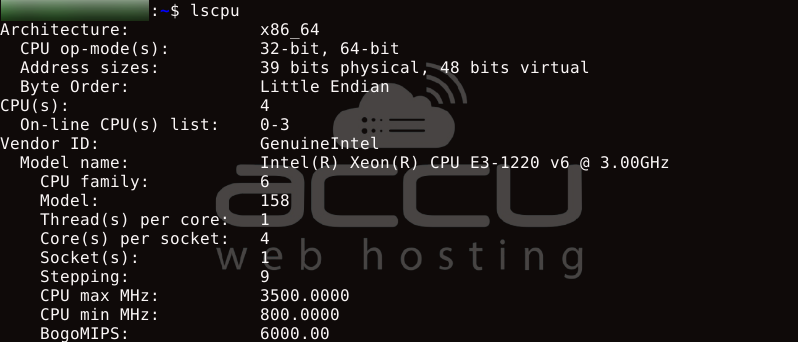
- The demo VPS shows we are on an Intel Xeon E3-1220 v6 with four physical cores, no Hyper-Threading.
- It's a virtualization-capable, 64-bit processor.
- It supports AVX/AVX2, AES, VT-x, and other advanced features.
- It’s secure and hardened against most CPU vulnerabilities (via kernel and microcode patches).
Look for these key numbers:
- CPU(s): How many logical processors does your system see
- Core(s) per socket: Physical cores per processor chip
- Thread(s) per core: Shows if hyperthreading is enabled
- Socket(s): Number of physical processor chips
See detailed processor information:
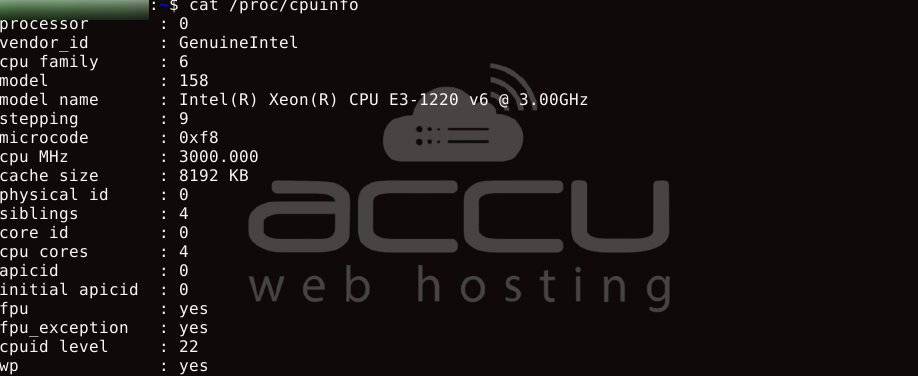
Continued..
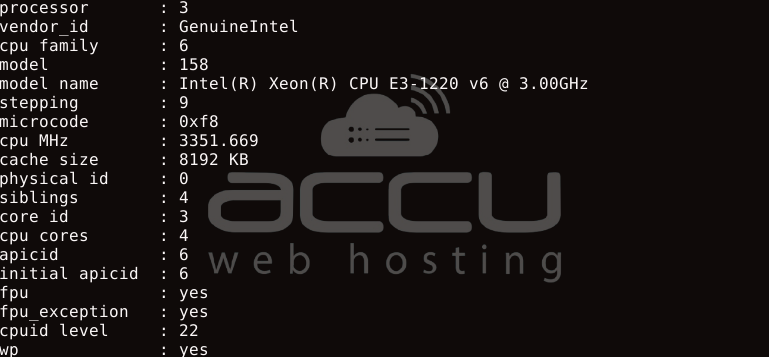
Check the "siblings" and "CPU cores" values. If siblings are higher than CPU cores, hyperthreading is turned on.
Monitor real-time usage:
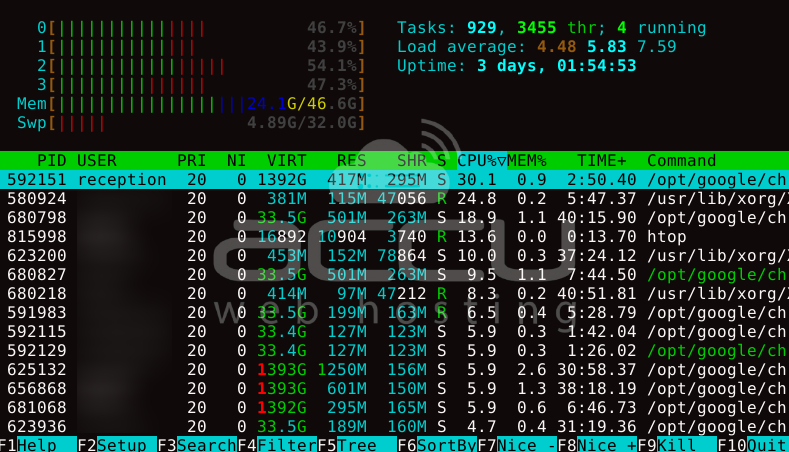
This shows how busy each logical processor is right now. Great for spotting bottlenecks.
Getting Better Performance
Match your plan to your workload. CPU-heavy applications need dedicated cores, not shared resources. Variable workloads can often get by with cheaper virtualized options.
Watch your usage patterns. Use the top command or your hosting panel's monitoring to see how much CPU you use—consistently maxed out? You need more power. Barely touching 20%? You might save money with a smaller plan.
Configure your software correctly. If you have four vCPUs, set your web server to use four worker processes, not 16. Over-threading creates overhead that slows everything down.
Know your provider's limits. Budget hosts often oversell their hardware. If performance is inconsistent, especially during business hours, overcommitment might be the cause.
Troubleshooting Slow Performance
When your server feels sluggish, check CPU usage first:
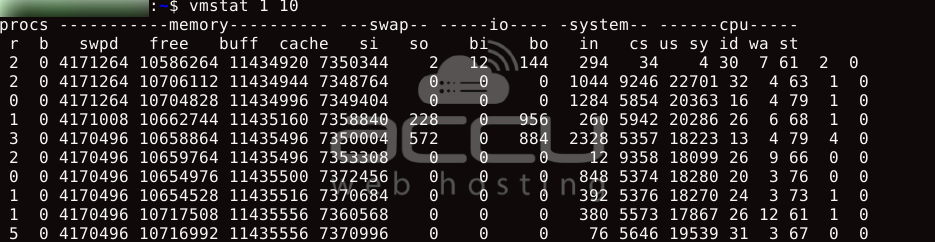
This shows the CPU breakdown over 10 seconds. High "us" (user) numbers mean applications are using a lot of CPU. High "wa" (wait) numbers suggest disk or network bottlenecks, not CPU problems.
Real-World Performance Differences
Here's what these differences mean in practice:
- A dedicated 4-core server consistently handles 1000 concurrent web requests without a sweat.
- The same workload on four hyperthreads (2 physical cores) might reliably handle 600-800 requests.
- Of our four vCPUs that are shared with other virtual machines, performance might range from 200 to 600 requests, depending on what those other VMs are doing.
Making Smart Choices
Start by understanding your actual needs. A personal blog needs very different resources from a busy online store. Monitor your current usage before upgrading or choosing a new plan.
Consider your budget versus performance requirements. Dedicated cores cost more but deliver consistent results. Shared resources cost less but come with variable performance.
Test with your real applications when possible. Synthetic benchmarks don't always reflect how your specific software will perform.
Understanding these concepts helps you avoid overpaying for resources you don't need while ensuring you get enough power for your applications to run smoothly.


