
Environment variables in Windows are key-value pairs used by the operating system and applications to store important system settings and configurations. They help manage system behavior and enable software to interact with the OS efficiently.
How Environment Variables Work?
Environment variables are like dynamic placeholders. Instead of hardcoding paths or values in your applications, you can use these variables, making your code more adaptable.
For instance, if you set an environment variable called MY_PATH, it can store the location of a frequently used folder like:
Now, any script, command prompt, or application can refer to %MY_PATH% instead of typing the entire directory.
Types of Environment Variables:
1. System Variables – Applied globally across all users (e.g., PATH, TEMP, SystemRoot).
2. User Variables – Specific to the logged-in user (e.g., USERPROFILE, APPDATA).
Prerequisites
- A Windows 10 or Windows Server system.
- A user account with Admin privileges.
- Access to the Command Prompt or Windows PowerShell.
Let’s first check the current environment variables.
How to View the Current Environment Variables in Windows?
Get the list of current environment variables by following the below steps.
1. Search for the command prompt from the Windows icon or type in the search bar.
2. Open it and add the below command.
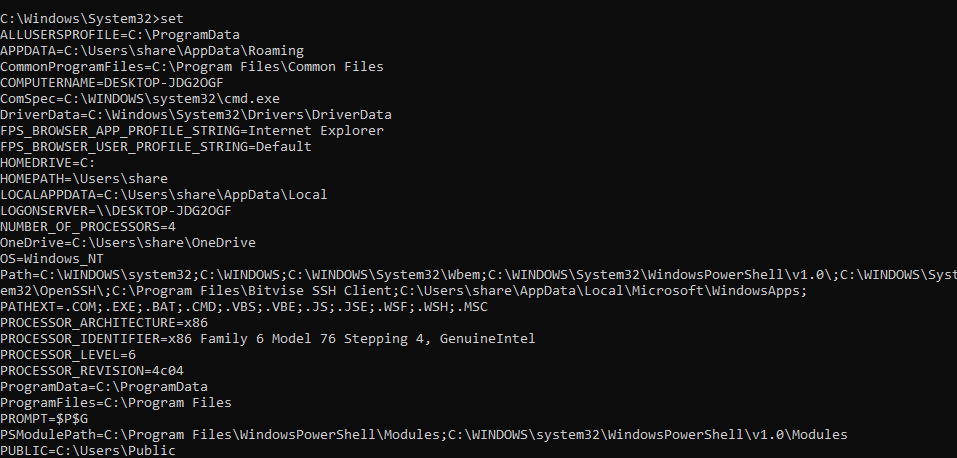
If you want to use Powershell,
1. Type Powershell in the Windows search bar.
2. Open it and add the below command to get a list of all environment variables.
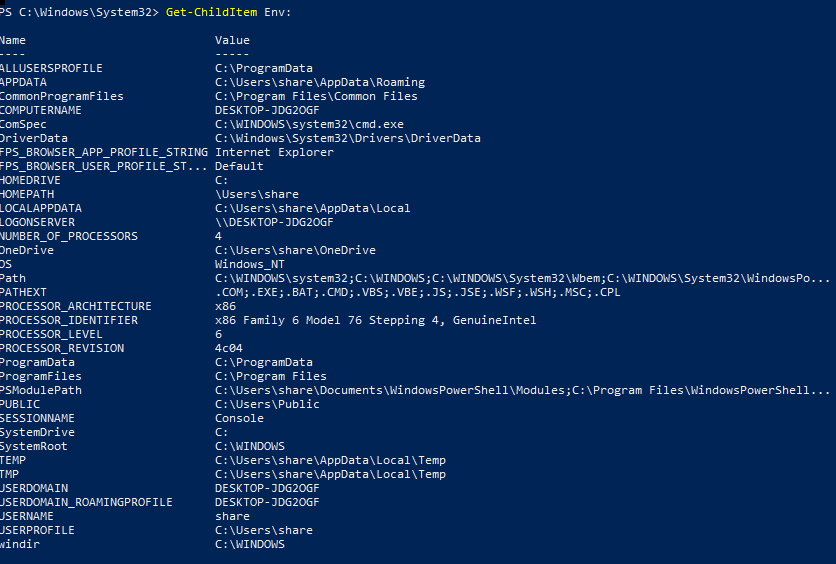
Check A Specific Environment Variable
In both Command Prompt and PowerShell, you can use the echo command to display the value of a specific environment variable.
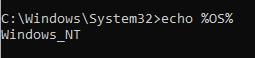
In Powershell,
How to Set Environment Variables in Windows?
Method 1: Set Environment Variable Using the Windows GUI
1. Open the Run dialog by pressing Windows + R.
2. Type sysdm.cpl and click on OK.
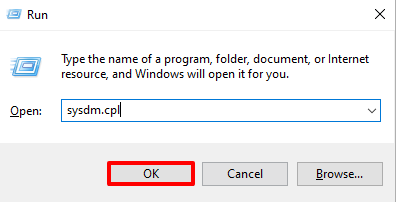
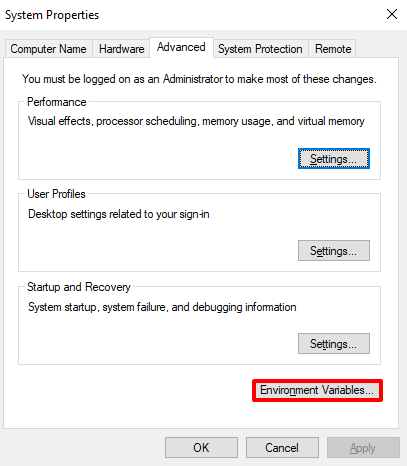
3. Go to the Advanced tab and click the Environment Variables button.
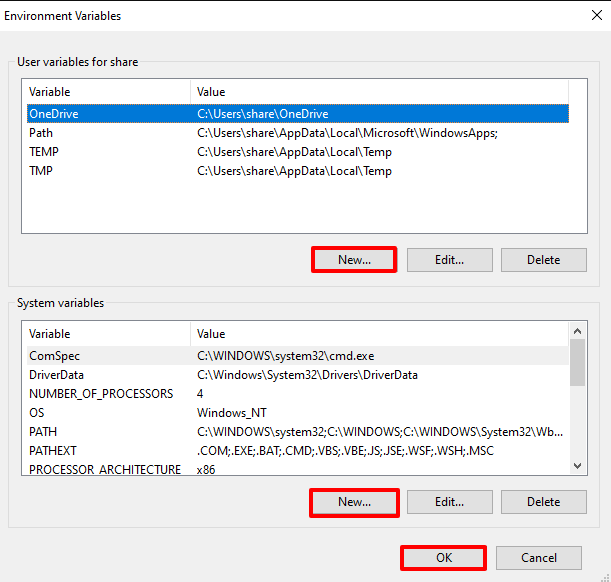
4. In the Environment Variables window, you'll find two sections:
- User variables (specific to your user account)
- System variables (apply to all users on the system)
5. Click New… in the relevant section to add a new variable.
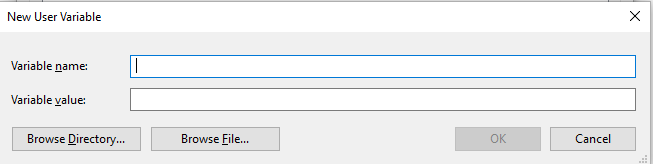
6. Enter the variable name and value, then click OK to save.
Method 2: Set Environment Variables Using the Command Prompt
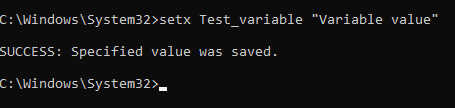
Set the variable by using the below command.
Replace the real name and value in the command:
- [variable_name]: Name of the environment variable.
- [variable_value]: Value of the environment variable.
System-wide environment variable
The system-wide environment variable is accessible to all users and processes on a Windows system.
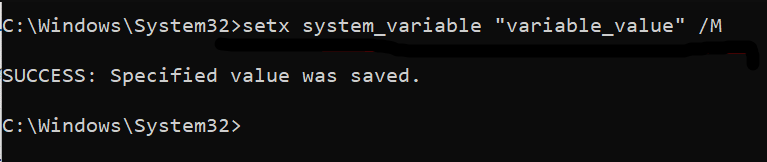
Example:
- This sets a system-wide variable named MY_PATH with the value C:\MyFolder.
- Any user on the computer can now access this variable.
Examples of Environment Variables
- > setx MY_PROJECTS "C:\Users\YourName\Projects"
Defining MY_PROJECTS allows quick access to your project directory using %MY_PROJECTS% in the command line.
- > setx JAVA_HOME "C:\Program Files\Java\jdk-21" /M
Setting JAVA_HOME ensures Java applications can locate the correct Java installation automatically.
- > setx API_KEY "your_secret_key"
Storing an API key.
- del /q %TEMP%\*
A script using %TEMP% to clear temporary files.
You can enhance your Windows experience by setting system-wide configurations, customizing application behavior, and adjusting environment variables. This helps streamline your workflow and improve overall system performance.


