
Introduction:
While using a Remote Desktop Connection (RDC) to connect to a remote server from your laptop, you may need to disconnect the session without interrupting the ongoing processes on the remote server. This is particularly crucial for individuals managing remote servers who need to ensure the server continues to run while they temporarily step away.
This article will explain how to disconnect a server from a Remote Desktop connection.
Understanding Remote Desktop Connection:
Remote Desktop Connection (RDC) is a tool that allows users to connect to another computer or server remotely over a network connection. However, when you finish your work on the remote server, you can either disconnect or log off from the session.
Disconnecting: This action keeps the session running, allowing all your applications to continue running on the server, even after disconnecting from your laptop.
Logging Off: This action ends the session, closing all applications under your user account.
Disconnecting is often preferable for server management as it allows tasks or scripts to continue executing without interruption.
How to Disconnect from a Remote Desktop Session:
Method 1: Using the Remote Desktop Toolbar.
A toolbar typically appears at the top of your screen when connected to a remote server via RDC.
Step 1: Move your mouse to the top of the screen to make the toolbar appear (if it’s hidden).
Step 2: Click on the "Close" (X) button on the toolbar's right side.
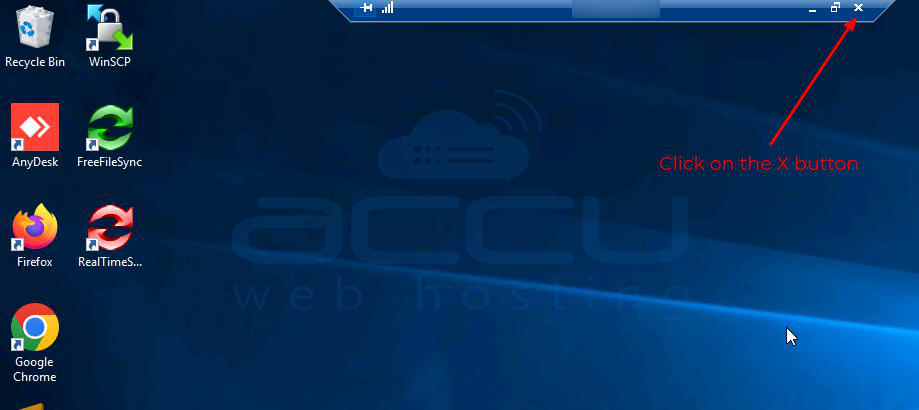
Step 3: A dialogue box will appear, asking you to confirm the disconnection. Click on the OK to disconnect.
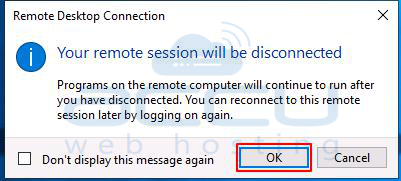
This method allows you to safely disconnect without logging off. Your session will remain active on the remote server.
Method 2: Using Command Line:
If you prefer using the command line, follow these steps:
Step 1: Open the Command Prompt on your remote desktop.
Step 2: Type the following command and press Enter:
tsdiscon
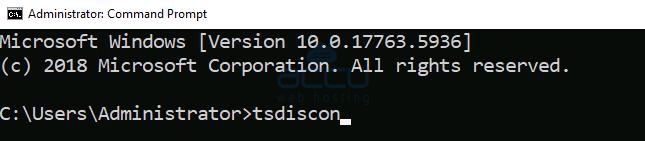
This command will immediately disconnect your session without logging off, ensuring all processes on the server continue running.
Method 3: Using the Start Menu.
Step 1: On the remote desktop, click on the Start menu.
Step 2: Click on the Power icon.
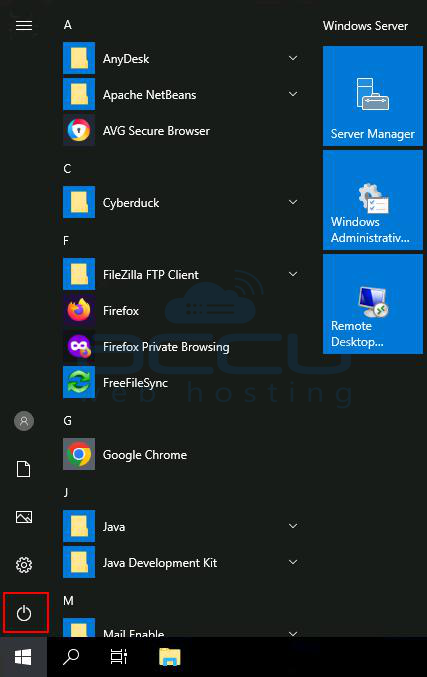
Step 3: Select Disconnect from the dropdown menu.
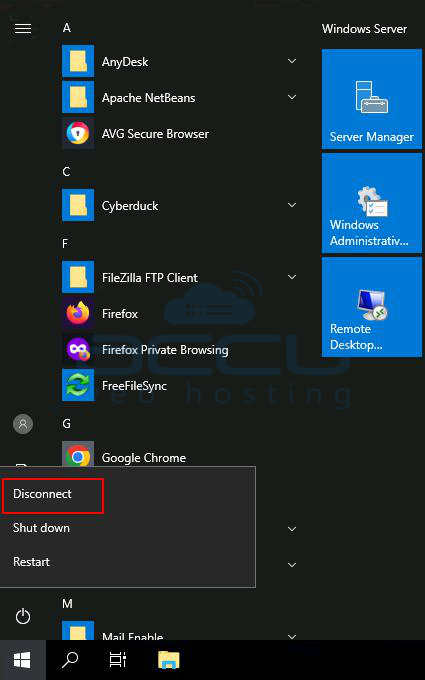
This method ensures that your session stays active while disconnecting from the server.
Once disconnected, your session remains active on the server. When you reconnect, all your applications and processes will still be intact.
Conclusion:
Disconnecting from a Remote Desktop session is essential for server administrators and remote workers who wish to keep ongoing processes active. Whether you use the RDC toolbar, the Start menu, or the command line to disconnect without logging off to ensure your work continues uninterrupted.
Following the methods mentioned in this article, you can manage your remote server safely and efficiently while avoiding unnecessary disruptions.


