
The 405 Method Not Allowed error is an HTTP problem that stops visitors from seeing your website's content. If not fixed quickly, it can hurt your brand's reputation.
The issue is that the HTTP error code doesn't explain why it happened. Usually, you'll just see a blank page with a message saying 405 Not Allowed.
What is 405 Method Not Allowed Error?
The HTTP 405 status code means the server got your request, but the method you used is not allowed for the resource you're trying to access. This can happen if you use the wrong method or if the server is set up to block that method.
When this error occurs, your browser will show one of these messages:
HTTP 405 Method Not Allowed
HTTP Error 405 – Method Not Allowed
Method Not Allowed
405 Not Allowed
HTTP Error 405
Possible Solutions to Fix 405 Method Not Allowed Error on Your WordPress Site
Before we begin, be sure to back up your site. This will allow you to restore it if anything goes wrong. AccuWebHosting offers regular backups as part of their plans.
There are eight methods you can try to fix the problem.
1. Double Check the URL
Most web servers prevent incorrect URLs from sending users to the wrong pages, so a 405 error due to a bad URL is rare.
However, double-checking the URL is easy and can save time. If you get a 405 error, check for any missing letters or typos in the URL. Fix the URL and refresh the page to see if it loads correctly.
If the problem continues, try the next solution.
2. Revert Recent Updates
Sometimes, a 405 error appears after updating your site. To fix it, undo any recent updates, including extensions, modules, themes, or plugins.
For example, if you use WordPress, you can use a plugin like Core Rollback to restore your site to its previous version.
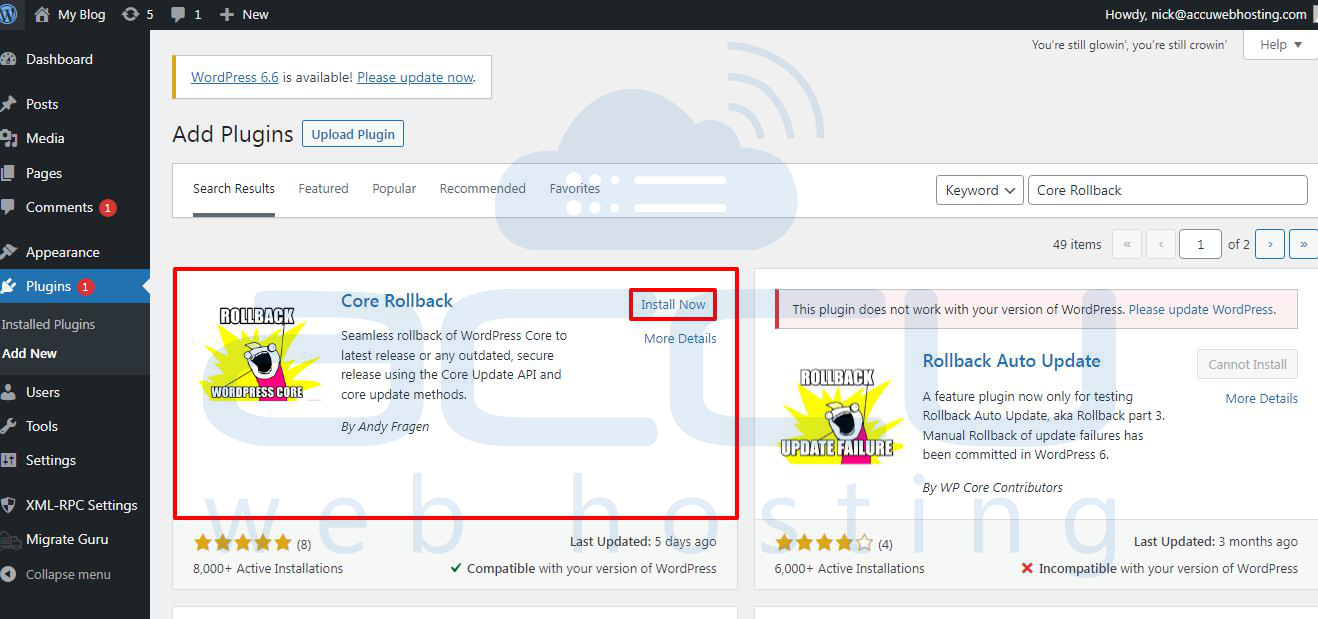
3. Uninstall New Plugins, Themes, and Extensions
Installing a new theme, plugin, or extension can change your website's code and cause the 405 error.
If you see the error after adding a new theme, plugin, or extension, try uninstalling and reinstalling it.
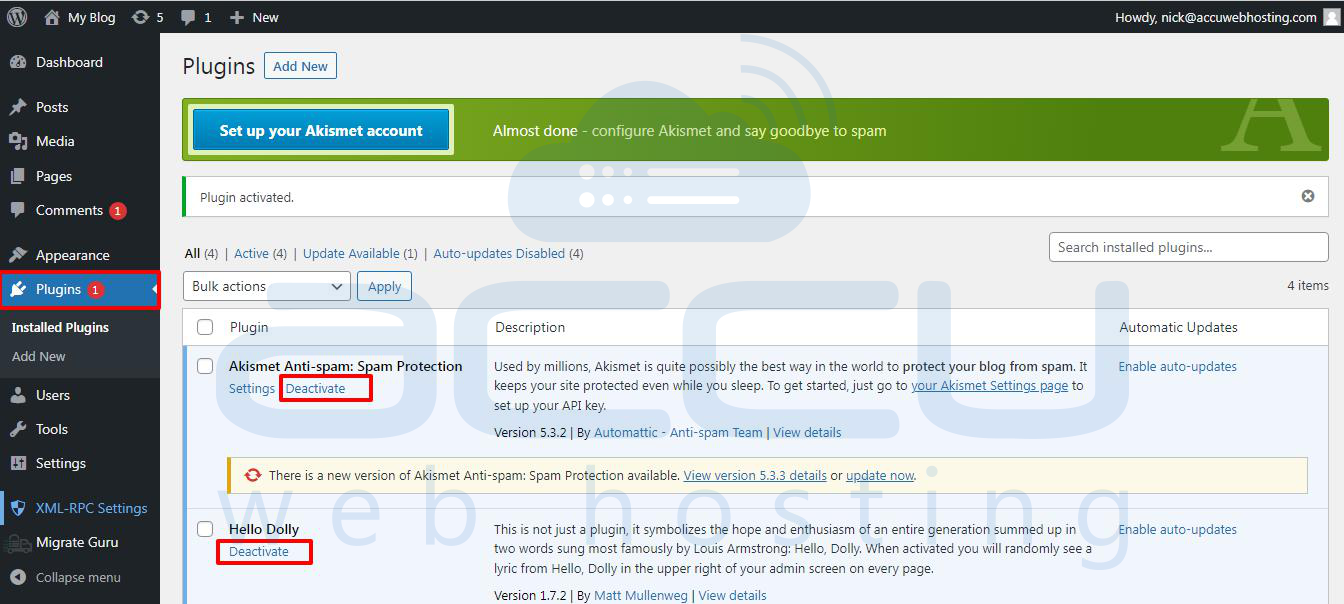
For WordPress users, go to the WordPress Admin Panel, click Plugins, and then click Deactivate under your newest plugins.
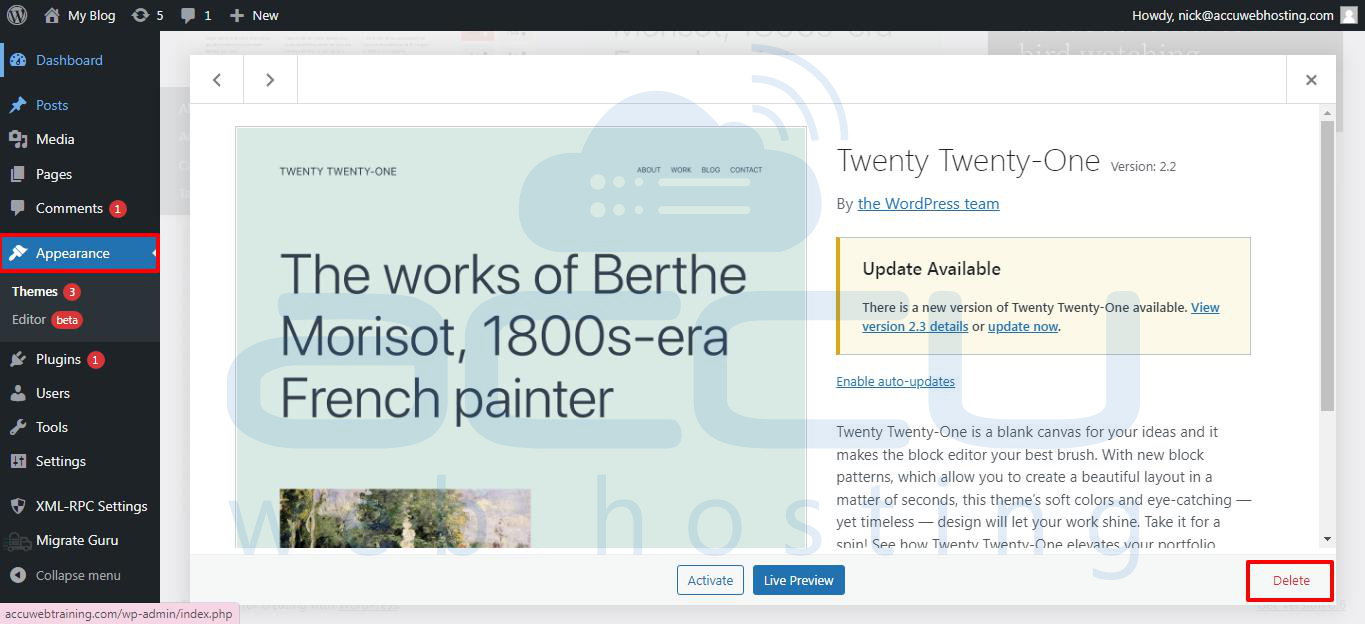
To remove a theme, go to Appearance -> Themes. If you're using the newest theme, switch to another one first. Then, go to the new theme, select Theme Details, and click Delete.
After disabling your newest plugins and themes, check if the error is gone. If it is, try using a different extension.
4. Check Your Code and Scripts
The 405 error often happens because of mismatched HTTP methods between your app's requests and how the server handles them. Here's what to check in your custom code:
Verify HTTP method usage - Make sure your code uses the correct methods for actions – GET for retrieving data, POST for creating data, etc.
Identify unsupported methods - Check if any libraries or frameworks you're using send unexpected HTTP methods that the server rejects.
To prevent 405 errors, try these steps:
Code review - Manually inspect your code to ensure it uses the right HTTP methods and handles server responses correctly.
Unit testing - Create tests that simulate different HTTP methods to find mismatches during development.
Debugging - Copy your website to a local development machine and recreate the scenario causing the 405 error.
For WordPress sites, disable plugins and change themes to identify the problem. Check custom scripts and the .htaccess file, and use browser developer tools to find any problematic requests.
5. Double-Check the .htaccess File
Incorrect changes to rewrite rules in the .htaccess file of a WordPress site can cause 405 errors.
If you host a WordPress site on AccuWeb Hosting, follow these steps:
If you don't see your .htaccess file in the File Manager, it might be hidden in your public_html folder. To view hidden files in your cPanel File Manager, follow these steps:
Step 1: Log in to your cPanel.
Step 2: Go to the Files section and click on File Manager.

Step 3: Click the Settings button in the top-right area of the File Manager.
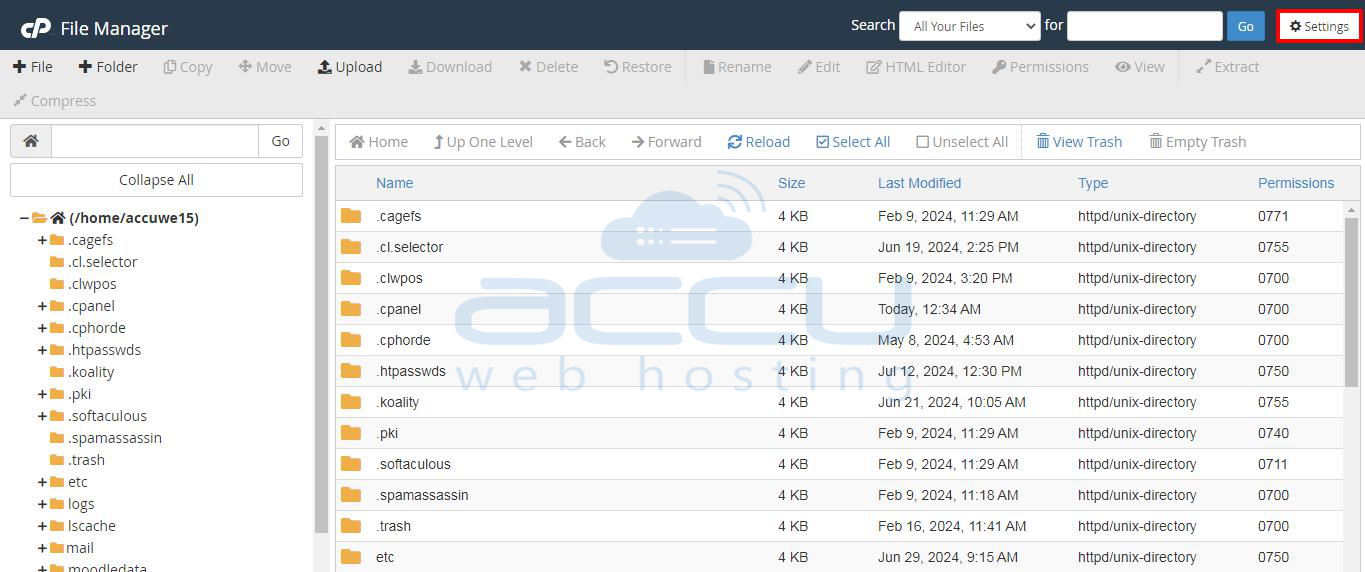
Step 4: Select Show Hidden Files (dotfiles) in the Preferences window.
Step 5: Click Save to apply the changes.

Step 6: Now, you should see all hidden files (including .htaccess) in your cPanel’s File Manager.
Step 7: Select the .htaccess file.

Step 8: Look for lines using Rewrite directives that direct visitors to a URL.
Check for [R=405]. If you find it, add a # at the start of the line. Click on the Save Changes button to save the changes. Then, refresh your website to see if this fixes the issue.

6. Fix File Ownership
File permissions control who can access and modify files. Incorrect permissions can cause 405 errors because the server might not have the necessary permissions to process requests correctly.
To fix file ownership on AccuWeb Hosting, follow these steps:
Step 1: Log in to cPanel.
Step 2: Go to the Files section and click on File Manager.
Step 3: Find the file whose permissions you want to change.
There are different ways to change file permissions:
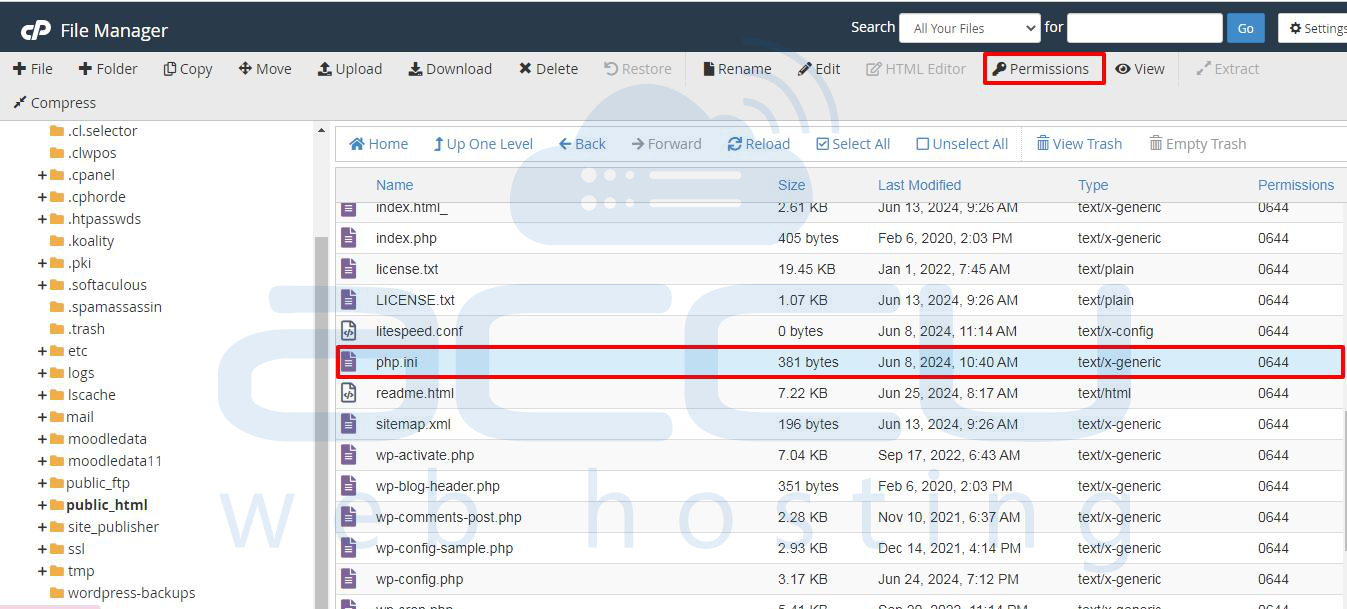
Option 1: Select the file and click Permissions in the top menu.
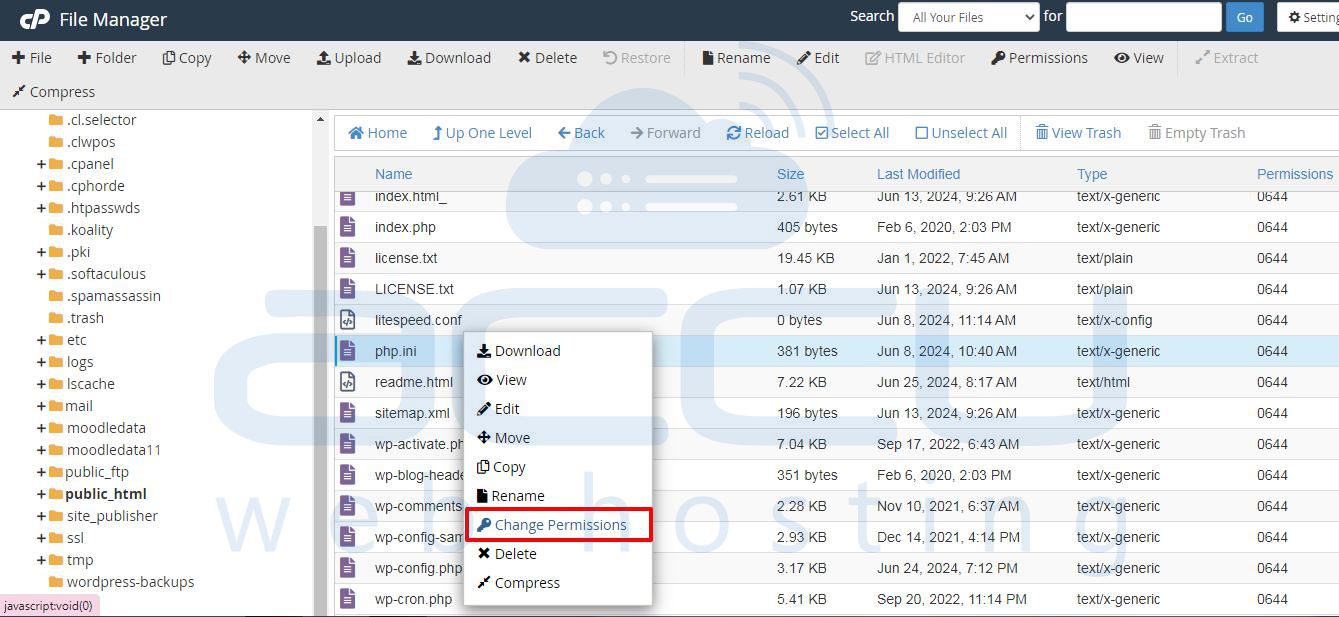
Option 2: Right-click the file and select Change Permissions from the list.
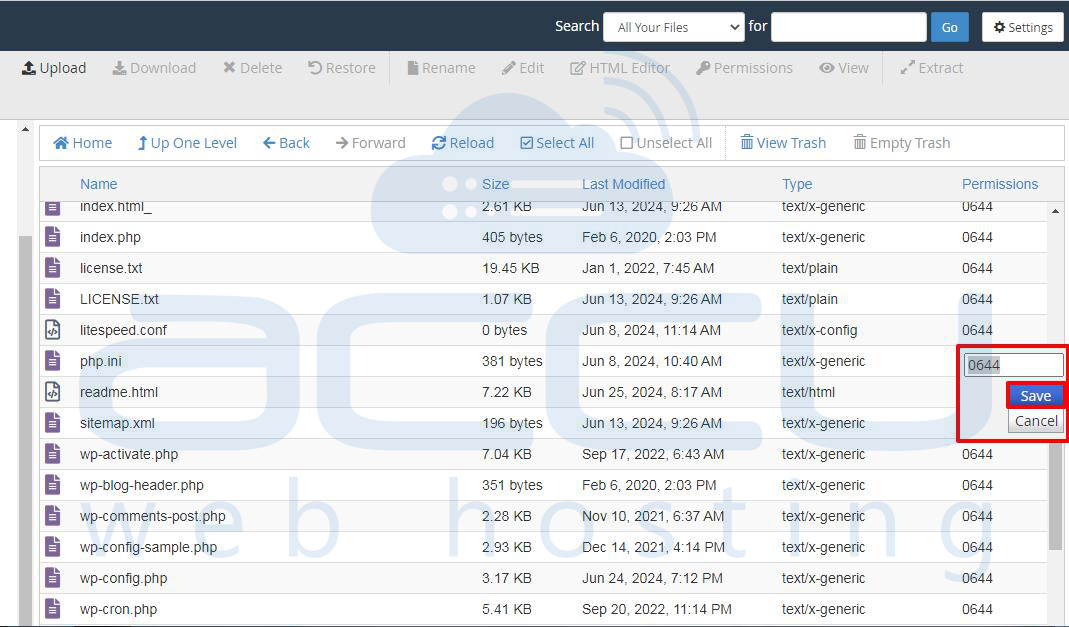
Option 3: Double-click the numbers under the Permissions column, make changes, and hit Save.
Step 4: Click the checkboxes to set the correct permissions.
Step 5: Click Change Permissions.

7. Inspect the Latest Database Changes
Disabling faulty plugins doesn't remove all the changes they made to your WordPress database. Many plugins leave leftover tables that can cause a 405 error.
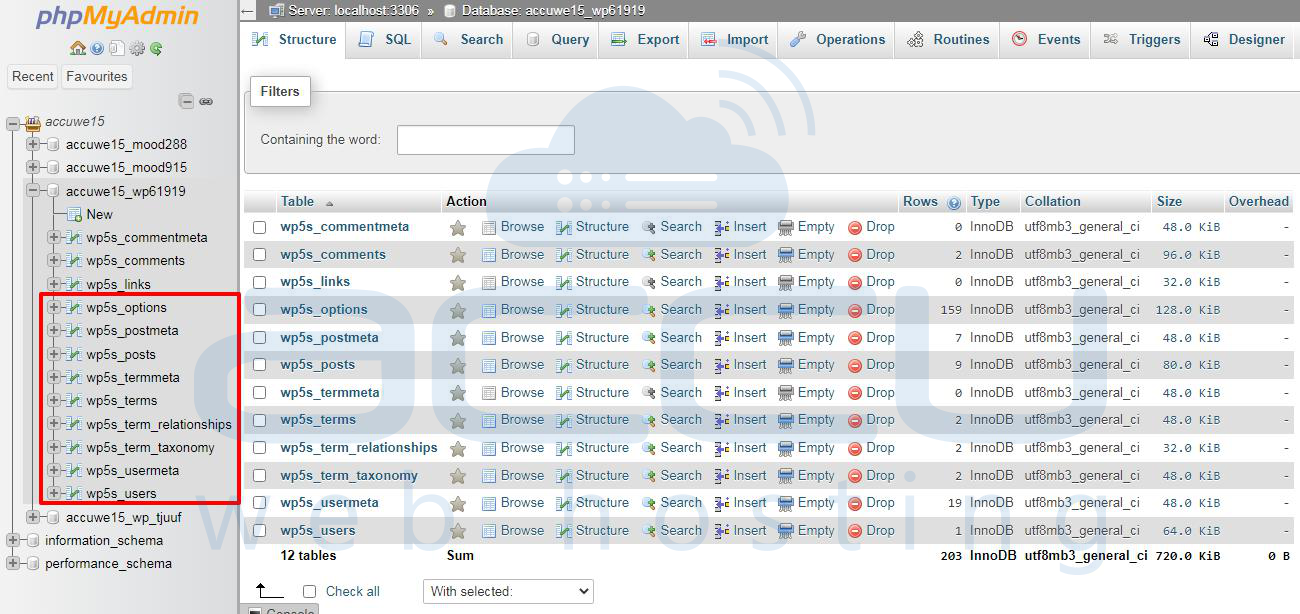
You can access your website’s database through cPanel or an FTP client. AccuWebHosting clients can use PHPMyAdmin from cPanel -> Databases -> phpMyAdmin.
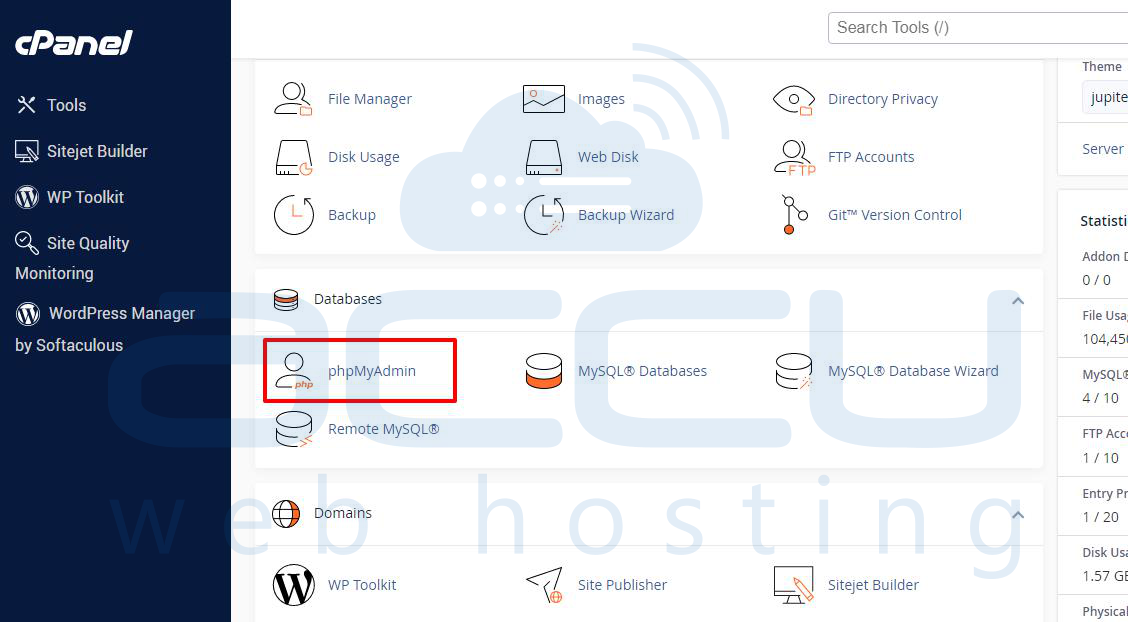
Remove any leftover tables from uninstalled plugins. Also, check the wp_posts, wp_options, wp_plugins, wp_users, and wp_usermeta tables for any recent changes that may have caused the 405 error.
If you find changes made by a plugin or theme, revert them to try resolving the problem.
8. Examine Your Server Logs
Looking through your server logs can help you find the cause of the 405 error. There are two main types of server logs: access logs and error logs.
Access logs store records of all requests and responses handled by the server. They include information on HTTP status codes, URLs accessed, and client IP addresses. By reading these logs, you can find any rejected requests with a "405 (method not allowed)" error.
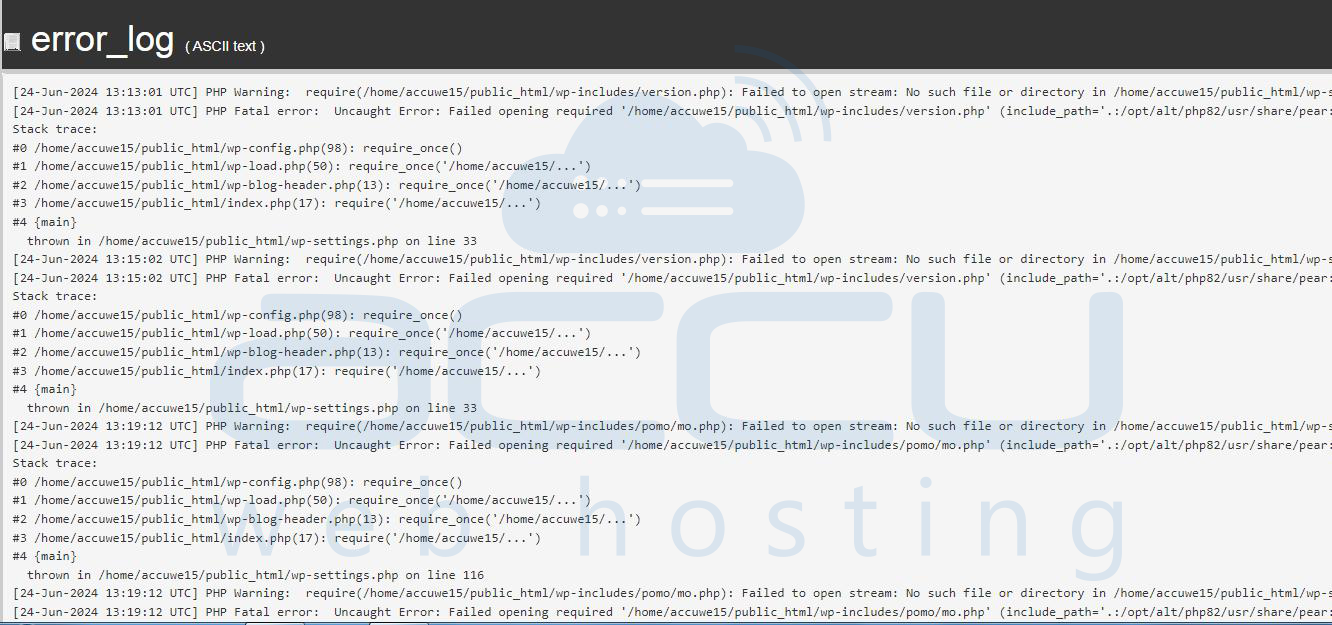
Error logs contain records of failed operations, including server and application code errors. By examining the error log entries, you can identify when the 405 error occurred and find the root cause.
Conclusion
In conclusion, dealing with the HTTP 405 Method Not Allowed error can be frustrating. However, by following the 8-step troubleshooting guide in this article, you can fix the error quickly. This will ensure your website displays pages correctly for users and search engines.
Remember to look for plugin or theme conflicts, check file permissions, and review your database and server logs. These actions will help you resolve the HTTP 405 error and give your website visitors a smooth browsing experience.
