
To check the PHP version your site is using, create a file named "phpinfo.php" file and upload it to your site.
- Open a text editor like Notepad (Windows) or gedit (Linux).
- Create the file with the desired content (e.g.,
phpinfo.php). - Save the file with the appropriate extension (e.g.,
.phpfor PHP files). - Access your website's file manager or use an FTP client.
- Locate the document root directory, which is typically named
public_htmlorwww. - Transfer the saved file to this directory.
- Open a web browser and enter the full file address in the address bar:
- Format:
http://www.yourwebsite.com/filename.extension - Example:
http://www.example.com/phpinfo.php
To change the PHP version from DirectAdmin panel for a site, please follow below steps:
- Log into your Direct Admin panel account.
- In the Dashboard, go to Account Manager section, and click on Domain Setup.

- Here, select the domain whose PHP version you want to change.
- From the right side panel, under "Useful Links", click on "PHP Version Selector" option.
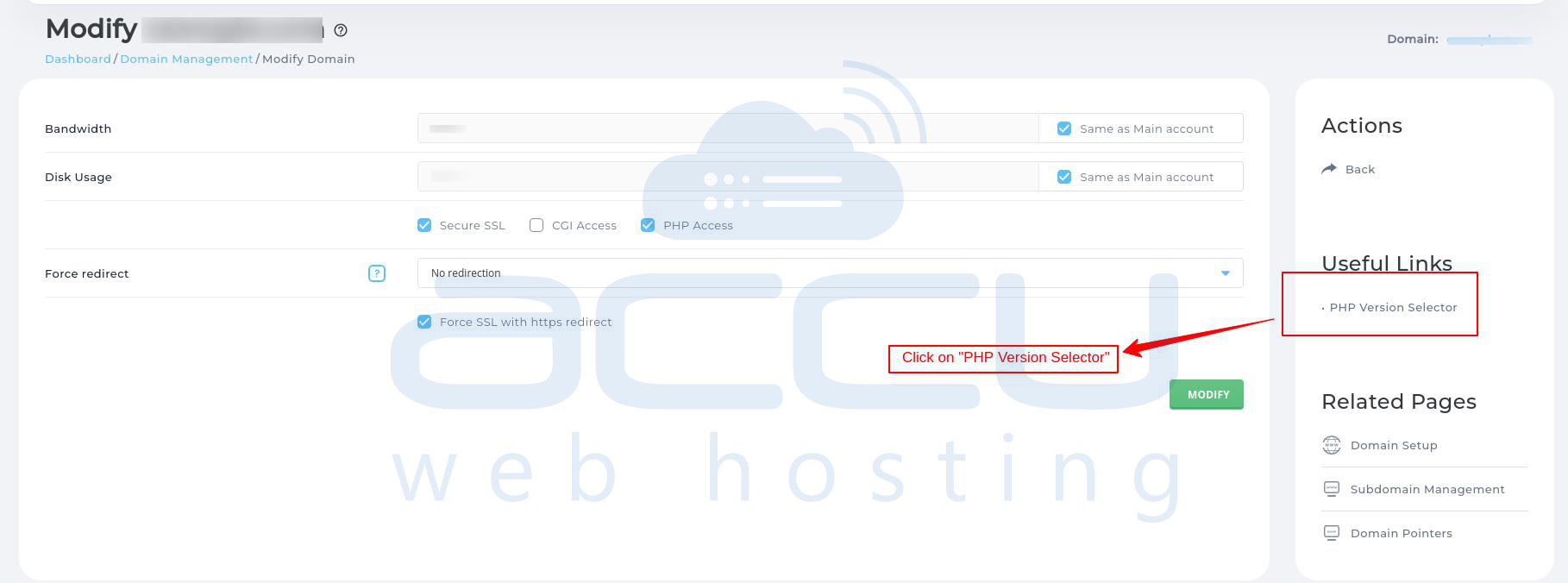
- Select the desired PHP version from the drop down list and click on SAVE button.

That's it. You have successfully changed the PHP version from DirectAdmin panel.


