
Here's how you can check for application pool crash logs from Event Viewer:
1. Open Event Viewer:
- Press
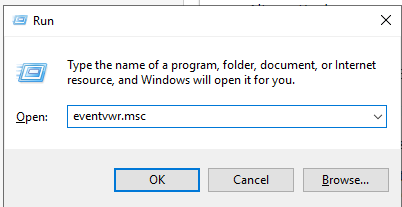
Win + Rto open the Run dialog box. - Type
eventvwr.mscand press Enter.
2. Navigate to Application and System logs:
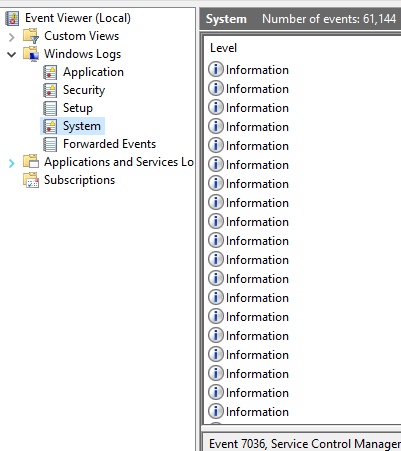
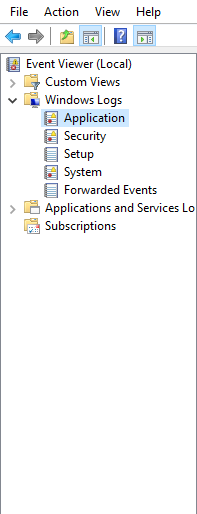
- In the Event Viewer window, expand the "Windows Logs" section.
- You can either open "System" section or "Application" section.
3. Search for relevant entries:
- In both the "Application" and "System" logs, First you need to click on "Find" from right side panel. Then, type your website's name in the search bar located under the Find dialog box.
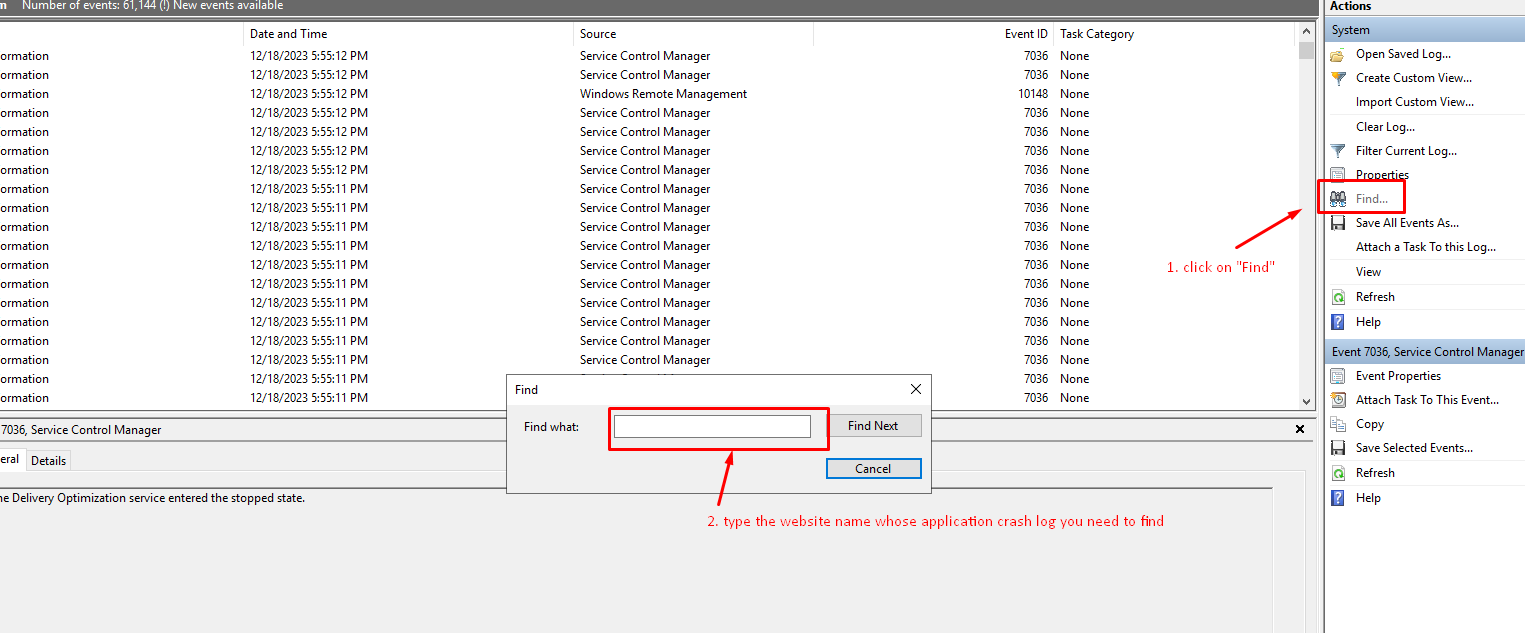
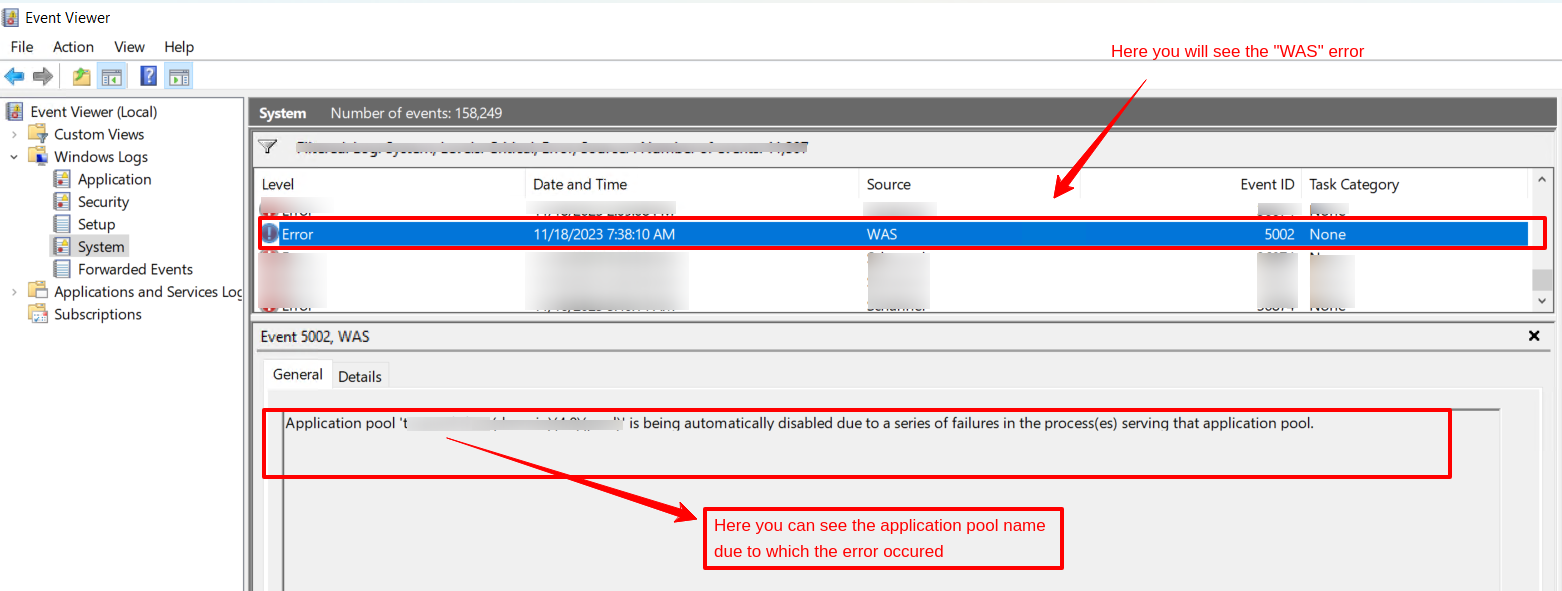
- Alternatively, you can search for specific keywords related to application pool crashes like "W3SVC," "WAS," or error codes like "0x80070570." As you can see in the below image, you will get the below error logs with source: WAS and in General section, you will see the application pool name due to which the error occured.
4. Identify crash logs:
- Look for entries with Source like "WAS (W3SVC_<application_pool_name>)" or "IIS" where
<application_pool_name>matches your website's pool. - Check the "Event ID" and "Level." Error levels like "Error" or "Critical" might indicate a crash.
- Read the "Message" field for details about the issue. Look for keywords like "application pool terminated," "unhandled exception," or "out-of-memory."
5. Analyze the crash reason:
- Based on the information in the log entry, you can try to identify the reason for the crash.
- Common causes include:
- Coding errors: Look for exceptions or specific code files mentioned in the message.
- Memory issues: Investigate processes consuming high memory or errors related to virtual memory exhaustion.
- Resource limitations: Check for errors indicating lack of available processor or disk space.
- Configuration problems: Review application pool settings or website configurations that might trigger issues.
Tips:
- Filter the logs by date to focus on recent crashes.
- Right-click a log entry and select "Copy" to easily paste details for further analysis.
- Refer to your specific web server documentation for additional instructions or log formats.
If you're unsure about the reason for the crash or need further assistance, consider sharing the specific log entries or screenshots with a technical expert or consulting your web hosting provider.


