
A database dump is like a file that holds all the information in a database. You can use it to make a copy of your data in case something goes wrong. In the past, you could make these copies using the database tools in Plesk. But now, Plesk has an easier way to make and keep copies of your data.
To export a database dump in Plesk means to save your database as a file. You can use this file later to save or share your data. To import a database dump means to bring the data from that file into another database. You can import the data to the same database or a different one, but they have to be the same type, like both MySQL.
In Plesk, they save the database dumps in a special format called SQL, and they put them in ZIP files. If you want to use a different format or change some settings, you should use the regular database tools like phpPgAdmin, phpMyAdmin, or myLittleAdmin.
How to import a MySQL database dump to a MySQL database in Plesk?
To import a MySQL or MS SQL database dump into a MySQL or MS SQL database in Plesk, follow these steps:
Step 1: Log in to Plesk.
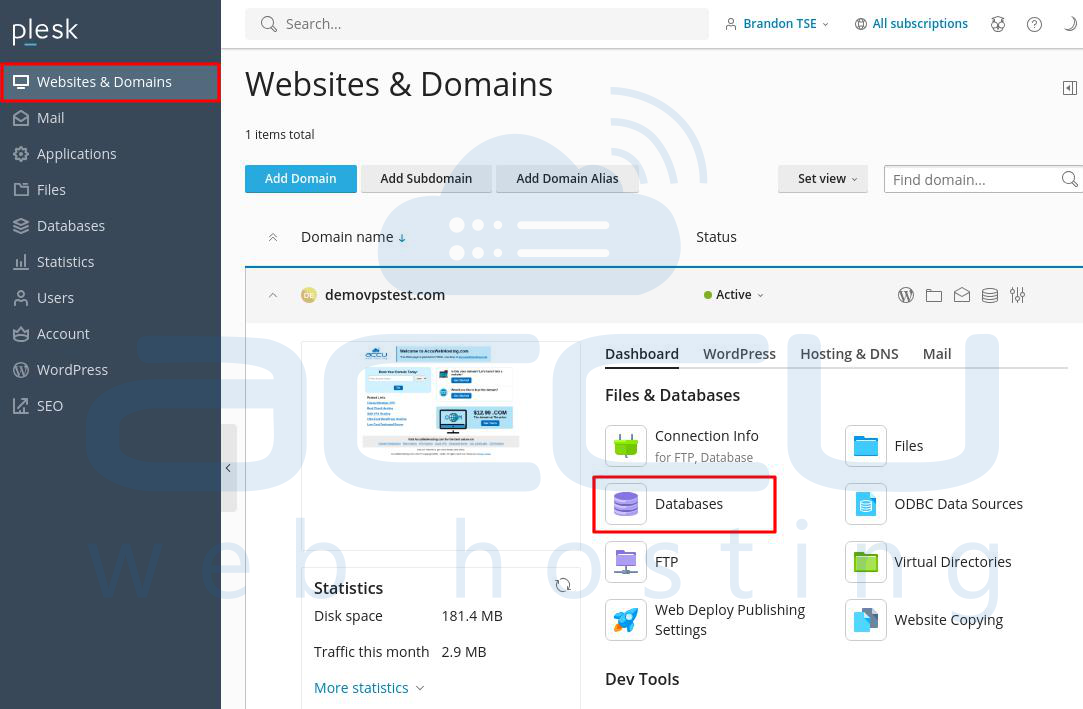
Step 2: Go to Websites & Domains and click on Databases.
Step 3: Find the MySQL database into which you want to import the backup.
Note: If you haven't created the database yet, you can make a new one by clicking Add Database.
Step 4: Click Import Dump in the database tools section.

Step 5: Choose a dump to import:
-> If you have the dump on your computer, select Upload, then click Choose File and pick the ZIP archive with the dump. Click OK.

-> If the dump is on the server, choose Import, select the dump file, and click OK.

Note: Choosing 'recreate database' deletes everything in the database on the server before adding new content. If you're adding to a database that already has stuff in it in Plesk, be cautious with this choice! But if you're adding to a new database, this choice doesn't matter because the database is already empty.
Step 6: After you select the dump, click OK.
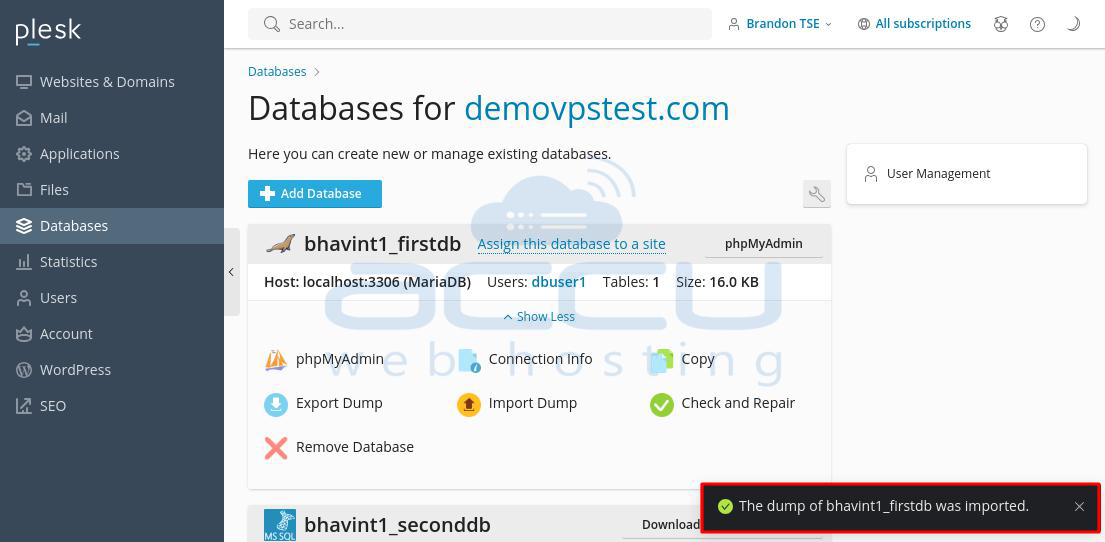
Step 7: Once the upload is done, you'll see a successful import notification.
How to import an MS SQL database dump to an MS SQL database in Plesk?
To import MS SQL database dump into a MS SQL database in Plesk, follow these steps:
Step 1: Log in to Plesk.
Step 2: Go to Websites & Domains and click on Databases.
Step 3: Find the name of the MSSQL database you want to import the backup.
Note: If you haven't created the database yet, you can make a new one by clicking Add Database.
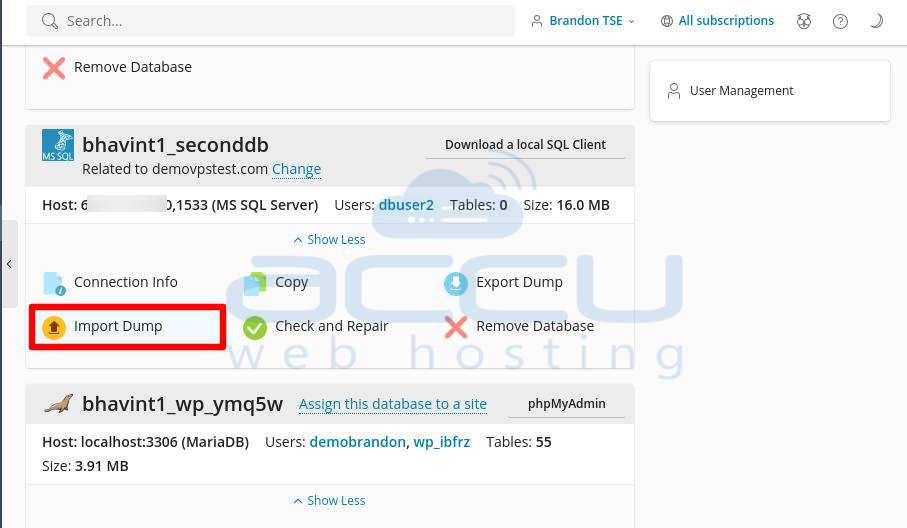
Step 4: Click Import Dump in the database tools section.
Step 5: Choose a dump to import:
-> If you have the dump on your computer, select Upload, then click Choose File and pick the ZIP archive with the dump. Click OK.]

-> If the dump is on the server, choose Import, select the dump file, and click OK.

Step 6: After you select the dump, click OK.
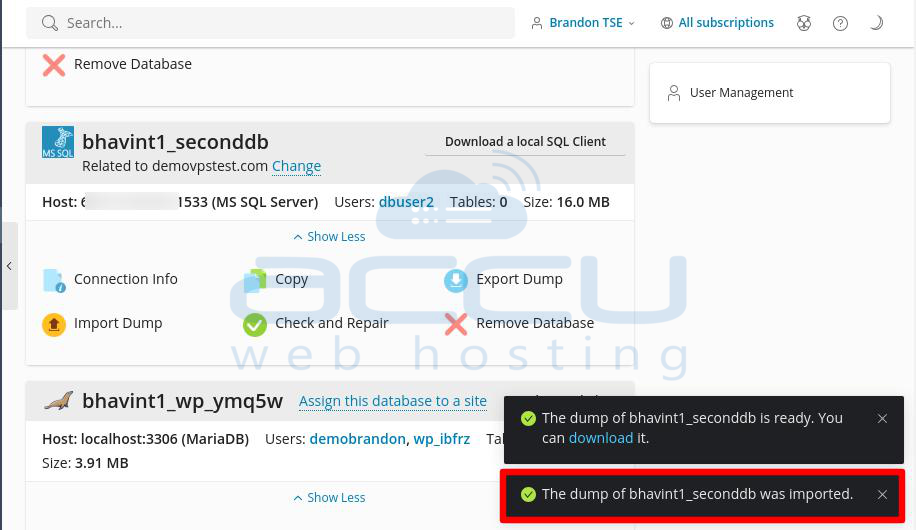
Step 7: Once the upload is done, you'll see a successful import notification.
Additional Tips:
- Ensure that the dump file format is compatible with the respective database.
- Verify the file size limitations for import in the Plesk environment.
- Check database user privileges to ensure you have the necessary permissions to import the data.
Conclusion:
In conclusion, importing a MySQL or MS SQL database dump into a MySQL or MS SQL database in Plesk involves a few straightforward steps. Whether you're working with MySQL or MS SQL databases, the standard process is to create a new database, access the database management tool (phpMyAdmin for MySQL, MS SQL Webadmin for MS SQL), and import your database dump. Ensure that the dump file is compatible with the database you're importing into and that you have the necessary permissions to perform the import.
If you encounter any difficulties during the process or if you lack access to these tools, don't hesitate to contact your hosting provider or system administrator for guidance and assistance. Properly executed, this process allows you to migrate data and maintain your databases efficiently within the Plesk environment.
