
Do you need help locating a previously used Bash command? If so, you've found the right solution.
Discovering that command is a simple task when you use Bash history! So, what precisely is this command, and what are its practical applications? Let's delve deeper into this topic.
What is Bash History?
The term "Bash history" encompasses commands, files, and shortcuts that enable you to view, modify, and delete previously executed Bash commands on a system.
Bash offers two built-in commands for managing Bash history:
1. history: It allows you to list commands and modify your Bash history.
2. fc: This command lets you list, edit, and execute commands from your Bash history.
Although the term "Bash history" often implies the use of the history command, this article primarily focuses on the functionality of the history command rather than fc. Additionally, there are various files (e.g., ~/.bash_history), expansions (e.g., !!), and keyboard shortcuts (e.g., the ↑ and ↓ keys) that aid in working with Bash history.
Where Is Bash History Stored?
By default, the history command stores commands in RAM until you log out of the terminal. These commands are written to the ~/.bash_history file after logging out. The history buffer has a capacity of 1,000 command entries, while the history file can hold up to 2,000 entries.
To determine the location of your bash_history file, you can run the 'echo $HISTFILE' command.

You can also check the storage limit for your bash history file by using the 'echo $HISTSIZE' command:

You also can define your desired storage limit for the current session:
For example, by changing "num" to 2000, you can limit the HISTSIZE to 2000.

HISTFILESIZE is another characteristic of the bash history file, determining the maximum number of commands that can be saved in the history file across all sessions. In contrast, the HISTSIZE attribute dictates the maximum number of commands stored in the current session's history file. You also have the option to modify the value of HISTFILESIZE.
Commands executed during the current session are not immediately added to the history file; they are stored in a history buffer. All the history buffer contents are written into the history file upon user logout.
Using The History Command
Viewing the Bash History
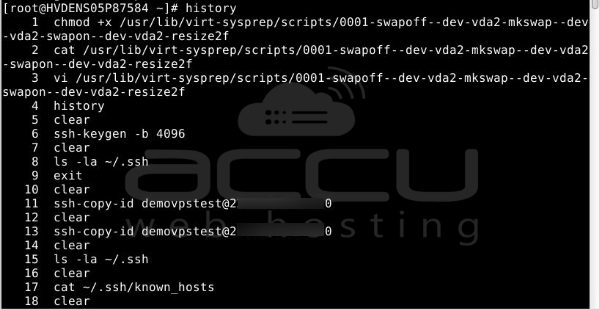
To access the complete history of shell commands, execute the following command in your terminal:
# history
This command will display a user's complete history from the user-specific file. Each command will be accompanied by a numerical identifier, with older commands appearing at the top, starting with number 1, and newer commands listed at the bottom.
Options for history command:
| -c |
Clear the history list by removing all of its entries. |
| -d offset | Remove the history entry located at the OFFSET position. |
| -a | Add the history lines from the current session to the history file. |
| -n | Read all history lines that have not been read from the history file. |
| -r | Read the history file and add its contents to the history list. |
| -w | Write the present history in the history file and append it to the history list. |
| -p | Perform history expansion on each ARG and present the result without storing it in the history list. |
| -s | Add the ARGs to the history list as a single entry. |
You have access to various keyboard shortcuts to navigate through your history and jump to different points:
| UP arrow key or CTRL + P | Move backward through history. |
| DOWN arrow key or CTRL + N | Move forward through history. |
| ALT + SHIFT + | Jump to the end of the history (most recent). |
| ALT + SHIFT + | Jump to the beginning of the history (oldest). |
| CTRL + R | Search for commands in your bash history. |
| CTRL + O | Execute a command you found using CTRL + R search. |
| CTRL + G | Exit a CTRL + R search. |
Filter the Bash History Output
To filter your bash history output based on a specific keyword used in previous commands, follow these steps:
# history | grep [keyword]
In the example below, the terminal will display all commands with the keyword "hostnamectl."

As you can see, the output now exclusively shows commands that include my searched keyword, "hostnamcectl."
To view a specific number of recently executed commands, use the following command:
# history | tail -n
For example, I want to view the last two commands that I ran, each containing the keyword 'hostnamectl':
# history | grep hostnamectl |tail -2

To view a specific number of oldest executed commands, use the following command:
# history | head -n
In this example, I want to view the oldest two commands that I ran with the keyword 'hostnamectl':
# history | grep hostnamectl |head -2

List Commands with Date and Timestamp
How do you find the date and timestamp for each command? You can use the 'export' command with a variable to display the history commands and their corresponding timestamps indicating when they were executed.
Now, when you want to view the command history, run the 'history' command to see the output in the following format:
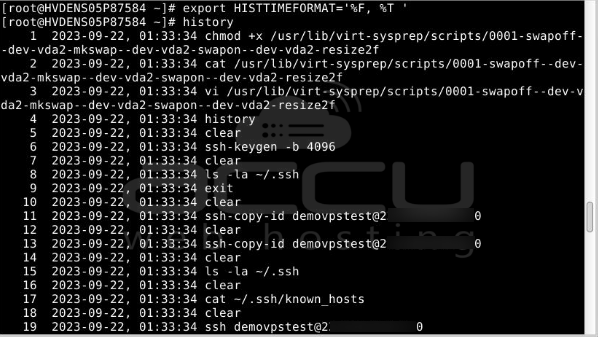
HISTTIMEFORMAT variables:
%F: Represents the date in the format %Y-%m-%d.
%T: Represents the time in the format %H:%M:%S.
Filtering Commands
If you want to exclude specific commands from being saved and displayed in your history, you can utilize the HISTIGNORE variable. For example, by using the export command with HISTIGNORE='ls -l:pwd:date:', you can ensure that commands like "ls -l," "pwd," and "date" are not saved by the system and won't appear in your history command output.
# export HISTIGNORE='ls -l:pwd:date:'
Repeating a Command
You can reuse any command from your history list by running the history command and then specifying the command number. For example, to rerun the first command, use the following syntax:
!6

Searching for a Command by String
Appending a string after the exclamation point (!) runs the most recent command that starts with that string. For example, to re-execute the latest command that begins with "sudo," use:
!sudo
Employing this method can pose issues if the shell unexpectedly executes a command, particularly when searching for a command beginning with "sudo." As a precautionary measure, adding the ":p" argument displays the command without executing it, allowing you to review it and determine whether you wish to execute it.
!sudo:p

List Matching Commands
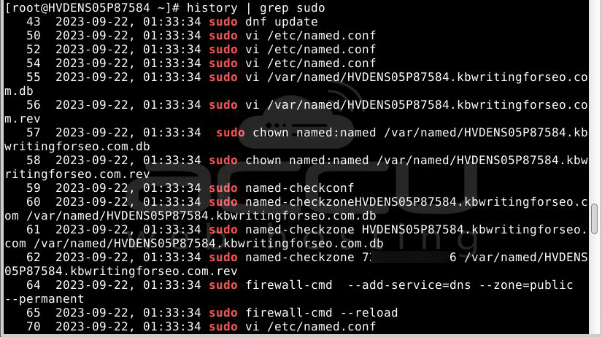
Combining the "history" command with "grep" enables you to create a list of commands containing a specific string. To list all commands that include "sudo," use the following command:
Preventing Storage of Credentials
Every command, including sensitive information like usernames and passwords, is logged in the bash history file, posing a security risk. To protect this data, particularly passwords, from being stored in the bash history, you can take the following steps:
set +o history
"Furthermore, you can enable command storage by executing the following command:"
set -o history
Delete History
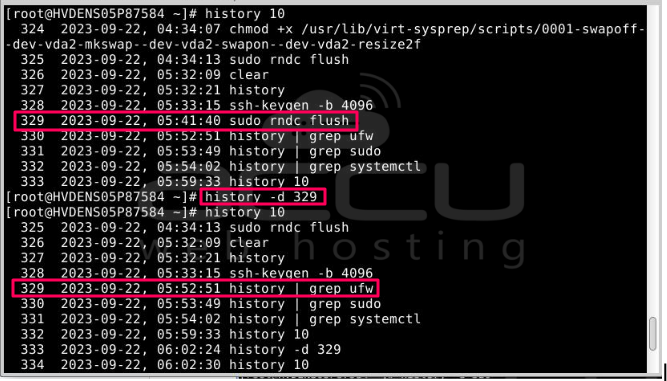
To delete a command from the history list, use the -d option with the history command. For example, to delete command number 329, use
history -d 329
To clear the entire history list, you can use the -c option:
history -c
Conclusion
Having gone through this guide, you should now possess a comprehensive understanding of utilizing the various history operations at your disposal. While you may find certain functions more pertinent to your needs than others, maintaining awareness of these capabilities is essential for their potential utility in your tasks.
In particular, the history command, reverse search, and fundamental history expansions have the potential to boost your workflow efficiency significantly.


