
Introduction:
When you logout from the Windows server, it means you're quitting all the programs you were using, but the server stays on. If you're wondering what happens when you log off your Windows user account, Windows keeps a record of it in its system log. In this article, we'll show you how to find these records.
Since the operating system uses a standard log format, you can easily see all the events related to logging off using the built-in Event Viewer tool, you don't need any other third-party tools. Event Viewer helps you check the date, time, and user information for logoff events caused by a user choosing to log off (sign out).
List of Login and Logout Events ID and its information:
|
Logon events |
Description |
|
4624 |
This event signifies that a user has successfully logged on to a computer. |
|
4625 |
This event indicates a logon failure. It happens when someone tries to log in with either an unknown username or a known username but provides an incorrect password. |
|
4634 |
This event marks the completion of the logoff process for a user. It signifies that a user has logged out. |
|
4647 |
This event occurs when a user initiates the logoff process intentionally. It shows that the user is actively logging out. |
|
4648 |
This event indicates that a user has successfully logged on to a computer using specific credentials while already being logged in as a different user. |
|
4779 |
This event signifies that a user has disconnected from a terminal server session without formally logging off. |
Steps to check Login/ Sign In Logs in Event Viewer on Windows Server:
Step 1. Login into your Windows system on that you wish to check logs.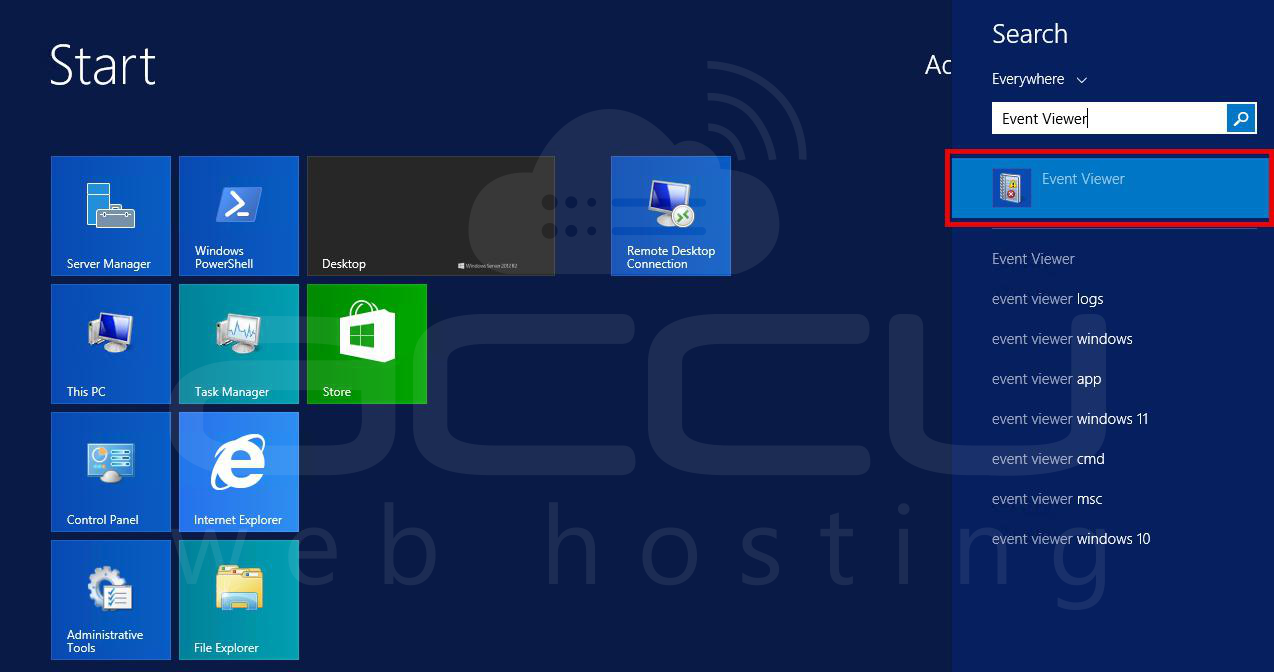
Step 2. Once you login into your server, open Event Viewer. You can do this by searching for "Event Viewer" in the Windows Start menu or by pressing Win + X and selecting "Event Viewer" from the menu that appears.
Step 3. Once Event Viewer is open, expand the "Windows Logs" section on the left-hand side, and then click on "Security." The Security log contains a wealth of information about user logon and logoff events.
Step 4. With the Security log selected, you'll want to filter the log to display only the events you're interested in. To do this, click on the "Filter Current Log" option in the Actions pane on the right-hand side.
Step 5. In the Filter Current Log dialog, you can specify which events you want to view. In our case, we're interested in logon events. The most common Event IDs for logon events are:
Event ID 4624: A successful account logon event
Event ID 4648: A logon was attempted using explicit credentials
You can enter these Event IDs in the "Event sources" field. Separate multiple Event IDs with commas. Here we have searched for event id 4624:
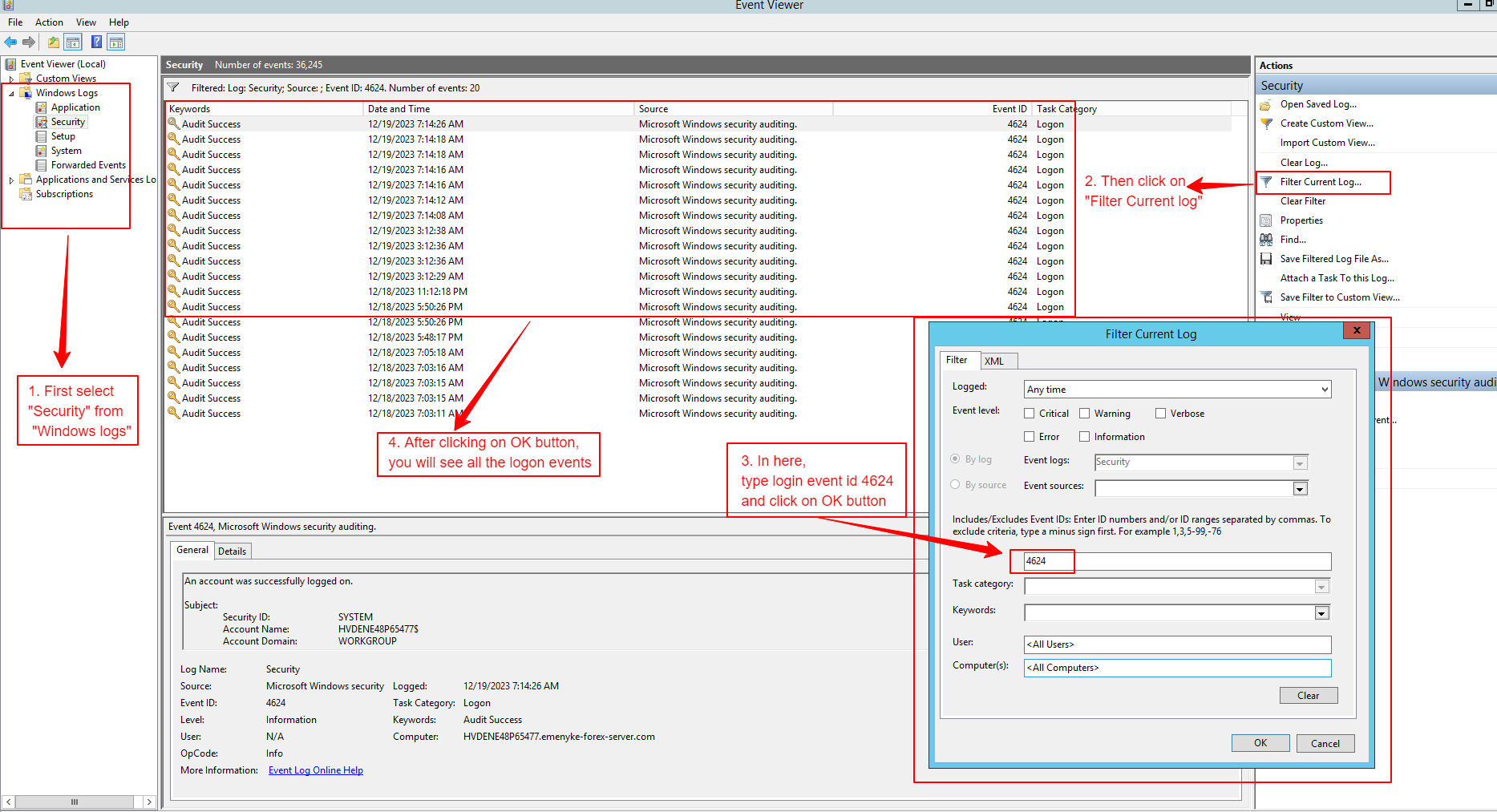
Step 6: After applying the filter, you should see a list of logon events in the Security log. These events will include information such as the date and time of the logon, the user account involved, and additional details about the logon process.
Every logon event entry contains important details. Check for the Event ID to determine if the logon was successful (Event ID 4624) or attempted using explicit credentials by the user (Event ID 4648). Additionally, you can review the "Account Name" field to identify the user who logged on.
Steps to check Logoff and Sign Out Logs in Event Viewer on Windows Server:
Step 1. Login into your Windows system on that you wish to check logs.
Step 2. Once you login into your server, open Event Viewer. You can do this by searching for "Event Viewer" in the Windows Start menu or by pressing Win + X and selecting "Event Viewer" from the menu that appears.
Step 3. Once Event Viewer is open, expand the "Windows Logs" section on the left-hand side, and then click on "Security." The Security log contains a wealth of information about user logon and logoff events.
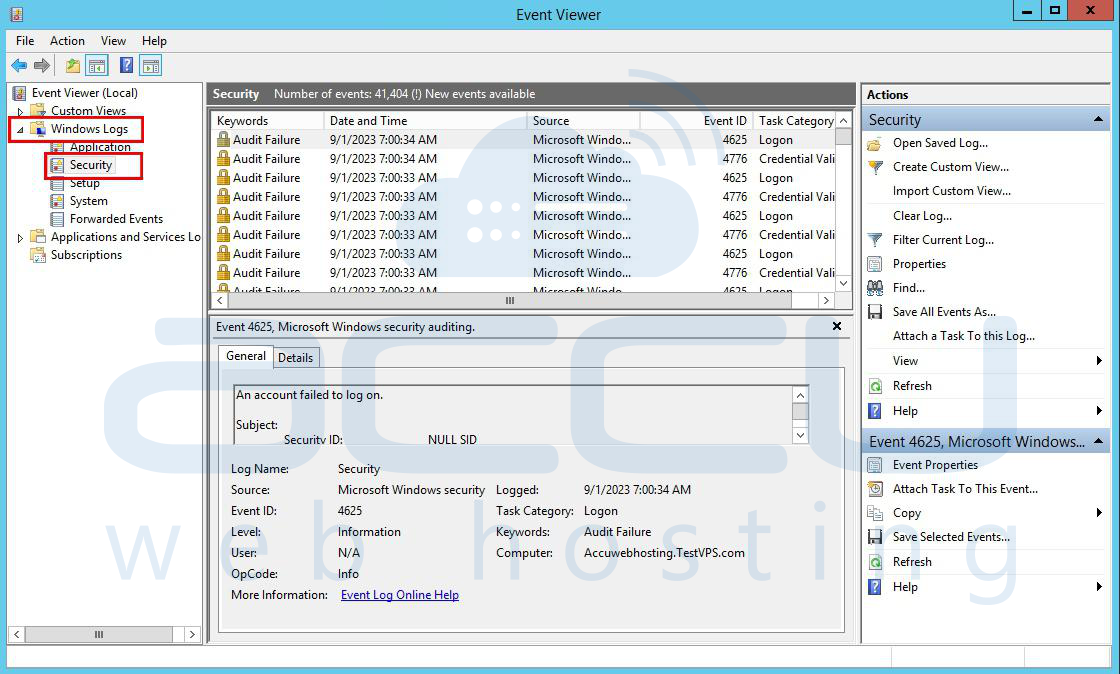
Step 4. With the Security log selected, you'll want to filter the log to display only the events you're interested in. To do this, click on the "Filter Current Log" option in the Actions pane on the right-hand side.
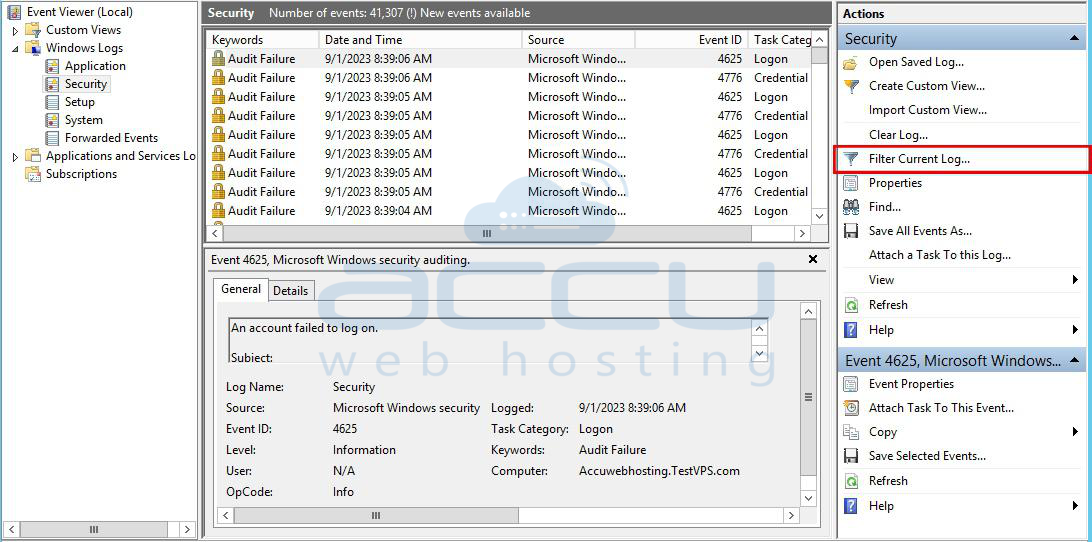
Step 5. In the Filter Current Log dialog, you can specify which events you want to view. In our case, we're interested in logoff events. The most common Event IDs for logoff events are:
Event ID 4634: This event indicates the successful logoff of a user.
Event ID 4647: This event is generated when a user initiates the logoff process.
You can enter these Event IDs in the "Event sources" field. Separate multiple Event IDs with commas.
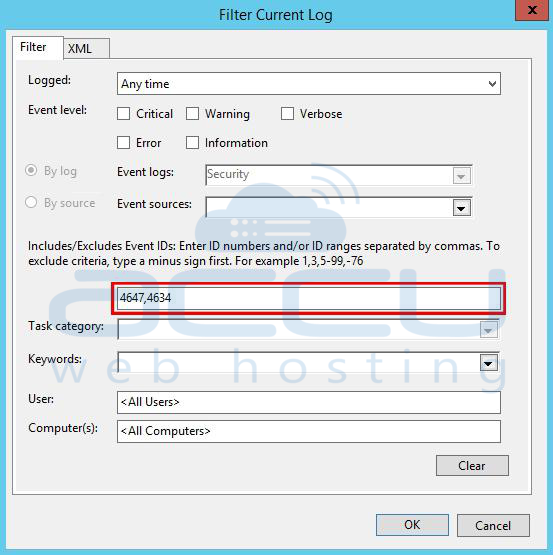
Step 6: After applying the filter, you should see a list of logoff events in the Security log. These events will include information such as the date and time of the logoff, the user account involved, and additional details about the logoff process.

Every logoff event entry contains important details. Check for the Event ID to determine if the logoff was successful (Event ID 4634) or initiated by the user (Event ID 4647). Additionally, you can review the "Account Name" field to identify the user who logged off.
Conclusion:
Windows Event Viewer allows you to filter and search for specific logoff events easily. By following the steps outlined in this article, you can track and review user logoff and logout activities on your Windows server.