
Protecting your Windows Server from potential threats is crucial in today’s digital environment. Using IPBan, a powerful program that tracks failed login attempts and automatically blocks unauthorized IP addresses. This is an efficient approach to improving your server's security.
Sometimes you may want to whitelist some IP addresses so that they can access your server while being protected by IPBan. This article post will walk you through the steps to whitelist IP Addresses in IPBan Application.
Note: If your IP address is blocked by an IPBan rule, it's important to unblock it before proceeding with the whitelisting step. Here are the steps for unblocking an IP address from the IPBan rule and allowing the IP to regain access to your server.
Steps to remove IP Address from the IPBan rule
Step 1. Log in to the Windows Server. Ensure that you have administrative privileges or an account with sufficient permissions to modify the firewall settings.
Step 2. Go to the "Start" menu and search for "Windows Defender Firewall" or "Windows Firewall with Advanced Security." Open the corresponding application.
Step 3. In the Windows Firewall window, you'll see options on the left side. Click on "Inbound Rules" to manage inbound traffic.
Step 4. In the "Inbound Rules" window, look for the rule related to IPBan. It is typically named "IPBan_Block_0" or something similar.
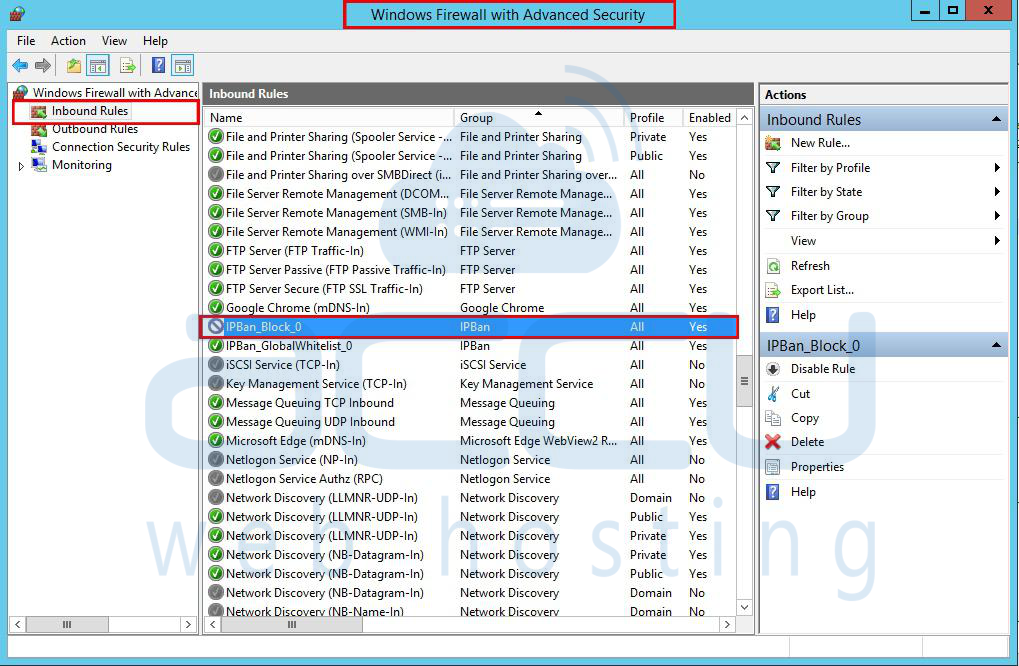
Step 5. Double-click on the IPBan rule to open its properties.
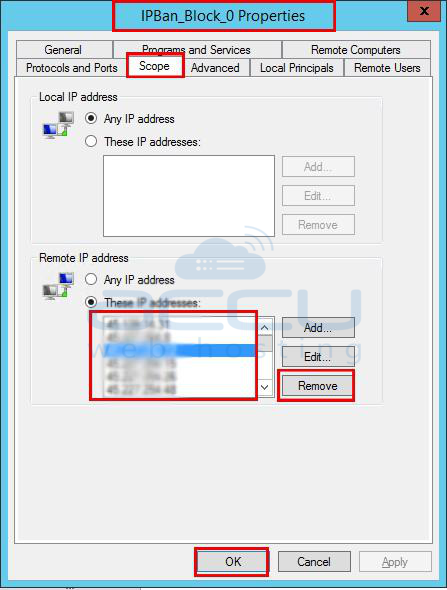
Step 6. In the IPBan rule properties window, go to the "Scope" tab.
Step 7. Under the "Remote IP address" section, you will see the list of blocked IP addresses.
Step 8. Locate the IP address you want to unblock and select it.
Step 9. To remove an IP address from the blocked list, click "Remove".
Step 10. Repeat this step for any additional IP addresses you wish to unblock.
Step 11. After unblocking the IP address(es), click "OK" to save the changes and close the IPBan rule properties window.
By following these steps, you can unblock an IP address from the IPBan rule in the Windows Firewall, restoring its access to your Windows Server.
Steps to whitelist an IP address in the IPBan config file.
Step 1. From the IPBan folder, open the ipban.config file. Generally, it is located at C:\Program Files\IPBan.
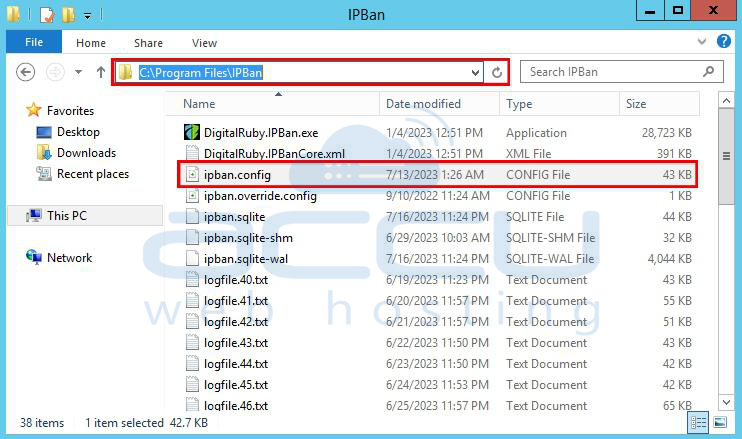
Step 2. Now, find the following line in ipban.config file.
<add key="Whitelist" value=""/>
You have to mention a comma-separated list of IP addresses, CIDR masks, URLs, or DNS names in the Value field that should never be blocked. There will be a priority between the whitelist and the blacklist. Whitelisting the IP addresses on this list will ensure that they are always allowed through the firewall.
Like: <add key="Whitelist" value="1**.1**.3.1**,1**.1**.5.1**"/>
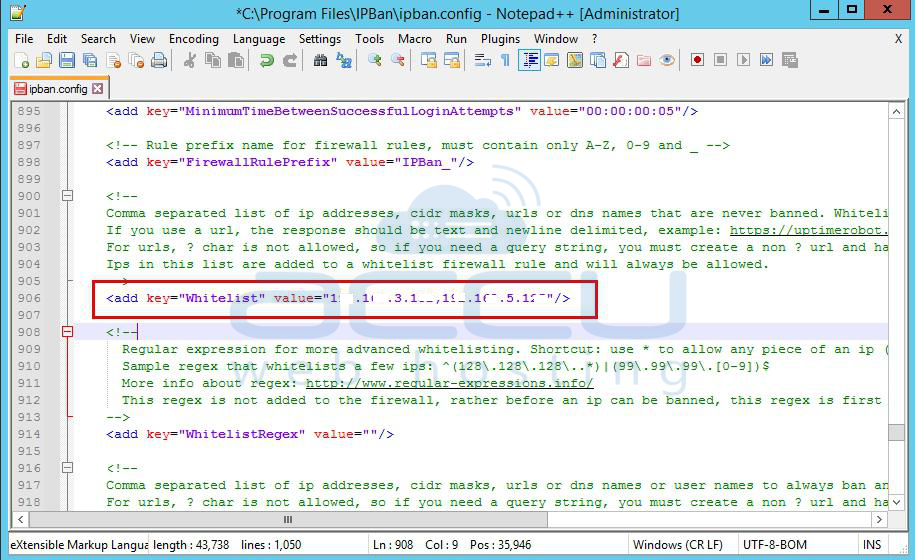
Step 3. Save the ipban.config file.
By following the aforementioned steps, you can effectively whitelist an IP address on a Windows Server utilizing the native Windows Firewall functionality. This ensures that the designated IP address can establish a connection with the server, while simultaneously enhancing security by blocking access from unauthorized IP addresses.


