
What is Pagefile.sys?
Windows operating systems use Pagefile.sys as a virtual memory extension system file. When physical RAM (Random Access Memory) is running low or when it needs to swap out less frequently used data from RAM to make room for new data, the page file can be used as additional RAM. It is also known as the "page file" or "paging file." The page file serves as a supplement to RAM, allowing your system to efficiently handle larger workloads without crashing or slowing down. It plays a crucial role in managing virtual memory and preventing system instability caused by excessive memory usage.
Pagefile.sys file size can be reduced in order to free up some disk space, but it is important to note that disabling or reducing the page file size too much can result in system instability or performance problems. If you have sufficient physical RAM (e.g., 8GB or more), you may consider reducing the page file size, but Windows is generally recommended to do automatically.
How to Find and Check the Size of Pagefile.sys?
You can check the size of the pagefile.sys file on a Windows system by following these steps:
Step 1. Log in to your server or local system and open File Explorer by pressing Win + E.
Step 2. Open your local drive, usually labelled as Local Disk (C:).
Step 3. To access Folder Options on Windows, click on the View option in the top menu and then select Options.

Step 4. In Folder Options, uncheck the option that says "Hide protected operating system files (recommended)."
Step 5. Confirm the warning message by clicking Yes.

Step 6. Select the option that says "Show hidden files, folders, and drives."

Step 7. Click OK to close the Folder Options window and apply the changes.
Step 8. Scroll down in your local drive, and you will be able to see the Pagefile.sys file and it's size.

By following these steps, you can easily locate and check the size of the pagefile.sys file on your Windows system.
How to adjust the page file size of Pagefile.sys?
Step 1. To open the System Properties window, right-click the This PC or My Computer icon and select Properties.

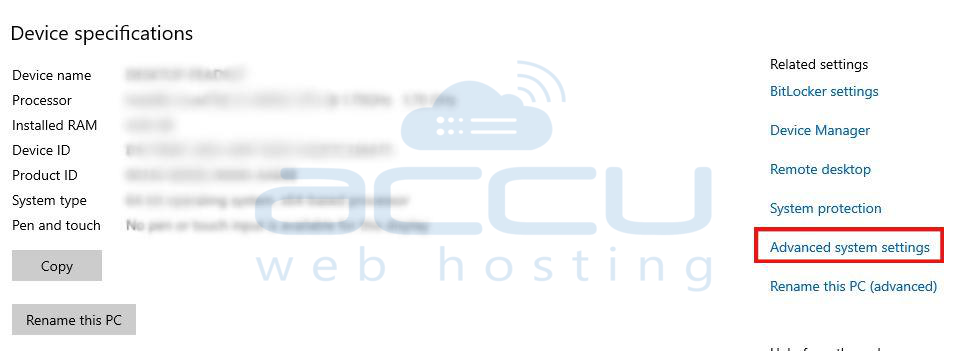
Step 2. In the "System Properties" window, locate and click on the "Advanced system settings". This link is located on the left-hand side.
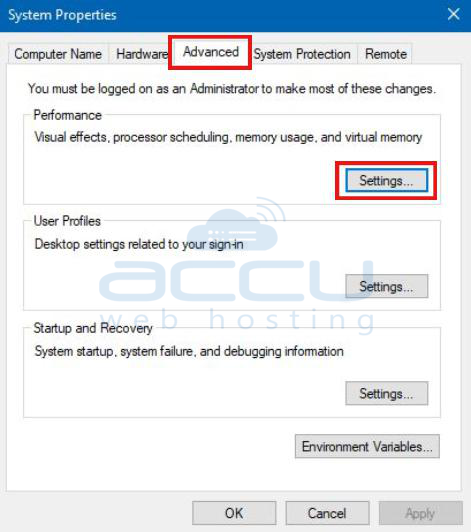
Step 3. In the dialog box that appears, go to the Advanced tab and click the Settings button in the Performance section.
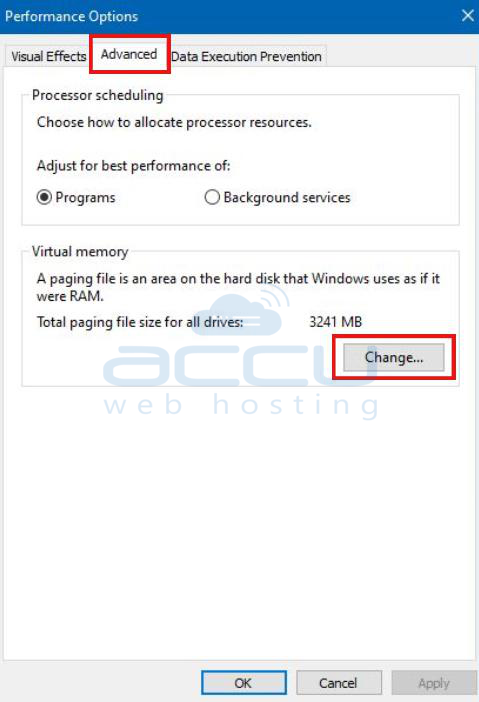
Step 4. Another dialog box called "Performance Options" will open. Navigate to the "Advanced" tab within this box.
Step 5. In the "Virtual memory" section, click on the "Change" button.
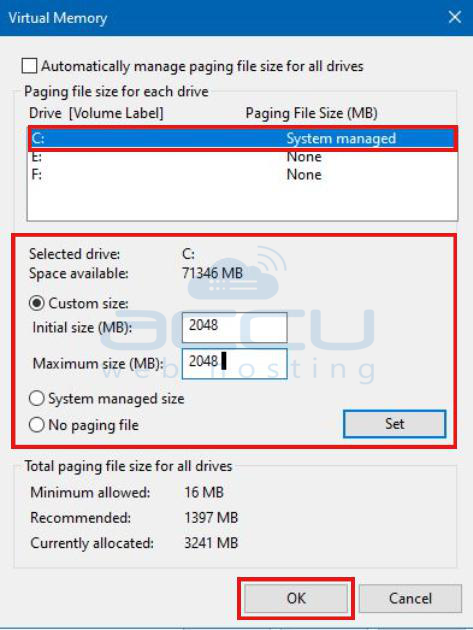
Step 6. If the option "Automatically manage paging file size for all drives" is checked, uncheck it.

Step 7. Select the drive where Windows is installed, usually labeled as the C: drive.
Step 8. Depending on your preference, choose either the "Custom size" option to manually set the page file size or the "System managed size" option to let Windows handle it automatically.
By following these steps, you can easily access the relevant settings in Windows to modify the Pagefile.sys file size.
Custom size: You can set a specific initial and maximum Pagefile.sys file size. In general, it is recommended to set both values the same size (eg initial size: 2048MB, maximum size: 2048MB) or let Windows manage the size automatically.
System managed size: This option allows Windows to automatically manage the size of the Pagefile.sys file based on system requirements.
Step 9. Click the "OK" button to apply the changes.
Step 10. Restart your computer or server for the changes to take effect.
Conclusion:
Pagefile.sys is an important file that helps maintain optimal performance on your Windows machine. When your physical memory reaches its limit, it provides additional space for your PC's RAM to operate effectively. Deleting Pagefile.sys is possible, but only if you have sufficient RAM capacity. Otherwise, it is recommended to resize Pagefile.sys instead.
Be aware that resizing the Pagefile.sys file can temporarily occupy a large amount of disk space, especially if you significantly reduce the size of the Pagefile.sys file or disable it entirely. Make sure you have enough free disk space to avoid possible problems.


