
SCP (Secure Copy Protocol) is a network tool that safely copies files and folders between Linux (Unix) systems. To use it, you can use the scp command, which is a safer version of the cp (copy) command.
SCP keeps your data secure during transfer by encrypting both the files and passwords through an SSH (Secure Shell) connection. This means your data stays safe even if someone tries to intercept it.
This guide will show you how to use the SCP command to copy files and includes 12 practical examples.
Prerequisites
- You need root access on both the client and server.
SCP Command Syntax
The syntax for using the scp command is:
scp [option] [user_name@source_host:path/to/source/file] [user_name@target_host:target/path]
If you omit:
- The user_name of the host (or target), the command defaults to the current user.
- The path/to/source (or the target/path) from the command, the program looks for (or copies) the file locally.
When working with remote files, always specify the user and host details.
Use an account with read access to the file(s) you want to copy on the source system. Also, you need an account with write access to the directory where the file(s) will be saved on the destination system.
Note: The scp command does not check the destination before writing. Any files in the destination with the same name will be overwritten without notification.
SCP Command Options
You can add different options to the scp command to make it faster and more customized. These options are written right after the scp command.
Each option has a short, single-letter form and a longer, more descriptive form.
Options of the SCP Command
You can add various options to the scp command to speed it up and customize it. These options come right after scp. Each option has a single-letter form and a longer, descriptive form.
Option Description
-1 Use Protocol 1.
-2 Use Protocol 2.
-4 Use only IPv4 addresses.
-6 Use only IPv6 addresses.
-B Run in batch mode, disabling all user input queries.
-b (buffer_size) Set the buffer size for data transfer. Default is -32768 bytes if not specified.
-c cipher Choose the encryption method. By default, SCP uses 'AES-128'. Use this option to change the cipher.
-C Enable compression to speed up the transfer.
-D (debug_level) Set the debug level (1, 2, 3, or 99).
-d Copy files only if the target directory exists.
-F file Specify an alternative SSH configuration file.
-h Show the list of command options.
-i file Specify the private key file for authentication.
-o ssh_option Set options in SSH configuration format.
-l limit Limit the bandwidth (in Kbit/s).
-p Preserve file permissions, access time, and modification time.
-P port Specify the port to connect to (default is 22).
-q Run SCP in quiet mode, disabling progress, diagnostic, and warning messages.
-Q Disable file transfer statistics.
-S program Use a specified program for encryption connection.
-r Recursively copy directories and files.
-v Enable verbose mode for detailed execution progress.
-u Delete the source file after copying.
SCP Command Examples
Use the SCP command to:
- Copy files from your computer to a remote server.
- Copy files from a remote server to your computer.
- Copy files between two remote servers.
Here are some examples to help you understand how to use scp.
1. Copy a File from the Local to the Remote Server
In this example, we copy a file from a local computer to a remote server:
$ scp Desktop/nicktest.txt [email protected]:/home/nick/Documents/
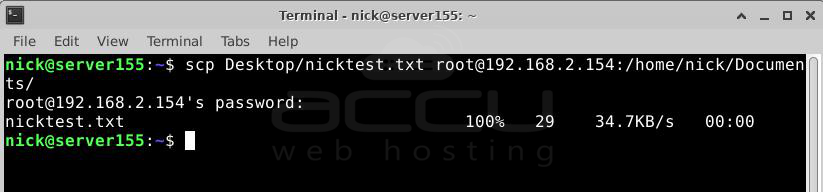
This command includes:
Desktop/nicktest.txt - The file name and its location on your computer.
[email protected] - The username and IP address of the remote server.
/home/nick/Documents/ - The location on the remote server where the file will be copied.
2. Copy the File from the Remote Server to the Local Host
To copy a file from a remote server to your computer, run this command:
$ scp 192.168.2.154:/home/nick/Documents/noeltext.txt /home/nick/Desktop/
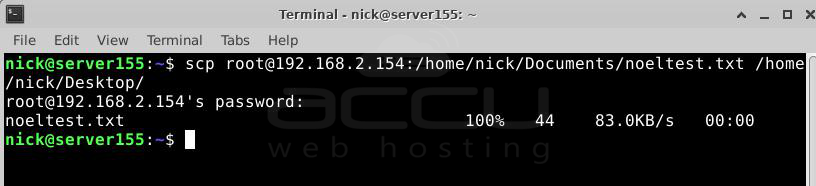
This command includes:
[email protected] - The username and IP address of the remote server.
/home/nick/Documents/nicktest.txt - The file name and its location on the remote server.
/home/nick/Desktop - The location on your computer where the file will be copied.
3. Copy File from One Remote Server to Another
To copy a file from one remote server to another remote server, use this command:
$ scp [email protected]:/home/nick/Documents/nicktest.txt [email protected]:/home/nick/Desktop/
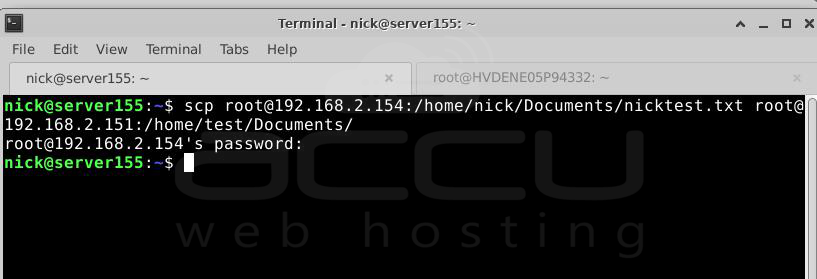
This command includes:
[email protected] - The username and IP address of the remote server where the file is currently located.
/home/nick/Documents//nicktest.txt - The file name and its location on the first remote server.
[email protected] - The username and IP address of the remote server where the file will be copied.
/home/nick/Desktop/ - The location on the second remote server where the file will be copied.
4. Copy Multiple Files with SCP
SCP lets you copy multiple files with a single command. For example, this command copies two files from your computer to a remote server:
$ scp nick/file1.txt nick/file2.txt [email protected]:/home/nick/Documents/
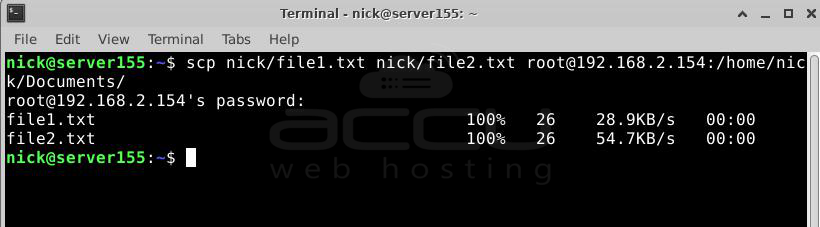
This command includes:
nick/file1.txt - The name and location of the first file.
nick/file2.txt - The name and location of the second file.
[email protected] - The username and IP address of the remote server.
/home/nick/Documents/ - The location on the remote server where the files will be copied.
5. Copy the Directory from the Local Host to the Remote Server Recursively
SCP can also copy entire directories. This command shows how to copy a directory to a remote server recursively:
$ scp -r nick [email protected]:/home/nick/Documents/
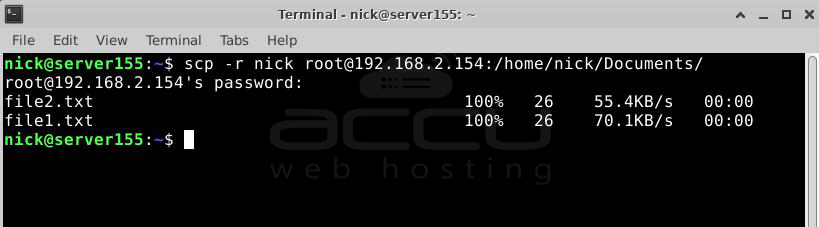
This command includes:
-r - The option to copy directories recursively.
nick - The name of the directory being copied.
[email protected] - The username and IP address of the remote server.
/home/nick/Documents/ - The location where the directory will be copied on the remote server.
6. Copy File with SCP Using a Specific Port
SCP usually uses port 22. If the remote system uses a different port for SSH, use the -P option to specify the port.
For example, this command copies a file from your computer to a remote server using port 22:
$ scp -P 22 Desktop/accuweb.txt [email protected]:/home/nick/Documents/
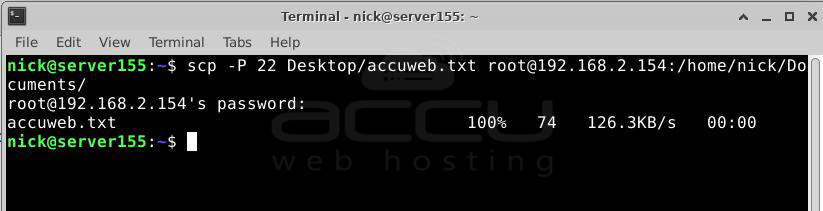
This command includes:
-P 22 - Use port 22. Repace the port number with your actual ssh port number
Desktop/accuweb.txt - The file name and its location on your computer.
[email protected] - The username and IP address of the remote server.
/home/nick/Documents/ - The location on the remote server where the file will be copied.
7. Copy File with SCP in Quiet Mode
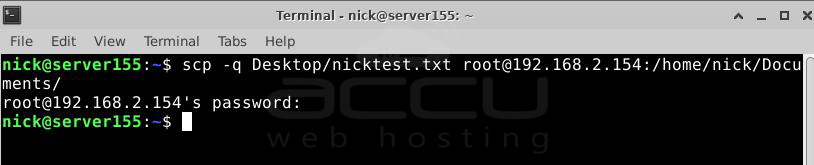
To run an SCP command without showing the progress meter and non-error messages, use the -q option:
$ scp -q Desktop/nicktest.txt [email protected]:/home/nick/Documents/
8. Copy File with SCP in Verbose Mode
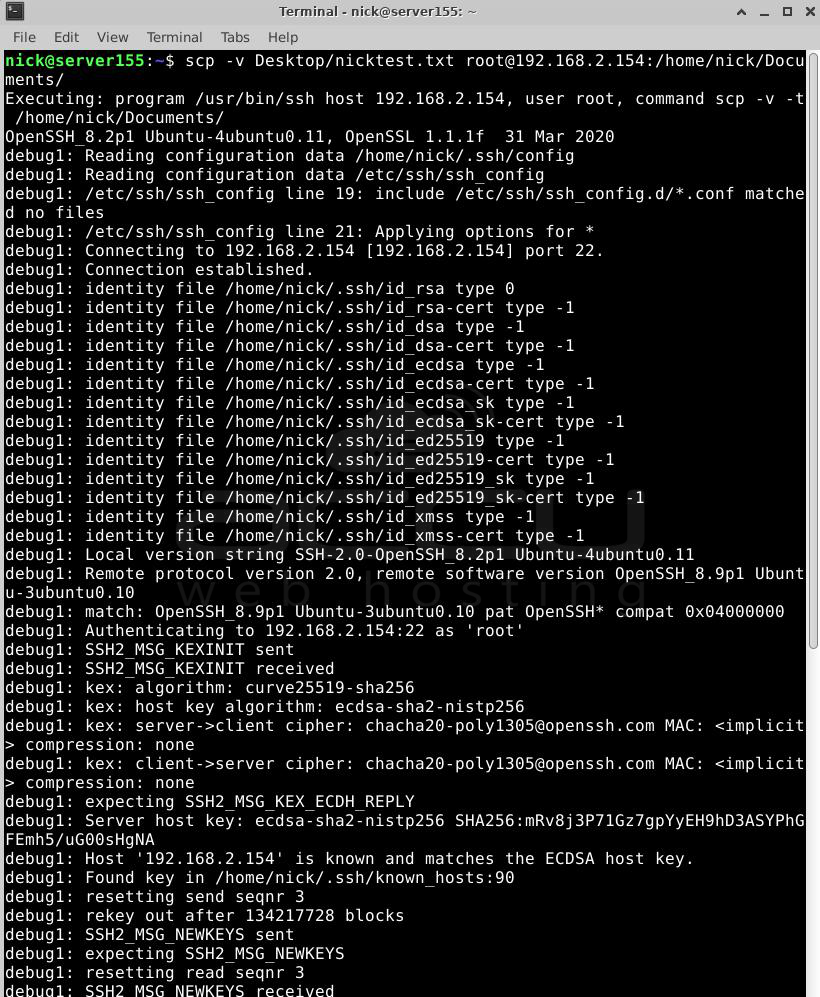
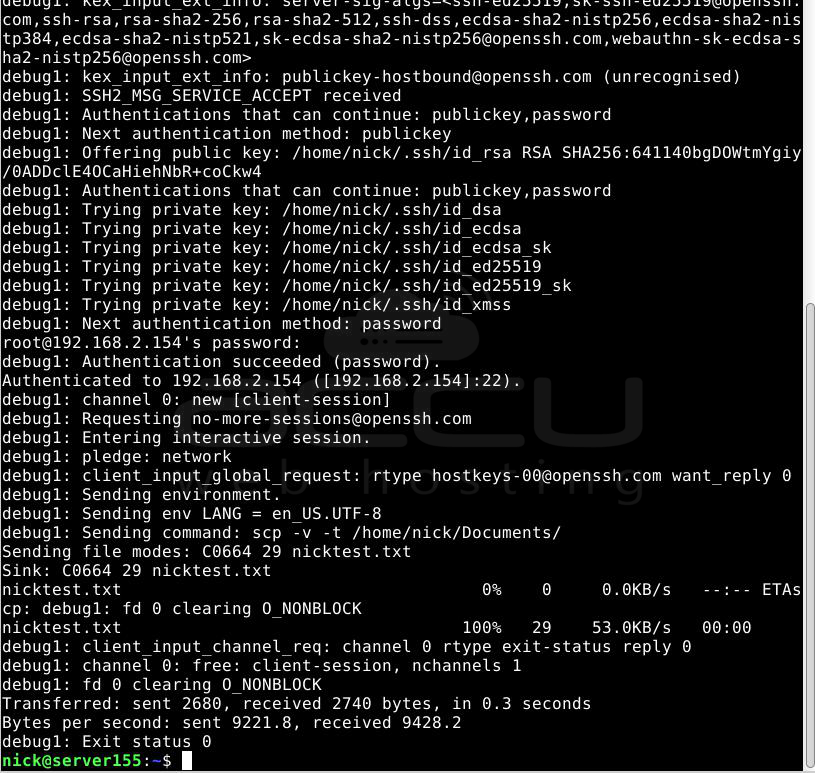
To run SCP in verbose mode, add the -v option. This sets the debug level to 2 and prints debugging information to help with troubleshooting.
Example:
$ scp -v Desktop/nicktest.txt [email protected]:/home/nick/Documents/
9. Copy File with SCP and Limit the Bandwidth
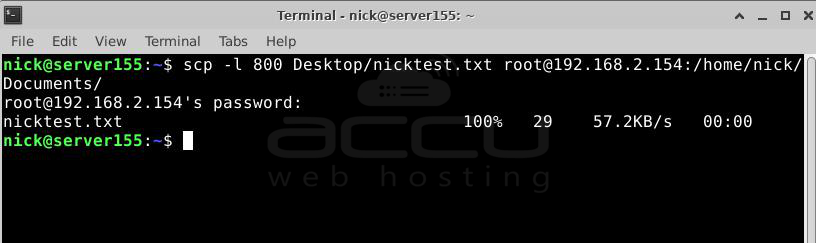
To limit the bandwidth used by SCP, add the -l option. This is useful for copying large files without using up all the bandwidth.
Specify the limit in Kilobits per second (Kbps). For example, to limit SCP to 100 KB/s (which is 800 Kbps), use the command:
$ scp -l 800 Desktop/nicktest.txt [email protected]:/home/nick/Documents/
10. Copy File with SCP Faster
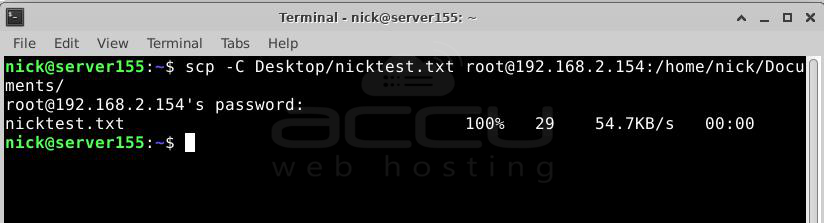
To speed up file transfer, add the -C option to compress the file during transfer. The file will return to its regular size once it reaches the destination.
$ scp -C Desktop/nicktest.txt [email protected]:/home/nick/Documents/
11. Copy File with SCP Using a Specific Cipher
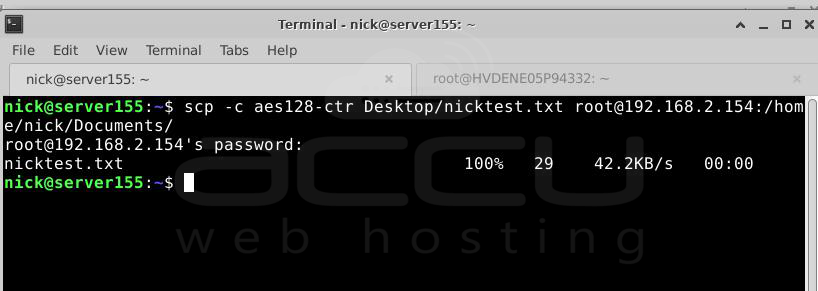
SCP uses AES-128 for encryption by default, but you can change the encryption method with the -c option.
For example, to use 3des-cbc encryption for increased security:
$ scp -c 3des-cbc Desktop/nicktest.txt [email protected]:/home/nick/Documents/
12. Copy File with SCP and Preserve File Attributes
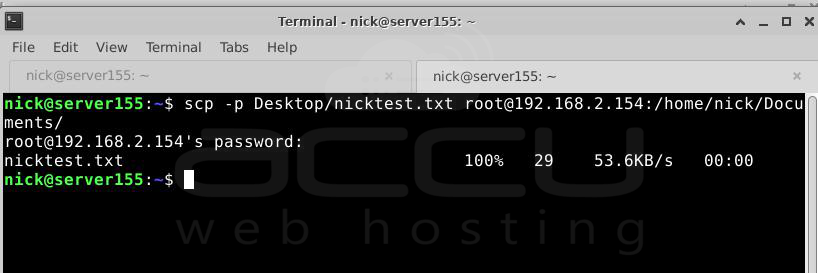
To copy a file with SCP and keep its original attributes like modification and access times, modes, and permissions, use the -p option:
$ scp -p Desktop/nicktest.txt [email protected]:/home/nick/Documents/
Conclusion
In this guide, you learned what the SCP command is and how to use it for secure file transfer. This tool is a great replacement for FTP, which is not secure by default.
SCP follows regular command-line and SSH functionality, making it easy to manage files between Linux machines.
