
In certain scenarios, such as replacing hardware or managing license compliance, you may need to de-register a device associated with a Windows Client Access License (CAL). De-registering a device involves revoking its license, which frees up the CAL for use on another device.
This guide provides step-by-step instructions to safely and effectively de-register a device in Windows CAL.
Steps to de-register the device in Windows CAL
Step 1. Log in to the server from where you want to de-register the device.
Step 2. Press the Windows key + R on your keyboard to open the Run dialog box.
Step 3. Type licmgr.exe into the Run dialog box and press Enter or click OK. This command opens the Remote Desktop License Manager.
Step 4. You should see the list of licenses and registered devices in the Remote Desktop Licensing Manager. Find the device you want to deregister and right-click on it.
Step 5. Click on Revoke license to remove or deactivate the CAL associated with the selected device.
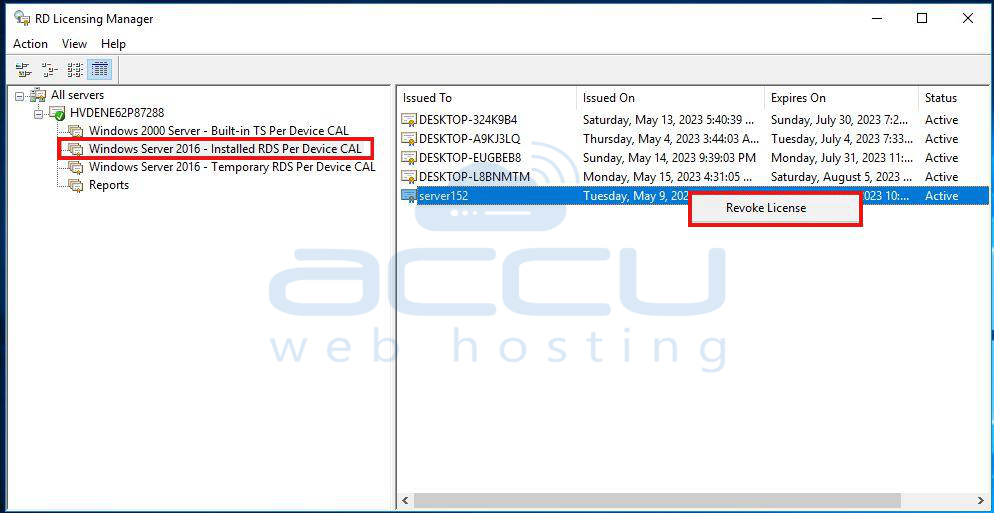
Step 6. Follow the prompts to remove or deactivate the CAL. You may need to confirm your action or provide additional information.
Step 7. Once the CAL has been removed or deactivated, restart the device to apply the changes.
Congratulations! You have successfully deregistered the device in Windows CAL.
Please note: Once you revoke one device, you need to wait for 2 months for another revoke.
De-registering a device in Windows CAL is a straightforward process that helps you manage your licenses efficiently. By following the steps outlined above, you can safely revoke a CAL from a device, freeing it up for use elsewhere while ensuring compliance with Microsoft licensing policies.


