
FTP (File Transfer Protocol) log is a record of all the activity that occurs on an FTP server, including information about the connections made to the server, the commands executed, and the files that were transferred.
You can check FTP logs in Windows OS with or without control panels.
Here are the ways to check FTP logs with Plesk:-
1. Log in to your Plesk control panel.
2. Click on 'Statistics' from the left-hand sidebar menu.

3. You'll find this section. Go to the 'FTP Statistics'.

4. Click on the FTP log file you want to view.
Here are the ways to check FTP without a control panel:-
1. Connect to your Windows Server using RDP (Remote Desktop Protocol).
2. Open IIS (Internet Information Service) Manager by clicking the Start button and searching for it.

3. Under Home, find the FTP Logging inside the FTP section.

4. Make sure the logs-related configuration is correct by double-clicking the FTP Logging option.
5. Click on View Logs... on the top of the right side under the Actions section.
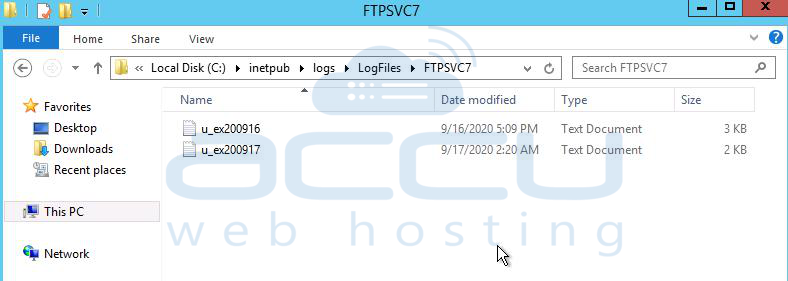
6. You will find the FTPSVC2 folder under this path. (C:\inetpub\logs\LogFiles)

7. Go to the folder and check FTP's available log files.
So, You can check FTP logs in Windows OS by following these steps.


