
Traceroute (tracert) is a command line utility that shows you the time it takes for a packet of information to reach a destination IP address or domain from your local computer. The traceroute command lists the 'hops' data packets taken to reach the target IP or domain. It is often used for troubleshooting connectivity problems.
Windows 10/11
Here are the steps for running tracert on Windows 10.
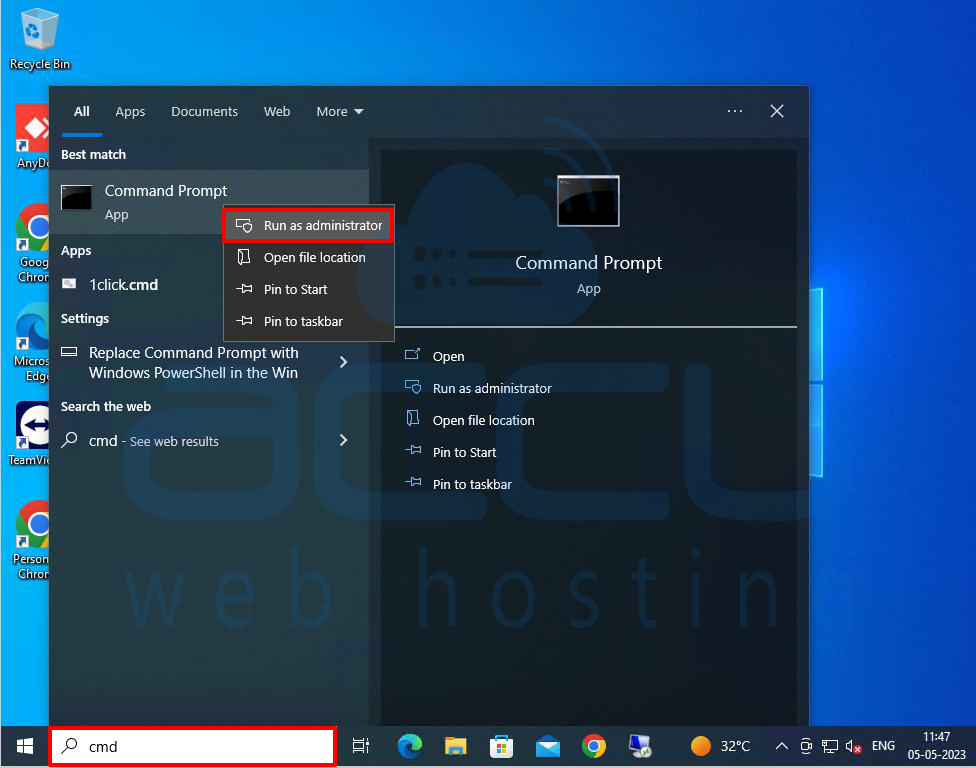
Step 1: Go to the Taskbar at the bottom of the screen and click the Search icon.
Step 2: In the search box, type cmd. Choose the best match and select the Run as administrator option.
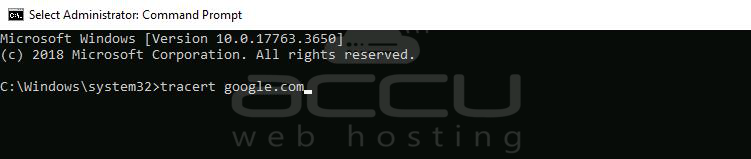
Step 3: In the Command Prompt window, type tracert followed by a space and domain name or IP address.
For example,
tracert google.com
or tracert 8.8.8.8
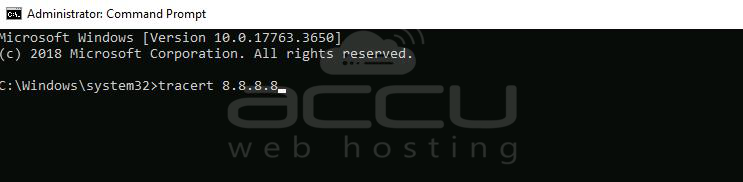
Note: You need to replace google.com with your domain name and IP address 8.8.8.8 with your Server IP address.
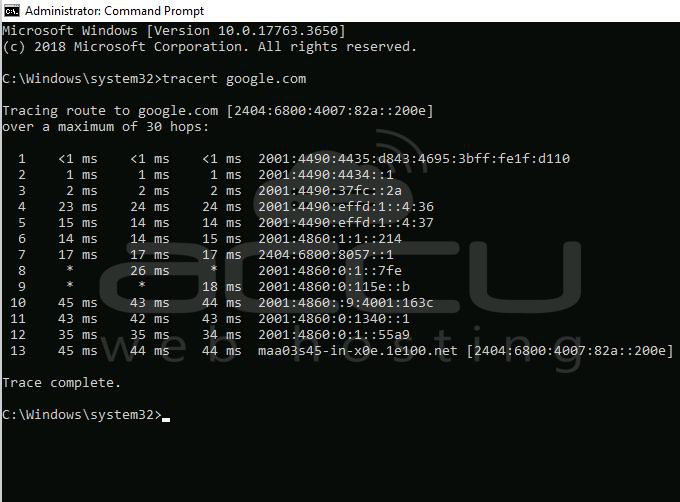
Step 4: After then, press enter to run the command.
When the process is complete, you will see the words Trace Complete. Also, you can stop the traceroute at any time by pressing the Ctrl + C keys simultaneously on your keyboard.
To copy the traceroute results, left click and drag to select the traceroute results. Then press Enter on your keyboard. Then open a document or text file and paste the traceroute results there.
Linux
How to run tracert (or traceroute) in Linux?
The Linux traceroute command is a network diagnostic tool that aids in determining the path and number of hops necessary for packets to reach a destination. It allows for the visualization of data transmission from a local machine to a remote machine, such as when loading a web page.
The traceroute tool can display the routes, IP addresses, and hostnames of routers involved in data transmission over a network. This information can be valuable in diagnosing network issues.
Install the traceroute Command in Linux
By default, the Linux system does not have the traceroute utility installed. Therefore, to utilize a traceroute, it is necessary to install it manually. This can be achieved by executing one of the following commands:
For Ubuntu or Debian use the following syntax:
# apt-get install traceroute -y

For openSUSE, SUSE Linux uses the following syntax:
# zypper in traceroute

After executing the aforementioned command in Linux, the traceroute utility will be installed into the system and ready to be used for tracing the route of packets.
Run a Traceroute on Linux
Step 1: Open the terminal in the Linux System.
Step 2: To trace the route of a connected network host, you need to pass the name of the server or its IP address that you want to connect to the traceroute command. For example, suppose you want to trace the route of the server 'google.com' In that case, you can execute the following command:
# traceroute google.com
The command mentioned above will display various information regarding the hops, packets, and other relevant route details. Here's an example output:
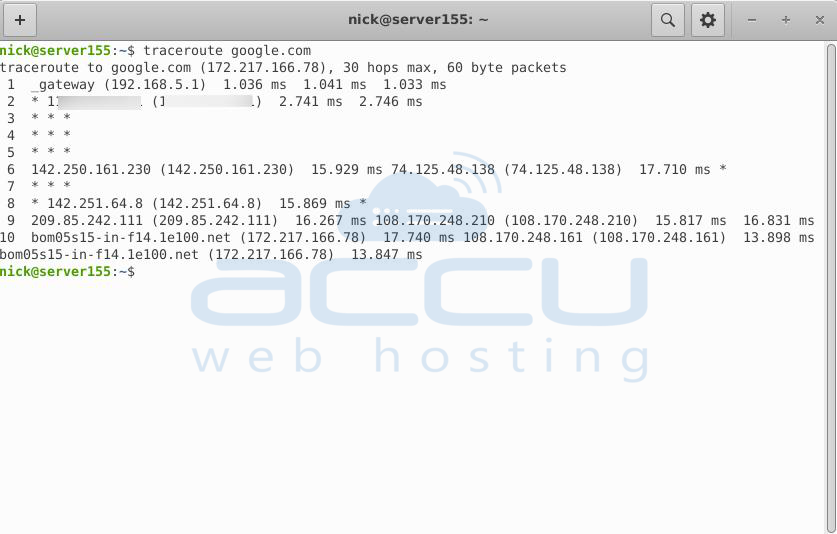
The output above contains various information, which can be understood as follows:
-> The first line displays the hostname and IP address of the destination to be reached, the number of hops the traceroute command will attempt, and the packet size to be sent.
-> From the second line onward, each line represents a hop to the destination, displaying the hostname followed by the IP address of the host, the round-trip time, and the number of packets sent and received.
-> By default, the traceroute command sends three packets for each host, hence displaying three response times.
-> The '*' symbol represents packet loss. Packet loss may occur due to network outage, high traffic, network congestion, or firewall-dropping traffic. In case of significant packet loss, the traceroute command may display an error such as "destination not reached."
Common Traceroute Errors and Messages
* (Time exceeded) This error will be displayed if the hop does not return the next hop value within the given time frame. The time period by default is 2 seconds.
!A (Administratively Down) The admin blocks the access.
!H (Host unavailable) When the target host is not responding.
!T (Timeout) No packet response is received back
!U (Port unreachable) The target port is faulty
!N (Network Unreachable) The network may be down, or the link may get down
That's all.


