
Windows servers may experience Remote Desktop (RDP) connection failures due to various reasons, such as network issues, incorrect credentials, firewall restrictions, blocked ports, or misconfigured RDP settings.
This guide covers the most common RDP errors and provides their solutions.
Common Errors
Error type 1: An internal error has occurred.
This error occurs mostly when a user attempts to connect to a remote server. There are several reasons for this, including a weak network connection, an invalid remote connection configuration, etc.
To fix it, you need to restart the server, and it will resolve the issue. If you are still receiving the same error, then you need to follow the steps mentioned in this link.
Error type 2: The logon attempt failed.
Generally, this error occurs if you enter the wrong username and password. To fix this error, you need to enter the correct login details. You can check the correct login details of your VPS from the client area.
Error type 3: The remote desktop can’t connect to the remote computer for one of these reasons:
There are several reasons for this error.
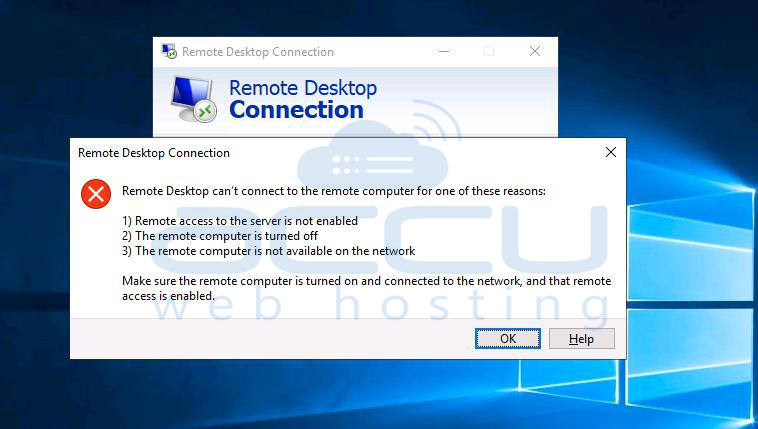
3.1. Using the wrong RDP Port number
AccuWeb Hosting has started delivering VPS with Remote Desktop Service on a non-standard port to mitigate Brute Force attacks.
Hence, entering just the IP address/Computer name (without port) in any Remote Desktop client software won't work.
Instead, enter ‘Computer name/IP address: Port’ in the Remote Desktop Connection Window.

You will get the RDP Port details from the client area. Below are the steps to check the RDP Port details from the client area.
Step 1: Log in to the client area.
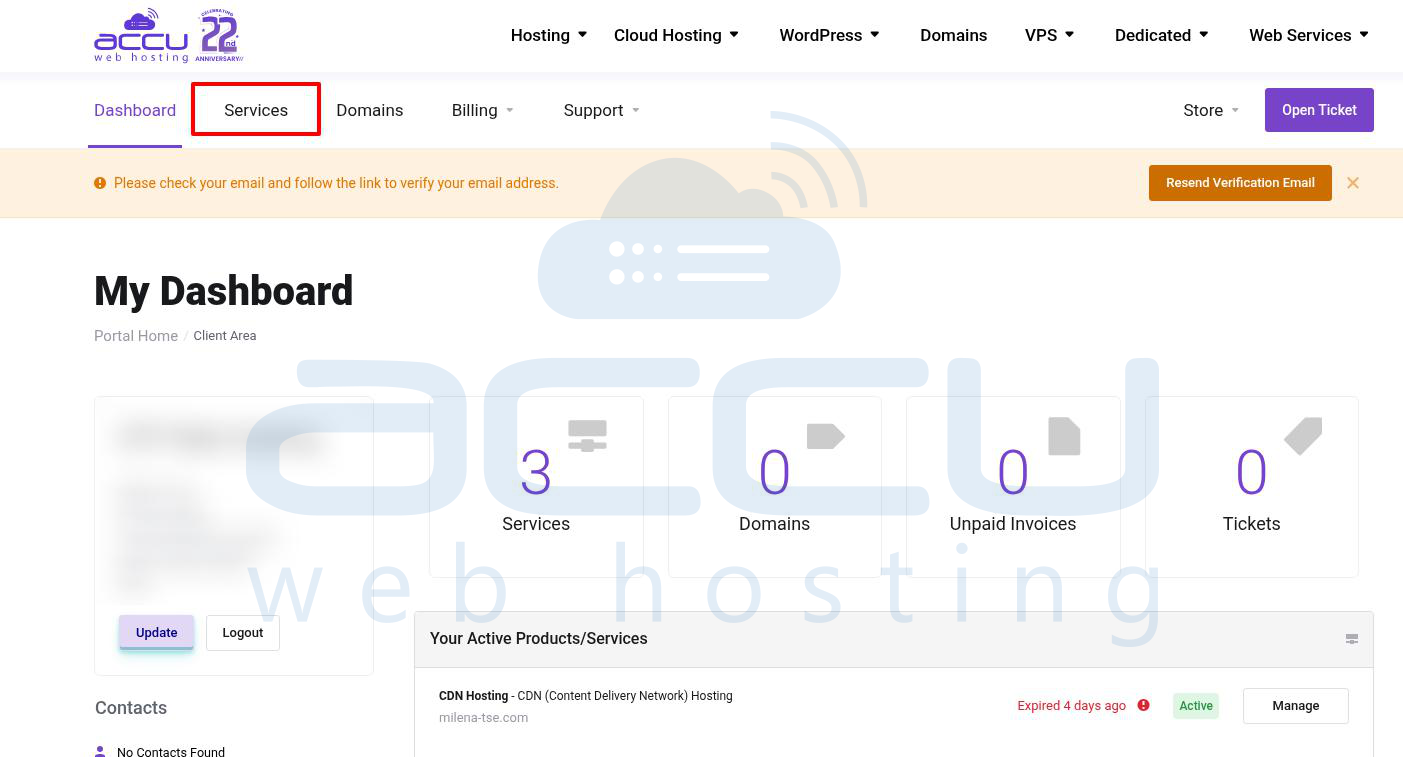
Step 2: Click the Services tab on the screen's upper left side.
Step 3: Select the My Services option and click on it.
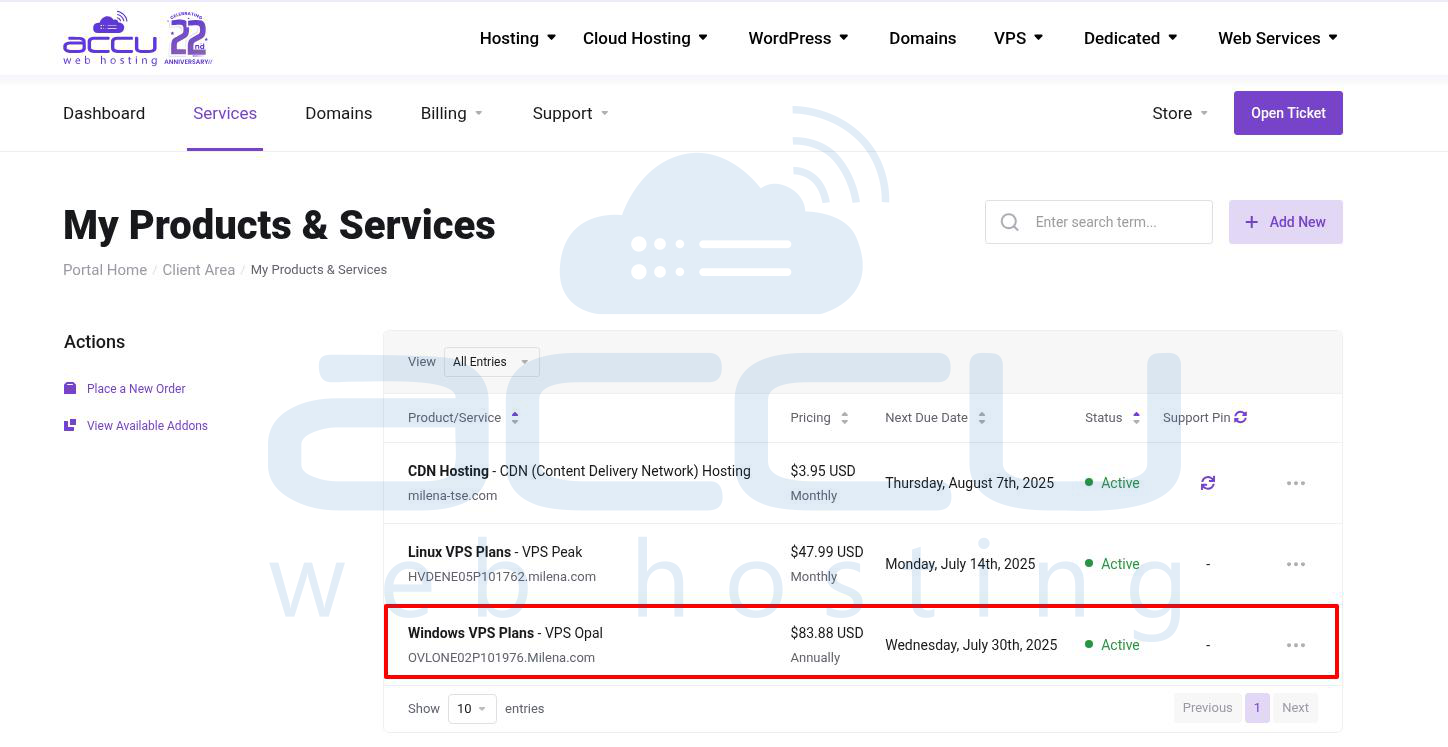
Step 4: Locate your active VPS Service and click on it to open it. Here, we have selected Windows VPS Plans - VPS Opal OVLONE02P101976.Milena.com as an example.
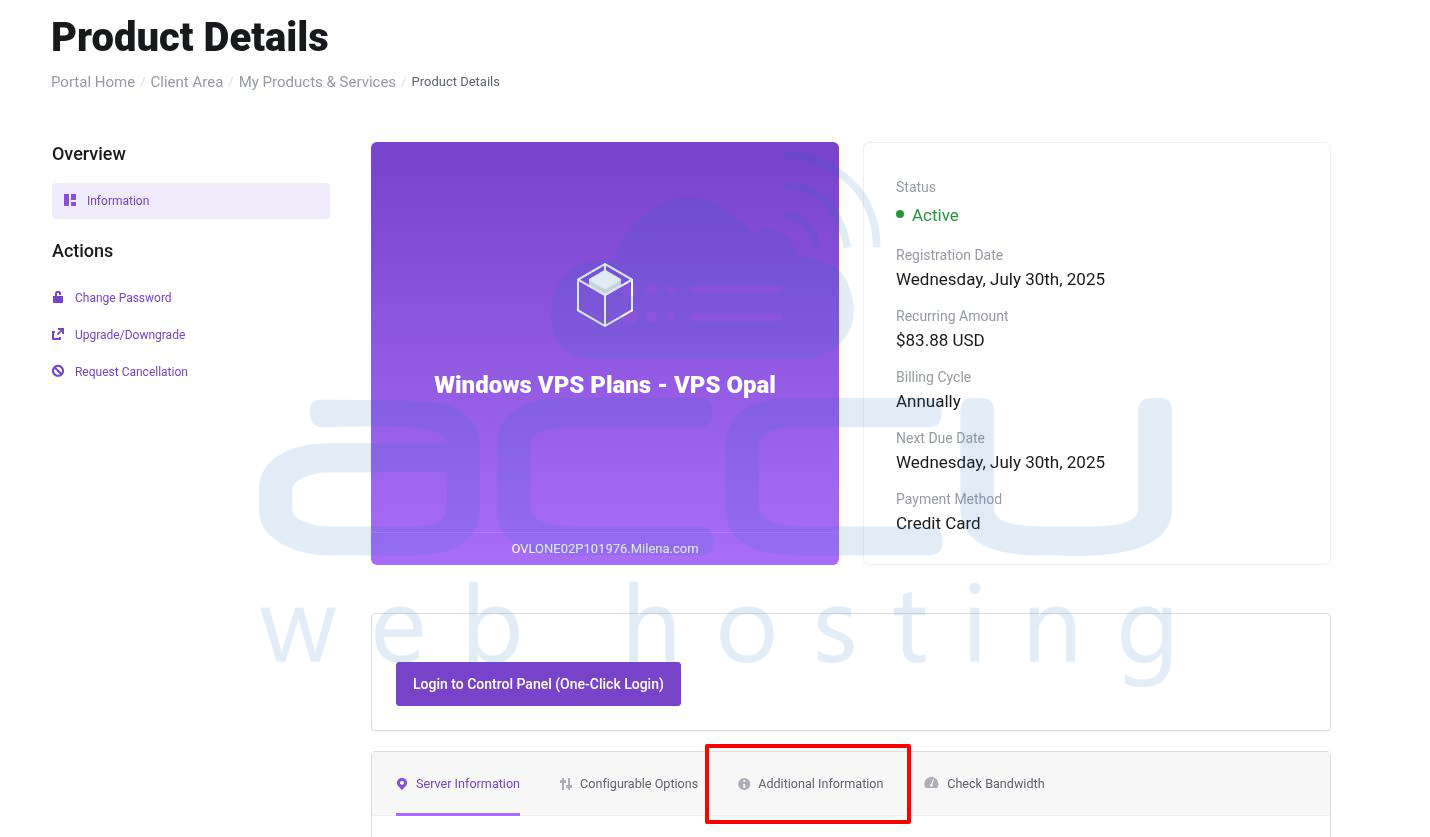
Step 5: Click on the Additional Information link in the Product Details window.
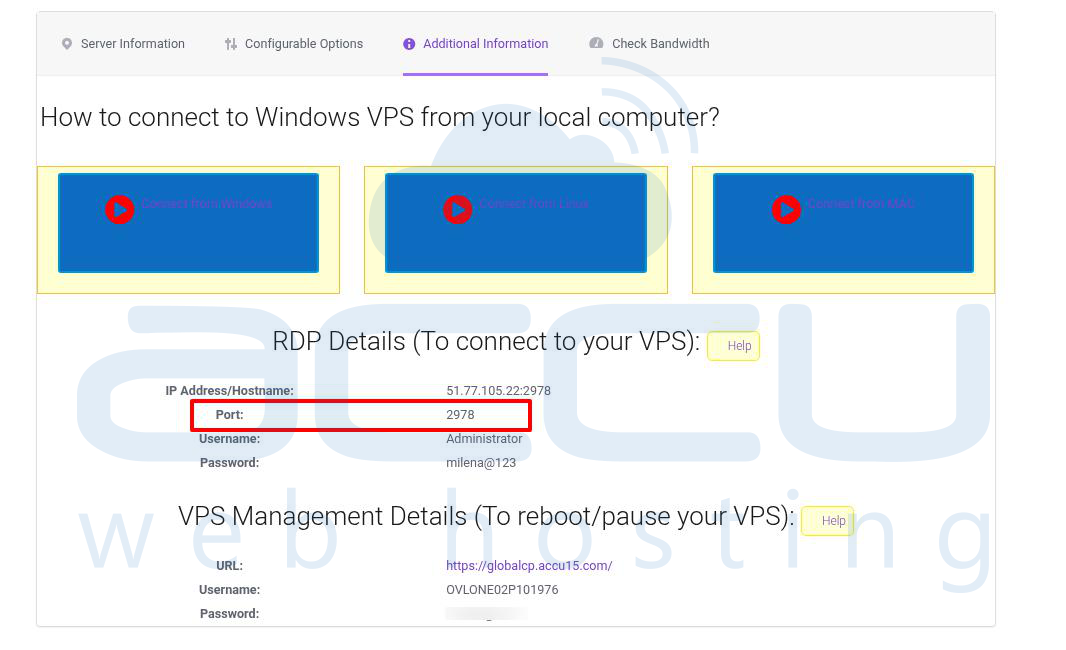
Step 6: Scroll up the screen. Go to the RDP Details section. In the Port field, you will get the RDP Port details of your Windows VPS. Please use this port to log in to your Windows VPS.
3.2. RDP Port is blocked by your Local ISP provider
Your local ISP provider may block the RDP Port. To check whether the RDP Port is blocked, fire the following command in the command prompt.
# telnet 51.77.105.22 2978
Note: Please replace the IP address and port number with your VPS IP address and port number.
Step on how to initiate a telnet command from the Windows system
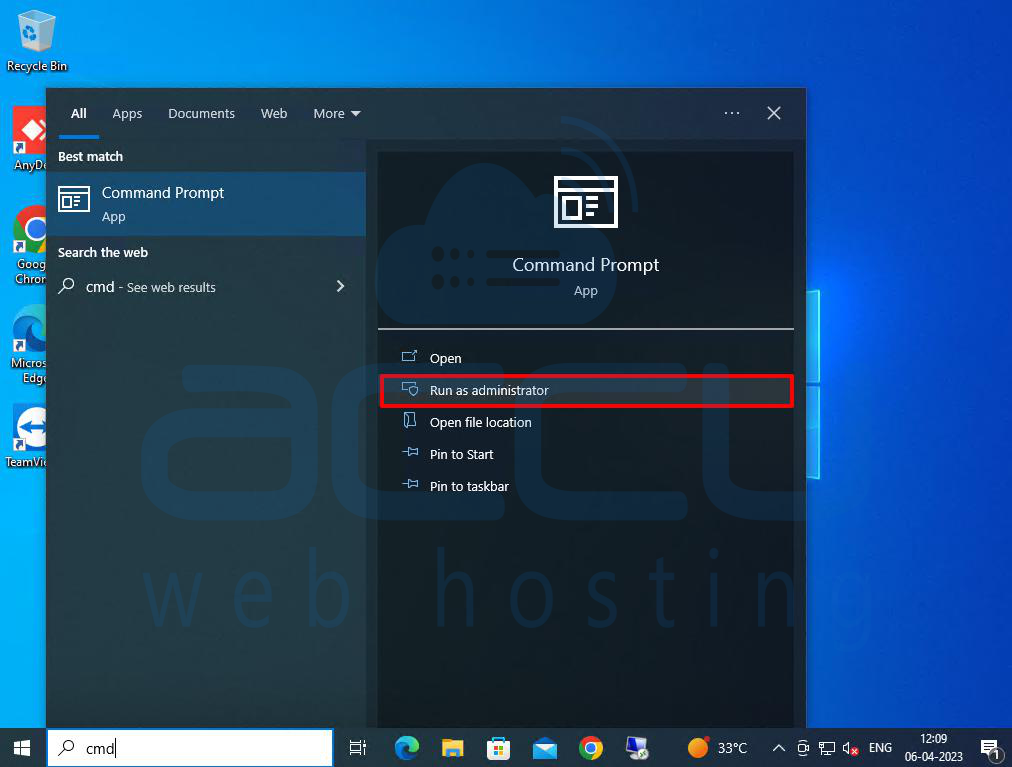
Step 1: Type cmd in the search bar.
Step 2: Right-click on the Command Prompt and select Run as Administrator.
Step 3: In the command prompt, type the following command and hit enter.
# telnet 51.77.105.22 2978
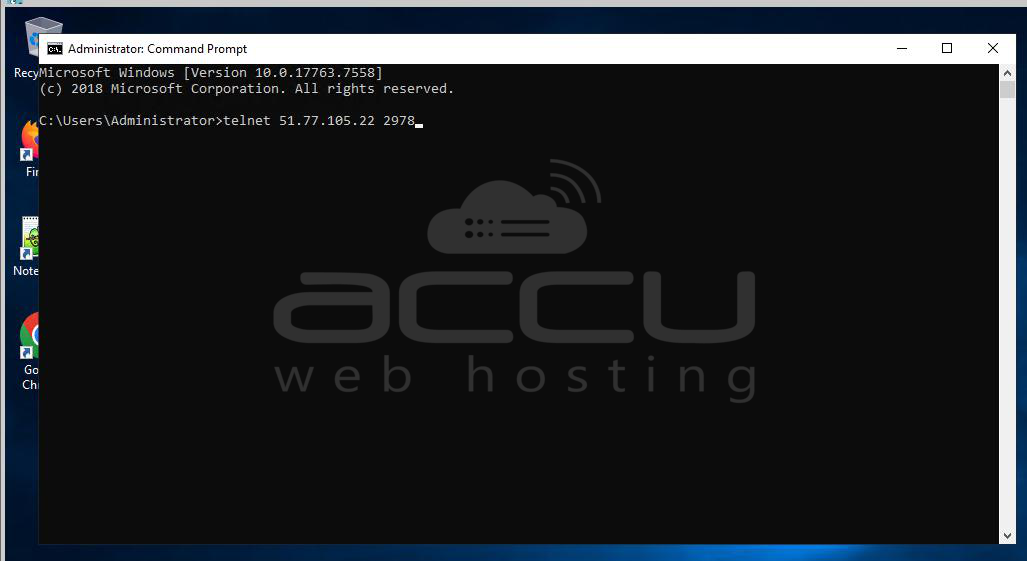
If the port number is blocked, you will get a result like the one below.
In that case, you need to contact our Technical support team. They will set a new non-standard port for your VPS and share it with you in the support ticket.
If the telnet is not enabled on your Windows system, follow this link to enable it.
Conclusion:
Most Remote Desktop connection issues can be fixed by checking credentials, verifying the RDP port, ensuring your ISP does not block it, and restarting the server.
If you have confirmed all settings and still cannot connect, contact AccuWeb Hosting Technical Support for further assistance.


