
Lucee is a lightweight, open-source CFML (ColdFusion Markup Language) engine that enables developers to build dynamic websites and web applications. It’s an alternative to Adobe ColdFusion, offering better performance, open-source flexibility, and a robust community.
Why Install Lucee on a Windows VPS?
- Full control over the server environment
- Ability to host custom CFML-based applications
- Lower cost than hosted ColdFusion solutions
- Easy integration with IIS or Apache on Windows
System Requirements
- OS: Windows Server 2012 or newer (e.g., 2016, 2019, 2022)
- RAM: At least 2 GB (4 GB recommended)
- Disk Space: Minimum 2 GB free
- Java: Java JDK or JRE (Lucee installer includes it optionally)
- Web Server: IIS (preferred), or use the built-in web server during setup
- Admin Access: Full administrator privileges on the VPS
Below is the step-by-step guide on how to install Lucee on Windows VPS
Step 1: Download the Lucee Installer
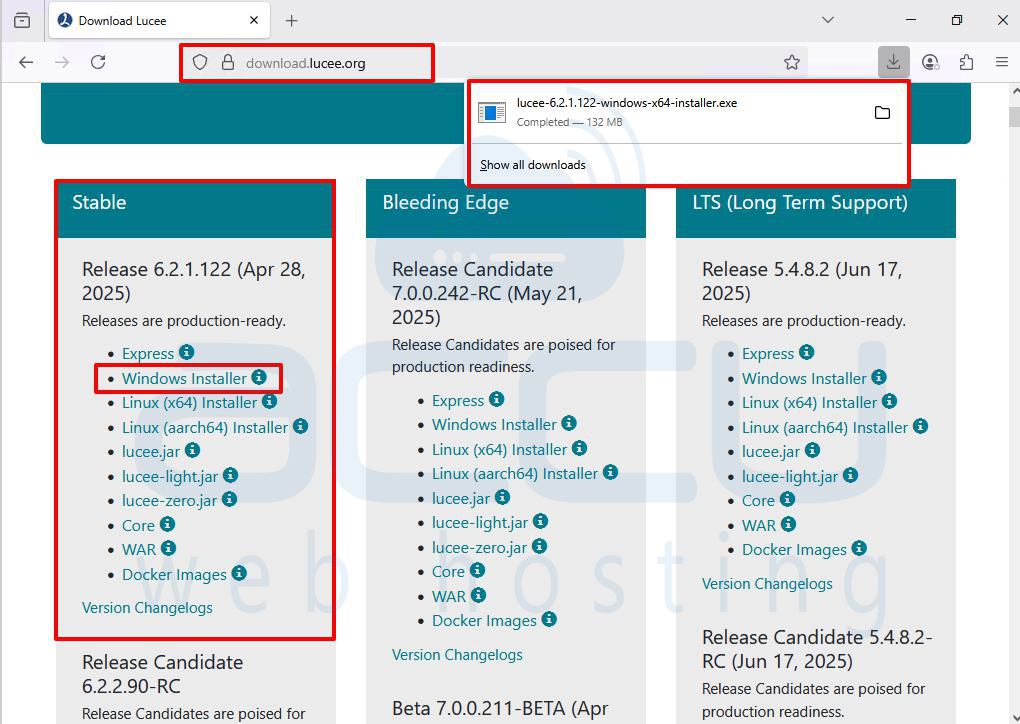
Visit the official download page: https://download.lucee.org
From the Stable Release section, click on Windows Installer- This downloads a file named: lucee-6.2.1.122-windows-x64-installer.exe
Step 2: Locate the Installer in Downloads
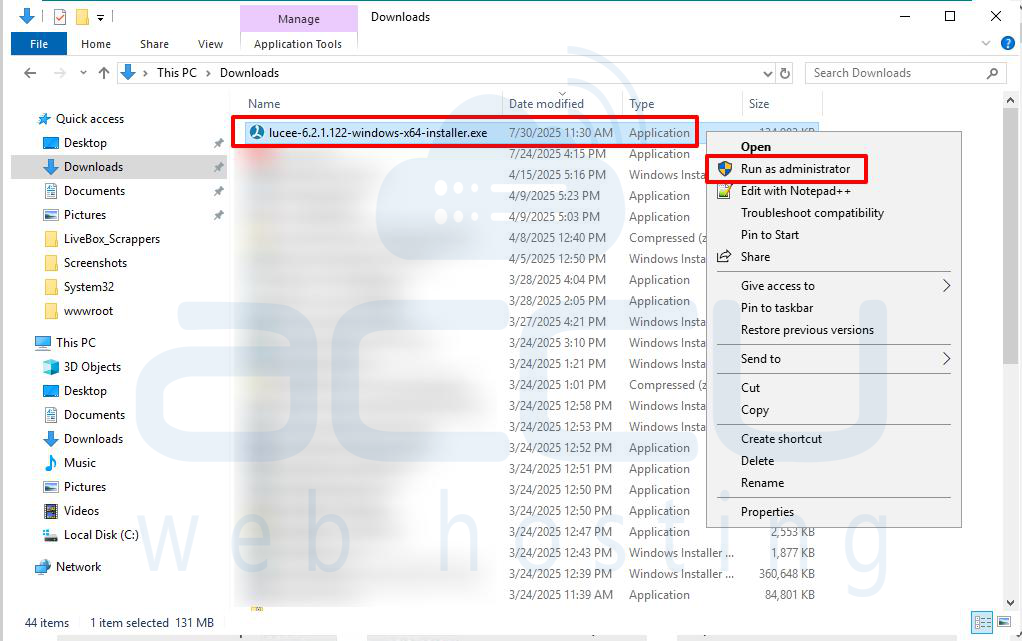
Navigate to the Downloads folder. Right-click the installer and select: "Run as administrator"
Step 3: Windows Defender SmartScreen Warning
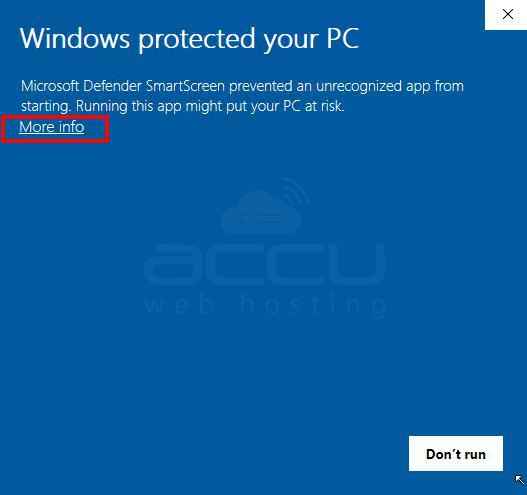
Windows may block the installer by default. Click “More info.” Then click “Run anyway.” This is safe for Lucee from the official site.
Step 4: Lucee Setup Begins
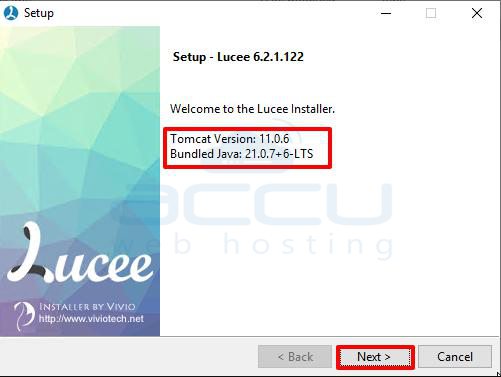
You'll see the Lucee Setup screen showing Tomcat Version (11.0.6)and Bundled Java (21.0.7+6-LTS). Click Next to begin the installation.
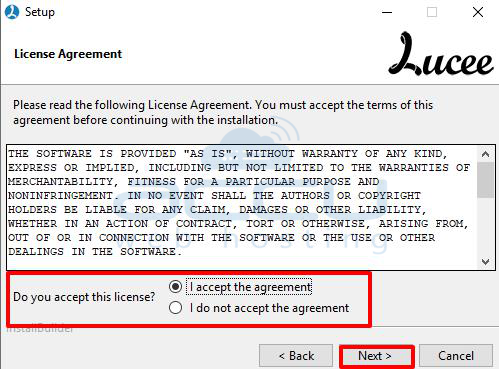
Step 5: Accept License Agreement
To proceed, you must accept Lucee's license terms. Select “I accept the agreement.” Click Next
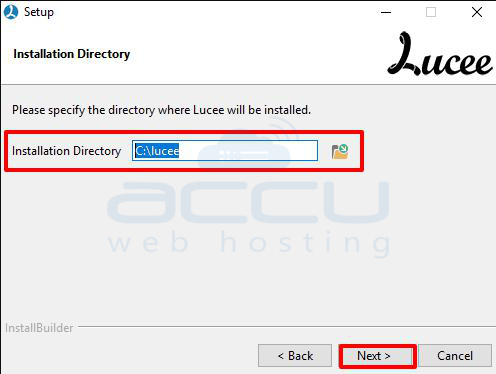
Step 6: Choose Installation Directory
The default installation path is: C:\lucee. You can keep this or change it based on your preference. Click Next to continue.
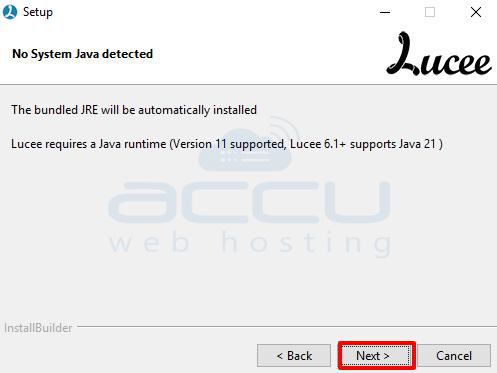
Step 7: Java Runtime Detection
If no Java is detected on your VPS, Lucee will install the bundled JRE automatically. Click Next to proceed.
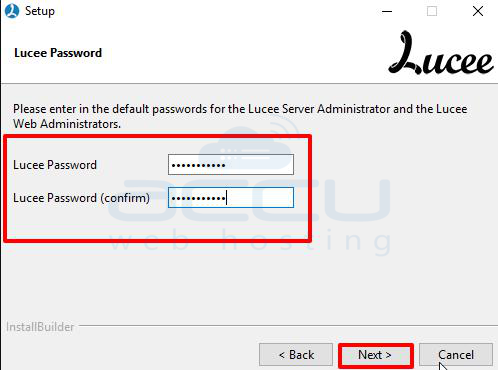
Step 8: Set Administrator Password
Create a secure password for Lucee Server Administrator and Lucee Web Administrator. Enter and confirm your password. Click Next to proceed.
Step 9: Complete the Installation
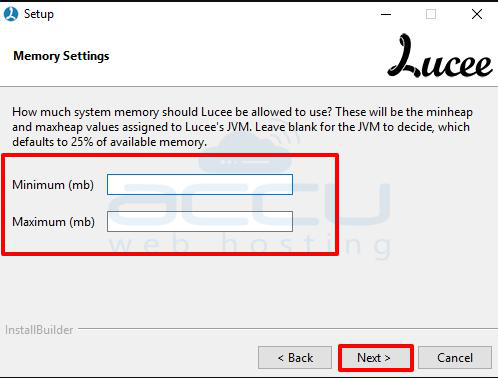
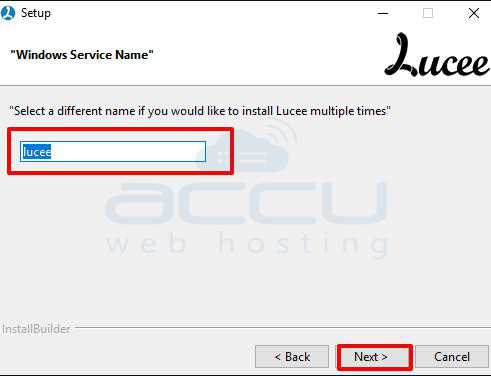
Continue through the setup screens until the installation completes.
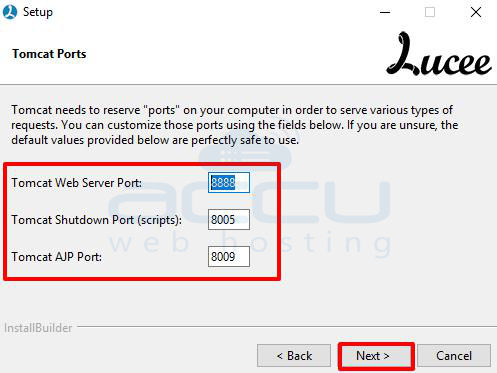
Ports: Default web port (8888), AJP (8009), shutdown (8005)
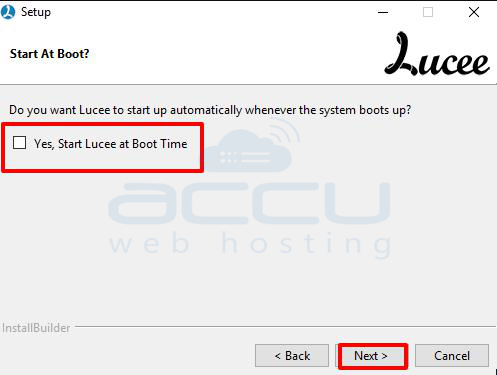
Startup Settings: Choose whether Lucee runs at boot
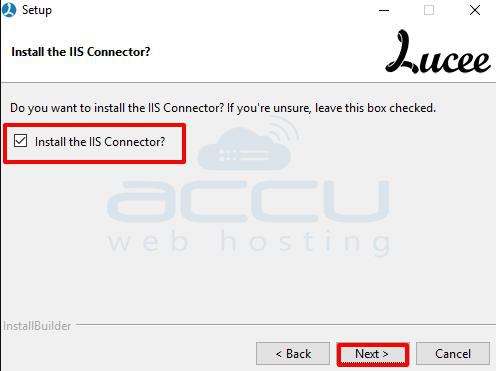
IIS Connector: Enable if you plan to use IIS
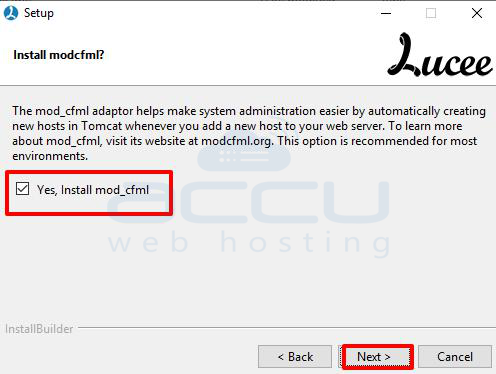
mod_cfml: Recommended for automatic virtual host management
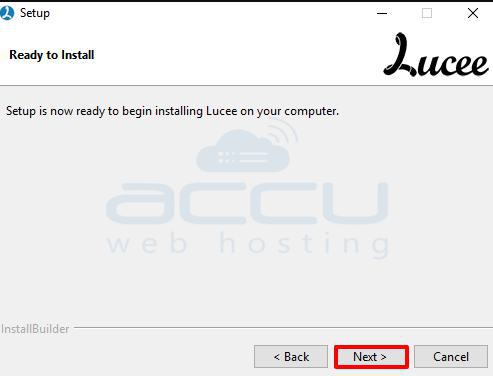
You may choose whether to:
- Run Lucee with its built-in web server
- Or integrate with IIS (Windows Web Server)
Once installed, Lucee will open its admin interface in your browser:
- Web Admin: http://localhost:8888
- Server Admin: http://localhost:8888/lucee/admin/server.cfm
- You should see the Lucee Web Administrator Interface.
Common Issues while installing the Lucee:
IIS Not Detected
If the Lucee installer does not detect IIS (Internet Information Services), it means IIS is not installed or not properly enabled on your Windows VPS. You must install IIS before running the Lucee installer. This can be done via "Turn Windows features on or off" in the Control Panel.
Port 8888 Is Not Accessible
Lucee’s built-in web server (Tomcat) uses port 8888. If you can’t access it in your browser, the Windows Firewall might be blocking it. Open Windows Firewall settings and create a rule to allow inbound traffic on port 8888.
Admin Interface Errors
If you encounter issues accessing the Lucee admin interface or see blank/error pages, try restarting the Lucee service. If that doesn’t resolve it, check the log files located at C:\lucee\tomcat\logs for detailed error messages and troubleshooting clues.
CFML Not Executing in Browser
If .cfm or .cfc files aren’t being processed and just download or show as plain text, ensure that IIS is configured with the correct handler mappings for these file extensions. You may need to manually add .cfm and .cfc to the handler mappings in IIS Manager.
Conclusion:
Installing Lucee on a Windows VPS is a straightforward process that unlocks powerful CFML development capabilities in a self-managed environment. Whether you are migrating from Adobe ColdFusion or starting fresh with Lucee, a Windows VPS provides the flexibility and performance needed for production use. With proper configuration, updates, and security hardening, you’ll have a fast and stable environment for running your CFML applications.


