
PowerShell is an advanced version of the command prompt. It has a large set of ready-to-use cmdlets and intelligence for using the .NET framework and C# in various scenarios. It can be used to allow or block a port in Windows Server OS and Windows Desktop OS.
If you want to create a new inbound or outbound firewall rule and add that rule to the target system, you can use the cmdlet New-NetFirewallRule. If the rules are already added, and you want to modify them, then you can use the Get-NetFirewallRule and Set-NetFirewallRule cmdlets.
An important point that you should know before blocking the ports on Windows Server OS/Windows System
-> In which profile do you want to block the port (Public, Private, or Domain)?
-> Which port do you need to block (port number)?
-> Port direction - inbound (ie, incoming requests) or outbound (ie, outgoing requests).
-> Protocol by name (TCP, UDP, ICMPv4, or ICMPv6) or number (0-255).
Below are the steps to block a port's access from an IP or range of IPs using PowerShell in the Windows firewall.
Step 1: Search Windows PowerShell in the Windows Server/Windows system. Once you get the result, select the option Run as administrator to open the application with administrator rights.

Step 2: Enter the following command in PowerShell to open the port in the Firewall.
Here, we will create a firewall rule to block access to TCP port 12345 from a specific IP address using PowerShell.
# New-NetFirewallRule -DisplayName "Blocked port 1234 for a specific IP address" -Direction Inbound -Protocol TCP
-LocalPort 12345 -Action Block -RemoteAddress 192.168.3.152
Important Note: Replace the LocalPort with the port number you want to block. Replace the RemoteAddress with the IP address for which you want to block.

If you want to block the port's access for the range of IP addresses using PowerShell, you need to use the following command.
# New-NetFirewallRule -DisplayName "Blocked port 1234 for a specific IP address" -Direction Inbound -Protocol TCP
-LocalPort 12345 -Action Block -RemoteAddress 192.168.3.152-192.168.3.160
Important Note: Replace the LocalPort with the port number you want to block. Replace the RemoteAddress with the IP addresses for which you want to block.
Step 3: Once you fire the command in PowerShell, you will get the following result, which means that the port is successfully blocked for the specific IP address.

Let's verify the same rule in the Firewall settings
Step 4: Type Windows Firewall with Advanced Settings in the Search box. Once you type it, you will get the result below the Search box. Click on it to open Windows Firewall with the Advanced Settings window.
If you have a Windows system, then you need to type Windows Defender Firewall with Advanced Settings in the Search box. Here, we have entered Windows Defender Firewall with Advanced Settings in the Search box because we have a Windows system.
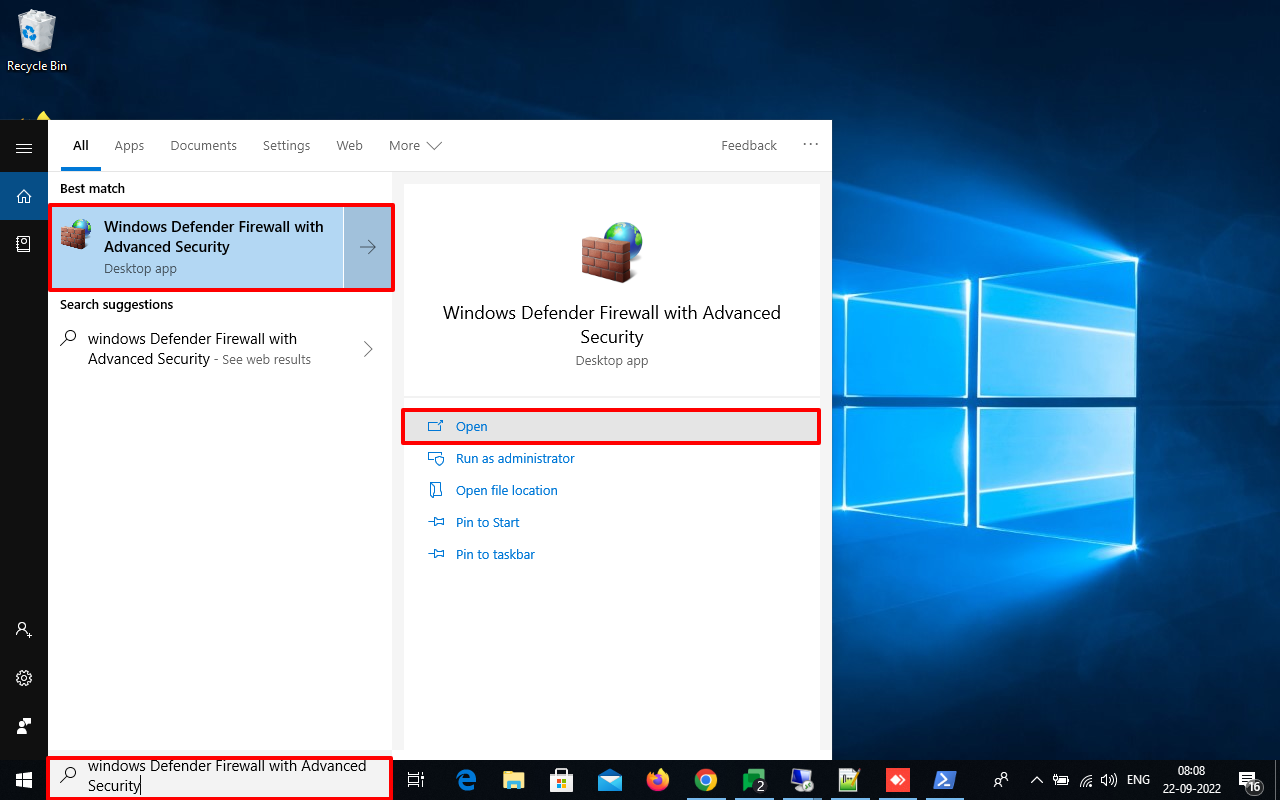
Step 5: In the Windows Defender Firewall with Advanced Security window, click on the Inbound Rules.

Step 6: You can see the newly added firewall rule in the Inbound Rules section.

Step 7: To verify the port number you have blocked in the Firewall through PowerShell, you need to right-click on the firewall rule and select the Properties option.

Step 8: Select the Protocols and Ports tab in the Properties window. Go to the Local Port. Here, you can see the port number you have blocked for a specific IP address. In addition, you can see that the Port number is visible, which we have mentioned in the PowerShell cmdlet.

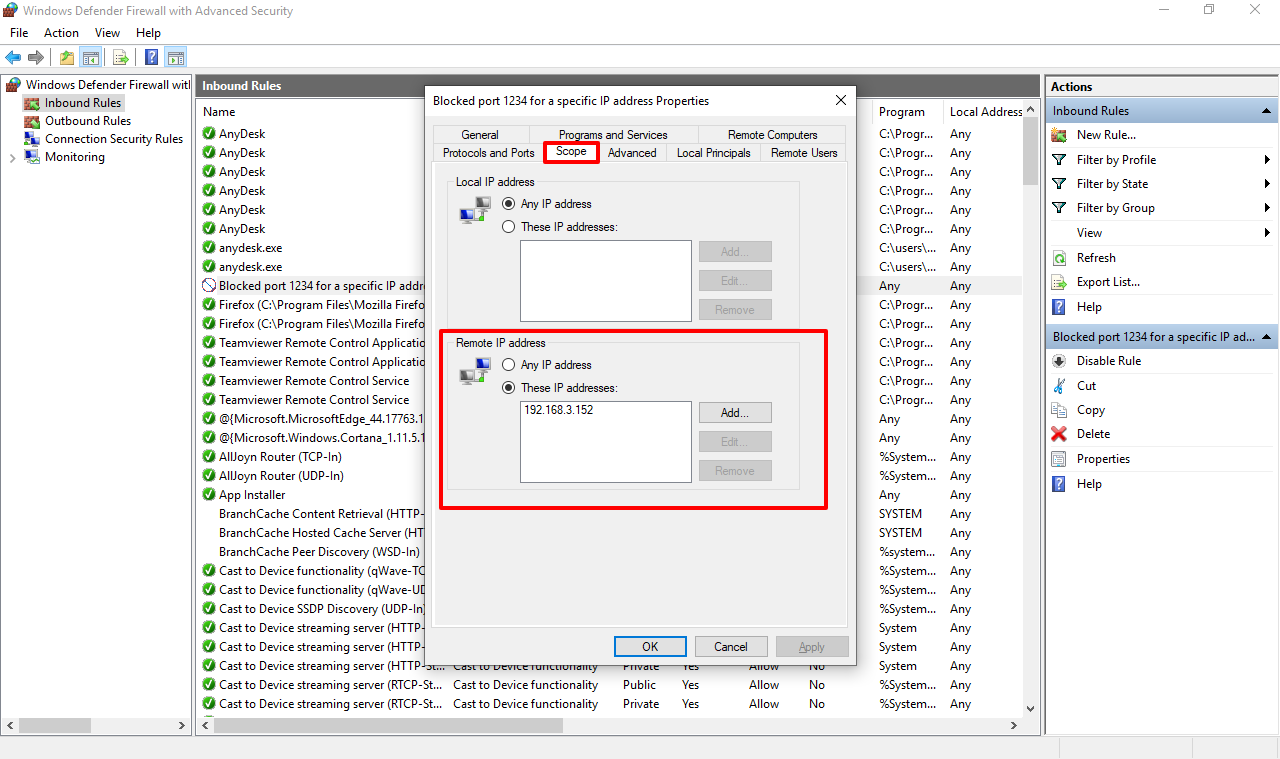
Step 9: Click on the Scope tab to verify the IP address. Go to the Remote IP address section. Here, you can see the IP address for which you want to block the port number.
You can see that the IP address is visible, which we mentioned in PowerShell.
That's all.


