
Find exec induces the find command to run the specified task once for each matching file. The name of the file will be placed where you put the placeholder {}. It is mainly used in combination with other commands to perform specific tasks.
For example: find exec grep can output a file with specific content.
Below are examples of the find exec.
find exec grep
find exec rm
find exec pipe
1) Find exec multiple commands syntaxes
There are two syntaxes for find exec.
# find /path [args] -exec [cmd] {} \;
-> {} - It is a placeholder for the result found by find
-> \; Tells that for each result found, the command cmd is run once on the found result.
-> It is executed like this: cmd result1; cmd result2; …; cmd result N
# find /path [args] -exec [cmd] {} \+
-> {} - it is a placeholder for the result found by find.
-> \+ Tells that for all results found, the command cmd is executed with all the found results.
-> It is executed like this: cmd result1 result2 … result N
When you should use find exec \; other than \+
-> Tools run by -exec do not accept multiple files as arguments
-> Running the tool on too many files simultaneously can consume a lot of memory
-> If you want to start getting some results as soon as possible, even though it will take more time to get all the results.
2) Find exec with du – Collect file size
This find exec example finds all files under /tmp and gets the size of each file.
# find /tmp/ -type f -exec du -sh {} \;
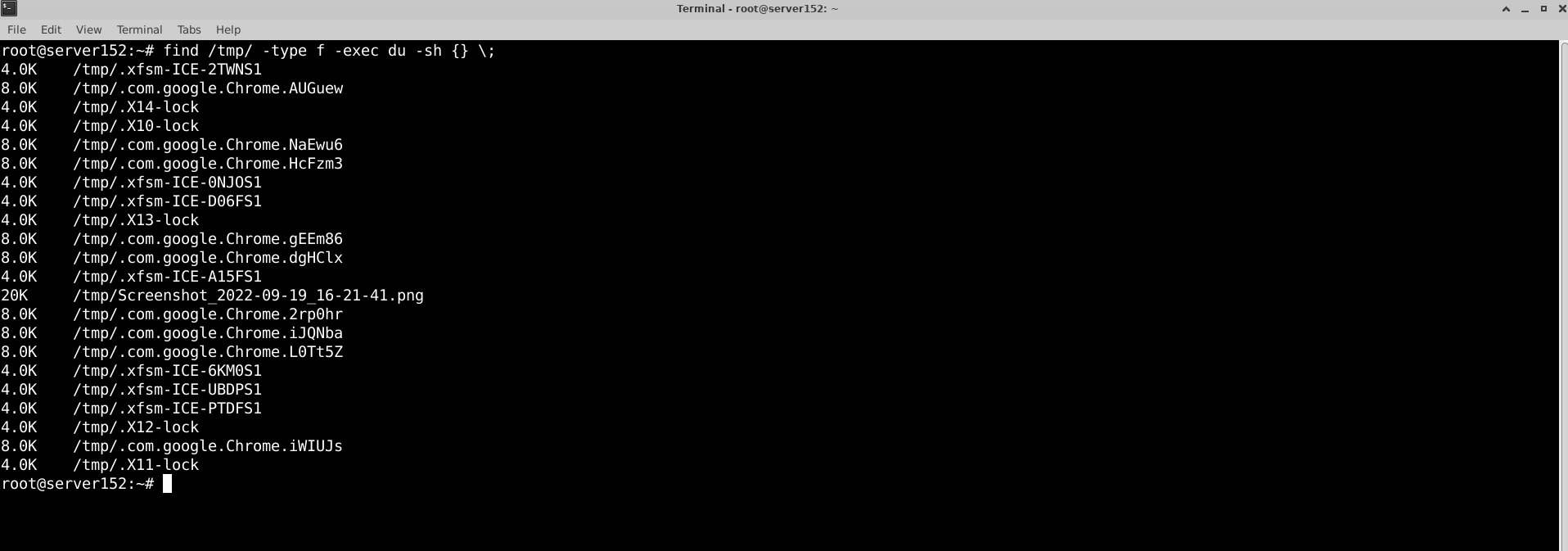
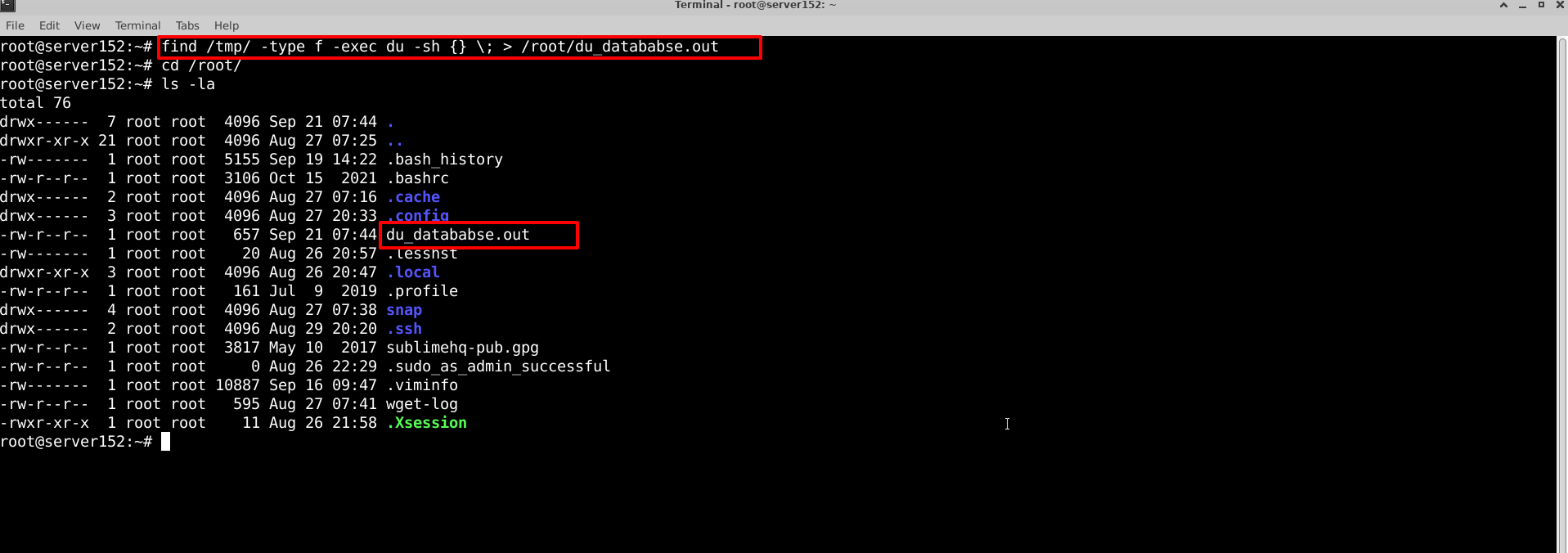
Here -type f means search regular files. You can use the find exec example below to save the output to a file.
# find /tmp/ -type f -exec du -sh {} \; > /root/du_datababse.out
3) Find exec with rm – Remove files older than a particular time
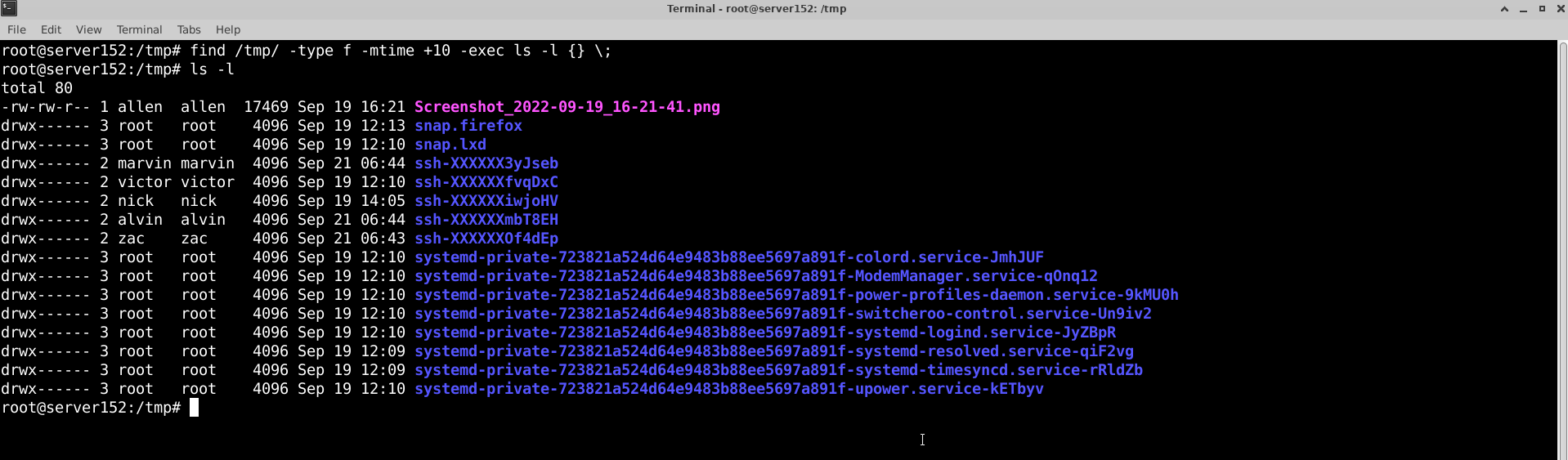
The find exec example below lists files older than 10 days.
List files older than 10 days in the /tmp directory.
# find /tmp/ -type f -mtime +10 -exec ls -l {} \;
To remove files older than 10 days, run the following command in the terminal.
# find /tmp/ -type f -mtime +10 -exec rm -rf {} \;
Where -mtime means the file's data was last modified n * 24 hours ago.

4) Find exec with mv – Rename files
The Mv command is used to rename files. You can use this with find and exec to rename multiple files. This command uses find exec to rename the file where the found file is stored in { } and renames the file with the _renamed extension.
# find /tmp/ -type f -name ‘Accuwebhosting*’ -exec mv {} {}_renamed \;

5) Find exec with chown
You can combine find exec and multiple commands on one line. The search will continue to run over time. So each subsequent -exec command will only be executed if the previous command returned true.
# find /tmp/ -type f -exec chown root:root {} \; -exec chmod o+x {} \;

6) Find exec with grep in Linux
If you want to find files with specific content, you can combine find exec with grep.
For example, below, we want a list of files that contain the string "Accuwebhosting". But find exec grep print filename didn't work here as I only got one matching string.
# find /tmp/ -type f -exec grep -i Accuwebhosting {} \;

7) Find exec with grep and print filename
With the above command, you will get a list of files containing the string Accuwebhosting. However, the file name is not printed.
Here you can find exec grep print filename using different methods. The following example combines find exec and print filename.
# find /tmp/ -type f -exec grep -i Accuwebhosting {} \+

Alternatively, you can combine the file name exec grep print using the command:
# find /tmp/ -type f -exec grep -i “Accuwebhosting” {} \; -exec echo {} \;
# find /tmp/ -type f -exec grep -i “Accuwebhosting” {} \; -print
8) Find exec with a shell script function
You can combine find exec with shell script functions.
# find ./tmp/ -type f -exec bash -c ‘ls -lrt {}’ \;

9) Find exec with pipe
You can combine find exec with pipes. The following example combines find exec and pipe several times.
# find /tmp/dir1/ -type f -exec sh -c ‘egrep -i a “$1” | grep -i change_isp’ sh {} \;

This example is a little more complicated. This is part of shell programming. See the example below.
sh -c ‘echo “You gave me $1, thanks!”‘ sh “apples”
You gave me apples, thanks!
That example works like this.
egrep -i a filename |grep -i change_isp
10) Grep and find exec with sed
You can combine find exec with sed or awk. The following example combines grep and find exec with sed.
# find /tmp/dir1/ -type f -exec grep Accuwebhosting {} \; -exec echo {} \; | sed ‘s/Accuwebhosting/deep/g’

That's all.
