
Identifying large files that consume valuable disk space is a common challenge for system users, whether seasoned Linux professionals or beginners. Effectively managing disk space is a crucial skill for everyone. This article explores various methods to locate large files in your Linux system, aiding in recovering valuable disk space.
Refer to this article to determine what occupies more space on Linux.
Discover the Largest Files and Directories in Linux.
Execute the following command to identify the top-largest directories within the /home partition.
# du -a /home | sort -n -r | head -n 5

The command above displays the largest five directories in my /home partition.
Finding the Largest Directories in Linux
To display the largest directories in the current working directory, execute the following command:
du -a | sort -n -r | head -n 5

Let's analyze the command and understand the function of each parameter.
du command: Estimates file space usage.
-a: Displays all files and folders.
sort command: Arranges lines of text files.
-n: Compares based on numeric values.
-r: Reverses the result of comparisons.
head: Outputs the initial portion of files.
-n: Prints the first 'n' lines (in this case, we displayed the first five lines).
For those who prefer a human-readable format for the above result, i.e., displaying the largest files in KB, MB, or GB.
# du -hs * | sort -rh | head -5

The command above will display the leading directories that occupy substantial disk space. If you find certain directories unnecessary, you can delete specific sub-directories or remove the entire folder to free up storage space.
To display the largest folders/files, including the sub-directories, execute:
# du -Sh | sort -rh | head -5

Let's break down the meaning of each option used in the above command:
du command: Estimates file space usage.
-h: Prints sizes in a human-readable format (e.g., 10MB).
-S: Excludes the size of subdirectories.
-s: Displays only a total for each argument.
sort command: Sorts lines of text files.
-r: Reverses the result of comparisons.
-h: Compares human-readable numbers (e.g., 2K, 1G).
head: Shows the beginning section of the files.
Find the largest files using the find.
Here's an example command using the "find" command to locate the largest files on a Linux system:
find $HOME -type f -printf '%s %p\n' | sort -nr | head -10
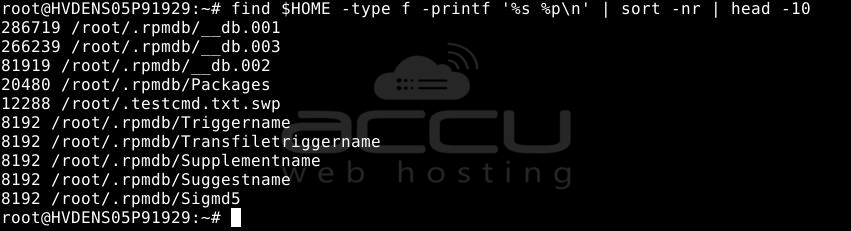
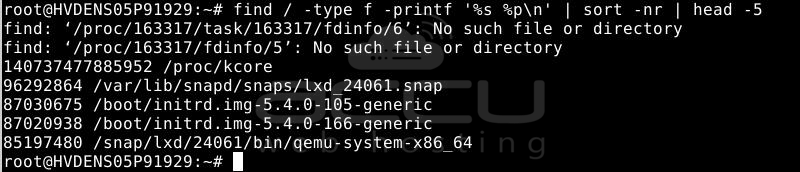
Please note that you can either use "/" to search the entire system or replace "$HOME" with the directory you have selected.
find / -type f -printf '%s %p\n' | sort -nr | head -5
Finding Large Files with ls Command
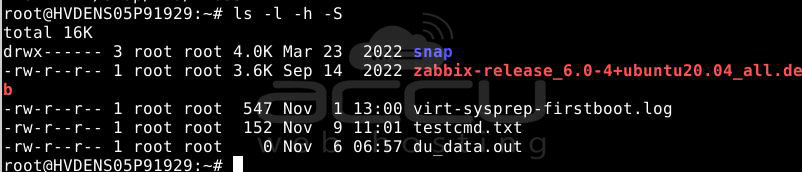
The ls command is a fundamental yet potent tool, primarily employed to list a directory's contents alphabetically. However, incorporating specific flags transforms into a means to display all sizable files within a directory. Execute the following syntax:
ls <path_to_directory> -l -h -S
In the given syntax:
<path_to_directory> indicates the directory path where you want to identify large files in your Linux file system. If omitted, ls will search within the current directory.
The -l flag reveals comprehensive details for each entry.
-h presents sizes in kilobytes, megabytes, etc.
-S arranges the output in reverse descending order.
For example, if you want to find large files in the current directory on your Linux system, use this command:
ls -l -h -S
To find files larger than 1GB, follow this article.
Conclusion
In conclusion, using commands such as "du," "find," and "ls" in the Linux command line enhances system management by efficiently locating and analyzing large files and directories.
This allows for better decision-making in data organization and resource management, leveraging the flexibility of the Linux command line for improved performance and allocation.
These techniques provide insights into storage patterns and empower users to maintain a tidy and efficient environment proactively.
With command line expertise, managing large files and directories in Linux becomes seamless.


