The ps command stands for process status. It is used to get information about the currently running processes and their PIDs and other information depending on different options such as TTY, TIME, and CMD.
The syntax of the ps command:
ps [options]
Below is the list of the option.
a: List all ruining processes for all users.
-A, -e: List all processes on the system.
-a: List all processes except session leaders (instances where the process ID is the same as the session ID) and processes not associated with a terminal.
-d: List all processes except session leaders.
--deselect, -N: List all processes except those that fulfill a user-defined condition.
f: Displays process hierarchy as ASCII art.
-j: Displays output in the format of the job.
T: List all processes associated with this terminal.
r: Only list running processes.
u: Expand the output to include additional information, for example, CPU and memory usage.
-u: Define a user whose processes you want to list.
x: Include processes without a TTY.
If you run the command ps without any option, you will get the result mentioned in the image below.

The default result includes the following class.
PID - Process identification number.
TTY - The type of terminal on which the process is running.
TIME - The total amount of CPU usage
CMD - The name of the command that started the process.
If you want more details output, you can use options a, u, and x.
ps -aux

Below are the details of the categories.
USER: The name of the user running the process.
%CPU: The CPU usage percentage.
%MEM: The memory usage percentage.
VSZ: Total virtual memory used by the process, in kilobytes.
RSS: Resident set size, the portion of RAM occupied by the process.
STAT: The current process state.
Start The time the process was started.
If you want to filter the list of processes by a user, you need to use options -U, -u, and u in the ps command.
Below is the syntax of it.
ps -U [real user id or name] -u [effective user ID or name] u
Example:
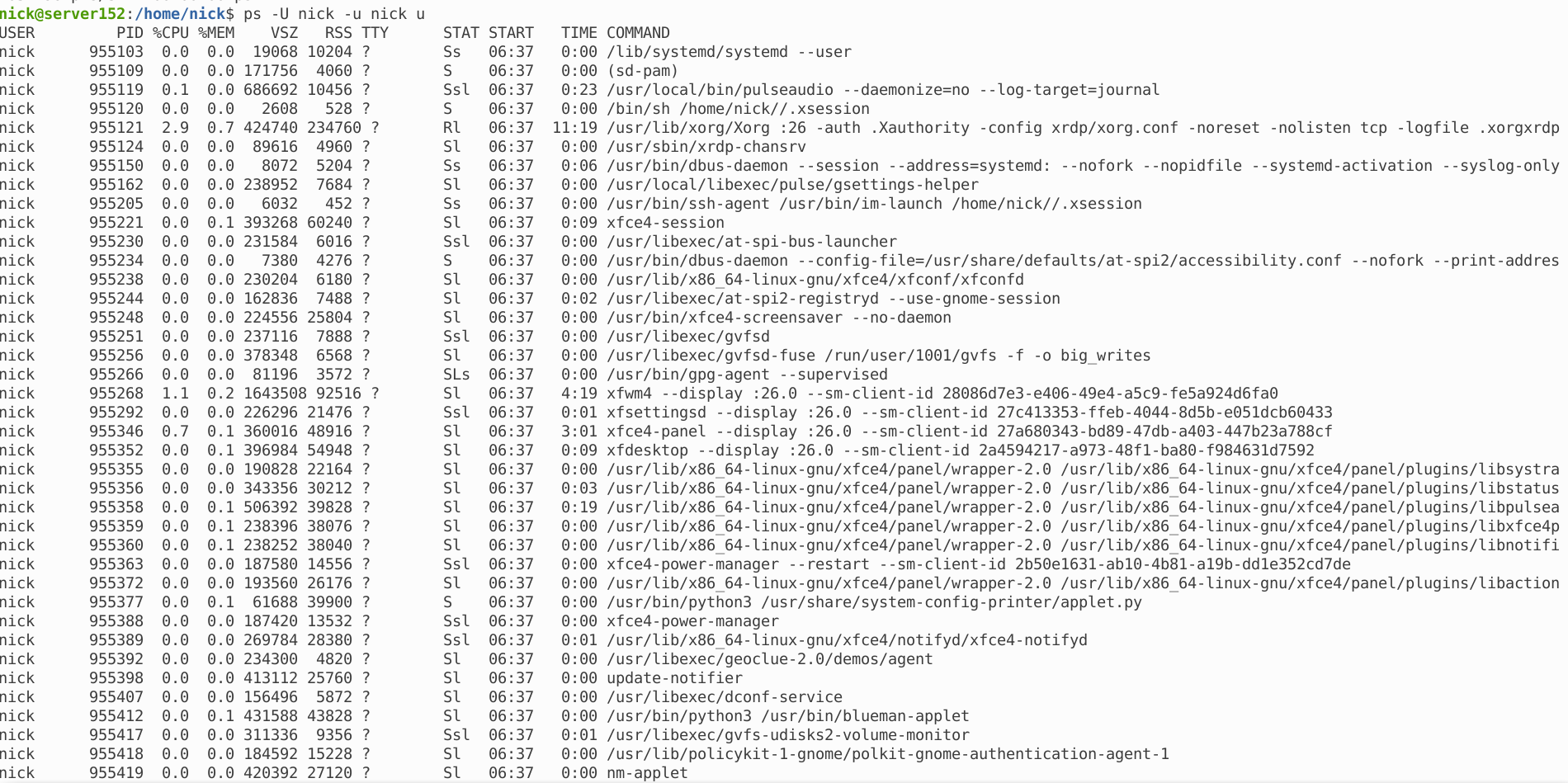
Here, we will see a list of processes the user called nick started.
ps -U nick -u nick u
How to show a list of the running processes in Linux with top command
Top:
The top command stands for a table of processes. It shows a real-time view of the running processes in the order of decreasing CPU usage. It means that the process which uses the high resources will be listed at the top of the list.
The output of the top command updates in real time, in the interval of the three seconds default refresh.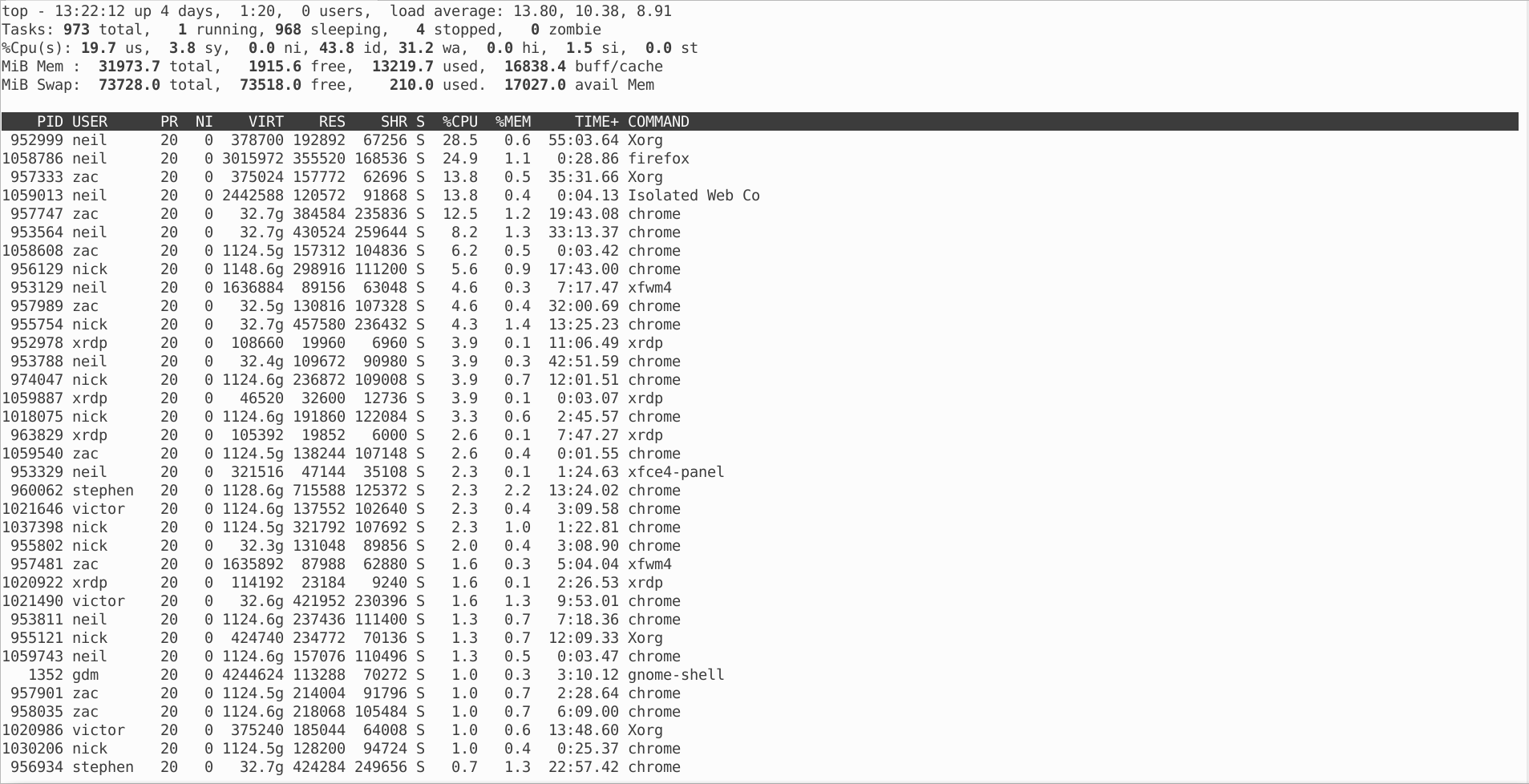
The top command output contains the following categories:
PID: Process identification number.
USER: The name of the user running the process.
PR: The scheduling priority for the process.
NI: The excellent value of the process, with negative numbers indicating higher priority.
VIRT: The virtual memory amount used by the process.
RES: The resident's (physical) memory amount used by the process.
SHR: The total shared memory used by the process.
S: The status of the process - R (running) or S (sleeping).
%CPU: The percentage of CPU usage.
%MEM: The memory usage percentage.
TIME+: Total CPU usage amount.
Command: The name of the command that started the process.
While the top command is running, use the following options to change the output format:
c: Display the absolute process path.
d: Change the output refresh rate to a user-defined value (in seconds).
h: Display the help window.
k: Kill a process by providing the PID.
M: Sort the list by memory usage.
N: Sort the list by PID.
r: Change a process's excellent value (priority) by providing the PID.
z: Change the output color to highlight running processes.
q: Quit the command interface.
How to list the running processes in Linux with htop command
Htop
Htop is an improved version of the top command. It provides the same output as the top command but is user-friendly and easy to understand. In addition, it displays system metrics in a more organized manner and various color schemes.
Generally, It comes pre-installed in most Linux distributions. However, if you find it is not installed in your Linux system, you can install it using the following command.
# apt-get install htop (Ubuntu)
# yum -y install htop (Centos)
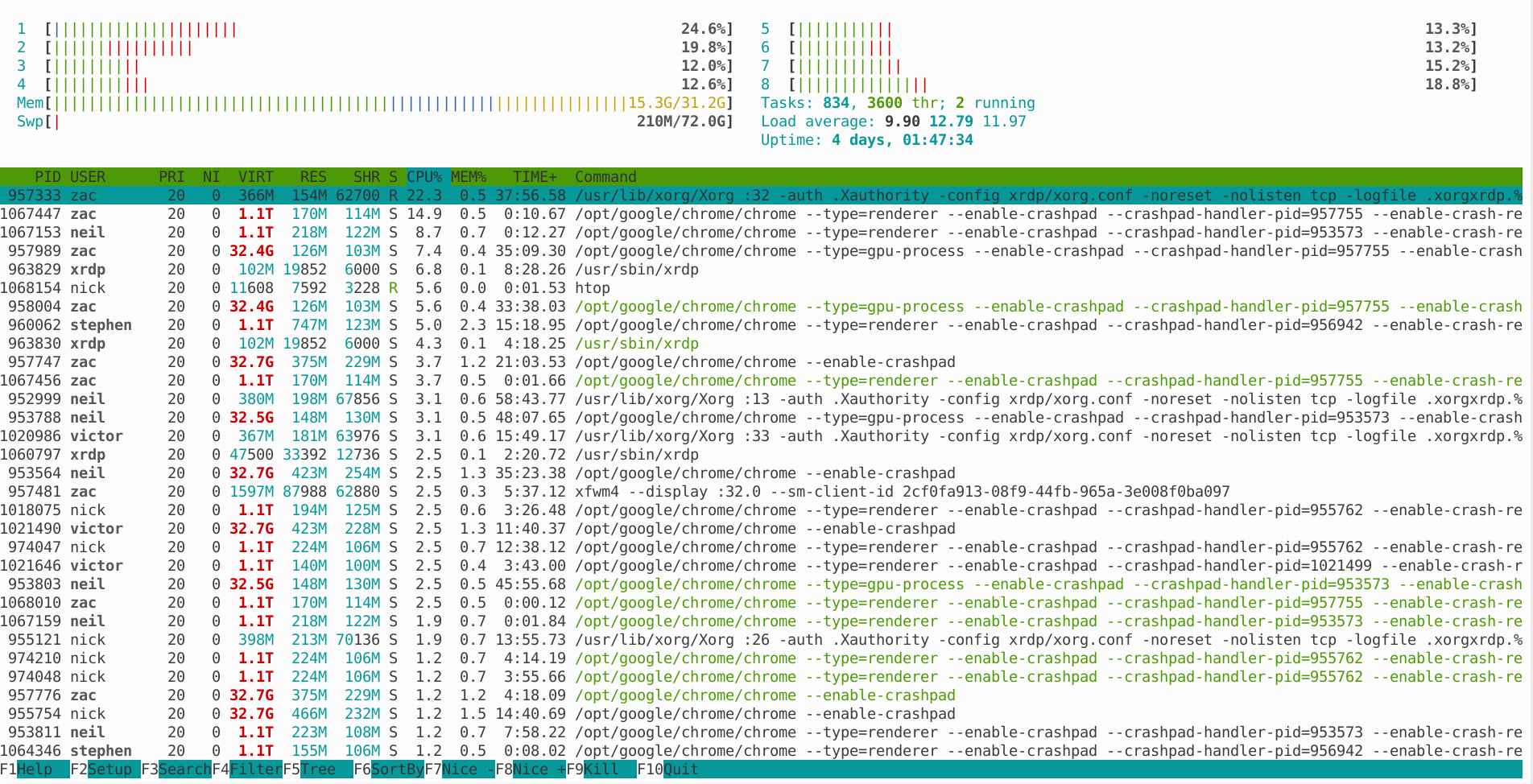
Use the following keys to interact with the htop command:
Directional keys: Scroll the process list vertically and horizontally.
F1: Open the help window.
F2: Open the htop command setup.
F3: Search for a process by typing the name.
F4: Filter the process list by name.
F5: Switch between showing the process hierarchy as a sorted list or a tree.
F6: Sort processes by columns.
F7: Decrease the nice value (increase priority) of a process.
F8: Increase the nice value (decrease priority) of a process.
F9: Kill the selected process.
F10: Exit the command interface.
Filter the list of running processes by a user
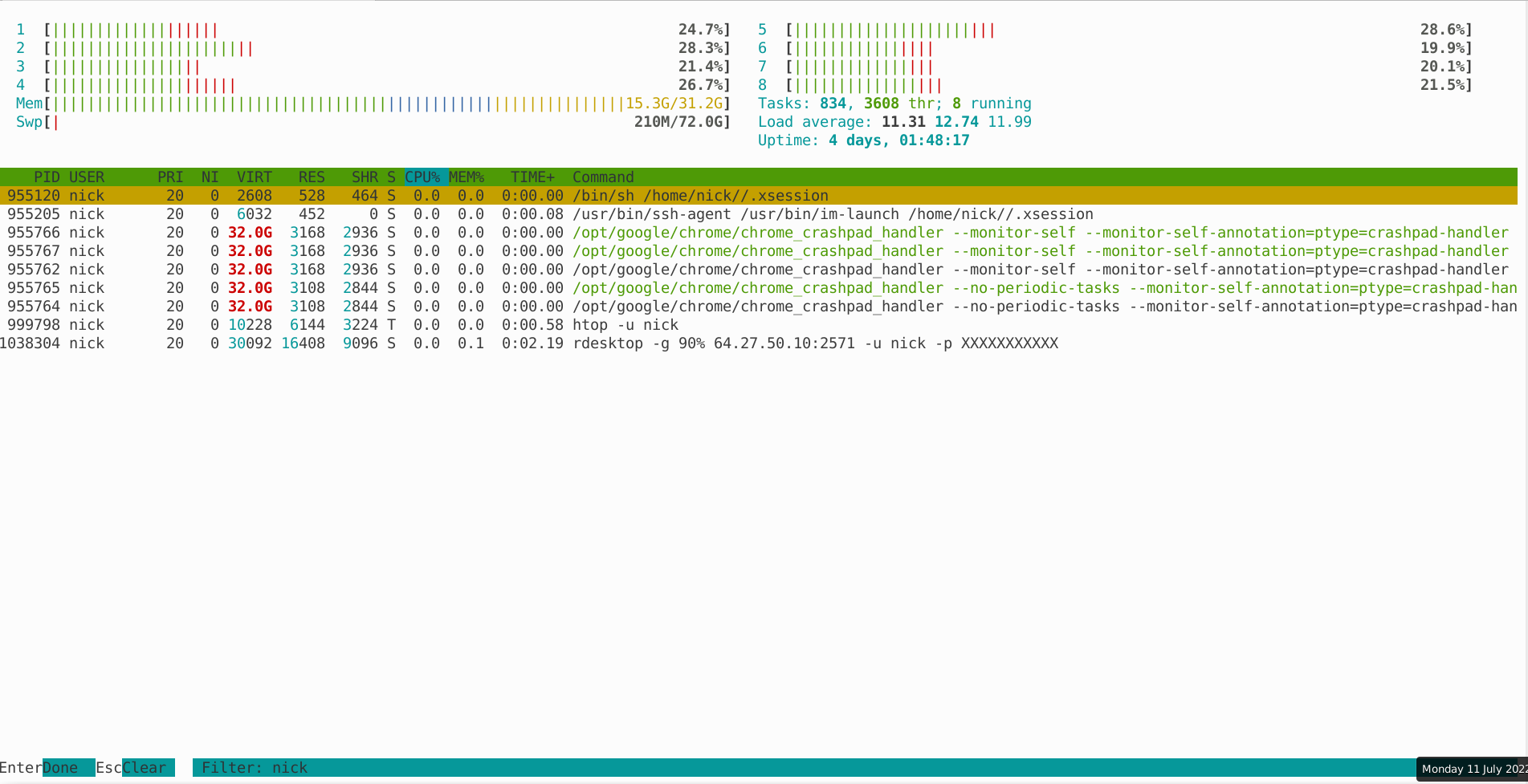
You need to press F4 on the running screen of htop command and type the user of which running process you want to see.
Example:
Here, we will see a list of processes started by the user called nick.