
Introduction:
The 'ls' command is "to list files."
ls command lists the files on the current working directory.
You can see the hidden files, too, with the help of the -a attribute via the ls command.
With the help of the ls command, you can also see lists of sub folders/directories of the current working directory.
Syntax:
ls [option] [file/directory]
The 'ls' command showcases the contents of the current directory. By default, it arranges files and directories in alphabetical order.
Numerous options are available for the 'ls' command, yet our focus will be on the most commonly used and frequently combined ones.
The table below provides an overview of the possible options & functions in the 'ls' command:
|
Option |
Description |
|
-l |
Referred to as an extensive format, it displays detailed information about files and directories. |
|
-a |
Make sure the listing includes all files, including hidden files and directories. |
|
-t |
Display the most recently modified files and directories by sorting them based on their last modification time. |
|
-r |
Known as reverse order, this feature reverses the default listing sequence. |
|
-S |
List files and directories in descending order based on their sizes, with the largest ones appearing first. |
|
-R |
Display a comprehensive listing of files and directories, recursively including subdirectories. |
|
-i |
refer to it as an inode, displaying the index number (inode) for every file and directory. |
|
-g |
referred to as "group," presenting the group ownership of files and directories rather than the individual owner. |
|
-h |
displays sizes of the files in a human-readable format, such as 1K, 234M, and 2G. |
|
-d |
Display the directories themselves, not their contents. |
The following are some examples of the ls command:-
1. Here we are listing files/folders, under /usr/share/nginx/HTML directory.
CMD: #ls

2. Here, we are listing hidden files under /usr/share/nginx/HTML directory. (We have created a hidden file called .test.HTML for testing)
CMD: #ls -a

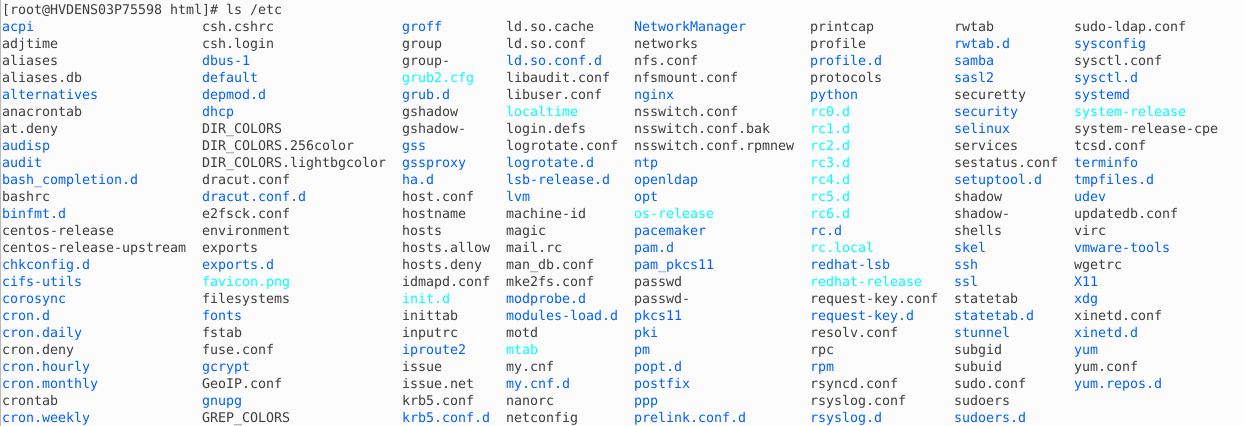
3. Here, we are listing the content of /etc directory, under /usr/share/nginx/HTML directory.
CMD: #ls /etc
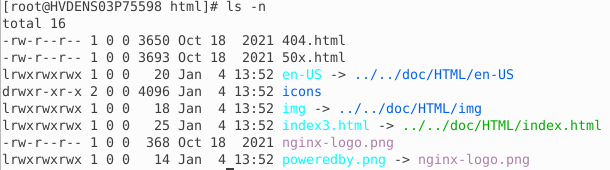
4. Here we are listing UID & GID of files, under /usr/share/nginx/html directory.
CMD: #ls -n
5. Here, we are displaying the sorting of files by their size under the/usr/share/nginx/HTML directory.
CMD: #ls -ls
 .
.
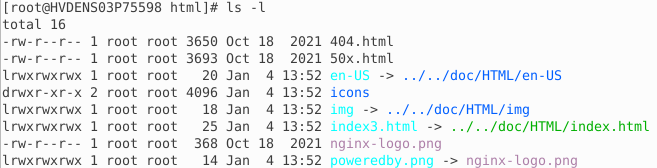
6. Here, we display files/folders, their size, modification date & time, ownership, and permissions.
CMD: #ls -l
Conclusion!
In summary, the ls command is an essential tool in Unix-like operating systems, providing users a simple and effective way to explore and navigate directory contents.
Through its versatile attributes, notably the widely used '-l' option, users can access a comprehensive and well-organized presentation of file and directory details, encompassing permissions, ownership, and other crucial information.
Whether conducting basic directory listings or engaging in more intricate file system explorations, the ls command remains a foundational utility, pivotal in promoting efficient file management.


